Mole Is the Free Mac Cleaner Worth Trying
Mole is an open source Mac maintenance tool for people who would rather clean, uninstall, inspect disk usage, and monitor system health from Terminal than juggle several separate apps.
In practical terms, it sits in the same space as CleanMyMac, AppCleaner, DaisyDisk, and iStat Menus. The difference is that Mole tries to cover those jobs in one command line tool.
That is what makes it interesting. Instead of treating Mac cleanup as one app, uninstallation as another, disk analysis as another, and system monitoring as another, Mole pulls them into one workflow.
What Mole Is
Mole is a Mac utility focused on cleanup, uninstalling apps, disk inspection, lightweight system maintenance, and live status monitoring. You install it, run it with the mo command, and either use the interactive interface or jump straight into individual commands.
The overall appeal is straightforward:
- clean caches, logs, browser leftovers, and app junk
- remove installed apps together with related leftovers
- inspect disk usage and spot large files
- run maintenance-oriented system cleanup tasks
- watch CPU, memory, disk, network, and process activity live
Unlike GUI-first Mac utilities, Mole is terminal-based. That makes it a better fit for users who prefer keyboard-driven tools, readable commands, and scriptable output over a polished desktop interface.
What Paid Apps Is Mole an Alternative To?
The cleanest way to think about Mole is as a free alternative in the same general category as:
- CleanMyMac for cleanup and optimization
- AppCleaner for app removal and leftover cleanup
- DaisyDisk for disk usage analysis and large-file discovery
- iStat Menus for live system monitoring
It is not a guaranteed one-to-one replacement for every feature in those apps, but it clearly aims at that stack. For a closer look at one of those paid alternatives, see 20 CleanMyMac X Hidden Features to Explore.
If you already use more than one utility for cleanup, uninstalling, and disk inspection, Mole makes sense immediately. Another app in this broader cleanup category is BuhoCleaner for Mac, though Mole takes a more terminal-first approach.
Which Platforms Does Mole Support?
- macOS: the main supported platform
- Windows: an experimental version exists in the repository’s
windowsbranch
There is no clear Linux support in its current positioning, so it makes more sense to treat Mole as a Mac-first tool.
How to Install Mole
Mole can be installed in two simple ways.
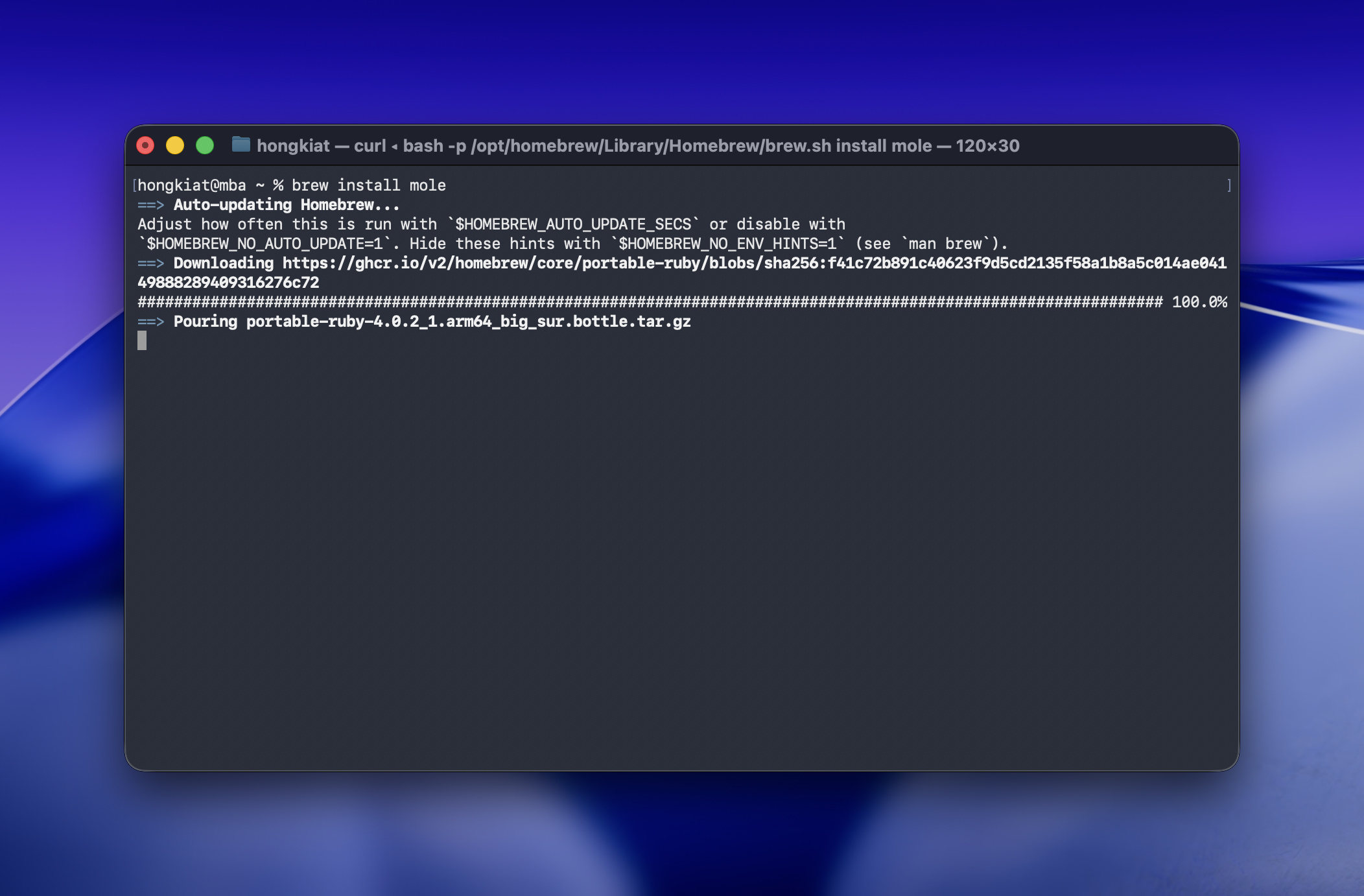
Install With Homebrew
brew install mole
This is the simplest route for most Mac users.
Install With the Project Script
curl -fsSL https://raw.githubusercontent.com/tw93/mole/main/install.sh | bash
If you want more control, the install script also supports selecting the latest main-branch build or a specific release version.
How to Start Using Mole
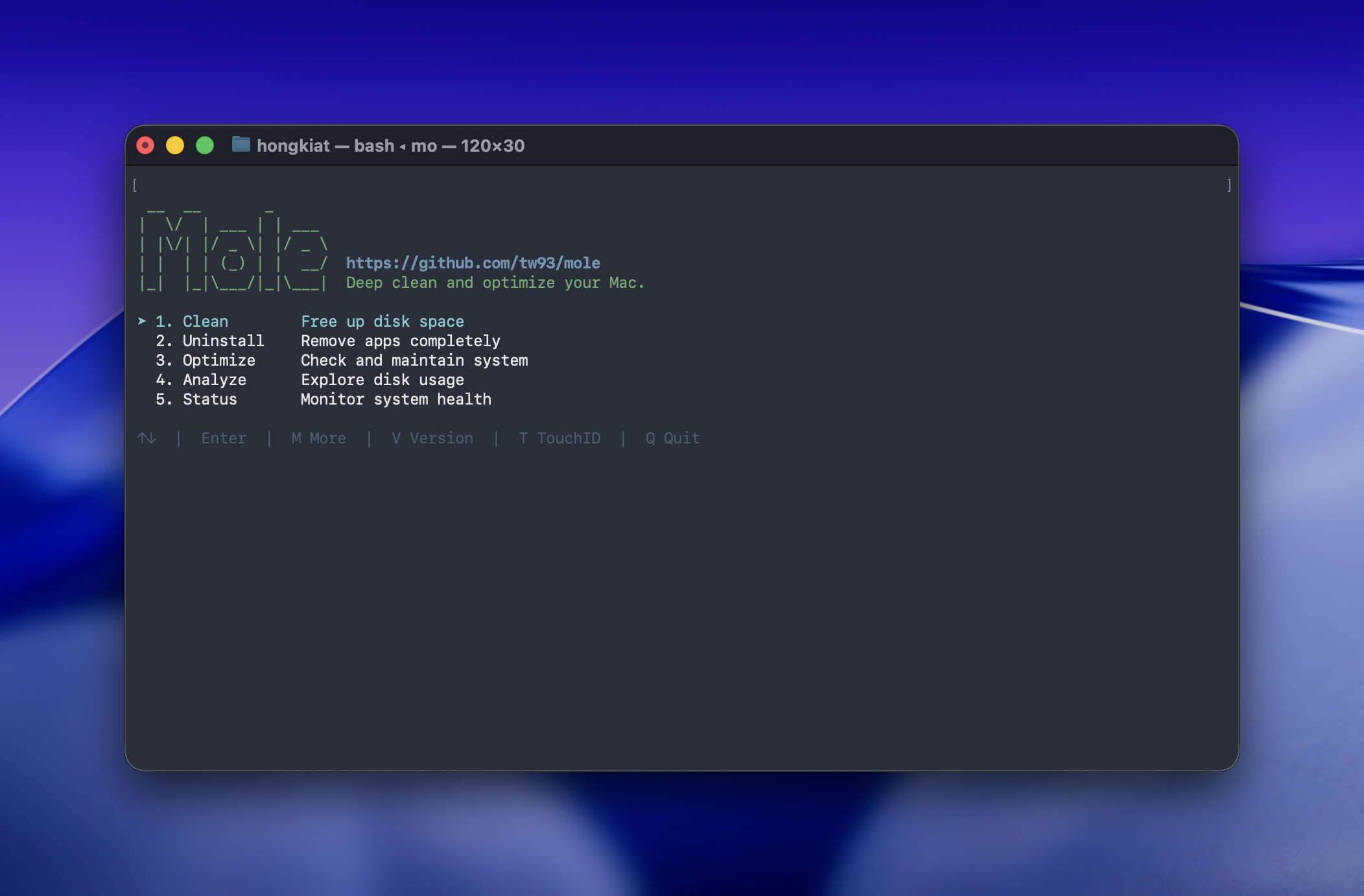
Once installed, run:
mo
That opens Mole’s interactive menu.
If you prefer to jump straight to specific functions, these are the main commands you will use most often:
mo clean
mo uninstall
mo optimize
mo analyze
mo status
mo purge
mo installer
It also provides:
mo touchid
mo completion
mo update
mo remove
mo --help
mo --version
Inside the interface, you can move around with arrow keys or Vim-style h/j/k/l controls.
What Does Mole Clean?
Mole covers several useful cleanup categories instead of limiting itself to just browser cache or temp files.
1. Caches and Temporary Files
The mo clean command is the general deep-clean option. It targets categories such as:
- user app cache
- browser cache from Chrome, Safari, and Firefox
- developer tool cache from Xcode, Node.js, and npm
- system logs and temp files
- app-specific cache from apps like Spotify, Dropbox, and Slack
- Trash
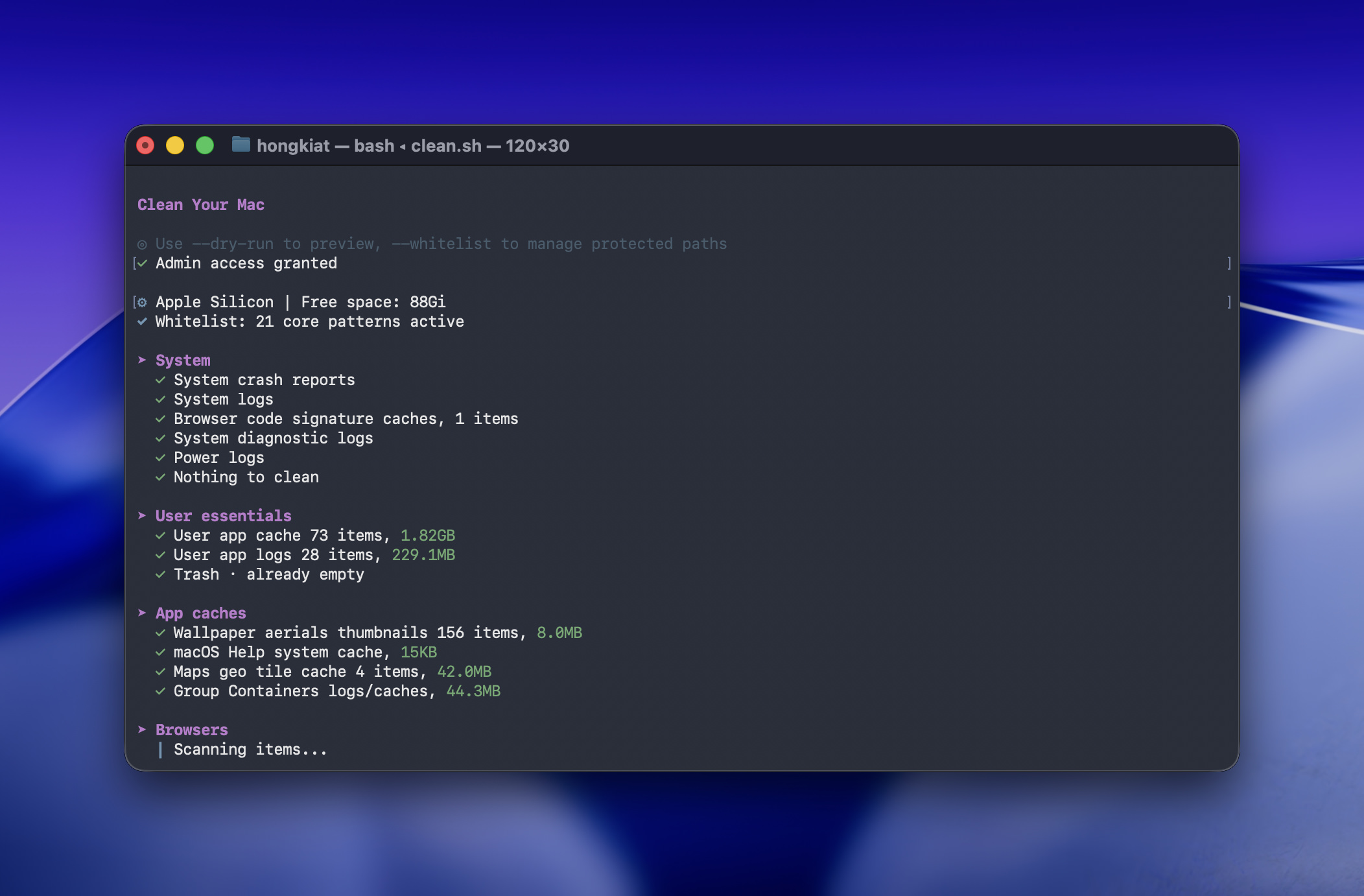
Here is a more realistic example of what a mo clean report can look like, with a few machine-specific details generalized for privacy:
Clean Your Mac
[note] Use --dry-run to preview, --whitelist to manage protected paths
[done] Admin access granted
[system] Apple Silicon | Free space: 88Gi
[done] Whitelist: core protection rules active
> System
[done] System crash reports
[done] System logs
[done] Browser code signature caches
[done] System diagnostic logs
[done] Power logs
[done] Nothing to clean
> User Essentials
[done] User app cache, about 1.8GB
[done] User app logs, about 229MB
[done] Trash already empty
> App Caches
[done] Wallpaper aerial thumbnails
[done] macOS Help system cache
[done] Maps geo tile cache
[done] Group Containers logs and caches
> Browsers
[done] Chrome GPU cache
[done] Chrome component cache
[done] Chrome shader cache
[done] Chrome service worker cache
[done] Updater cache and old files
[note] Browser in use, some old-version cleanup skipped
> Cloud and Office
[done] Nothing to clean
> Developer Tools
[done] npm cache
[done] npm npx cache
[done] npm logs
[done] pnpm cache
[done] pip cache
[note] Docker unused data skipped by default
-> Review: docker system df
-> Prune: docker system prune --filter until=720h
[note] Xcode unavailable simulators skipped when simctl is unavailable
[done] Homebrew lock files
[done] Homebrew cleanup
> Applications
[done] Messaging app cache
[done] Editor cache and code cache
[done] GPU and WebGPU caches
[done] Adobe app caches
[done] Shell history files
[done] Launcher URL and filesystem cache
> Virtualization
[done] Nothing to clean
> Application Support
[done] Application Support logs and caches
> App Leftovers
[done] Found active and installed apps
[done] Cleaned orphaned WebKit data
[done] Cleaned orphaned HTTP cache data
[done] Cleaned orphaned application support files
[done] Cleaned orphaned preference files
[done] Cleaned leftover items, about 2.1MB
[note] Found orphaned system services
[blocked] Some privileged helper tools were blocked by path validation
[done] Cleaned removable orphaned services, about 10.8MB
> Apple Silicon Updates
[done] Nothing to clean
> Device Backups and Firmware
[done] Nothing to clean
> Time Machine
[done] No incomplete backups found
[done] Nothing to clean
> Large Files
[done] No large items detected in common locations
> System Data Clues
[done] No common System Data clues detected
> Project Artifacts
[done] Nothing to clean
======================================================================
Cleanup complete
Space freed: 3.08GB | Items cleaned: 952 | Categories: 46
Free space now: 93Gi
======================================================================
That gives you a better sense of how detailed Mole can get when it scans a real Mac.
2. Leftovers From Apps You Already Removed
One distinction that matters here:
- Use
mo cleanwhen the app has already been uninstalled and you want to remove leftover files. - Use
mo uninstallwhen the app is still installed and you want Mole to remove both the app and its related files.
That split is useful because many Mac users end up with old support files, caches, preferences, or launch items long after an app is gone. If you have ever had to clean up stubborn leftovers by hand, this guide on completely uninstalling HMA VPN on your Mac shows why proper removal matters.
3. Build Artifacts in Developer Projects
Mole also includes a mo purge command for clearing project junk such as:
node_modulestarget.buildbuilddistvenv
This is clearly aimed at developers who accumulate large dependency and build folders across multiple projects.
Recent projects are marked and left unselected by default, which is a sensible safety choice.
4. Old Installer Files
The mo installer command scans for installer packages across locations such as:
- Downloads
- Desktop
- Homebrew caches
- iCloud
That makes it useful for cleaning up .dmg, .pkg, and other installer files people often forget to remove.
How to Use Some of Mole’s Most Useful Commands
Here are the commands that matter most for everyday use.
1. mo clean: Deep Cleanup
Use this when you want to remove common junk and recover disk space.
mo clean
If you want to preview what Mole would do first, use:
mo clean --dry-run
If you want the preview plus more detailed logs:
mo clean --dry-run --debug
This is the safest way to start because Mole’s cleanup commands can be destructive.
The mo clean process may take a while, especially on Macs with lots of caches, logs, browser data, and developer files to scan.
2. mo uninstall: Remove an App and Its Leftovers
Use this when the app is still installed and you want a cleaner uninstall than dragging it to Trash.
mo uninstall
When Mole removes an app, it can also clean related files across areas like:
- Application Support
- Caches
- Preferences
- Logs
- WebKit storage
- Cookies
- Extensions
- Plugins
- Launch daemons
That is the AppCleaner-style part of Mole.
You can also preview first:
mo uninstall --dry-run
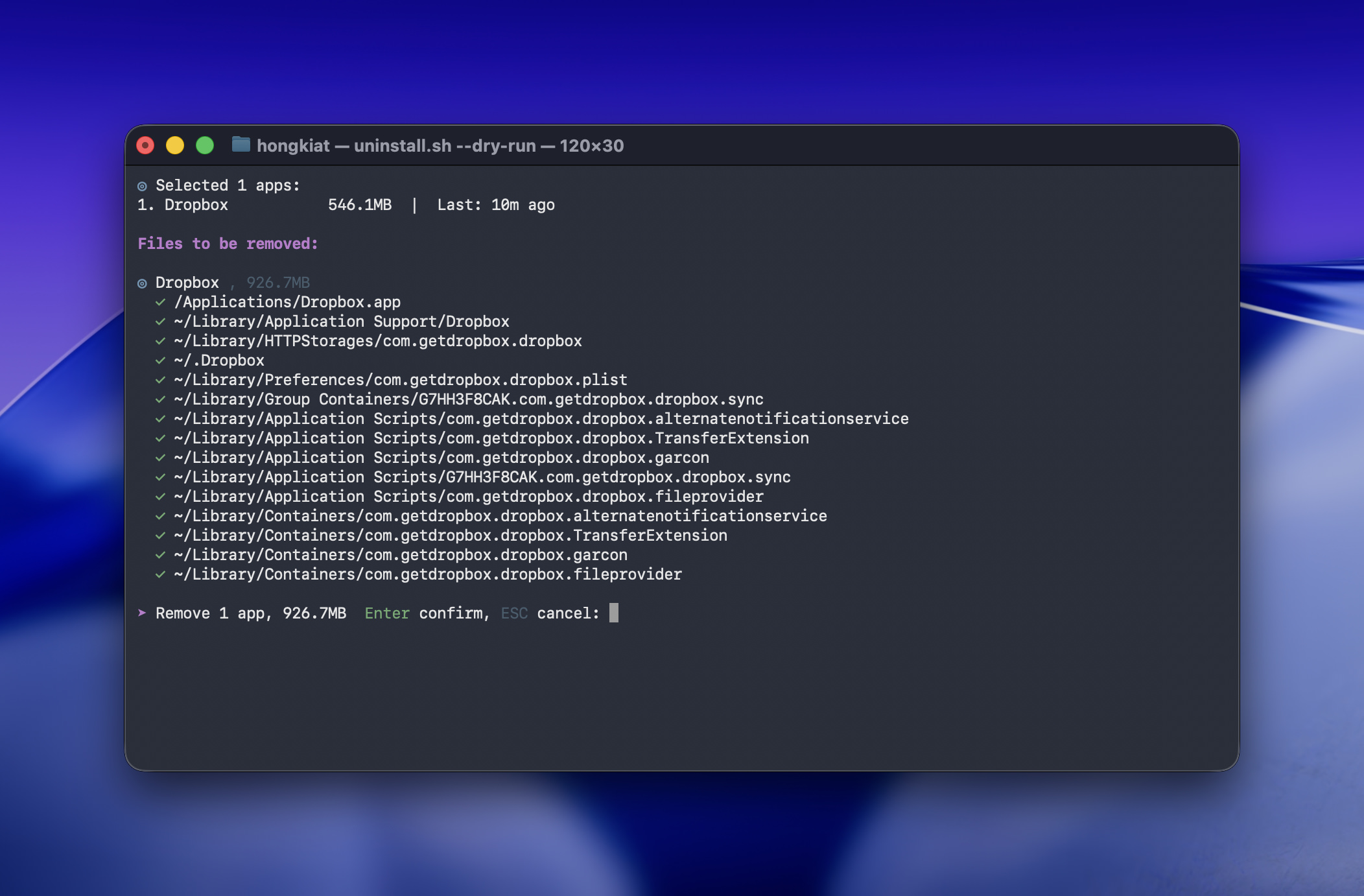
3. mo analyze: Find What Is Eating Your Disk
Use this when you are not ready to delete blindly and want a visual breakdown first.
mo analyze
mo analyze is the safer route for ad hoc cleanup because it moves files to Trash through Finder instead of deleting them directly.
You can also analyze another path, including external drives under /Volumes:
mo analyze /Volumes
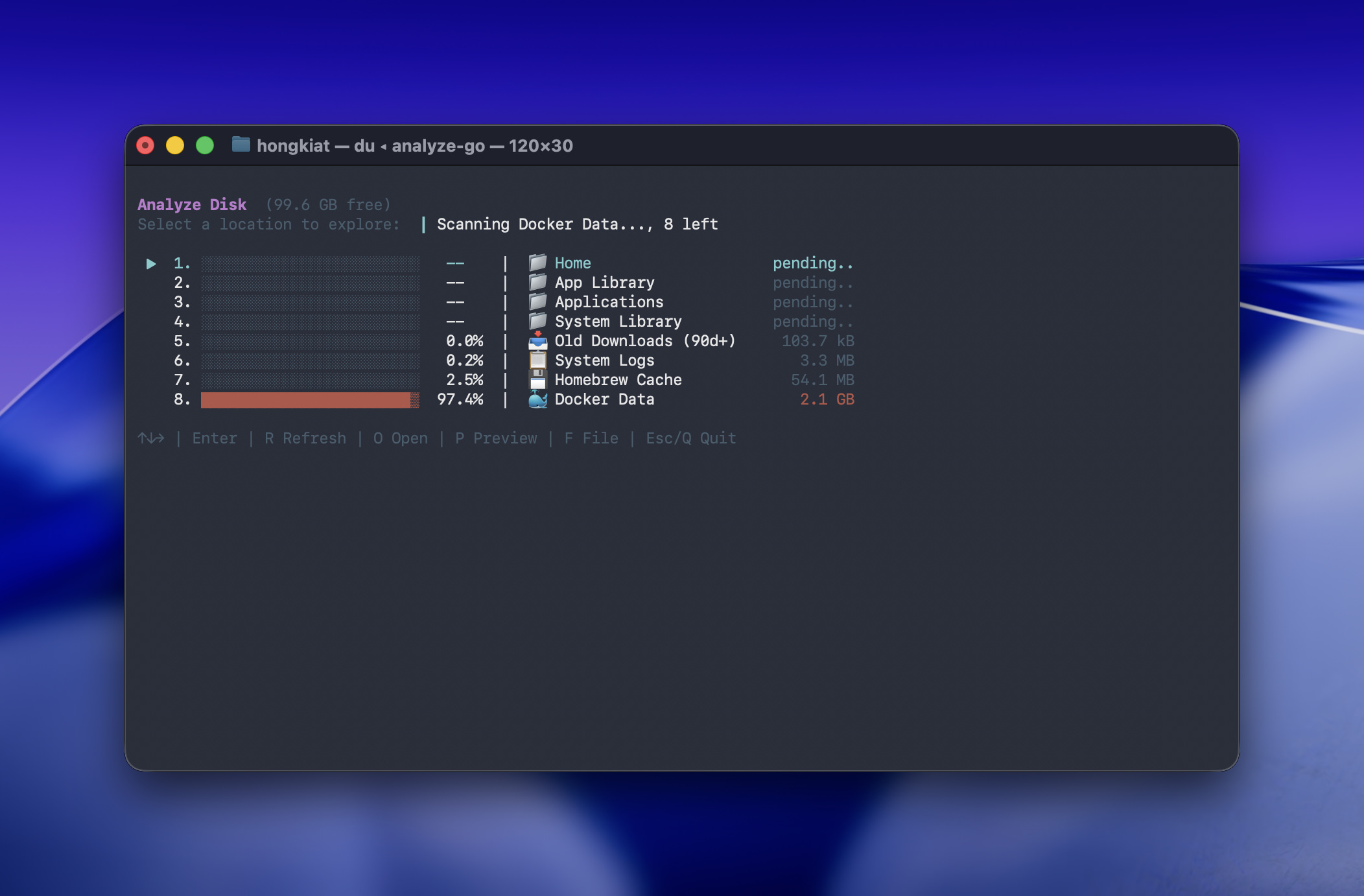
And if you want output for scripting:
mo analyze --json ~/Documents
This is the DaisyDisk-style side of Mole.
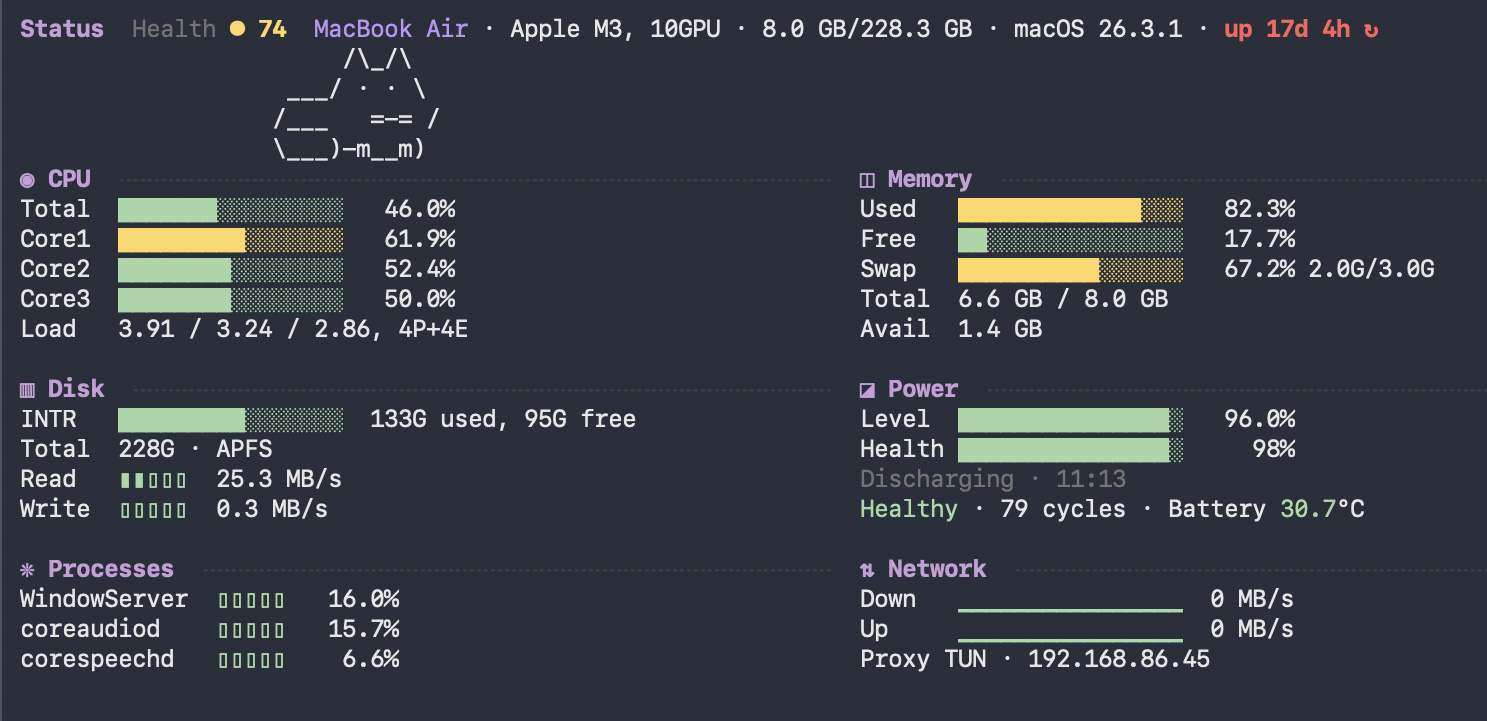
4. mo status: Watch System Health Live
Use this when you want a terminal dashboard for machine health.
mo status
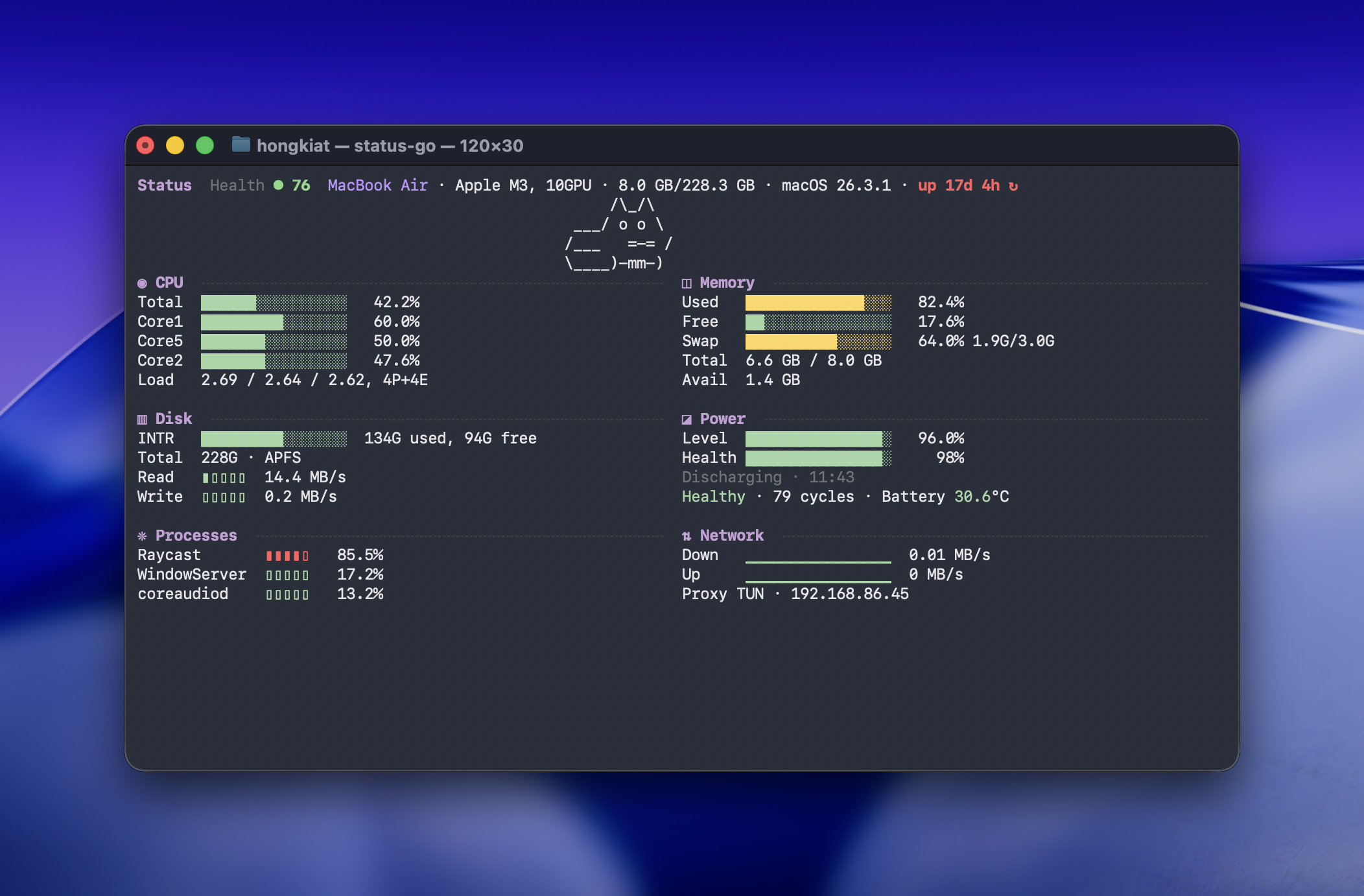
The live dashboard shows:
- CPU usage
- GPU usage
- memory usage
- disk usage and throughput
- network activity
- power and battery details
- active processes
- a health score
There is also JSON output support:
mo status --json
If the output is piped, Mole can also switch to JSON automatically.
This is the iStat Menus-style part of the tool.
mo optimize: Refresh System Services and Caches
Use this when your Mac feels messy or sluggish and you want Mole to run maintenance tasks.
mo optimize
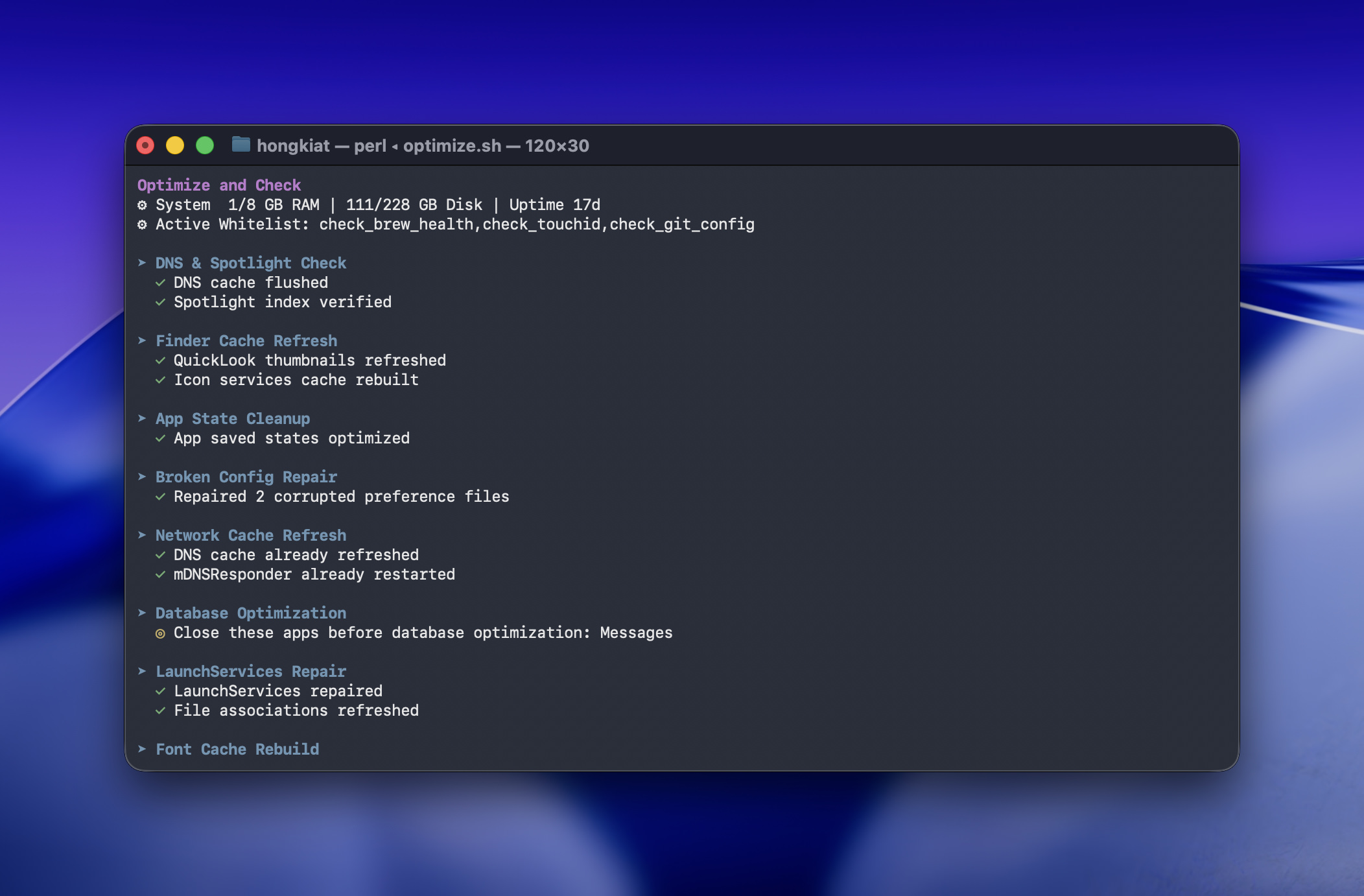
That maintenance pass includes tasks such as:
- rebuilding system databases and clearing caches
- resetting network services
- refreshing Finder and Dock
- cleaning diagnostic and crash logs
- removing swap files and restarting the dynamic pager
- rebuilding launch services and the Spotlight index
Mole also supports a whitelist manager for exclusions:
mo optimize --whitelist
mo purge: Remove Old Project Build Junk
If you are a developer, this can be one of Mole’s most practical commands.
mo purge
To preview first:
mo purge --dry-run
To configure which project folders Mole scans:
mo purge --paths
When custom paths are configured, Mole scans only those locations. Otherwise it uses defaults like ~/Projects, ~/GitHub, and ~/dev.
mo installer: Clean Up Forgotten Installers
mo installer
This command helps remove large installer files that keep sitting in Downloads or other common locations.
Safety Notes You Should Know Before Using Mole
Mole is not a toy. Commands like clean, uninstall, purge, installer, and remove can be destructive, so using --dry-run first is the right move.
It also takes a safety-first approach rather than a delete-everything approach. Some of the protections built into it include:
- path validation before deletion
- protected-directory rules
- conservative cleanup boundaries
- explicit confirmation for higher-risk actions
- operation logging to
~/Library/Logs/mole/operations.log - conservative symlink handling
It also protects certain sensitive areas and categories, including keychains, password managers, browser history and cookies, some VPN and proxy tools, some AI tool data, Time Machine data during active backup, and protected system paths.
That does not remove all risk, but it does show that Mole is designed to stay bounded rather than reckless.
Is Mole Worth Trying?
If you want a free and open source Mac maintenance tool, Mole looks unusually ambitious.
Its main appeal is not just cleaning caches. It is the fact that it combines four familiar utility categories into one:
- cleaner
- uninstaller
- disk analyzer
- live system monitor
If that sounds like exactly the stack you already use, Mole is worth a look.
The tradeoff is obvious too. Mole is terminal-based, so it is better suited to users who are comfortable reading commands, previews, and file categories before confirming destructive actions.
For cautious users, the best first step is simple:
- install it with Homebrew
- run
mo clean --dry-run - try
mo analyze - use
mo uninstallonly when you actually want app and remnant removal
That gives you a safe way to understand what Mole can do before you let it clean anything for real.