Open Generative AI Review: One Interface for Image, Video, and Lip Sync
Open Generative AI is trying to solve a real AI-tool problem: too many fragmented apps, too many tabs, and too much switching between image generators, video tools, and lip sync products that all do one slice of the job.
Its answer is a single open-source studio that pulls image generation, video generation, lip sync, and cinema-style prompt controls into one interface. It ships as a hosted web app, a desktop app, and self-hostable code, with access to more than 200 models across those workflows.
The catch is important. You can self-host the interface, but generation still runs through Muapi.ai, which means you still need a Muapi API key. This is not a fully local, fully offline generator.
If that tradeoff does not bother you, Open Generative AI is one of the more interesting all-in-one open-source AI media projects around right now.
What Is Open Generative AI?
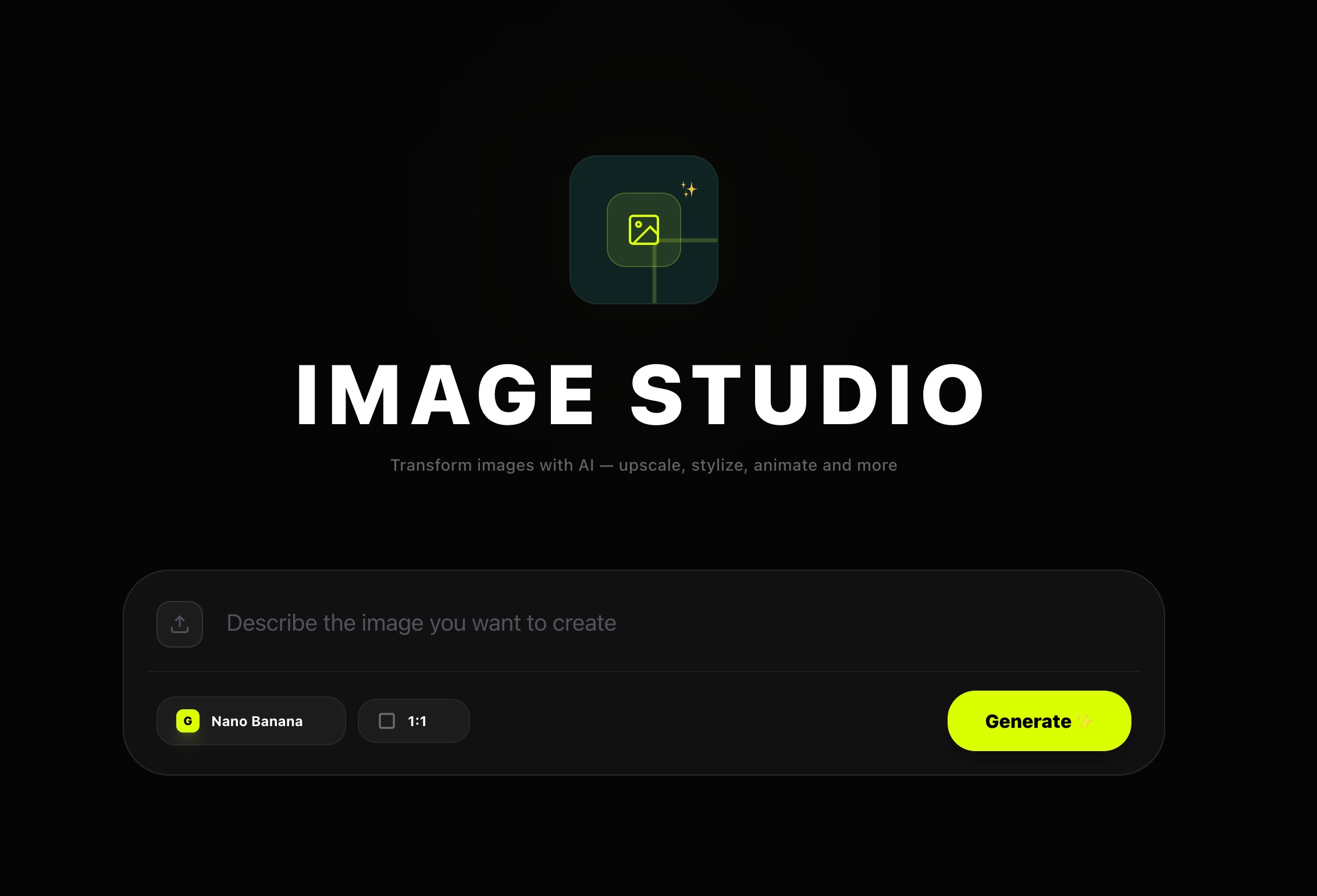
The app breaks into four studios: Image Studio, Video Studio, Lip Sync Studio, and Cinema Studio. Each one handles a different generation task, and the interface handles the mode switching for you. Upload a reference image and Image Studio flips from text-to-image into image-to-image automatically.
The model list is broad enough to make the app feel more like a testing ground than a single-purpose generator. Image models include Flux, Nano Banana 2, Seedream 5.0, Ideogram, GPT-4o, Midjourney, and SDXL variants. Video models include Kling, Sora, Veo, Wan, Seedance, Hailuo, and Runway. Lip sync has its own specialist stack as well.
Under the hood, the UI is a Next.js monorepo with a shared studio library, and the same model definitions power both the hosted version and the self-hosted build.
What You Can Do With It
1. Generate Images From Text
Image models available include Flux, Nano Banana 2, Seedream 5.0, Ideogram, GPT-4o, Midjourney, and SDXL variants. If you want to compare these against other free options, this comparison of free AI image generators is useful.
That makes it useful as an image sandbox for comparing model styles side by side without bouncing between separate sites.
2. Edit Images With One or Multiple References
Upload an image and the app switches into image-to-image mode. Compatible models can use one or many source images, which is useful for style transfer, composition guidance, visual consistency, and edit-heavy workflows.
The multi-image flow is genuinely well designed. The picker supports batch selection, ordering, and a confirmation step before submission. If you test image-edit models a lot, this part of the studio is worth using.
3. Generate Videos From Text or Still Images
Video Studio works the same way. No image, it runs text-to-video. Drop in a starting frame and it switches to image-to-video. Controls vary by model. Some let you set duration, aspect ratio, and quality, others keep it simpler.
The video model list is long: Kling, Sora, Veo, Wan, Seedance, Hailuo, Runway, and others. Different models expose different settings, and it takes a moment to learn which controls belong to which model. But the workspace itself is consistent across all of them.
4. Create Talking-Head or Lip-Synced Videos
Lip Sync Studio handles two scenarios: portrait image plus audio produces a talking video, and video plus audio produces a lip-synced result. Models here include Infinite Talk, Wan 2.2 Speech to Video, LTX Lipsync variants, LatentSync, and Veed.
For explainer videos, avatar content, or short demo narrations, this tab is one of the strongest reasons to use the app. It is a more complete lip sync implementation than most bundled tools offer.
5. Style Prompts With Cinema Controls
Cinema Studio adds a visual layer to prompt writing. Instead of relying only on text, you pick cameras, lenses, focal lengths, and aperture styles, and the interface translates those into prompt modifiers aimed at more cinematic outputs.
Users who think in shot language will get more out of this. It fits well with the rest of the studio.
What You Need Before Installing It
The easiest path requires no installation at all. The project offers:
- a hosted web version
- downloadable desktop apps for macOS and Windows
- source code if you want to run it yourself
If you want to run the code locally, you need Node.js 18+, npm, and a Muapi API key. The API key is non-negotiable since generation routes through Muapi even when you self-host the interface.
How to Install Open Generative AI
You have three ways in.
Option 1: Use the Hosted Version
The hosted version is at dev.muapi.ai/open-generative-ai. All four studios are available in your browser with no install needed. Start here if you want to kick the tyres first.
Option 2: Install the Desktop App
Prebuilt desktop installers are available for macOS Apple Silicon, macOS Intel, and Windows. Linux users need to build from source via Electron.
1. macOS
Because the app is not signed, Gatekeeper may block it when you first try to open it. This is normal for unsigned apps. To get around it: drag the app into your Applications folder, then open Terminal and run:
xattr -cr /Applications/Open\ Generative\ AI.app
Alternatively, double-click the app, go to System Settings, Privacy and Security, and click “Open Anyway” next to the app name. After that it will open normally.
2. Windows
Because the installer is not code-signed, Windows SmartScreen may warn you before installation. This is common for smaller open-source apps. Click “More info” at the bottom left of the warning, then click “Run anyway.” The app will install normally after that.
3. Linux
Linux does not have a ready-made installer. You build it from source using Electron, which produces either an AppImage file or a .deb package. On Ubuntu 24.04 and newer, AppImage may fail to launch due to Chromium sandbox restrictions. If that happens, use the .deb package instead.
Option 3: Self-Host It From Source
1. Prerequisites
- Node.js 18+
- npm
- a Muapi API key
2. Setup Steps
git clone https://github.com/Anil-matcha/Open-Generative-AI.git
cd Open-Generative-AI
npm install
npm run dev
Then open:
http://localhost:3000
On first launch, the app prompts you for your Muapi API key.
3. Production Build
To run a production build instead of a dev server:
npm run build
npm run start
How to Build the Desktop App Yourself
Electron build scripts are included for packaging. To build for macOS:
macOS Build
npm run electron:build
Windows Build
npm run electron:build:win
Linux Build
npm run electron:build:linux
Build Everything
npm run electron:build:all
Output goes into the release/ folder.
How to Use Open Generative AI
Once you are inside, the learning curve is not bad because all four studios follow roughly the same interaction pattern.
Image Studio
Use this when you want either:
- text-to-image generation
- image-to-image editing
- multi-reference image edits on supported models
Typical flow:
- choose an image model
- enter a prompt
- optionally upload one or more reference images
- pick aspect ratio, resolution, or quality when available
- generate and review the result
The app changes its available controls based on the active model, so you only see what is relevant to that model.
Video Studio
Use this when you want:
- text-to-video generation
- image-to-video animation from a still frame
Typical flow:
- choose a video model
- write the prompt
- optionally upload a starting image
- choose duration, aspect ratio, or quality when supported
- generate and wait for the job to finish
Lip Sync Studio
Use this when you want:
- portrait plus audio to create a talking video
- video plus audio to create a lip-synced version
Typical flow:
- switch between portrait and video mode
- upload the image or video source
- upload the audio file
- optionally add a motion prompt
- choose a supported lip sync model and resolution
- generate and download the result
Cinema Studio
Use this when you want stronger visual direction.
Instead of relying only on prompt wording, you can shape the output using preset camera, lens, focal length, and aperture selections. That makes it feel closer to a style layer on top of generation rather than a separate engine.
Where It Is Strongest
1. One Interface for a Lot of Creative Workflows
Instead of one tool for image generation, another for video, and another for lip sync, you get a unified front end with consistent navigation. That alone makes it worth trying.
2. Better-Than-Average Handling of Reference Media
The upload history and multi-image picker are more practical than what most demo tools offer. The batch selection with ordering and confirmation step is genuinely thoughtful for a tool at this level.
3. A Useful Bridge Between No-Code Users and Developers
Non-technical users can start with the hosted version or desktop app. Developers get a clean codebase they can inspect, modify, and extend. That breadth is harder to find than it should be in this space.
Where to Be Cautious
1. It Still Depends on Muapi
You are not escaping the API layer. If Muapi changes its pricing, access policies, or reliability, this project inherits that directly.
2. “Self-Hosted” Does Not Mean Fully Local Generation
The biggest expectation gap. The interface is self-hostable, but generation still goes through Muapi. If you want a fully offline tool with no outside dependency, this is not it.
3. The Feature Count Can Be Overwhelming
200+ models sounds great in principle. In practice, choosing between them creates its own friction. The interface handles it better than most, but the sheer volume of options still takes time to navigate.
4. Desktop Trust Friction Is Real
Unsigned macOS apps and SmartScreen warnings on Windows are real friction points for non-technical users. Both are normal for small open-source projects but cause hesitation or rejection outright.
Who Should Try It?
Open Generative AI makes the most sense for:
- creators who want one dashboard for image, video, and lip sync work
- developers who want an open-source front end they can inspect and modify
- people comparing lots of models and workflows in one place
- tinkerers who prefer desktop and self-hosted options over locked SaaS tools
It makes less sense for:
- users who want a fully local offline generator
- people who do not want to think about API keys or third-party backends
- anyone expecting a polished, fully signed consumer desktop app with zero install friction
Final Take
Open Generative AI gets more compelling once you stop looking at it as just another model aggregator. The real pitch is workflow consolidation. Instead of collecting separate tools for images, video, and lip sync, you get one front end that keeps those tasks in the same workspace.
It is still constrained by Muapi, so the project is not as open or local as the interface first suggests. But if you want a broad AI media toolbox with a clean UI, source code you can inspect, and enough flexibility to shape around your own workflow, this is one of the more serious open-source projects in this space right now.