Choosing the Right LLM Models for Your Everyday Laptop
As my AI experiments became increasingly expensive, I found myself wanting more control over my data. This led me to start running LLMs locally on my everyday laptop for two main reasons: privacy and cost.
I tried dozens of approaches before finding what actually worked. Once I got it running, however, the benefits were clear: unlimited usage, zero API fees, and complete data privacy.
Today, you no longer need a supercomputer to run AI models. You don’t need the latest GPU either. What you need is the right model for your hardware and the know-how to run it efficiently.
In this guide, I’ll show you how to do the same.
Know your hardware
Before you download any model, you need to know what your computer can handle. The common mistake I’ve seen is people trying to run a model that exceeds their physical memory. This could trigger “disk swapping” which could make your laptop unresponsive due to the heavy process.
So first, check your system specs:
- VRAM: If you have a dedicated NVIDIA or AMD GPU, check its Video RAM. This is where the model runs for near-instant responses. 8GB VRAM is a solid baseline for hobby use.
- RAM: 16GB is the absolute minimum I’d suggest for a smooth experience. This handles the “offload”. If a model is 10GB and you only have 8GB of VRAM, the remaining 2GB sits here.
- CPU: Modern processors like Intel i5/i7 or Ryzen 5/7 can run smaller models reasonably well, especially with 4-bit quantization.
- Storage: Ensure you have at least 50GB of SSD space. If your internal storage is tight, you can also run LLMs from an external drive with Ollama. Running models off an old-school HDD will result in painful load times.
Pro Tip: Always subtract ~2GB from your total VRAM/RAM to account for your operating system and open browser tabs. If you have 8GB total, you really need to have 6GB for the AI.
Know your needs
With thousands of models available, don’t just chase the highest benchmark scores. If your hardware is limited, focus on models optimized for your specific tasks.
Since we assume that hardware is constrained, I think there are two use cases that you can realistically run on your laptop: text generation and code generation.
- Coding: Specialized models like Qwen2.5-Coder or DeepSeek-Coder are tuned for syntax and logic.
- Creative Writing: Gemma 4 or Mistral variants tend to have a more natural, less “robotic” prose style.
Consider model size vs. quality
The “B” in 3B or 7B stands for Billions of parameters. More parameters usually mean better reasoning, but higher memory costs.
- 1B – 3B models: Extremely fast, low memory, best for basic grammar and simple summaries.
- 7B – 14B models: A practical range for most users. Good reasoning, and they fit in many modern GPUs.
- 30B+ models: Professional-grade reasoning, but requires high-end hardware (24GB+ VRAM).
Quantization helps here. It compresses the model so it fits on consumer hardware with little loss in output quality.
- 4-bit (Q4_K_M): The industry standard. Reduces memory usage by ~70%.
- GGUF: The most user-friendly format. It allows the model to run on both your CPU and GPU simultaneously.
Can MacBook Air M2 with 8GB RAM run LLMs?
Let’s walk through a concrete example.
Say you have a MacBook Air with an M2 chip (8-core CPU) and 8GB of unified memory. You want to use it for text editing, grammar fixing, and light writing assistance.
With 8GB total RAM, you need to reserve about 2GB for macOS and your other applications. That leaves ~6GB for the model. Apple Silicon’s unified memory architecture also helps because the GPU can access the same memory pool.
Based on these constraints and your needs for text editing and grammar tasks, you don’t need an advanced model with high reasoning capabilities. A model with ~3B parameters is more than enough.
So here are your best options:
- Phi-3.5 Mini 3.8B (Q4_K_M): ~2GB RAM, 20-30 tokens/second. A compact model that handles grammar and editing tasks well enough for daily use.
- Llama 3.2 3B Instruct (Q4_K_M): ~2GB RAM, 15-25 tokens/second. Specifically trained for instruction following, great for “fix this sentence” or “rewrite this paragraph” requests.
- Qwen2.5 3B Instruct (Q4_K_M): ~2GB RAM, similar speed. Good multilingual support if you work with multiple languages.
I’d avoid running 7B models on this hardware. They’ll work but will be slower and might cause swapping if you have other apps open.
Using llmfit to find the perfect model
Manual calculations are a good start, but they still involve some guesswork. If you want a clearer read on what your computer can handle, use llmfit. It scans your hardware and shows which models suit your setup. I also covered how llmfit helps you pick the right local LLM for your machine if you want a closer look at what it does.
You can install llmfit with:
# macOS/Linux with Homebrew
brew install llmfit

# Or quick install
curl -fsSL https://llmfit.axjns.dev/install.sh | sh
Then run it to get recommendations:
llmfit
The tool detects your RAM, CPU cores, and GPU VRAM, then scores hundreds of models based on quality, speed, and how well they fit your hardware.
Each recommendation also includes estimated tokens per second, memory usage, and context length, as we can see below.
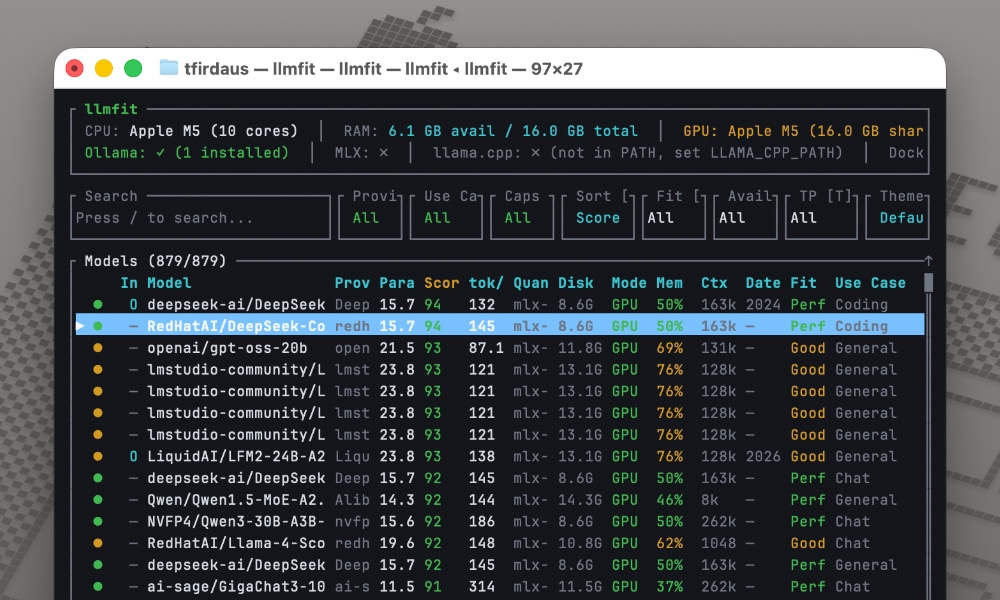
You can filter and sort by different criteria, which saves hours of manual testing and helps avoid the frustration of downloading models that won’t run on your hardware.
llmfit integrates with your favorite tools
llmfit also works with tools like Ollama and LM Studio, so the recommendations are easier to act on.
Ollama integration
If you’re using Ollama, llmfit can help you narrow down good model options for your setup. If you prefer a desktop UI instead, LM Studio is another good way to run LLMs locally.
For example, if llmfit recommends google/gemma-2-2b-it, you can immediately hit d and it will show you “Ollama” as an option, as seen below:
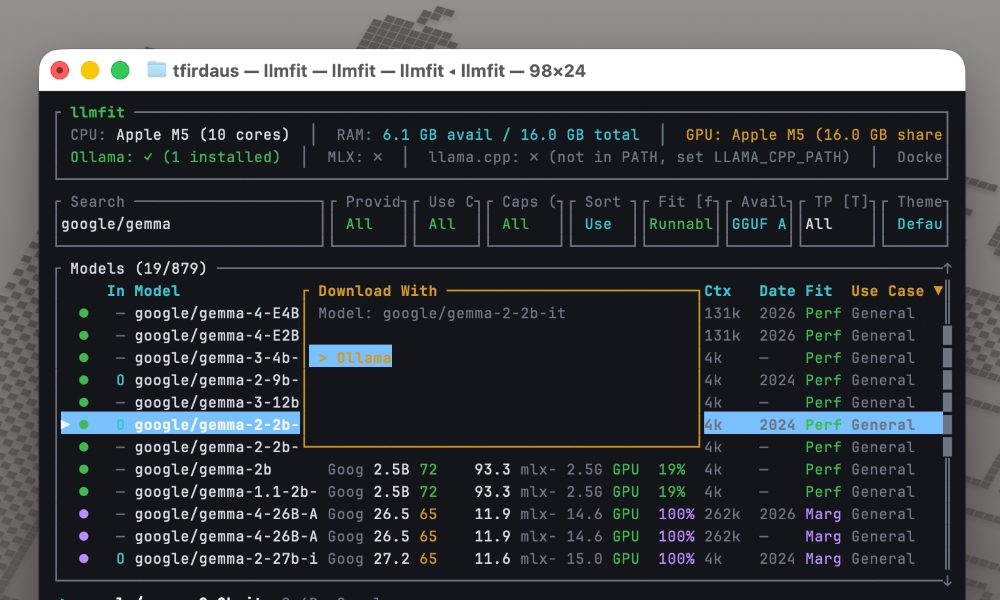
Once you’ve selected it, it will download the model for Ollama.
llmfit also supports:
What’s next?
Give it a try. Download a small model, run it locally, and see what you can build with your own private AI assistant.
I recommend llmfit if you want to compare options faster. It would have saved me weeks of trial and error when I was starting out.
The first time you get a response from a model running entirely on your computer, you’ll understand why I made the switch.