10 Brave Browser Settings Worth Changing First
Brave is easy to recommend if you want a Chromium-based browser without giving even more of your browsing life to Google. It is fast, fairly clean, and comes with a decent privacy stack out of the box.
The problem is that some of Brave’s best features are buried in settings, while some of its more distracting ones are turned on by default. If you use Brave every day, a few quick changes can make it cleaner, faster, and less annoying.
Here are 10 settings and tweaks worth changing first.
1. Clean Up the New Tab Page
Brave’s new tab page can feel busier than it needs to be. By default, it pushes Brave Rewards, VPN promos, stats cards, and other extras that most people do not need every time they open a new tab.
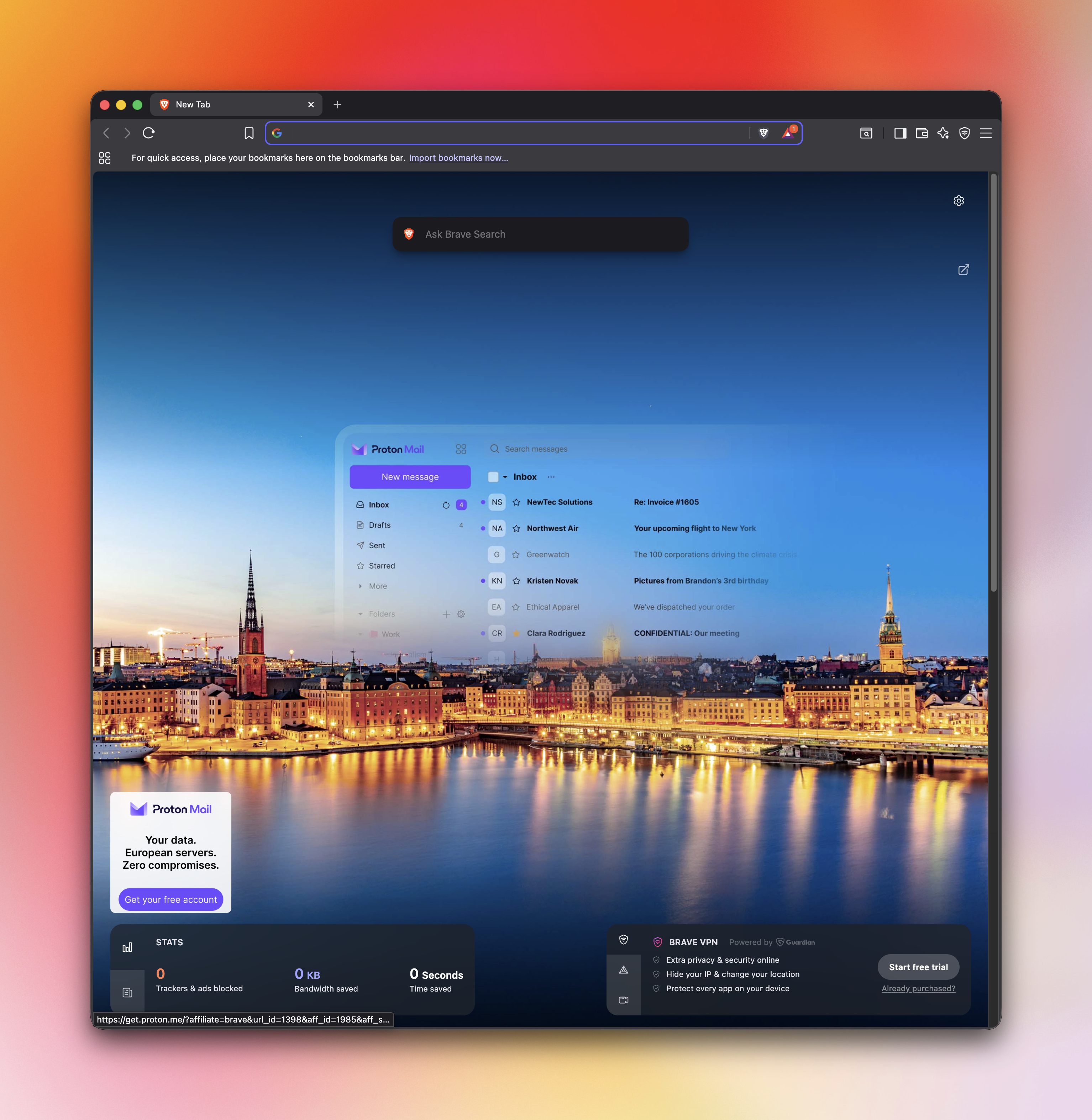
Open a new tab, click the gear icon, and start trimming it down. You can turn off new tab ads, hide Brave-specific cards like Rewards, VPN, Talk, and News, and remove top sites if you prefer a blanker start.
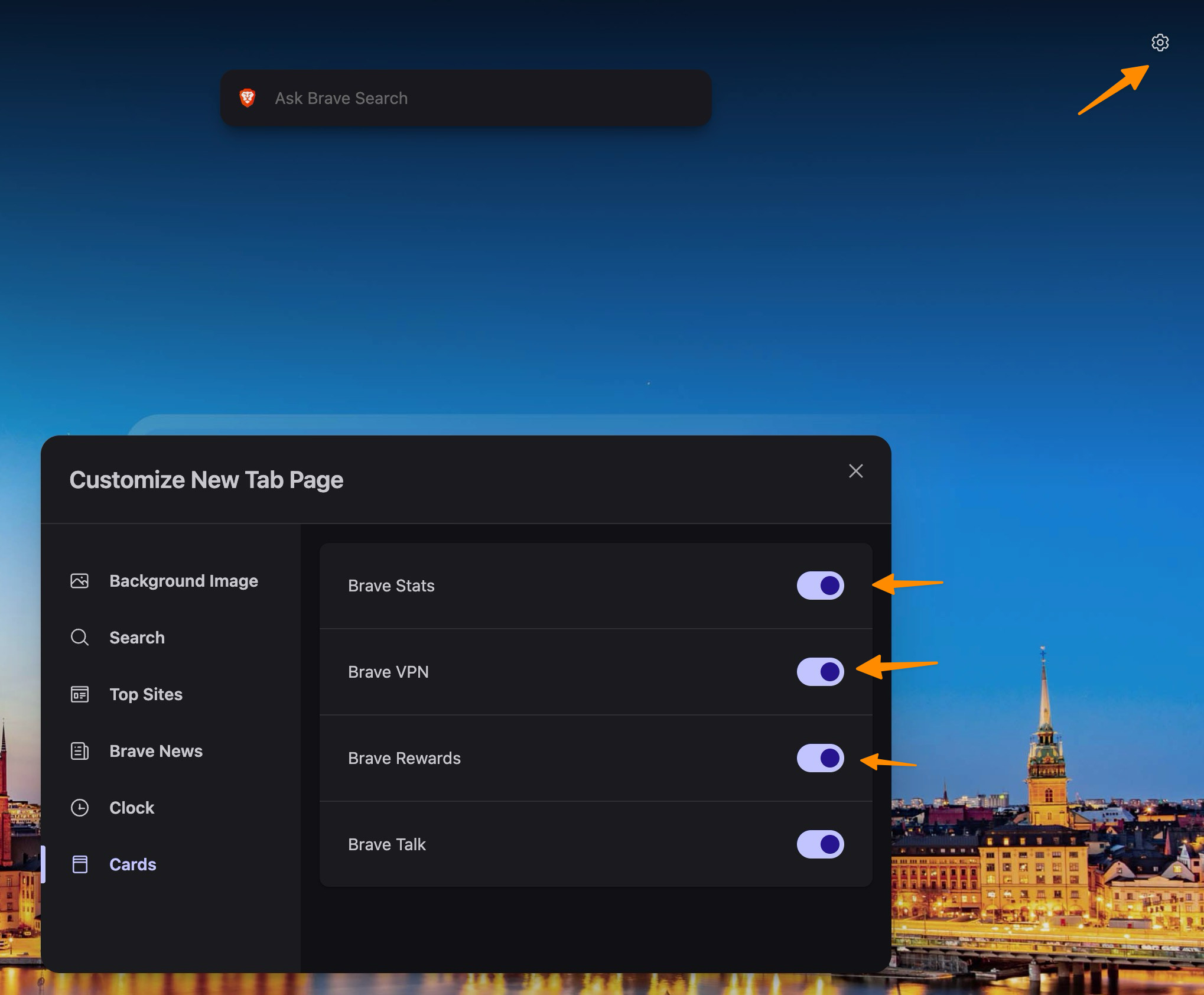
While you are there, you can also change the search engine shown on the new tab page. If you want to replace Brave Search everywhere, head to Settings > Search engine and change the default for both normal and private windows. If privacy is the main reason you use Brave, you may also want to launch Brave in private mode by default.
2. Make Brave Shields More Aggressive
Brave already blocks a lot by default, but its content filters get much better once you dig into them.
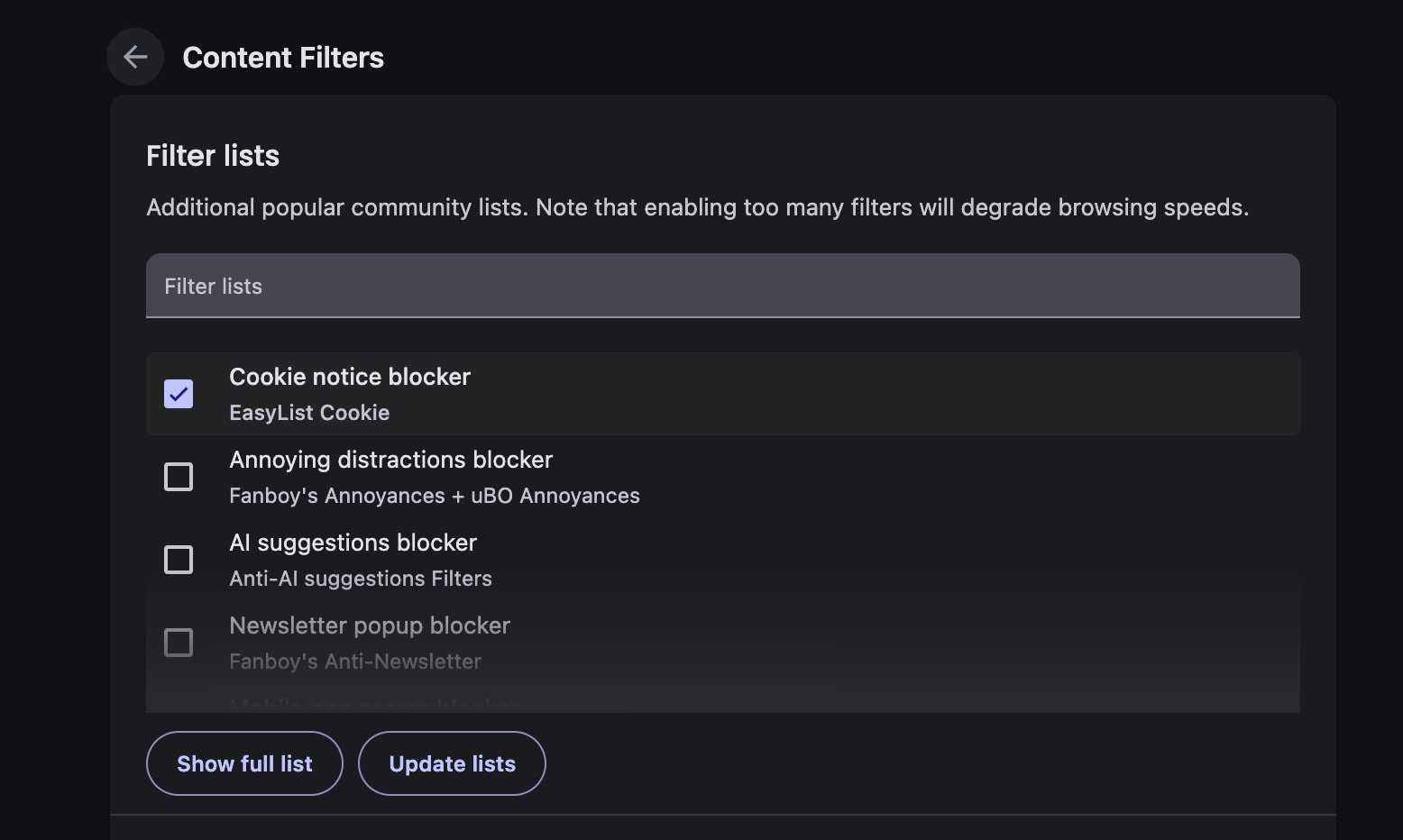
Go to Settings > Shields > Content filters > Show full list and enable the filters you actually want. A few useful ones include:
- cookie notice blocker
- annoying distractions blocker
- AI suggestions blocker
- newsletter popup blocker
- YouTube Shorts blocker
- tracking URL blocker
Spend five minutes here and a lot of the web becomes noticeably less irritating. If you use Brave on your phone too, this goes nicely with other tips on blocking ads in Android.
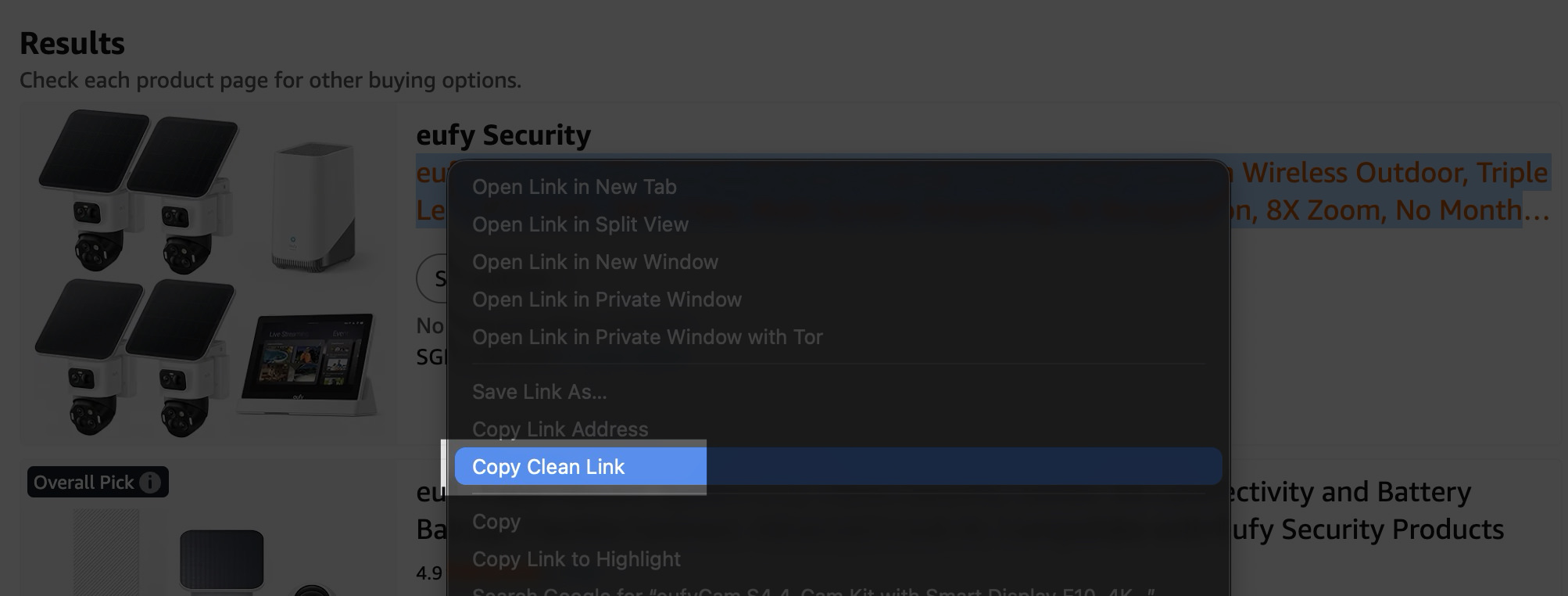
3. Use Copy Clean Link When Sharing URLs
A lot of links now come stuffed with tracking parameters. You copy a URL, paste it somewhere else, and drag a pile of analytics baggage along with it.
Brave has a simple fix built in. Right-click a link and choose Copy Clean Link. It strips out a lot of that tracking junk before you share it.
It will not solve every case, especially shortened links, but it is still a smart little feature that more browsers should copy.
4. Turn Off Brave’s AI Features if You Do Not Want Them
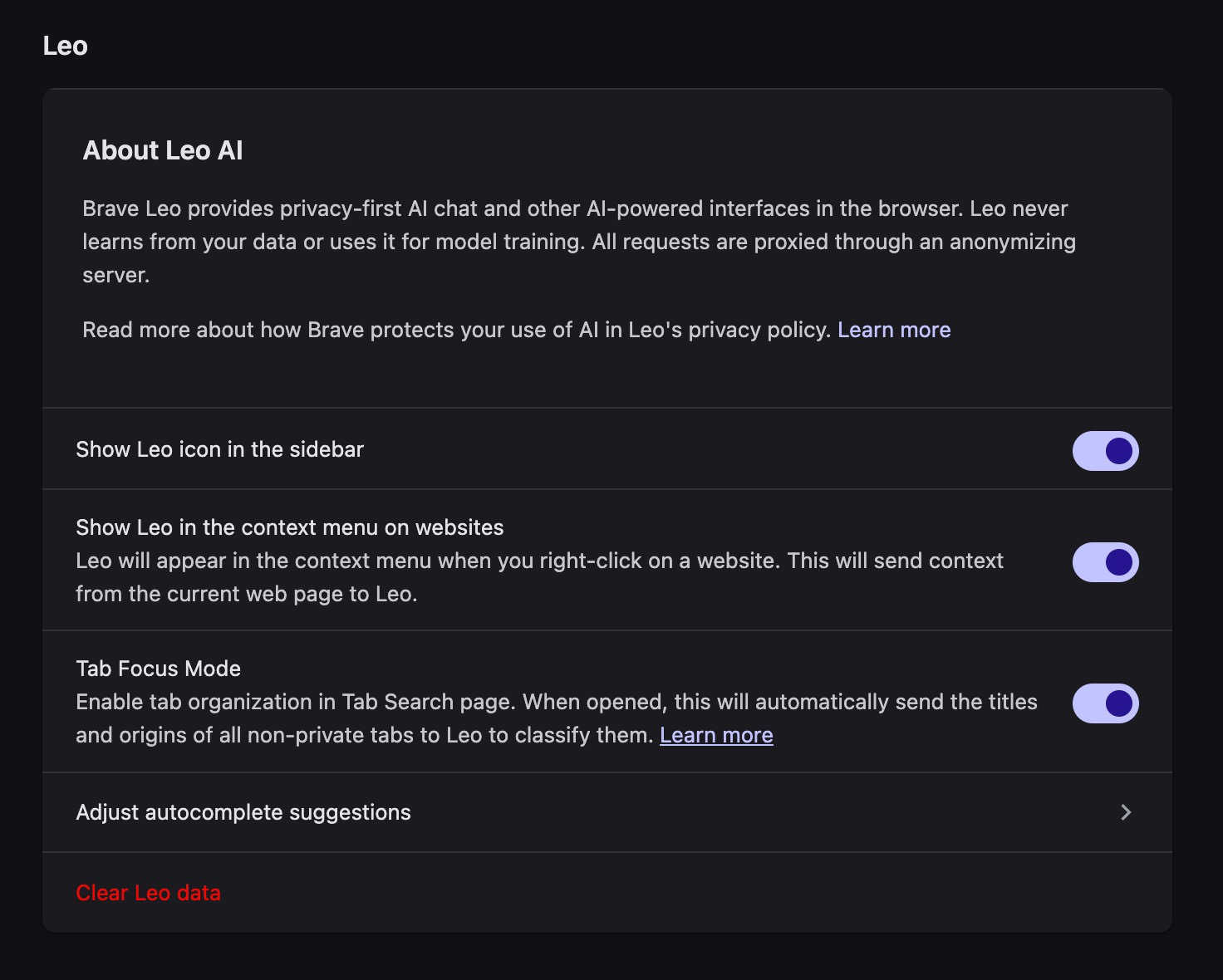
Brave includes its own AI assistant, Leo. If you have no interest in browser-level AI, you can strip it out pretty quickly.
Go to Settings > Leo and disable the options there. Then right-click the toolbar icons you do not want and remove things like Leo, Brave Wallet, Brave Rewards, or Brave VPN from the address bar.
For a cleaner autocomplete experience, check Settings > Appearance and turn off the Leo suggestion there too.
5. Switch to Vertical Tabs
Vertical tabs make more sense than horizontal ones once your tab count gets even mildly embarrassing.
In Brave, go to Settings > Appearance > Tabs and enable Use vertical tabs. If you want a tighter layout, turn off Show title bar too. That removes one of the extra bars at the top and helps the browser feel less cramped.
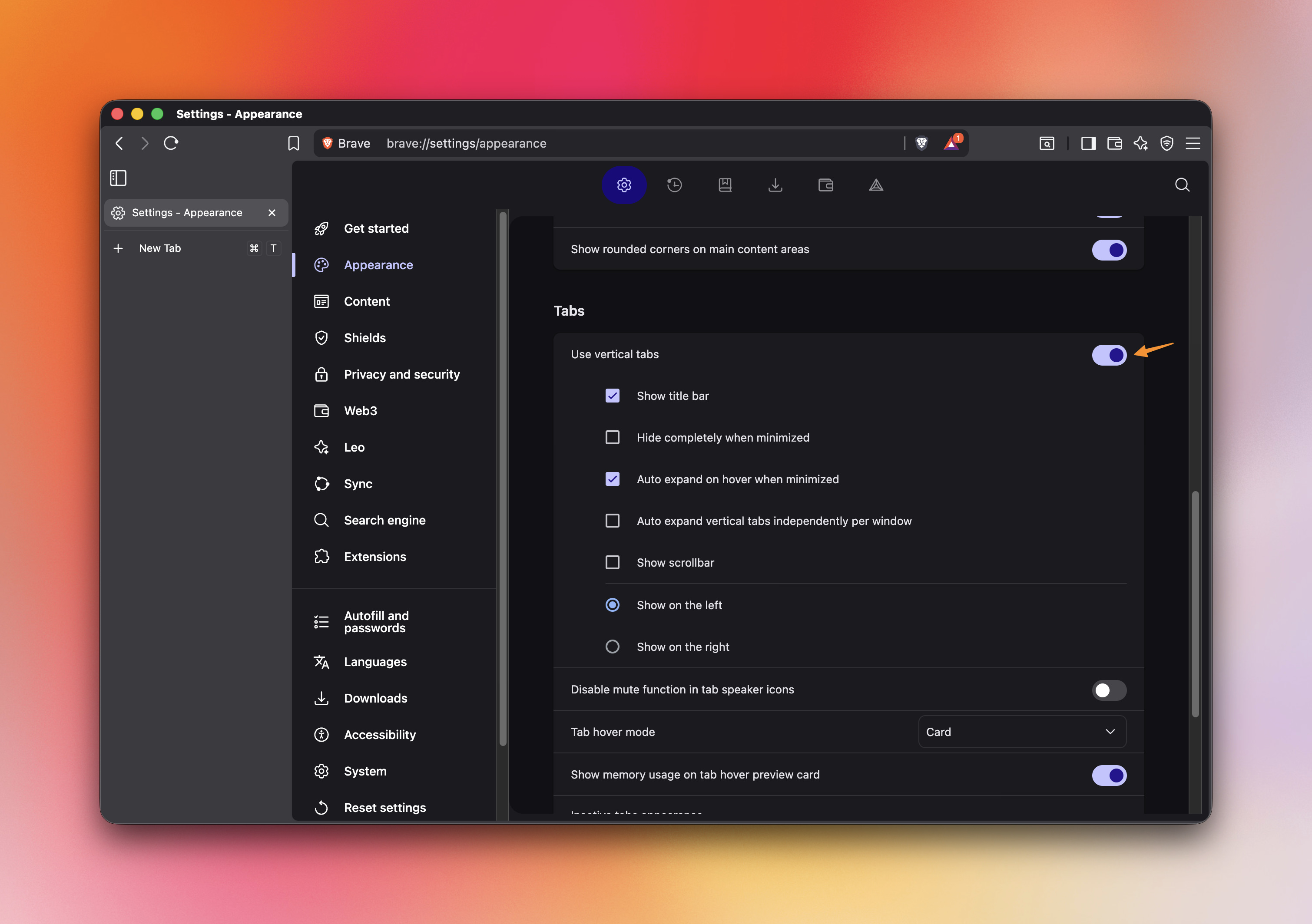
On larger displays, this setup works much better. You can see more tab titles, waste less horizontal space, and avoid the tiny-tab mess that happens when too many pages are open.
6. Enable Memory Saver if You Hoard Tabs
If you are the kind of person who treats tabs like bookmarks, Memory Saver is worth turning on.
Brave can suspend inactive tabs to reduce memory usage and keep the browser from dragging your whole system down. You will find it under Settings > System. If there are sites you always want to keep alive, such as music players, chat apps, or dashboards, add them to the exception list.
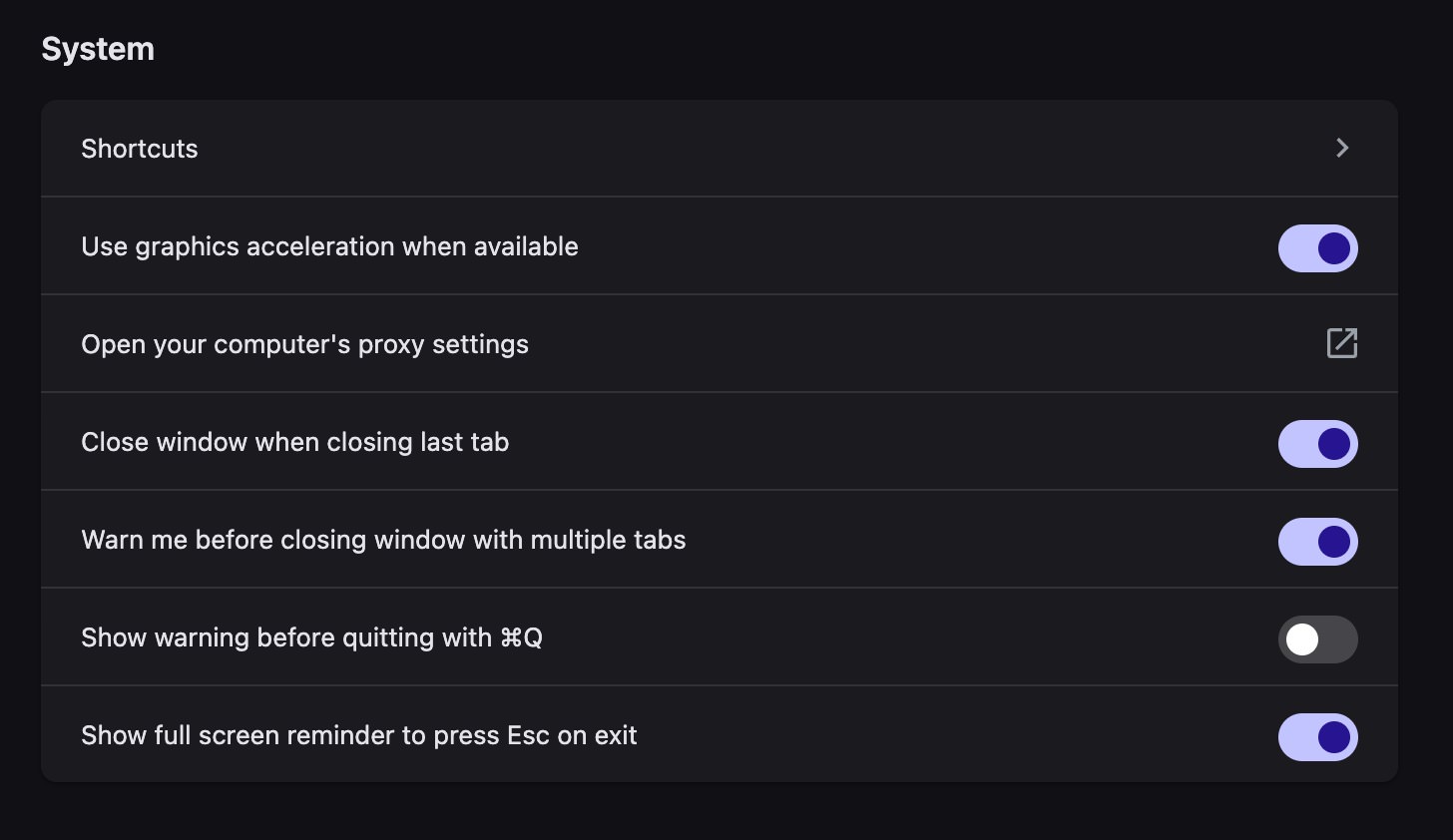
This is a real quality-of-life feature if you keep dozens of tabs open. If that sounds like you, these tips for manage Chrome tabs and memory are useful too, even if you never touch Chrome again.
7. Use Brave’s Built-In Task Manager
When Brave starts feeling sluggish, the culprit is often one rogue tab, one bloated web app, or one extension going feral.
Press Shift + Esc to open Brave’s task manager and see what is eating CPU or memory. If the shortcut does not work, go to More Tools > Task Manager from the main menu.
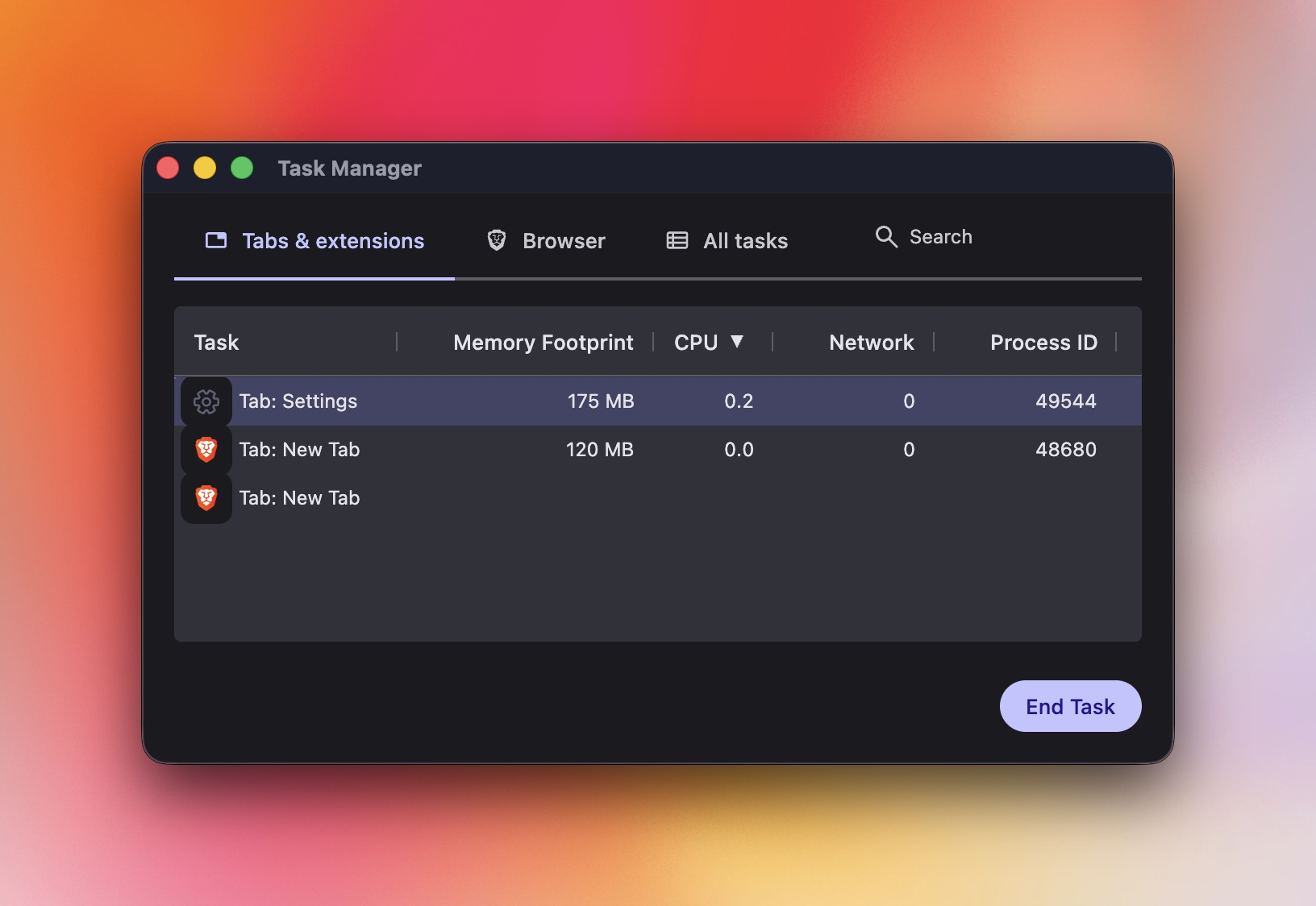
This is one of those features people forget exists until the day a single tab starts torching their laptop.
8. Use Force Paste on Sites That Block Normal Paste
Some websites still block paste inside login forms or other fields, usually in the name of security and usually to everyone’s annoyance.
Brave includes a Force Paste option in the right-click menu for forms, which can bypass those blocks. It is a tiny feature, but a useful one if you deal with password managers or long strings of text all day.
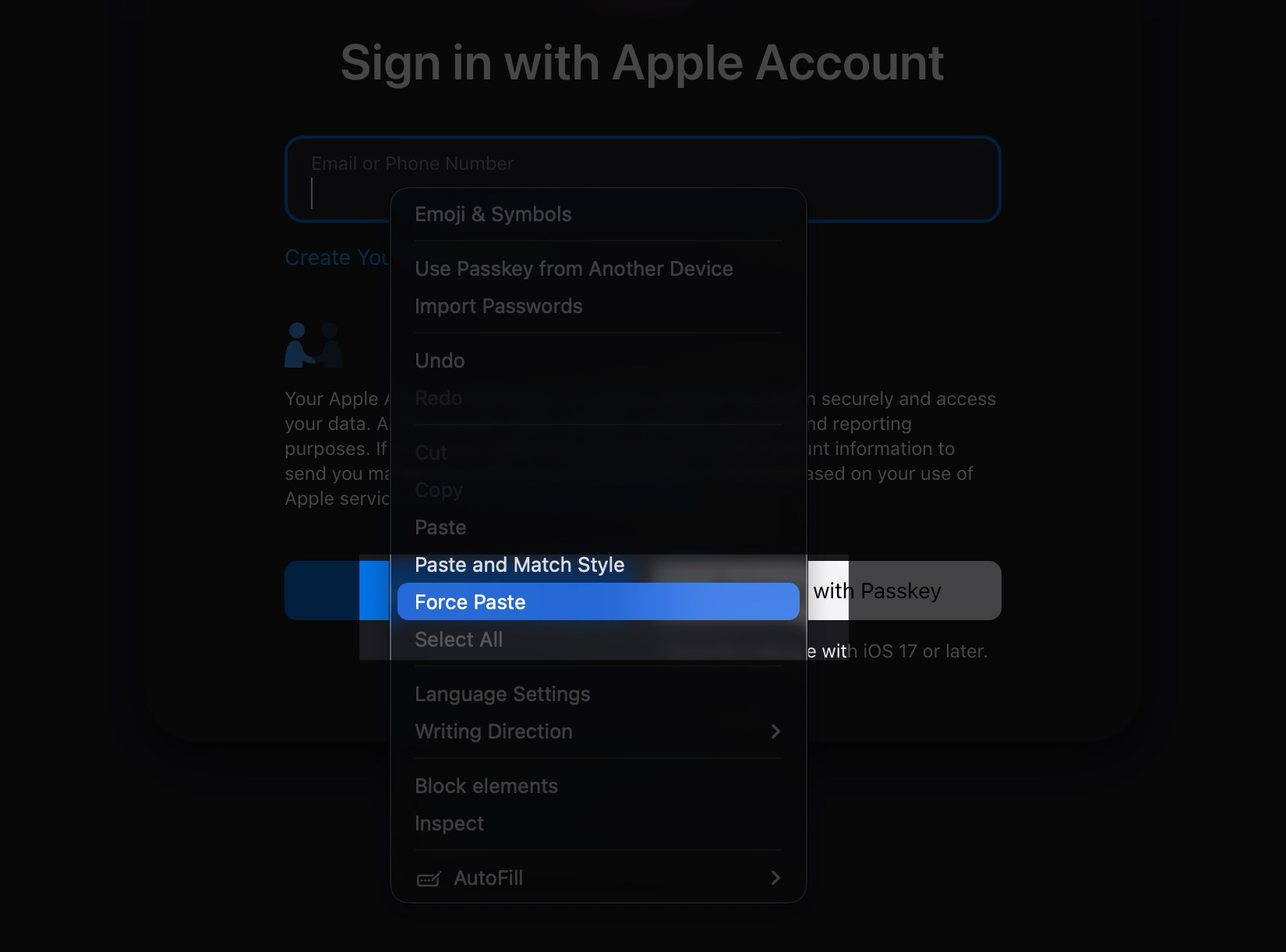
If a site also blocks right-click entirely, you may still need an extension or workaround, but Force Paste handles the simpler cases well.
9. Use Brave on Mobile for a Better YouTube Experience
Brave’s mobile browser has a practical advantage over the regular YouTube app. It blocks ads, supports background playback, and can keep videos playing in picture-in-picture mode.

That gives you a chunk of the YouTube Premium experience without paying for YouTube Premium, especially on mobile where ad blocking is usually more limited.
If you already use Brave on desktop, this is one of the best reasons to install it on your phone too.
10. Force Dark Mode on Websites
A surprising number of sites still ignore dark mode. Brave has an experimental flag that can force dark themes across the web.
Type brave://flags/#enable-force-dark into the address bar, enable the option, and restart the browser.
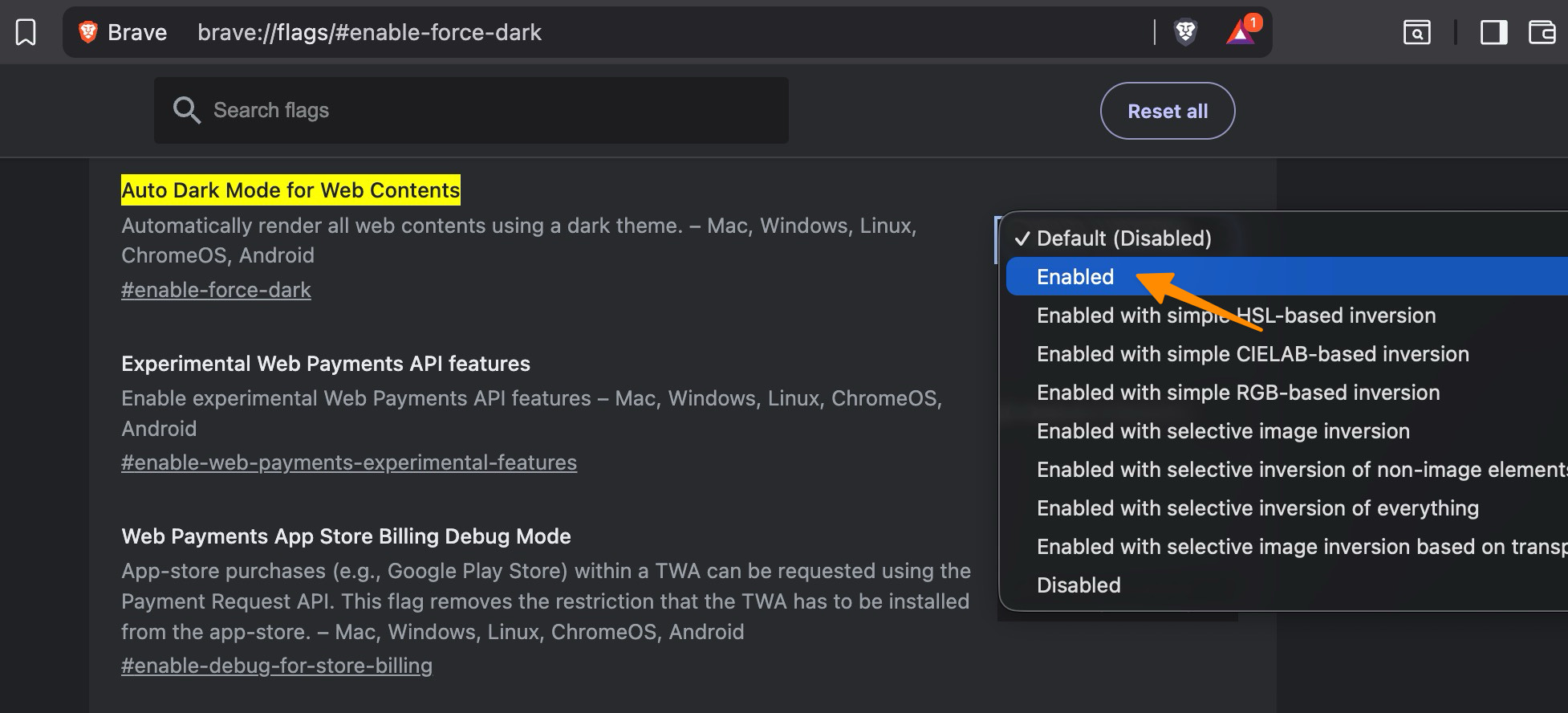
Because this uses Brave’s own internal flag system, it is usually lighter than installing yet another extension just to darken websites. It will not render every site perfectly, but it is often good enough.
The Best Brave Setup Is Usually the Less Brave-y One
Brave is at its best when it gets out of the way.
The browser already has a strong foundation: Chromium compatibility, built-in blocking, decent privacy defaults, and a few genuinely useful tools. The bigger win is removing the stuff you do not want, then turning on the features that actually improve day-to-day browsing.
Do that, and Brave feels less like a browser packed with side projects and more like a lean Chrome alternative that respects your time a bit more.