How to Install Ollama on a Synology NAS
If you already own a Synology NAS, you have probably wondered whether it can do more than backups, file storage, and media streaming.
It can. Not like a GPU server, and not with giant models, but well enough to run a small private LLM at home.
In this guide, I am using the Synology DS925+ as the example system. The steps are not exclusive to that model, but it is a useful reference point because it has a modern AMD Ryzen CPU, supports memory upgrades, and sits in the range where local AI becomes realistic if you keep your expectations aligned with the hardware. If you are completely new to Ollama, Getting Started with Ollama is a good companion piece before you set this up on a NAS.
The short version is simple: yes, you can run Ollama on a DS925+ with Container Manager, and yes, it is a practical way to host a small private AI model on your own network.
Which Synology NAS Models and Ollama Models Are Suitable?
Hardware is the deciding factor here.
Ollama is best suited to Synology NAS models that support Container Manager and have enough RAM for small models. In practice, many x86-based Plus models are the most realistic candidates.
- x86 CPU, not entry-level ARM hardware
- 8GB RAM is a bare minimum for very small models
- 16GB or more is a more comfortable starting point
As for LLMs, stay realistic. A CPU-only NAS is better for small models, not 7B-and-up models unless you are comfortable with slow responses.
Good starting picks:
llama3.2:1bfor very light usellama3.2:3bas the best default for most peoplesmollm:1.7bif memory is tightqwen2.5-coder:1.5borqwen2.5-coder:3bfor coding tasksgemma3:1bif you want another compact model to test
If this is your first time running Ollama on a Synology NAS, start with llama3.2:3b. It is the cleanest balance between capability and realism for this class of hardware.
Why Ollama?
Ollama removes a lot of the usual friction.
Instead of manually wiring together model files, runtime settings, and a serving layer, you get a simpler way to download models and serve them through a local endpoint.
That makes it a good match for a Synology box, where the goal is usually to get something useful running without turning the NAS into a weekend-long infrastructure project.
If you expect to keep several models around, this guide on running LLMs from an external drive with Ollama is useful for thinking about storage before your model library starts growing.
Step 1: Install Container Manager
Synology does not currently offer Ollama as a one-click package in Package Center, so the easiest route is to run it in a container.
To install Container Manager:
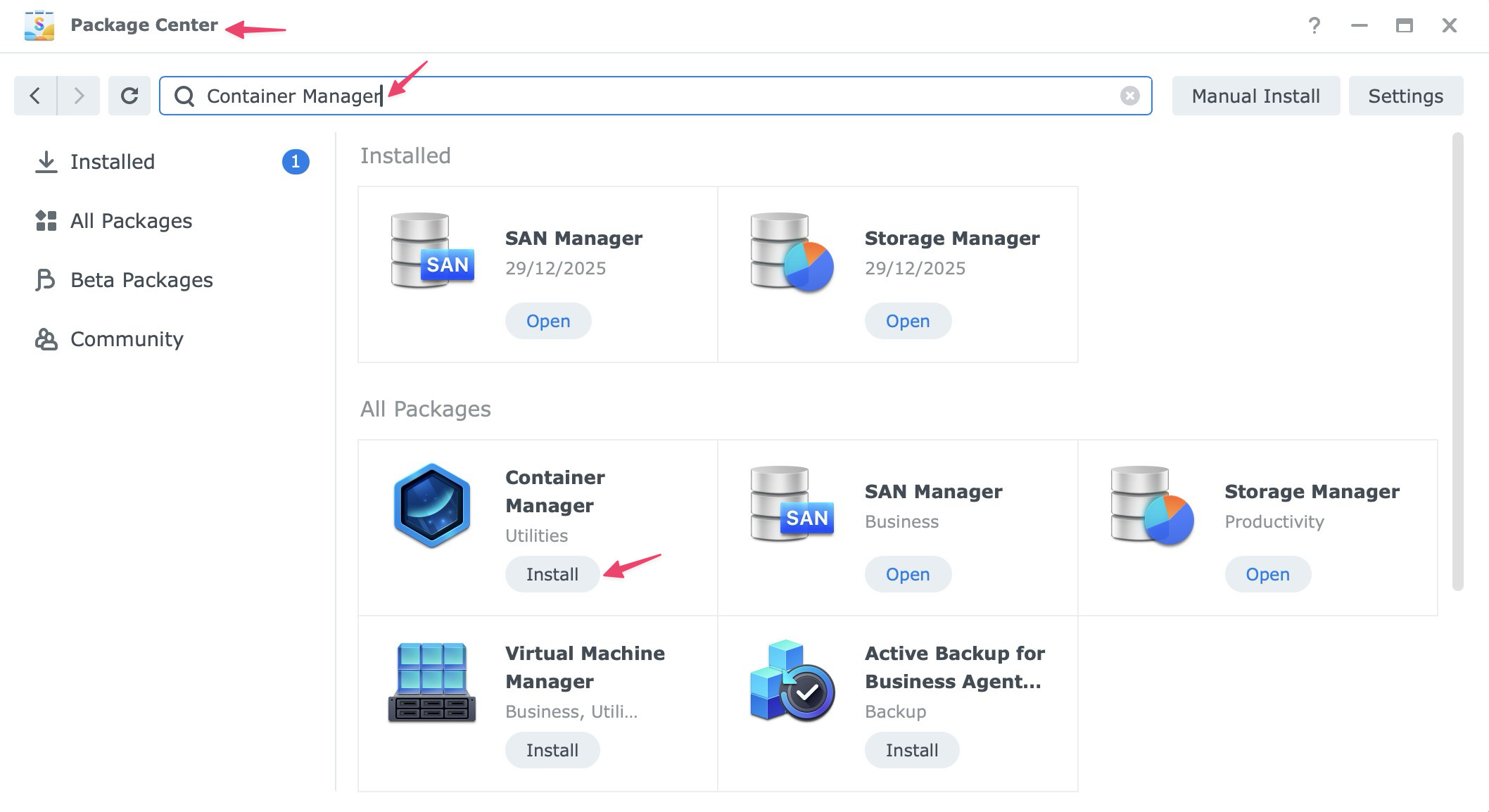
- Open Package Center in DSM.
- Search for Container Manager.
- Click Install.
If you used Docker on older Synology systems, this is the same general idea. Container Manager is Synology’s newer interface for running containerized apps.
Step 2: Download the Ollama Image
Once Container Manager is installed:
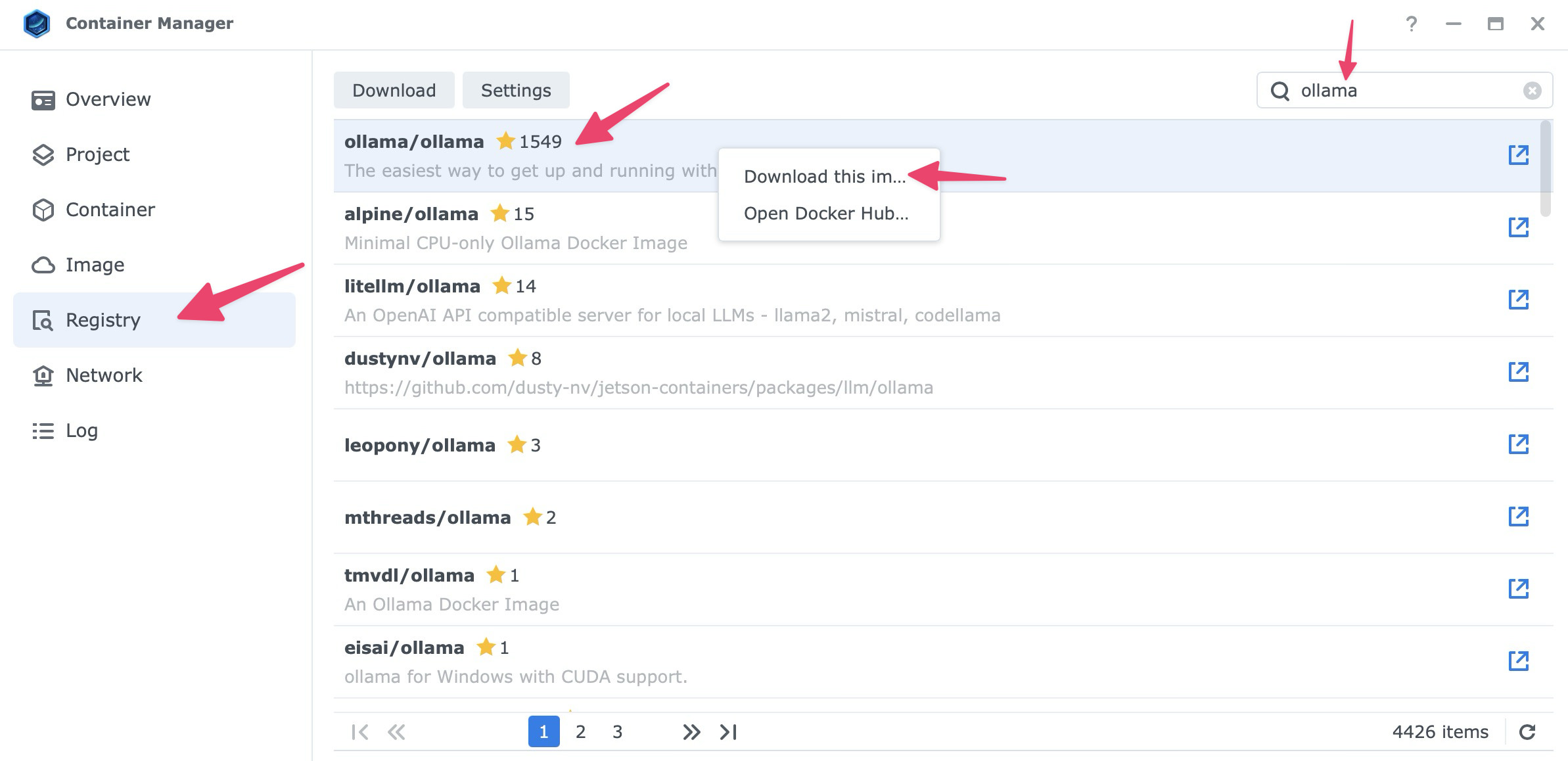
- Open Container Manager.
- Go to the Registry tab.
- Search for
ollama. - Select the official image,
ollama/ollama. - Right click and choose Download this image.
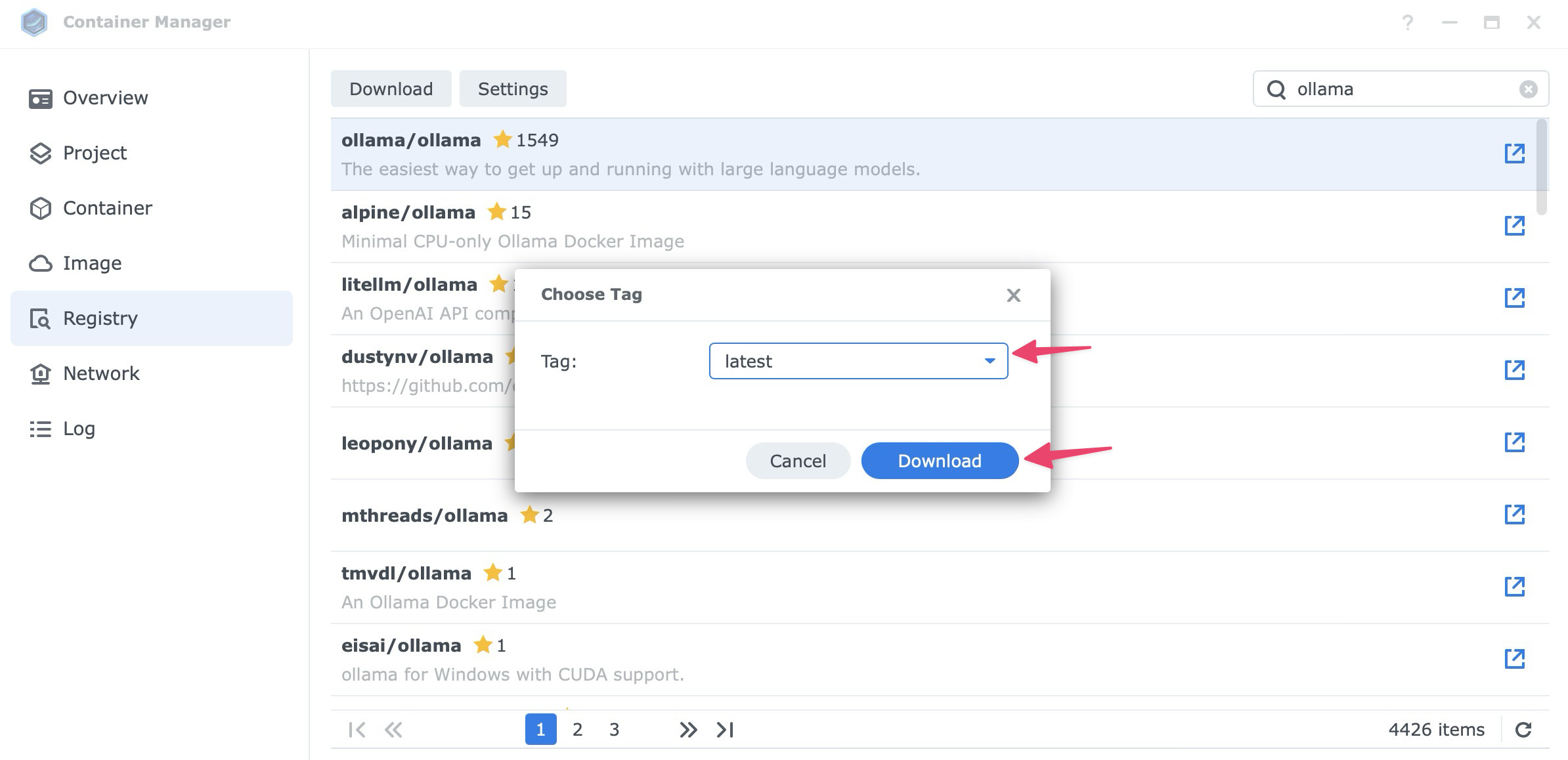
- When asked to choose a tag, select latest and click Download.
Step 3: Create the Container
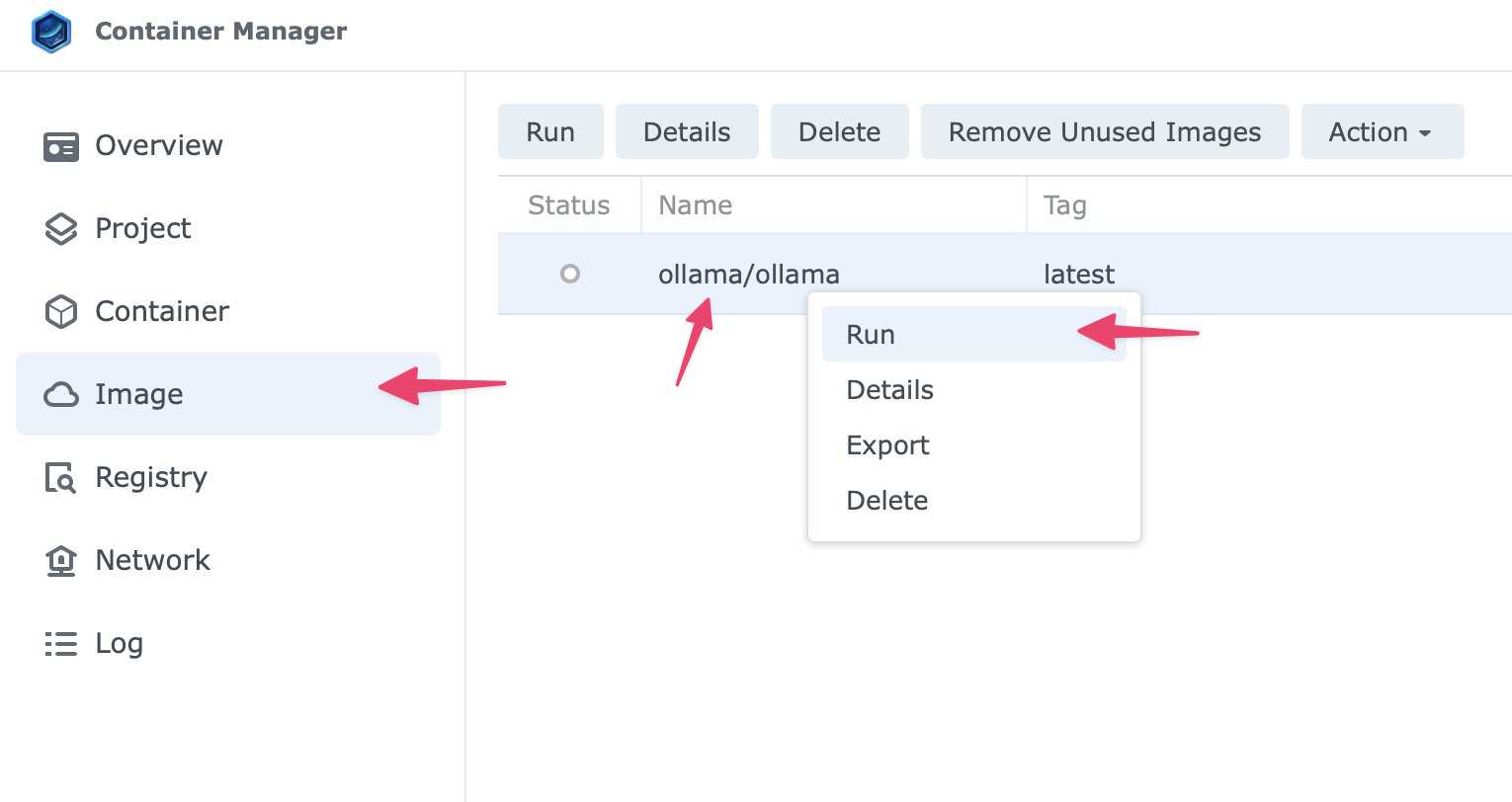
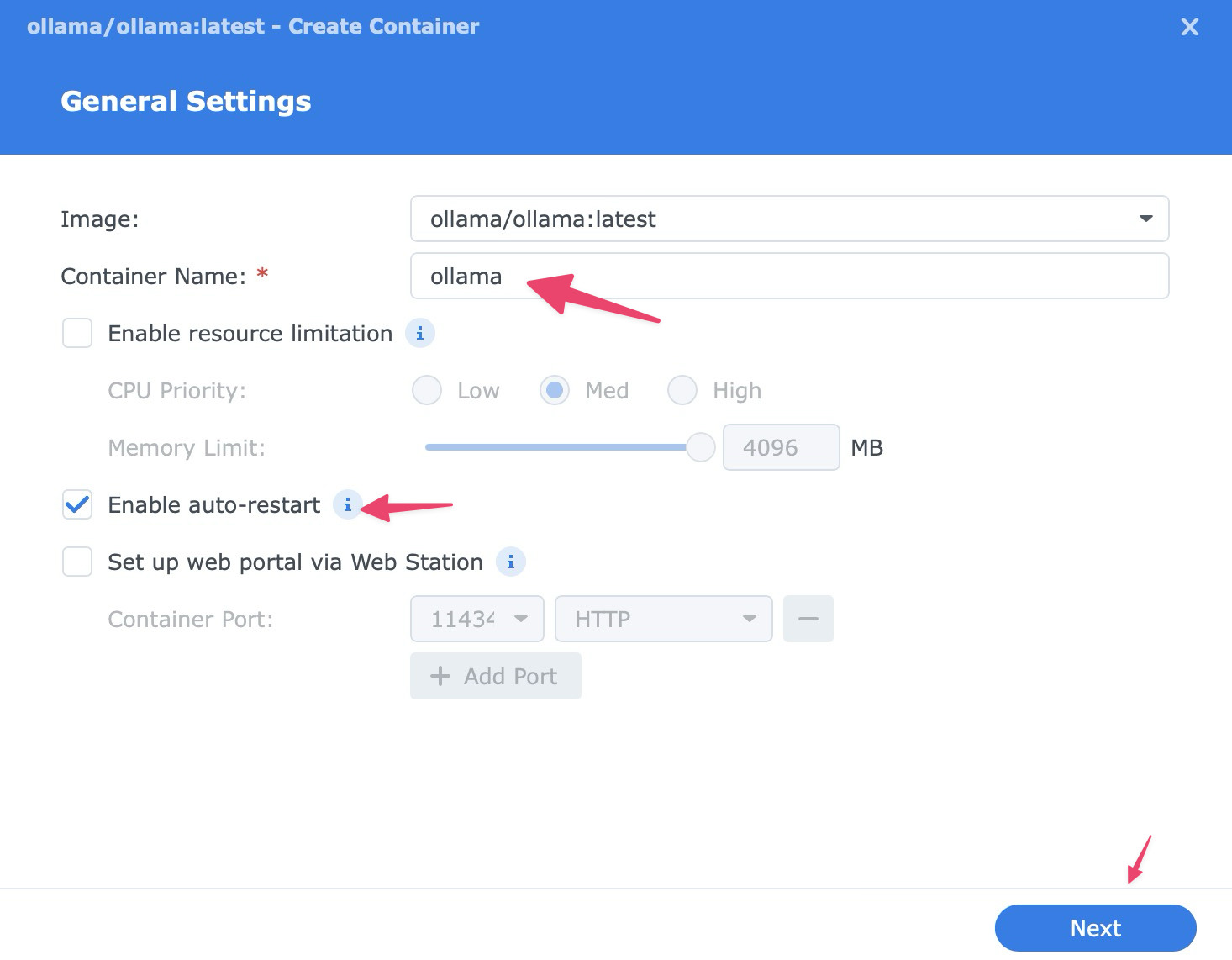
Once the image is downloaded, go to the Image tab, select ollama/ollama:latest, right click and select Run.
Use these settings for the smoothest setup:
- Container name:
ollama - Auto-restart: Enable it so the container starts again if your NAS reboots.
Then click Next to continue.
Volume Settings
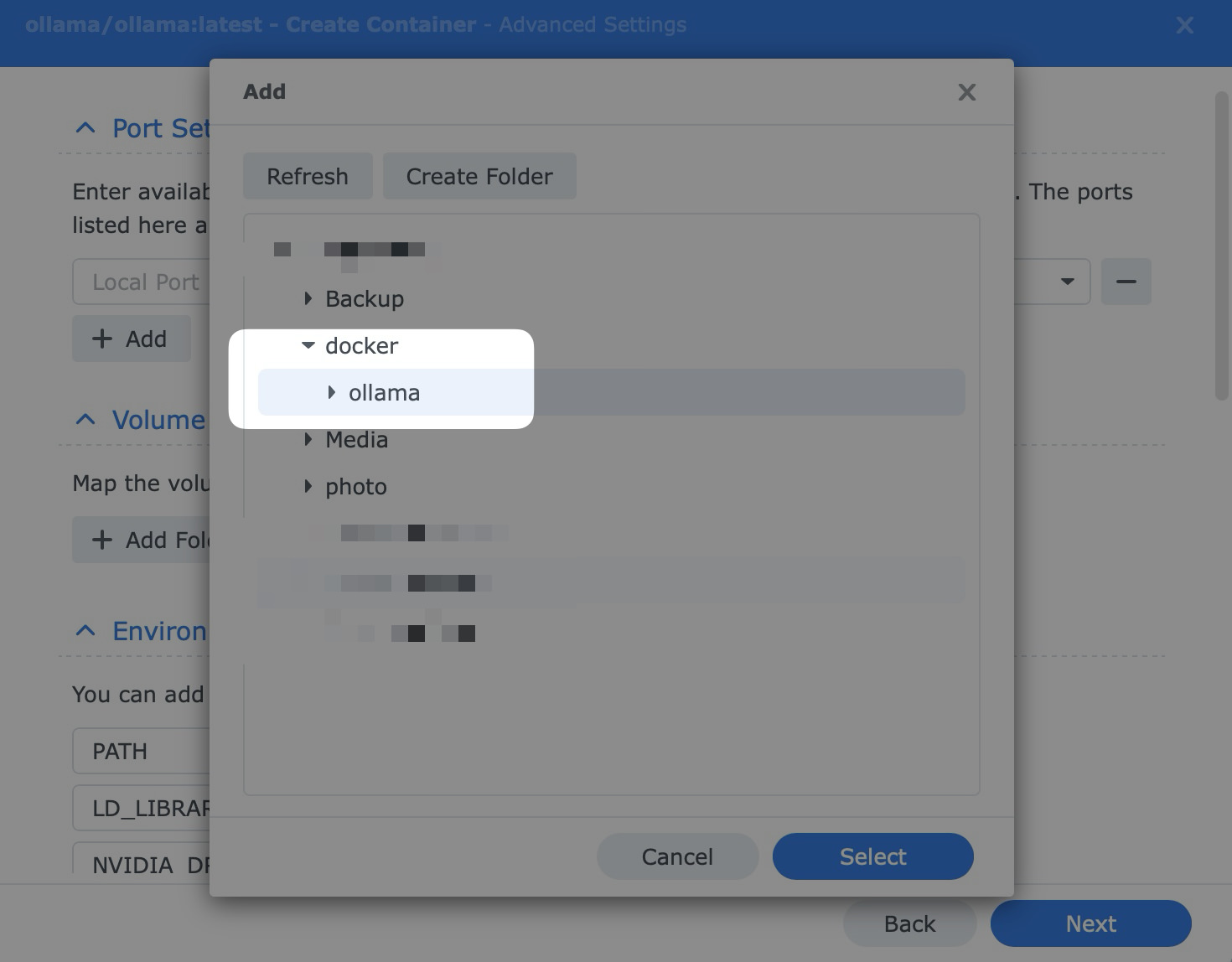
Click Add Folder and create a folder such as docker/ollama.
Then mount it to /root/.ollama.
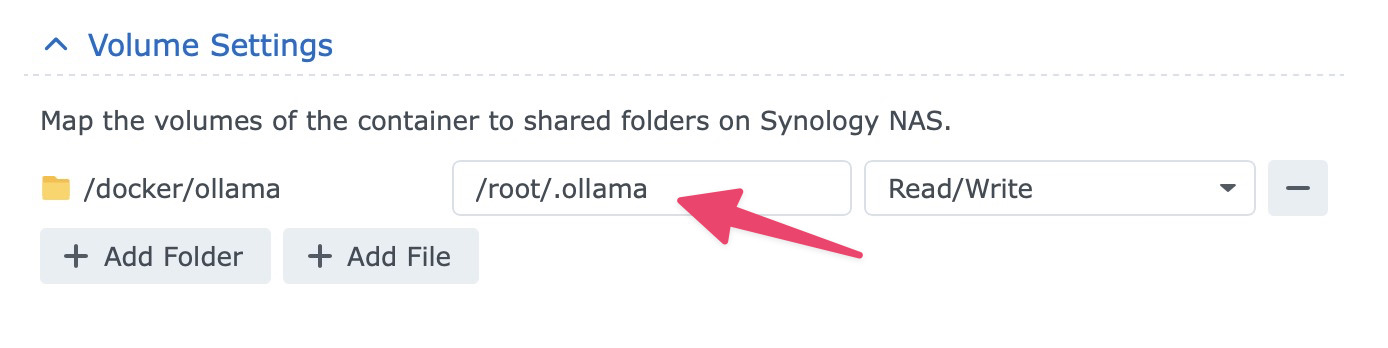
That is critical. It keeps downloaded models on your storage volume, so they do not disappear when you update or recreate the container.
Port Settings
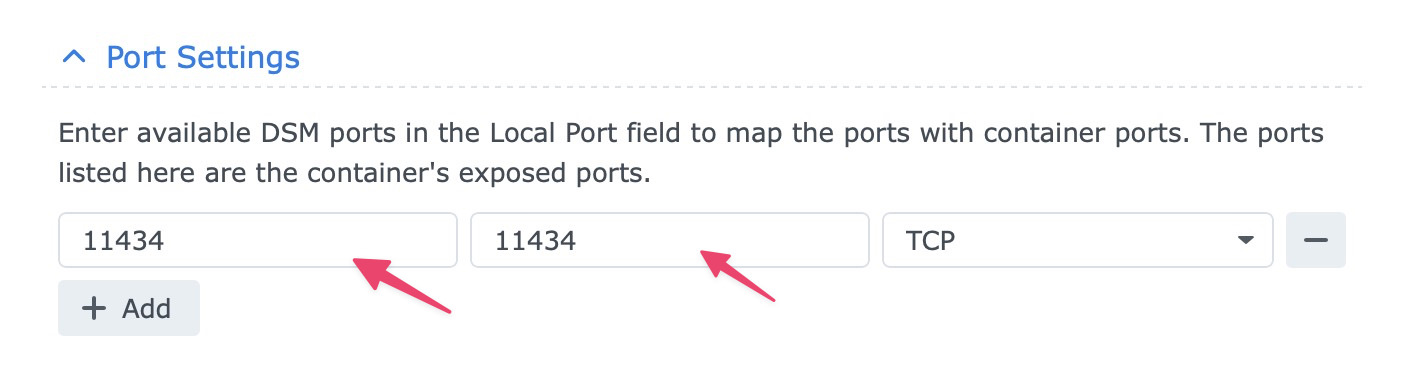
Map 11434 on the NAS to 11434 in the container.
Environment
Add OLLAMA_ORIGINS with the value *. This allows other apps, such as Open WebUI, to talk to Ollama.
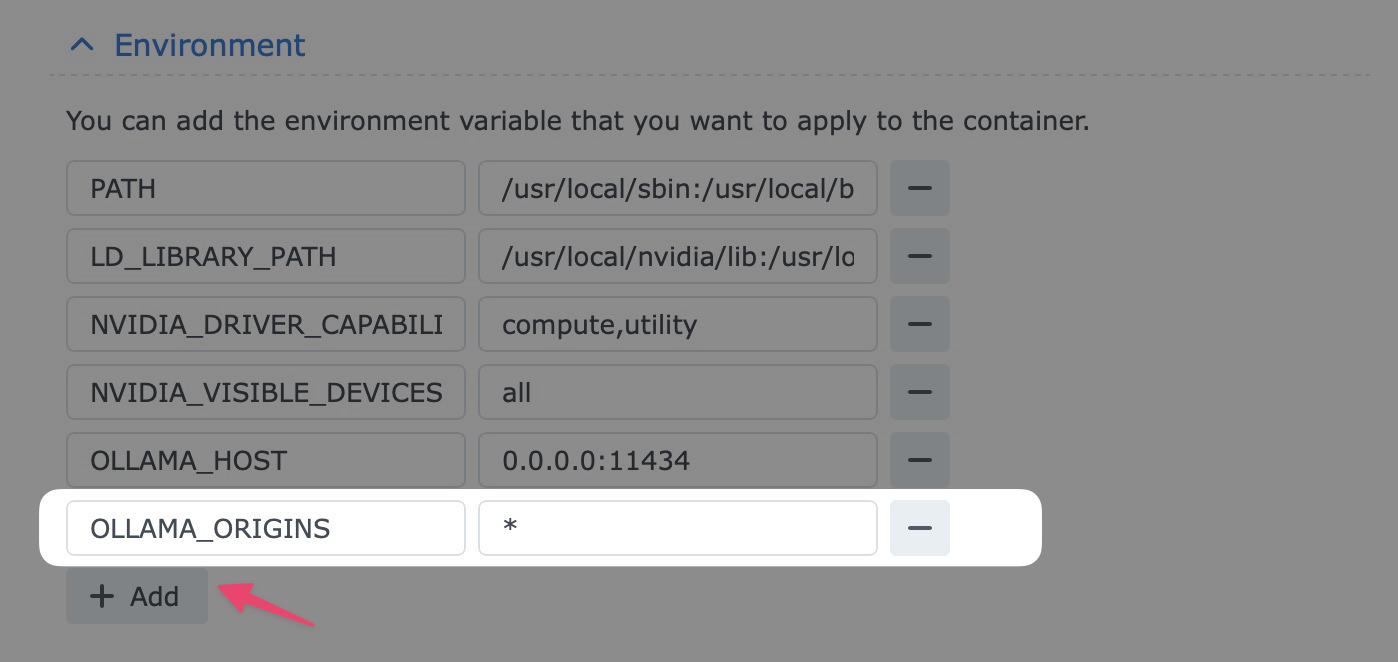
Check to make sure everything is added correctly, then click Next, then Done.
Step 4: How to Talk to the Engine
Once the container is running, Ollama is just the engine. To download your first model and start using it:
- Go to the Container tab in Container Manager.
- Select the
ollamacontainer, right click and choose Details.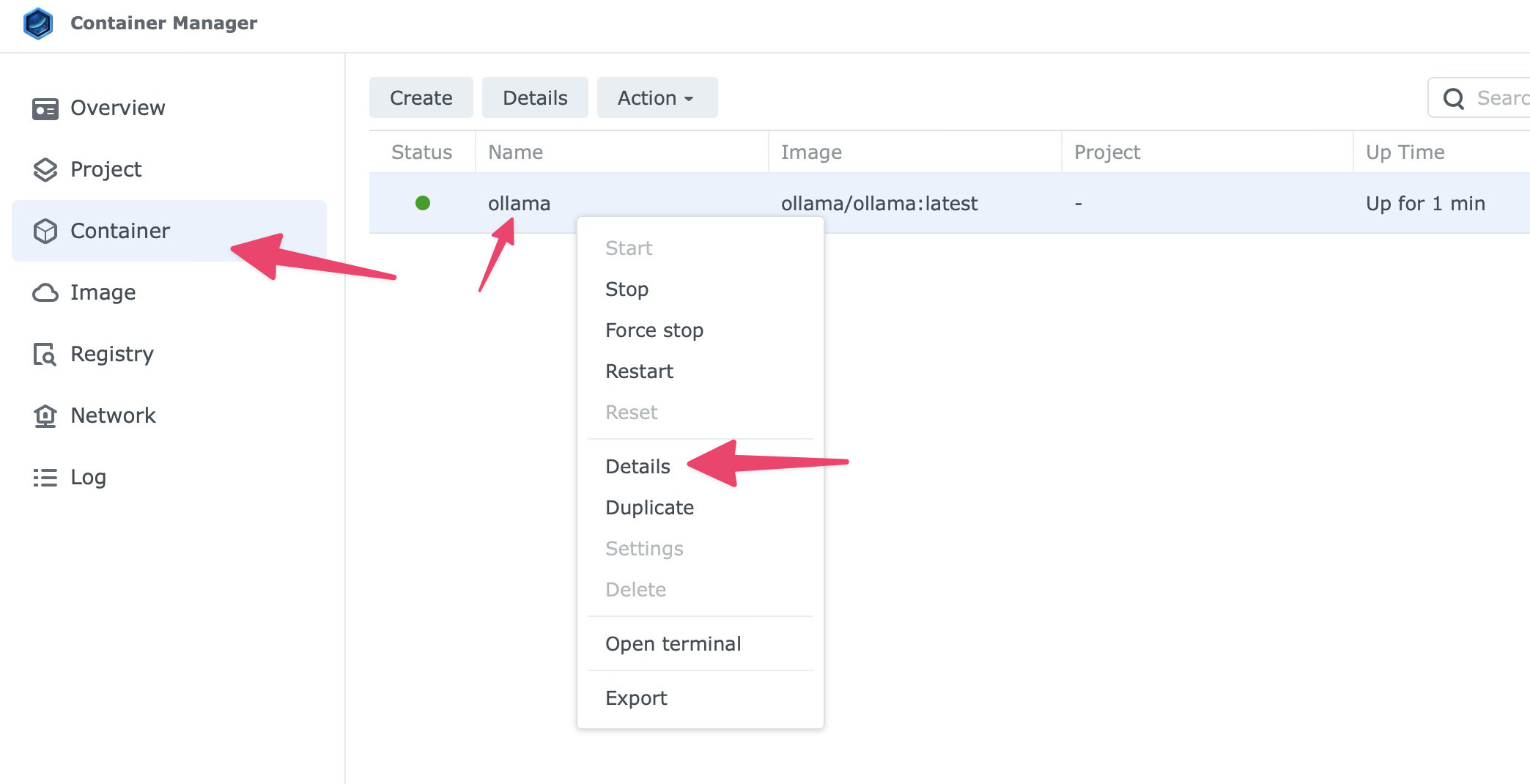
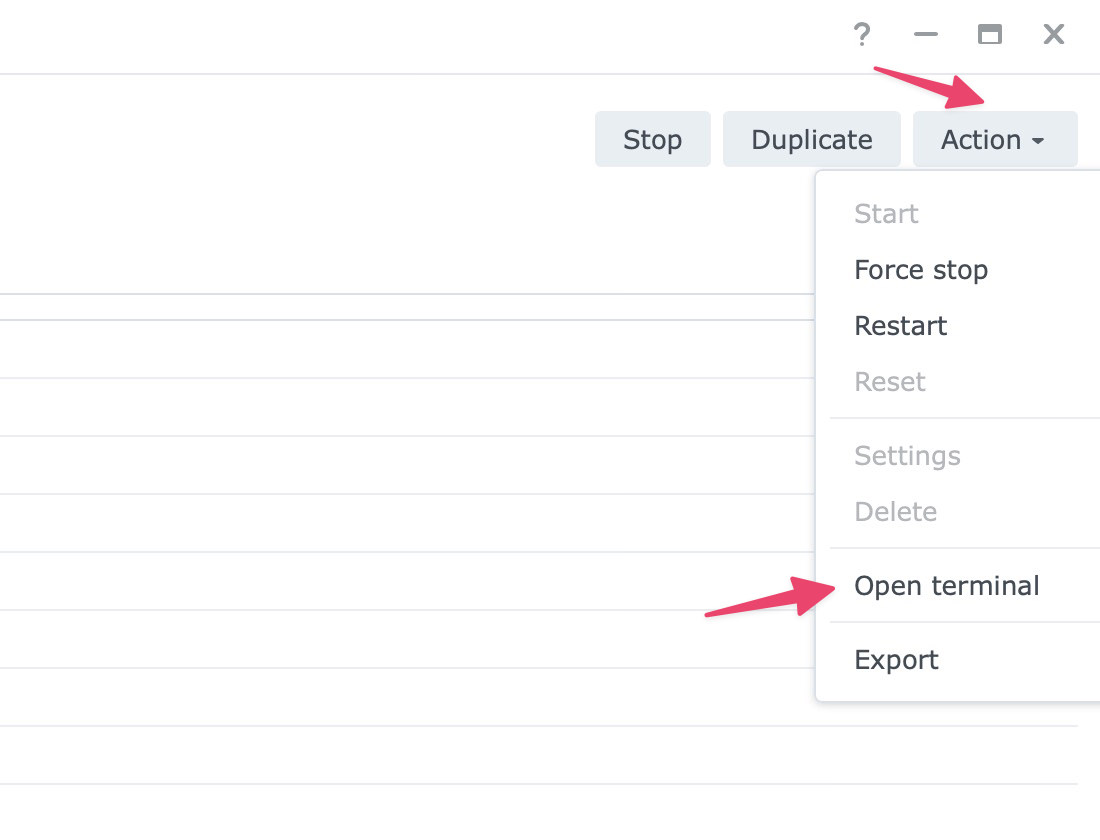
- Click the Action dropdown on the top right, then select Open terminal.
- Click the small arrow beside Create, then choose Launch with command.
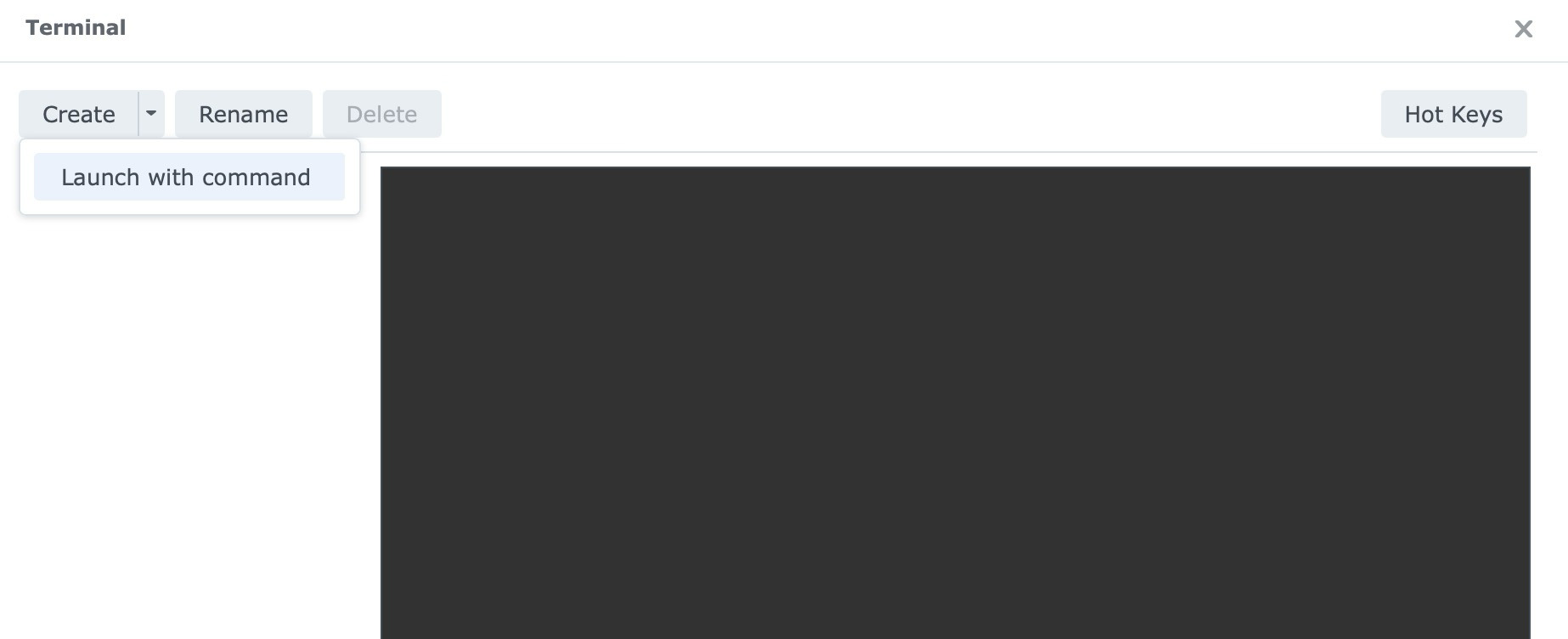
- Type
shand press Enter.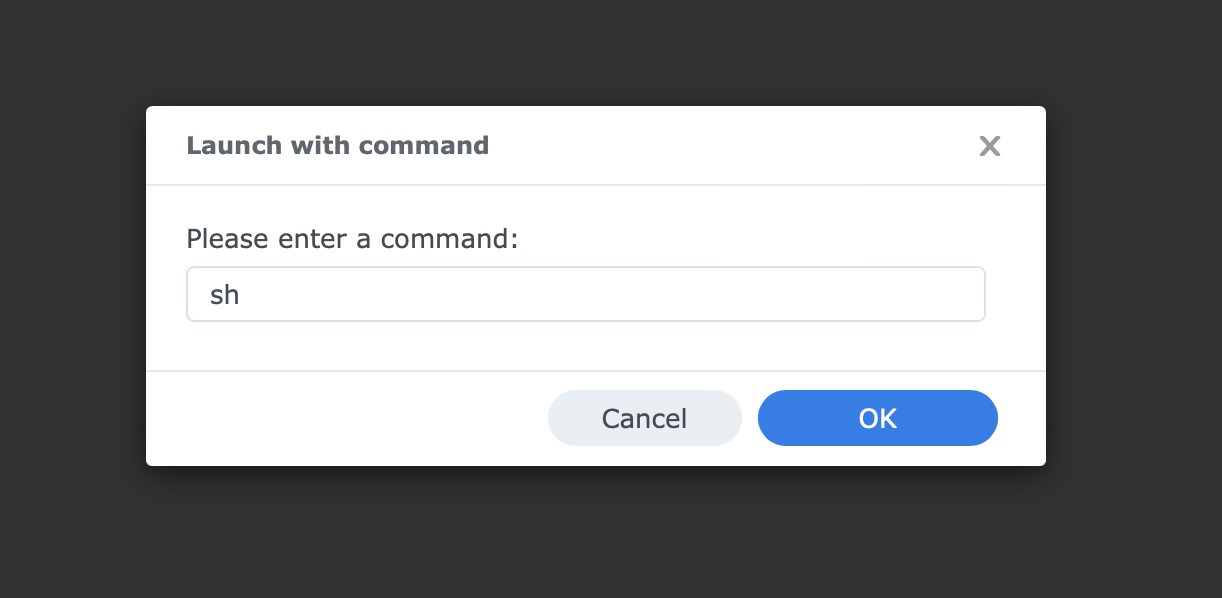
Select sh from the left tab. In the terminal window that opens, run:
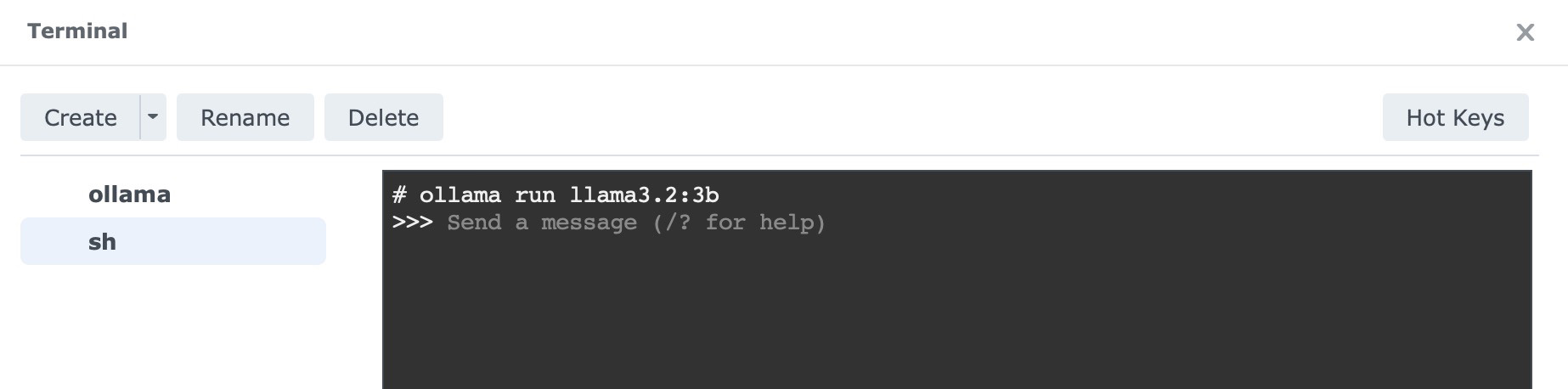
ollama run llama3.2:3b
This downloads the 3-billion-parameter Llama 3.2 model, roughly 2GB in size, and lets you start chatting directly in that same terminal window.
How to Tell if It Worked
If the model finishes downloading and you get an interactive prompt, the setup is working.
Try something simple:
Write a short explanation of what a NAS does.
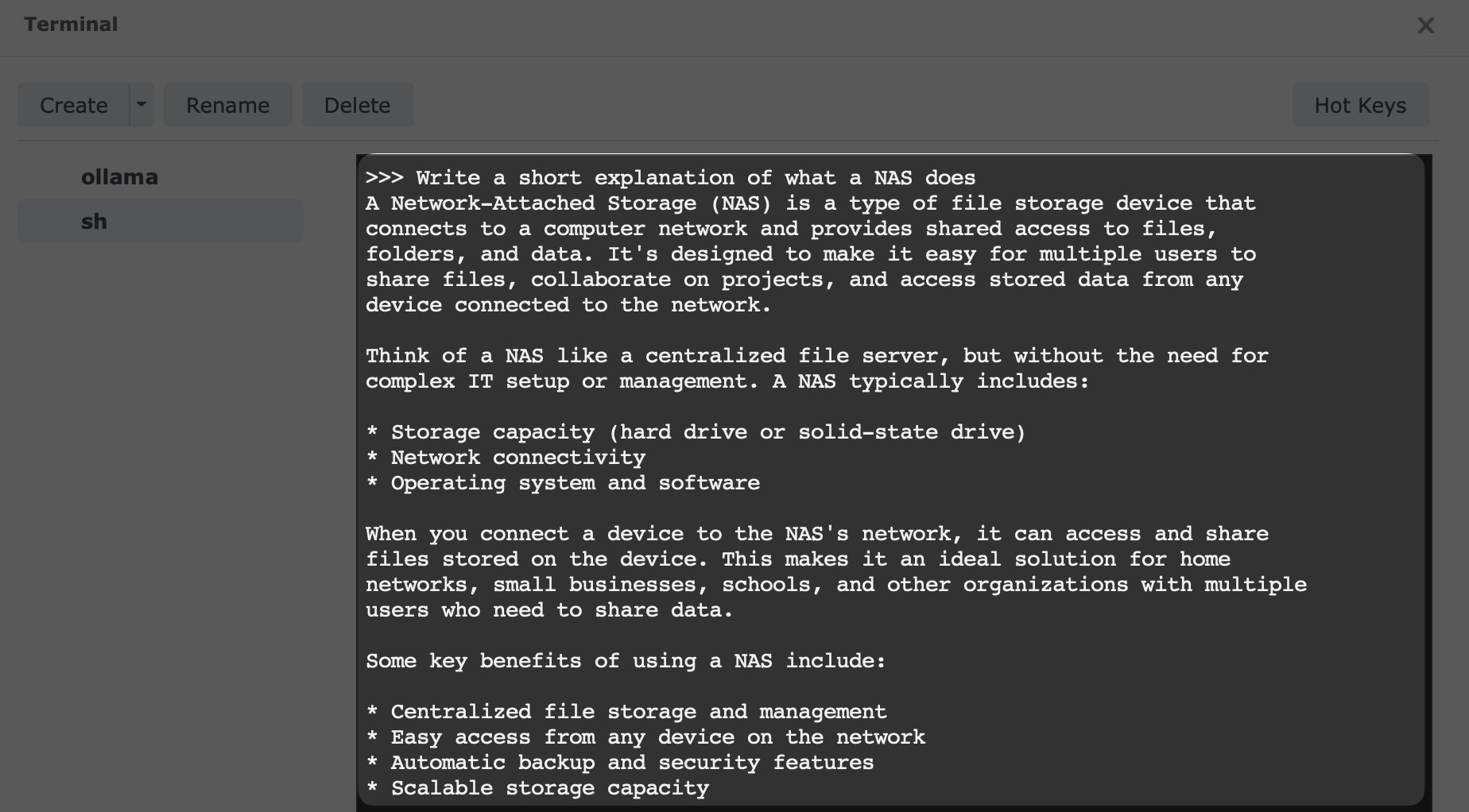
You can also test whether the service is reachable from another device on your network through port 11434, which many Ollama-compatible apps and front ends use. Once you have the basics running, these vision-enabled Ollama experiments are a nice next step if you want to do more than plain text chat.
Pro Tip: Adding a “Face” (Web UI)
Once you have Ollama running as the engine, most users then go back to the Registry and search for openwebui/open-webui.
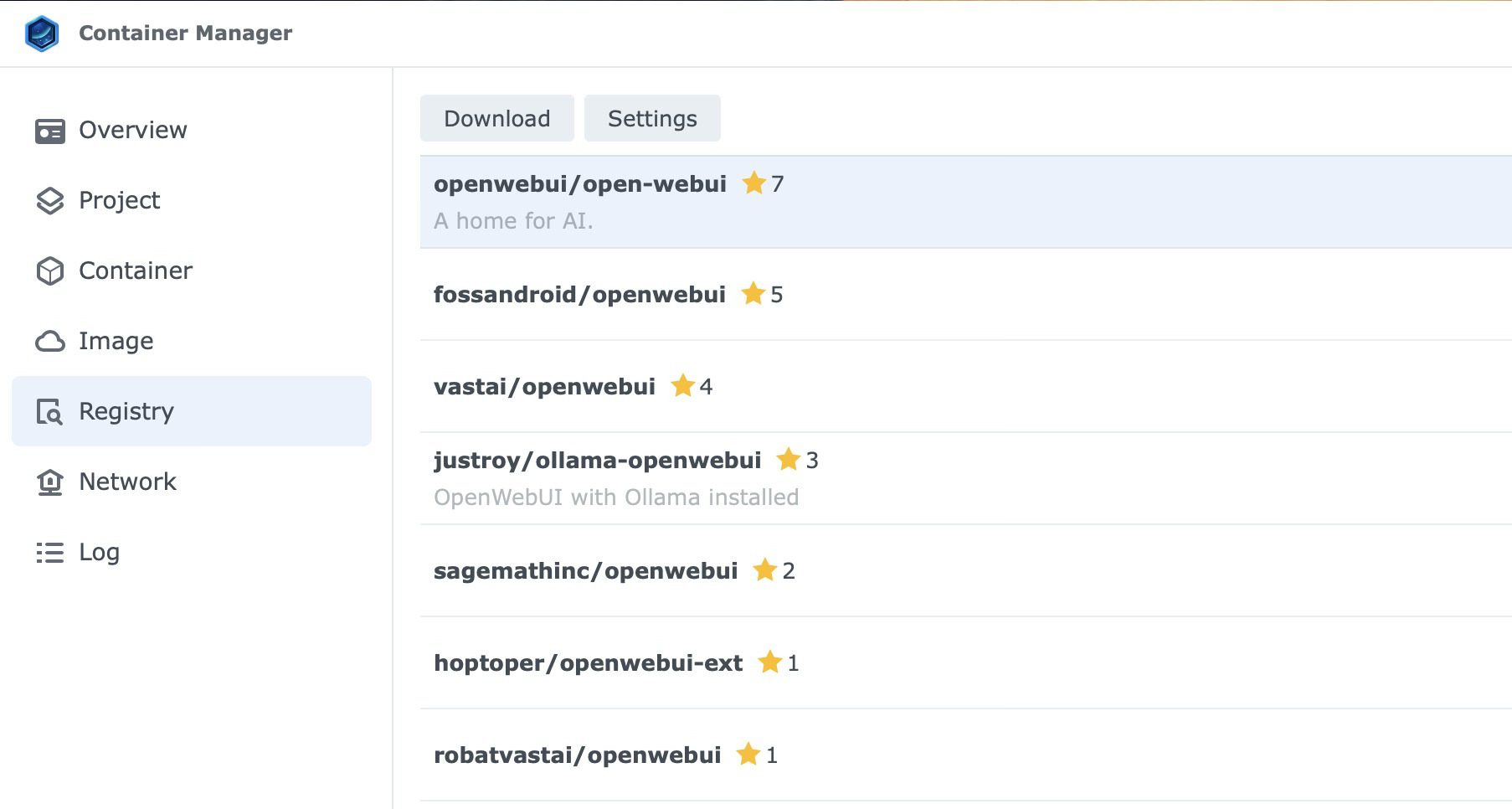
When you run that container and point it to your NAS IP on port 11434, you get a clean ChatGPT-like interface in your browser.
What This Setup Is Good For
On a DS925+, this setup makes sense for:
- private prompt testing
- lightweight local chat
- experimenting with small models
- connecting self-hosted front ends to a local Ollama endpoint
- basic code or automation experiments with compact coding models
It is less suited for:
- large models
- fast multi-user workloads
- heavy reasoning jobs that benefit from GPU acceleration
- any setup where you expect cloud-level speed from NAS hardware
That is the framing to keep in mind. The DS925+ is not a replacement for a dedicated AI rig. It is a practical way to run a small private model on hardware you may already own.
Final Thoughts
Running Ollama on a Synology NAS is a practical way to experiment with local AI on hardware you may already own.
If your NAS supports Container Manager, has an x86 CPU, and has enough RAM for small models, the setup is straightforward enough for anyone already comfortable using DSM.
Start with llama3.2:3b or another small model from the list above. Once that works, you can experiment from there without turning your NAS into a science project.