10 DuckDuckGo Features Worth Using Beyond Private Search
Most people switch to DuckDuckGo for privacy. That is a good reason, but it is not the only reason to use it. If you are still weighing search options, this older look at why people use DuckDuckGo is a useful companion.
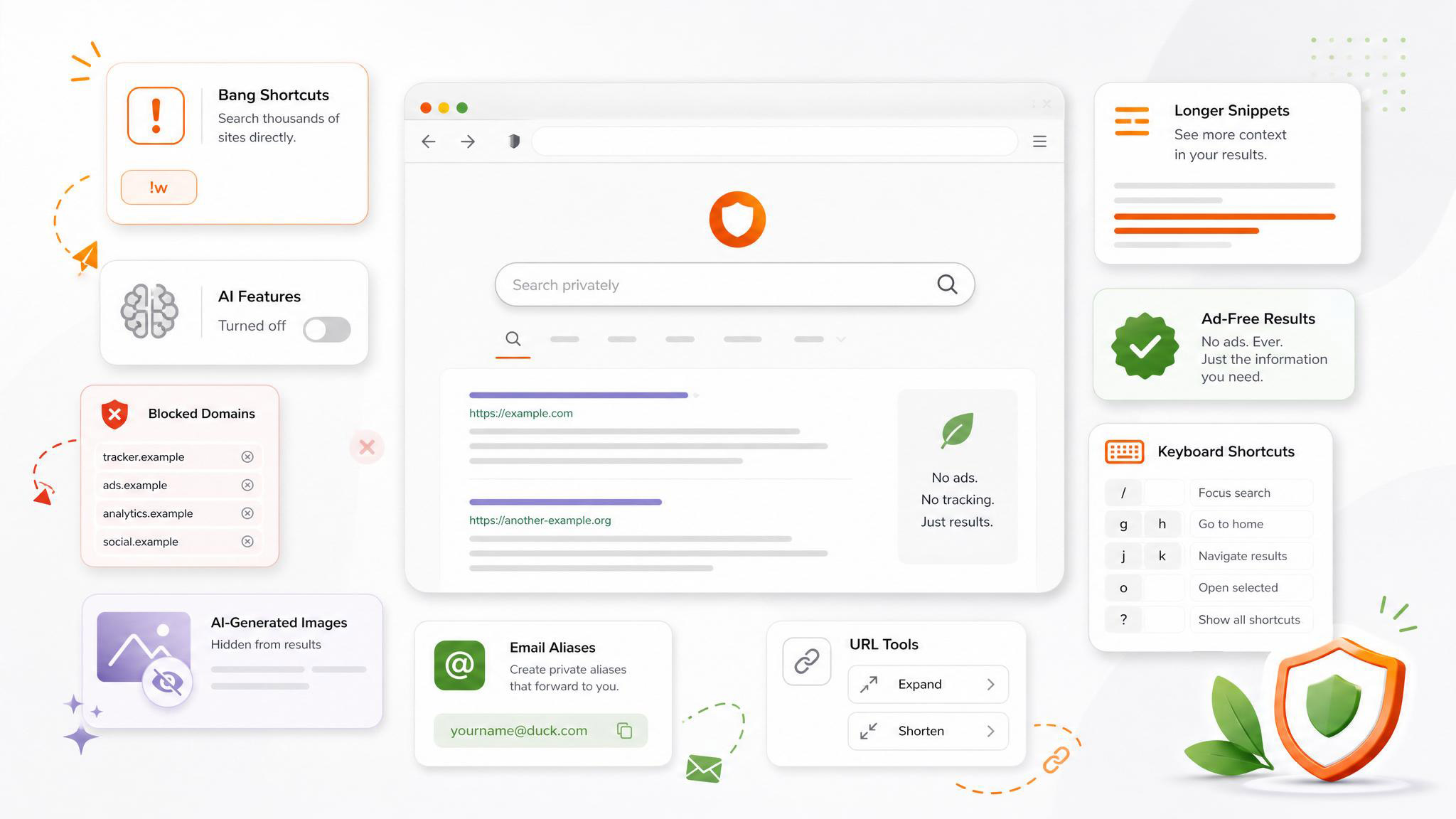
DuckDuckGo also has practical features that make everyday searching faster and cleaner. You can send searches straight to other sites, hide AI-generated images, block junk domains, expand shortened links, and use private email aliases.
If DuckDuckGo is already your default search engine, these are the settings and shortcuts I would set up first.
1. Turn Off the AI Features If You Do Not Want Them
DuckDuckGo has added AI features to its search experience, including Search Assist and Duck.ai prompts. If you prefer a plain search page, you can turn most of them off.
Go to DuckDuckGo’s settings page, open AI Features, then disable Search Assist and Duck.ai.
This removes AI answers and chatbot prompts from the regular search experience. DuckDuckGo feels lighter without them, especially if you only want search results.
2. Use Duck.ai Without Creating Another Account
If you do want AI tools, DuckDuckGo gives you a more private way to try them.
Go to Duck.ai, and you can chat with supported AI models through DuckDuckGo without creating a separate account. Use the model picker below the chat box to choose the service before sending a prompt.
The free service has usage limits, so it is not a full replacement for a dedicated AI account. It is better for quick questions, especially when you do not want another logged-in chatbot session tied to your identity.
Duck.ai also includes image generation and basic photo editing tools, including background removal. I would not treat it as a full creative suite, but it works for quick experiments.
3. Search Other Sites With Bangs
Bangs are DuckDuckGo’s best power-user feature.
Add a shortcut like !g, !w, or !r to your search, and DuckDuckGo sends the query straight to another site.
For example:
!g mechanical keyboard switchessearches Google!gi desk setup ideassearches Google Images!w markdownsearches Wikipedia!r home server setupsearches Reddit
This is useful if DuckDuckGo is your default search engine, but you still want fast access to Google, Reddit, Wikipedia, YouTube, GitHub, Stack Overflow, Amazon, or other sites.
You can browse the full list at DuckDuckGo bangs. There are thousands of shortcuts, and once you remember the ones you use often, manual site searches feel slow.
4. Hide AI-Generated Images From Image Search
Image search has become noisier. If you are looking for product photos, UI screenshots, travel references, or tutorial images, AI-generated results can get in the way.
DuckDuckGo includes a setting that tries to filter them out.
Go to Settings > AI Features, then enable Hide AI-Generated Images. DuckDuckGo also explains the option in its AI image filter help page.
The filter will not catch everything. Some synthetic images may still appear, and a few real images may be filtered incorrectly. Still, it is a useful default if you want fewer fake-looking results in image search.
5. Block Low-Quality Sites From Search Results
DuckDuckGo lets you remove specific domains from your search results.
When you see a result from a site you do not want to see again, click the three dots beside the result, then choose Block this site from all results.
That domain will stop appearing in future searches. You can manage or unblock domains under Settings > General.
Use this for content farms, scraped articles, thin AI-written pages, or any site that keeps ranking despite rarely giving you a useful answer. Search improves quickly when the worst repeat offenders disappear.
6. Turn Off Ads and Homepage Prompts
DuckDuckGo says its ads are not based on tracking, but you can still remove them if you want a cleaner results page.
Go to Settings > General, then turn off Advertisements.
While you are there, scroll through the rest of the page and disable homepage prompts you do not want, including:
- Install DuckDuckGo
- Privacy Newsletters
- Homepage Privacy Tips
- Help Improve DuckDuckGo
You can also open Settings > Appearance and turn off Protected Reminder if you do not want DuckDuckGo reminding you that your searches are protected.
These settings do not change the results themselves. They just make the interface quieter.
7. Show Longer Snippets Under Search Results
DuckDuckGo keeps result descriptions fairly short by default. If you prefer to judge a result before opening it, increase the snippet length.
Go to Settings > Appearance > Max Snippet Length, then change it to 5 lines.
This gives you more context under each result, which can save a few wasted clicks. It is especially useful for technical searches, product comparisons, documentation pages, and older forum threads where the title alone does not say enough.
8. Shorten and Expand URLs From the Search Box
DuckDuckGo can shorten URLs directly from search.
Type shorten followed by the full URL, then search. DuckDuckGo will return a shortened version using is.gd.
For example:
shorten https://example.com/very/long/url
The reverse is more useful for security. To check where a shortened link goes before opening it, type expand followed by the short URL:
expand https://is.gd/example
DuckDuckGo will show the full destination in the results. If someone sends you a shortened link you do not recognize, expand it first. This pairs well with the broader habit of checking shortened URLs before opening them.
9. Use DuckDuckGo Email Protection for Private Aliases
A unique password for every account is standard advice. A unique email alias for every account follows the same logic.
DuckDuckGo Email Protection lets you create a @duck.com address and generate private aliases for websites. Emails sent to those aliases are forwarded to your real inbox, while trackers are removed where possible.
The benefit is control. If a site leaks your address, sells your details, or starts sending junk, you can disable that alias without touching your real email address. For a similar privacy idea outside DuckDuckGo, see this guide to using an alternative ID for online signups.
It also makes spam easier to trace. If one alias was only used for one service, you have a better idea where the leak came from.
You can start at duckduckgo.com/email.
10. Search for App Cheatsheets
DuckDuckGo can show keyboard shortcut cheatsheets for popular apps.
Search for the app name plus cheatsheet, like this:
cheatsheet Excel
For supported apps, DuckDuckGo displays common keyboard shortcuts at the top of the results. You may see a small set first, with an option to show more.
This works best for popular tools such as Excel, Photoshop, Lightroom, and Chrome. It does not cover every app, and shortcuts can change after updates, so check the app’s official help page if you are writing instructions for publication.
For quick personal use, it is a fast way to find the shortcut you forgot without opening a long support document.
A Better DuckDuckGo Setup Takes Five Minutes
You do not need to change how you browse to get more out of DuckDuckGo.
Turn off the clutter you do not want. Use bangs for sites you search often. Block bad domains. Add email aliases for throwaway signups. Expand suspicious short links before opening them.
DuckDuckGo is still mainly a search engine, but with a few small tweaks, it becomes a cleaner and faster starting point for the web.