Chrome May Be Quietly Storing a Multi-GB AI Model on Your Computer
Chrome can use more than memory, battery, CPU, and tab space. Its on-device AI features can also store several gigabytes of model files on your computer. If you like keeping Chrome lean, these quick Chrome tips are still useful, but this storage check is more specific.
The file to look for is weights.bin. It appears inside Chrome’s browser data directory, under a folder named OptGuideOnDeviceModel, and is connected to Gemini Nano, Google’s on-device AI model for Chrome.
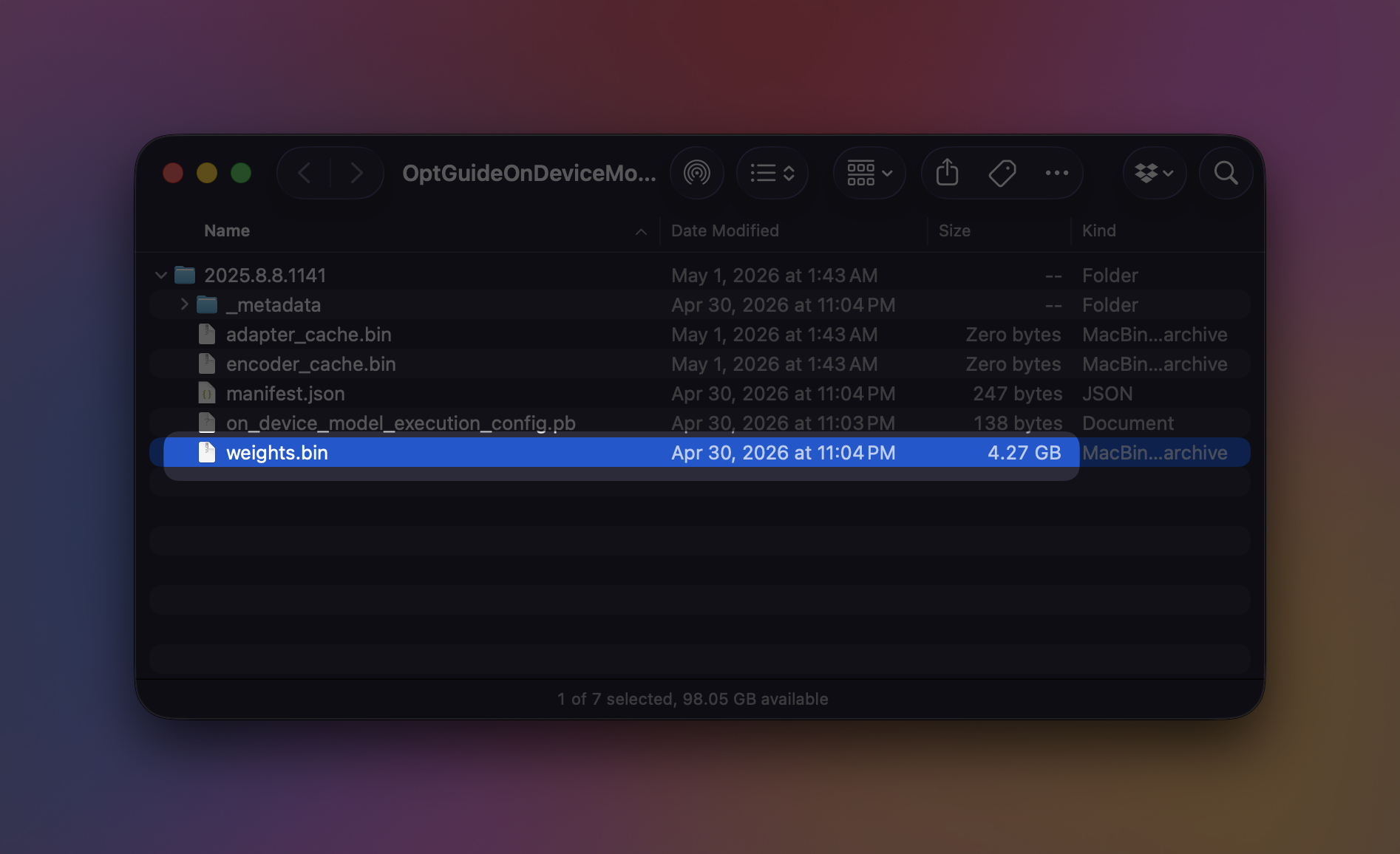
This file helps power Chrome features such as writing assistance, scam warnings, tab organization, page summaries, autofill, and other suggestion tools. If Chrome runs an AI model locally, it also has to store that model locally.
Why Chrome Downloads the AI Model
Google’s built-in AI features can run on your device instead of sending every request to the cloud. That can help with privacy because some processing happens on your own computer.
Google’s Chrome Help page says Chrome may download on-device generative AI models in the background so related features stay ready to use. Google’s developer documentation also says Gemini Nano’s exact size can change as Chrome updates the model.
To check the current model status and size, open:
chrome://on-device-internals
If your laptop suddenly has a few gigabytes less free space and you use Chrome’s AI tools, check that page first. Developers curious about the feature side can also look at how Chrome’s Gemini tools work in Chrome DevTools AI assistance.
How to Check Chrome’s On-Device AI Storage
Open this address in Chrome:
chrome://on-device-internals
Look for model status and storage details.
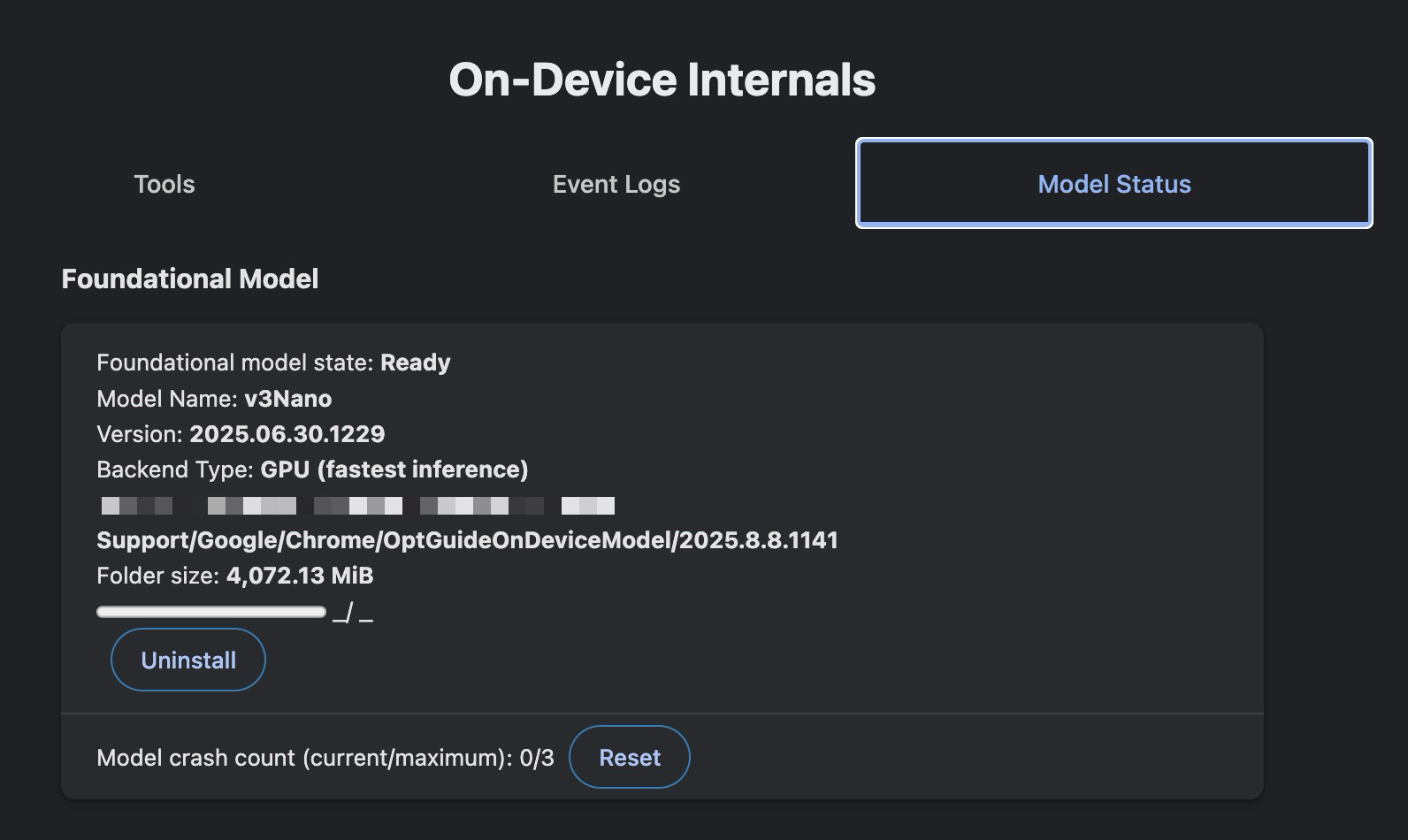
You can also search Chrome’s local data folders for OptGuideOnDeviceModel and weights.bin. The exact path depends on your operating system and Chrome profile.
On Windows, check:
C:\Users\<username>\AppData\Local\Google\Chrome\User Data\OptGuideOnDeviceModel\<version>\weights.bin
On macOS, check:
~/Library/Application Support/Google/Chrome/OptGuideOnDeviceModel/<version>/weights.bin
The <version> folder name can change after Chrome updates the model.
How to Remove Chrome’s On-Device AI Models
If you do not use Chrome’s local AI features, turn them off from Chrome settings.
- Open Chrome.
- Click the three-dot menu in the top-right corner.
- Go to Settings.
- Open System.
- Turn off On-device AI.
Google says turning this off removes the on-device generative AI models. Features that rely on those models will stop working, but Chrome itself will keep running normally.
Do not just delete weights.bin. If the related AI features stay enabled, Chrome may download the model again.
Why You Might Not See the Setting
The On-device AI toggle may be missing if your device does not support Chrome’s local AI features, if the feature has not reached your profile, or if your browser is managed by a company, school, or other organization.
Chrome’s built-in AI features also have hardware and storage requirements. Google’s developer documentation lists support for Windows 10 or 11, macOS 13 and later, Linux, and Chromebook Plus devices for the APIs that use Gemini Nano. It also says the Chrome profile volume needs at least 22GB of free space.
If your system drops below Google’s storage threshold after the model is downloaded, Google says the model can be removed automatically and downloaded again later when the requirements are met. If you are trying to work out what else is taking space, a disk space check on Windows can help you spot the other big files.
Should You Turn It Off?
Keep it if you use Chrome’s writing help, page summaries, scam detection, tab organization, or developer-facing AI features.
Turn it off if you never use those features and want the storage back. A few gigabytes may be easy to ignore on a desktop with a large SSD. On a 256GB laptop, that space is harder to spare.
Open chrome://on-device-internals, check whether the model is installed, and turn off On-device AI if you do not use Chrome’s local AI features.