Design Realistic Stainless Steel Background and Text [Photoshop Tutorial]

Advertisement

create stainless steel effect

Web designers and webmasters used to love cool steel or metallic kind of effects before the Web 2.0 storms in and washed everything away; leaving the WWW with glossy, abusive gradients websites. Apple.com has always been related to good Web 2.0 interface design but these guys has never lost the cool black and silver-ish effects nor fail to make it better in their designs and typography.

Inspired by their designs, I’m trying to bring these styles back into my personal design and thus created something somewhat solid, and looks a bit like a piece of stainless steel metal. Full Photoshop tutorial after jump.

Stainless Steel Background

Step 1

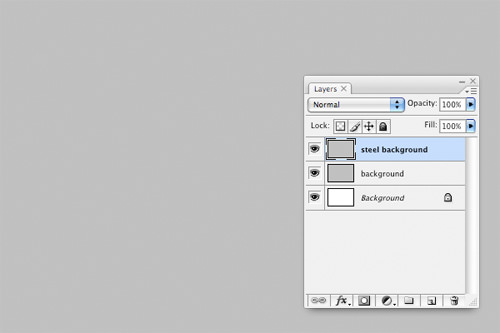
Create a blank new document at the size of 600×400. Create a new layer, name it ‘background’ and fill it with gray color [#c0c0c0]. Duplicate ‘background’ layer, name the new layer ‘steel background‘ and place it on top of ‘background‘.
Step 2

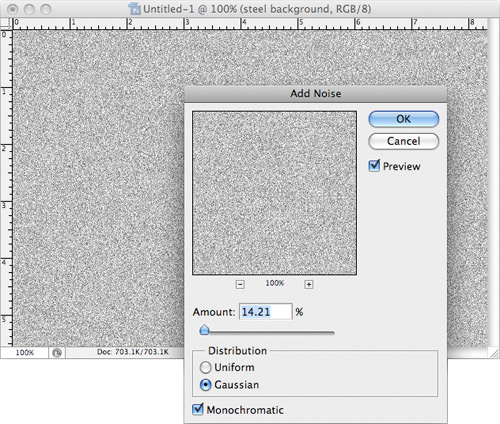
With ’steel background’ layer selected, apply Filter -> Add Noise and enter the following settings:

  • Amount: 14.21
  • Distribution: Gaussian
  • Monochromatic checked

Step 3

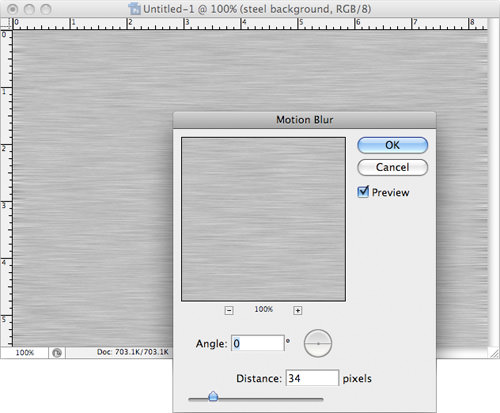
With ‘steel background‘ layer still selected, go Filter -> Blur -> Motion Blur and enter the following settings:

  • Angel: 0
  • Distance: 34 pixels

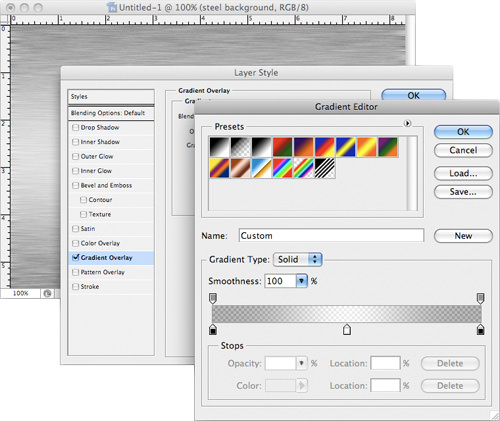
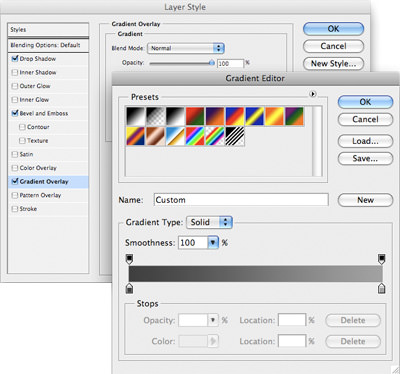
Right click ‘steel background‘, select Blending Options and enter the following settings for Gradient Overlay – Gradient Editor:

Color Stop 1

  • Color: #000000
  • Opacity: 50%
  • Location: 0%

Color Stop 2

  • Color: #ffffff
  • Location: 50%

Color Stop 3

  • Color: #000000
  • Opacity: 50%
  • Location: 0%

Metal Text

Step 4

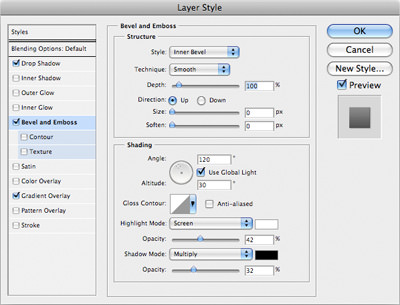
Your stainless steel background is basically done, we’ll continue from there to insert a metal text that should look matching. Use the Text Tool, write something in the middle, preferably with think fat font (I’m using Myriad Pro Bold here). Right click (or double click) the text layer to launch the Blending Options dialog.

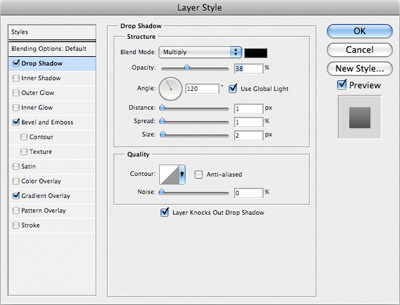
  1. Drop Shadow
    • Opacity: 38%
    • Distance: 1px
    • Spread: 1%
    • Size: 2px

  2. Bevel and Emboss
    • Depth: 100%
    • Size: 0px
    • Soften: 0px
    • Highlight Opacity: 42%
    • Shadow Opacity: 32%

  3. Gradient Overlay, Gradient Editor

    Color Stop 1

    • Color: #3f3f3f
    • Location: 0%

    Color Stop 2

    • Color: #a1a1a1
    • Location: 100%

Your text should look something similar to the below.

Step 5

Here’s something you need to follow tightly. Hold Control key (Mac: Command key) and left click on the text layer to highlight it’s outline. Make sure the outline is still there, select ‘steel background‘ layer, and hit Control + J (Mac: Command + J)

By doing this, you are duplicating the steel background in the shape of your text. Rename the layer to ‘text background‘ and move it to the top.
Step 6

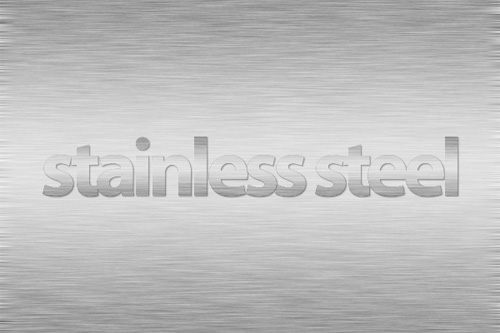
Change ‘text background‘ to Color Burn, bring it’s Opacity down to 67%.
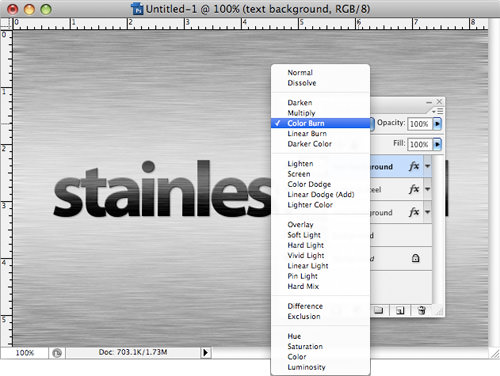
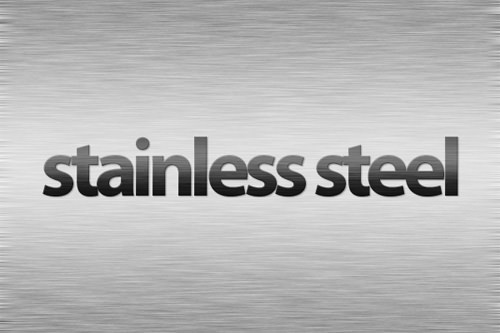
Your final output should look something similar to the image below.
Download .PSD file.

Related Contents

Sponsors

Posted by hongkiat in Photoshop Tutorials , at 03.26.08

Tags: , , , ,

Comments

  1. stainless steel tubing March 27th, 2008

    its looks like a real stainless steel

    Reply
  2. iCalvyn March 27th, 2008

    I would like to use this tutorial, to make a logo for my self :)

    Reply
  3. Wing Loon March 29th, 2008

    Cool… I can also make the stainless steel background using Paint.Net by following this tutorial, :)

    Reply
  4. Boby April 5th, 2008

    Nice tutorial….
    if wanna read about computer tips n trick , please Visit pctrack.blogspot.com
    cee…u….

    Reply
  5. HEYABBOT May 18th, 2008

    Nice job well done not only it turned out looking like stainless steel
    But your directions was detailed perfectly

    Reply
  6. muneebiftikhar June 3rd, 2008

    Its Good

    Reply
  7. Michelle June 9th, 2008

    This is the best steel tutorial I have found! Thanks.

    Reply
  8. Daniel July 18th, 2008

    Me too :)

    Reply
  9. Pouyan August 11th, 2008

    Thanks For your Helpfull Guaid

    Reply
  10. GEEO August 15th, 2008

    XDD Gash that’s not Realistic :S…
    Better download Ps filters

    http://geeovip.deviantart.com/art/Metal-Slug-7-93390783

    Reply
  11. Jason August 26th, 2008

    Amazing, ive just used it on my site for my logo http://www.playstationgames.co.uk thanks!

    :D

    Reply
  12. john doe September 10th, 2008

    Great article but I can not perform step 5 in windows with ps cs3 extended. CTRL + J command only dublicate a layer once at a time. Can you explain it in detail please ?

    thanks

    Reply
  13. Captain Canada September 11th, 2008

    I am experiencing the same problem as john doe in 12. I highlight the layers as per the tutorial then press CTRL + J and nothing happens. Like john doe, I am working CS3 Extended on Windows.

    It’s frustrating that I’m so close, yet oh so far. Can anyone offer a work around?

    Reply
  14. hongkiat September 11th, 2008

    @Captain Canada, @john doe.
    Guys, sorry for the late reply. Control – J basically allows you copy something you highlighted directly on a new layer, on the exact position.

    Now if you can’t do that, simple do the manual way. Make sure it’s highlighted:
    1 – Control-C (Copy)
    2 – Create New Layer
    3 – Control-V (Paste)
    4 – Manually adjust the position.

    Hope this helps.

    Reply
  15. John Doe September 12th, 2008

    Dear hongkiat and Captain Canada,

    I finally succeed :) But the classical copy-paste could not work there. So I right clicked the Text layer’s thumbnail and then “select pixel”. And then invisible the Text layer and copy the selected area, this is the text with steel background and paste it to a new layer and go on with the blend mode and opacity.

    I hope my comment will help you.
    Have a nice day.

    Reply
  16. Captain Canada September 18th, 2008

    @ john doe, @ hongkiat:

    Thanks for the help – I finally licked it.

    Best regards,
    Capt. Canada

    Reply
  17. Chris October 9th, 2008

    Hi, i got to step five of the text bit and got stuck to. My text won’t appear with the steel texture on it. I’ve tried to follow what jon doe said but i don’t understand. Please help!!

    Reply
  18. Nguyễn Hoàng Long December 7th, 2008

    Hi Chris! You can follow these steps below:
    - Right click on the Text layer’s thumbnail and then “Select Pixel”.
    - And then invisible the Text layer.
    - Highlight the layer “Steel Background” because there’s nothing to copy after hiding the Text layer.
    - Copy the selected area by pressing Ctrl + C.
    - Create a new layer named “Color Burn”, and then press Ctrl + V to paste what you’ve just copied.
    - Now you can follow the Step 6.

    Good luck!

    Reply
  19. Antonio December 13th, 2008

    mUY BUENO EL TUTORIAL

    Reply
  20. Sam January 27th, 2009

    Great tutorial, seriously fantastic. Easy to follow, finished product looks great!

    Reply
  21. Phox February 14th, 2009

    Great tutorial! Instrumental (pun) in helping to create the instrument panel for our iPhone app Gourmet Timer. Thanks!

    Reply
  22. andre February 15th, 2009

    5/5
    I’ve been for ages trying to understand how to create that texture.
    Great tutorial, keep it up.

    Reply
  23. gchrome February 26th, 2009

    great tutorial. Very helpfull – thank you!

    Reply
  24. Cabs June 8th, 2009

    I’ve been experiencen problems around the text bit at step five… and tried the different solutions and explanations that you guys have given. It partly works, but it looks nothing like the tutorial :’S
    It comes out looking almost as the background, hard to see the difference. Short: It’s doesn’t look like the picture in the end of step 5.
    Please help …

    Best regards
    Cabs

    Reply
  25. tom June 26th, 2009

    “Cabs June 8th, 2009
    I’ve been experiencen problems around the text bit at step five… and tried the different solutions and explanations that you guys have given. It partly works, but it looks nothing like the tutorial :’S
    It comes out looking almost as the background, hard to see the difference. Short: It’s doesn’t look like the picture in the end of step 5.
    Please help …
    Best regards
    Cabs”

    Make sure that the actual text layer which you load the selection of is underneath the layer which looks like the background, will give it the correct look

    Reply
  26. James Horn October 1st, 2009

    Nice Tutorials

    Reply
  27. manpreet November 15th, 2009

    Thnks i will definately use yur advice but just after reading it i am so much satisfied that without making a actual tamplate i will still be able to make a original steel tamplate .

    Reply

Leave a reply