10 Best Free FTP Clients for Desktop (2024)
FTP (File Transfer Protocol) and SFTP (Secure File Transfer Protocol) are standard network protocols used for transferring large files over the internet. FTP is widely used for its simplicity and speed, while SFTP offers the added benefit of secure, encrypted transfers. These tools are invaluable for web developers, IT professionals, and anyone needing to transfer large amounts of data securely and efficiently. Although there are many reliable paid FTP services, having access to free FTP solutions is a smart addition to your digital toolkit.
In this article, we will explore some of the best free FTP applications, as well as alternative methods for transferring files using FTP, even if you don’t have specialized software.
Read Also: 15 Websites to Send Big Files Online
1. FileZilla
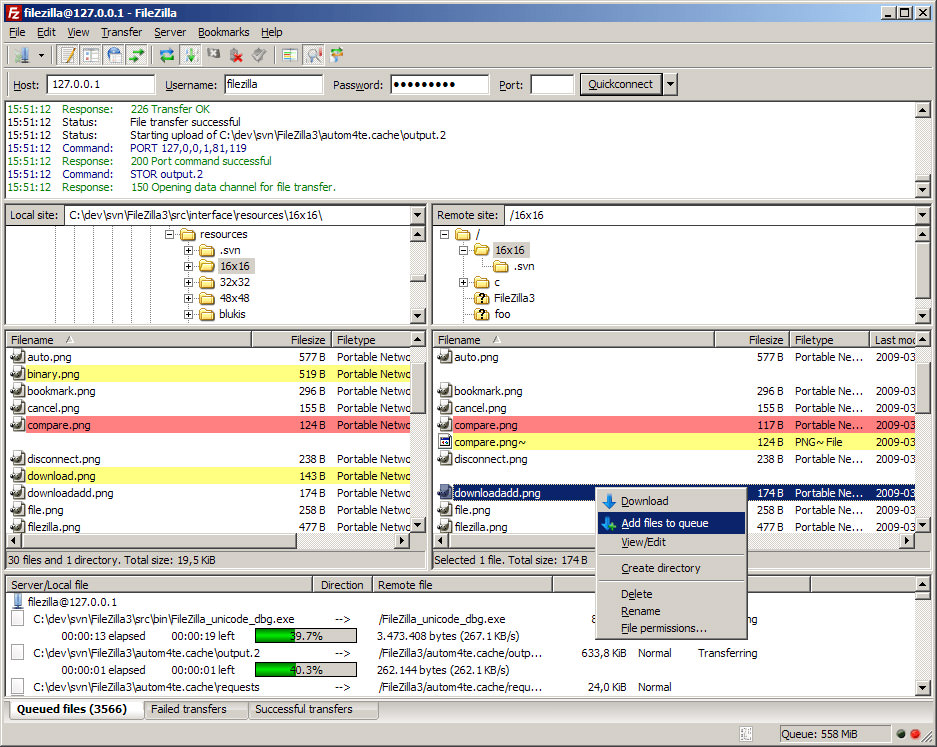
My top pick, FileZilla, is an open-source FTP client supporting FTP, FTP over SSL/TLS (FTPS), and SSH File Transfer Protocol (SFTP). Its user-friendly tabbed interface allows managing multiple connections and tracking ongoing file transfers. Notably, it’s IPv6 compatible and can handle files larger than 4GB.
FileZilla’s standout features include remote file editing, SOCKS5, and FTP-Proxy support, along with drag-and-drop functionality for effortless file uploading/downloading.
Additionally, it offers capabilities like remote file searching, multi-language support, and adjustable speed limits for file transfers to minimize impact on your internet browsing.
Download FileZilla for:
2. Cyberduck
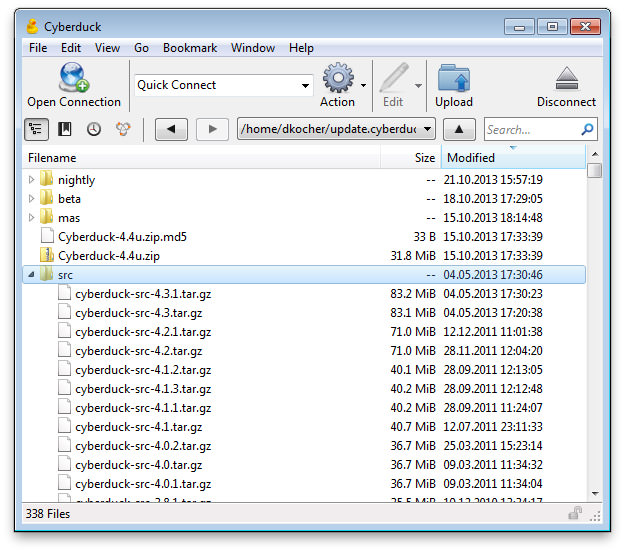
Cyberduck stands out with its ability to connect to various protocols like FTP, SFTP, and more, including third-party services like Amazon S3 and OpenStack Swift. Its drag-and-drop functionality and the option to edit files in an external editor are quite handy.
This tool offers seamless browsing, downloading, uploading of files with the flexibility to pause and resume as needed. You can manage concurrent transfers, use regular expressions for file filtering, and even encrypt files and access cloud storage services like Google Drive and Dropbox.
Read Also: How to SSH into Server Without Password
Download Cyberduck for:
3. GoAnywhere MFT
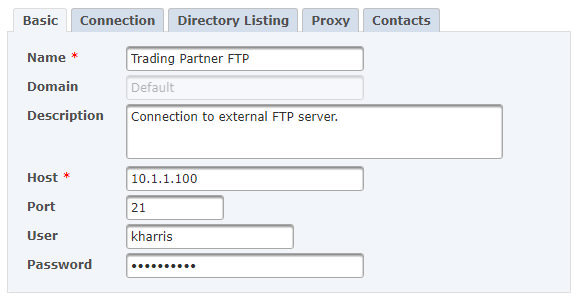
GoAnywhere MFT is a user-friendly tool enabling automated file transfers through a browser-based interface. It’s unique for its ability to monitor FTP sites and offers scheduled transfers down to the minute. It supports all transfer options and custom commands.
With features like autodetecting file modes and handling files of unlimited sizes, it’s incredibly versatile. It can automate transfers with various variables, send alerts via email or text, and supports HTTP and SOCKS proxy. Additionally, it can alter file permissions if authorized.
Download GoAnywhere MFT for:
4. CrossFTP
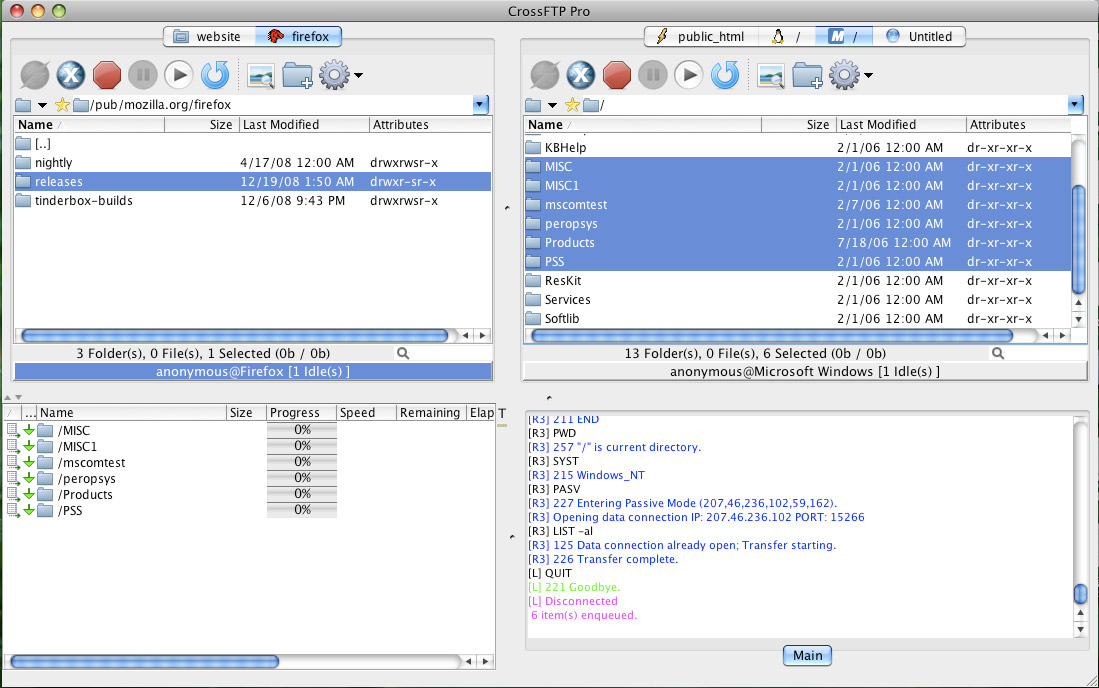
CrossFTP is an efficient free client capable of batch transferring files seamlessly. It features a tabbed interface, allowing connections to multiple sites simultaneously. Users can compress, extract, and explore archives directly within the application. Notably, it supports files with international encoding and includes a direct file search function.
Its user-friendliness is a standout feature. Additionally, CrossFTP integrates with Amazon S3, Google Cloud Storage, and Amazon Glacier. It also offers an added layer of security by encrypting site passwords.
Download CrossFTP for:
5. NcFTP Client
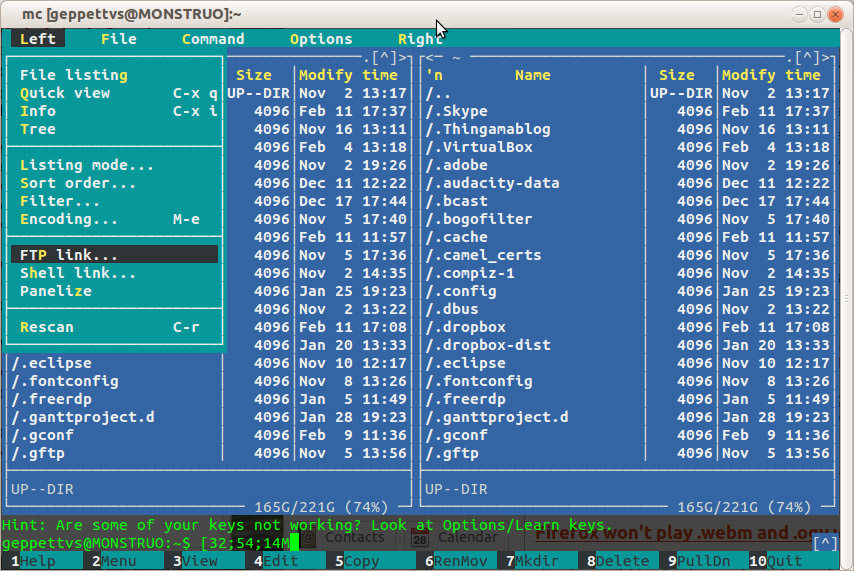
NcFTP is a unique FTP client offering the simplicity and adaptability of a command-line interface. Unlike graphical clients, it’s designed for high-traffic sites, supporting simultaneous multiple connections.
NcFTP facilitates data exchange with other programs and, impressively for a command-line tool, shows progress meters for uploads/downloads. It supports background processing, download resuming, bookmarking, caching, and is compatible with firewalls and proxies, among other advanced features.
Download NcFTP Client for:
6. FTP Voyager
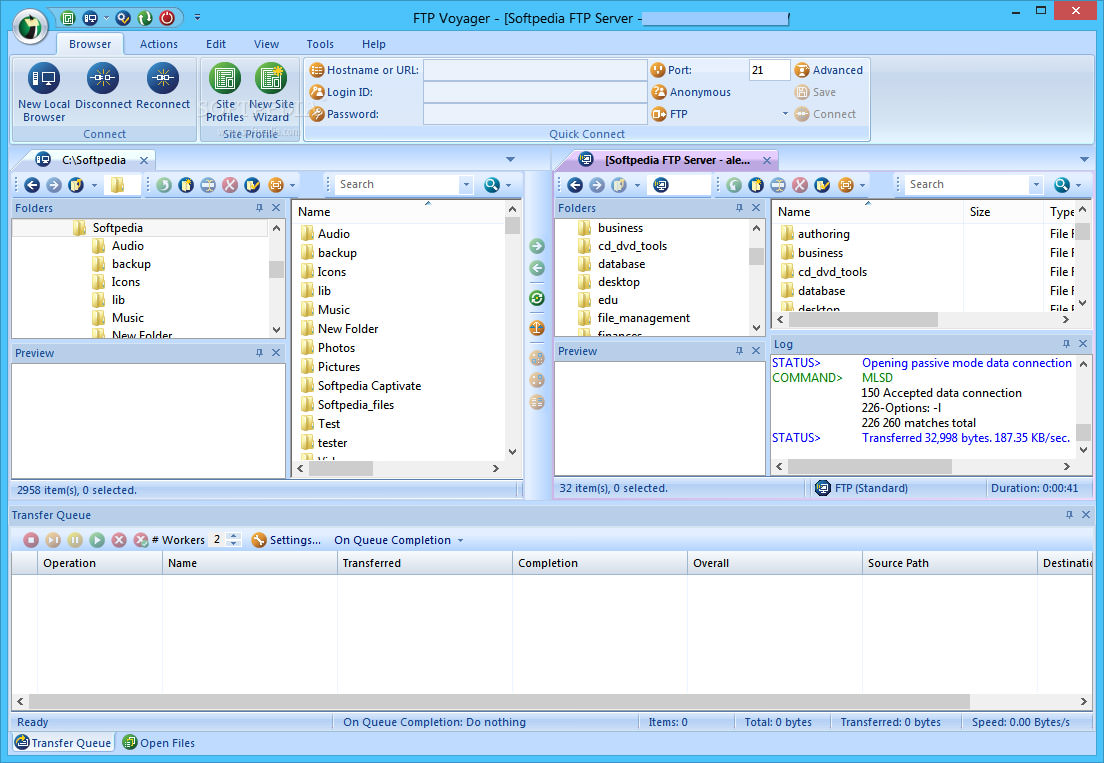
FTP Voyager excels with its support for FTP, FTPS, and SFTP (SSH) protocols, wrapped in a user-friendly interface. It shines with features like automated file management and folder synchronization. A highlight is its customizable post-transfer actions, allowing you to send emails or run programs after completing transfers.
Its file-transfer scheduler is a standout, enabling automated uploads or downloads. Additionally, FTP Voyager supports sophisticated scheduling scripts, offering enhanced automation capabilities.
Download FTP Voyager for:
7. WinSCP
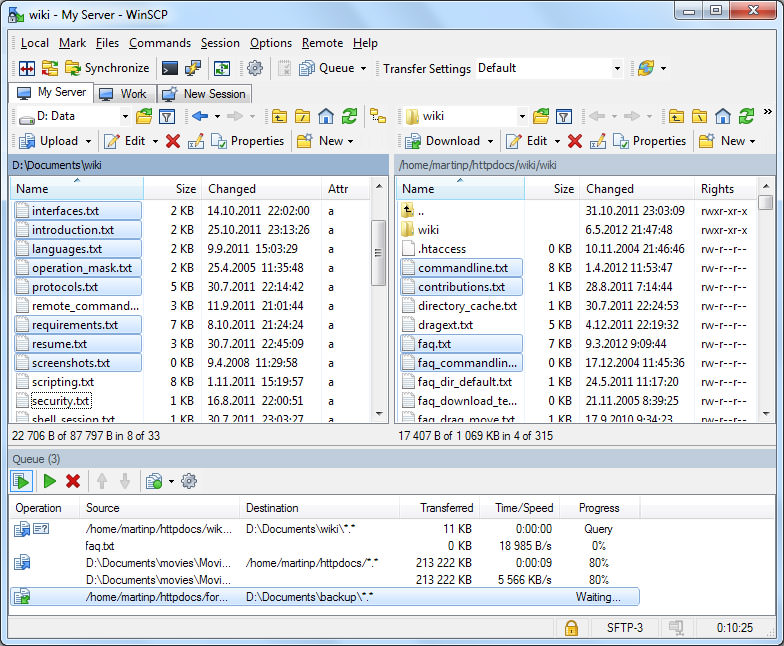
WinSCP, a Windows-exclusive open-source FTP client, also supports WebDAV and SCP. Its strength lies in task automation via command line tools and batch scripting. It facilitates semi and fully automatic directory synchronization and shares settings with PuTTY.
This multilingual tool ensures password-protected site information and doubles as a portable client. It features an integrated text editor for editing local and remote files. Its integration with PuTTY’s authentication client (Pageant) enables public key authentication with SSH.
Download WinSCP for:
8. Core FTP
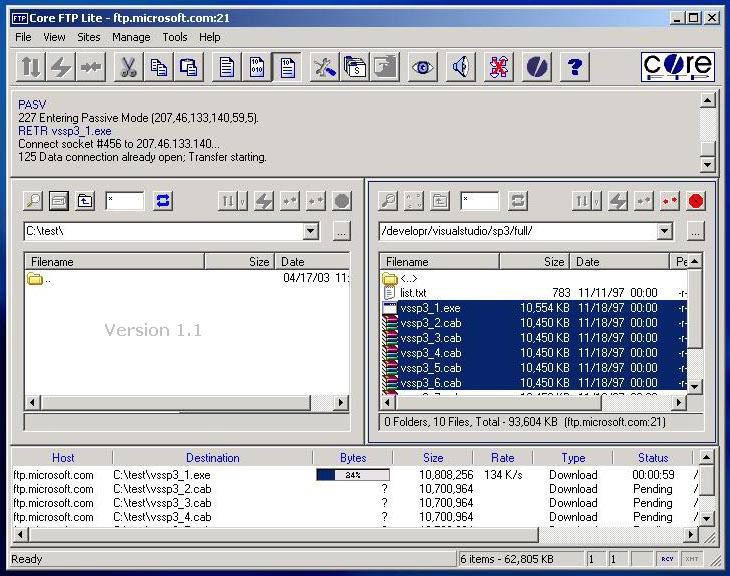
Core FTP impresses with its extensive support for protocols like FTP, SFTP, and FTPS. Known for fast and secure file transfers, it also features Mode Z compression and site-to-site transfers. Its accessible interface supports drag and drop, and flexible transfer controls like pause, resume, and stop.
Notably, it offers bandwidth control, remote file search, and editing of .htaccess and .htpasswd files. Among its powerful capabilities are S/Key support, command line utilities, and support for FTP/HTTP and Socks 4 & 5 proxies. Its ability to encrypt and decrypt files also stands out.
Download Core FTP for:
9. SmartFTP
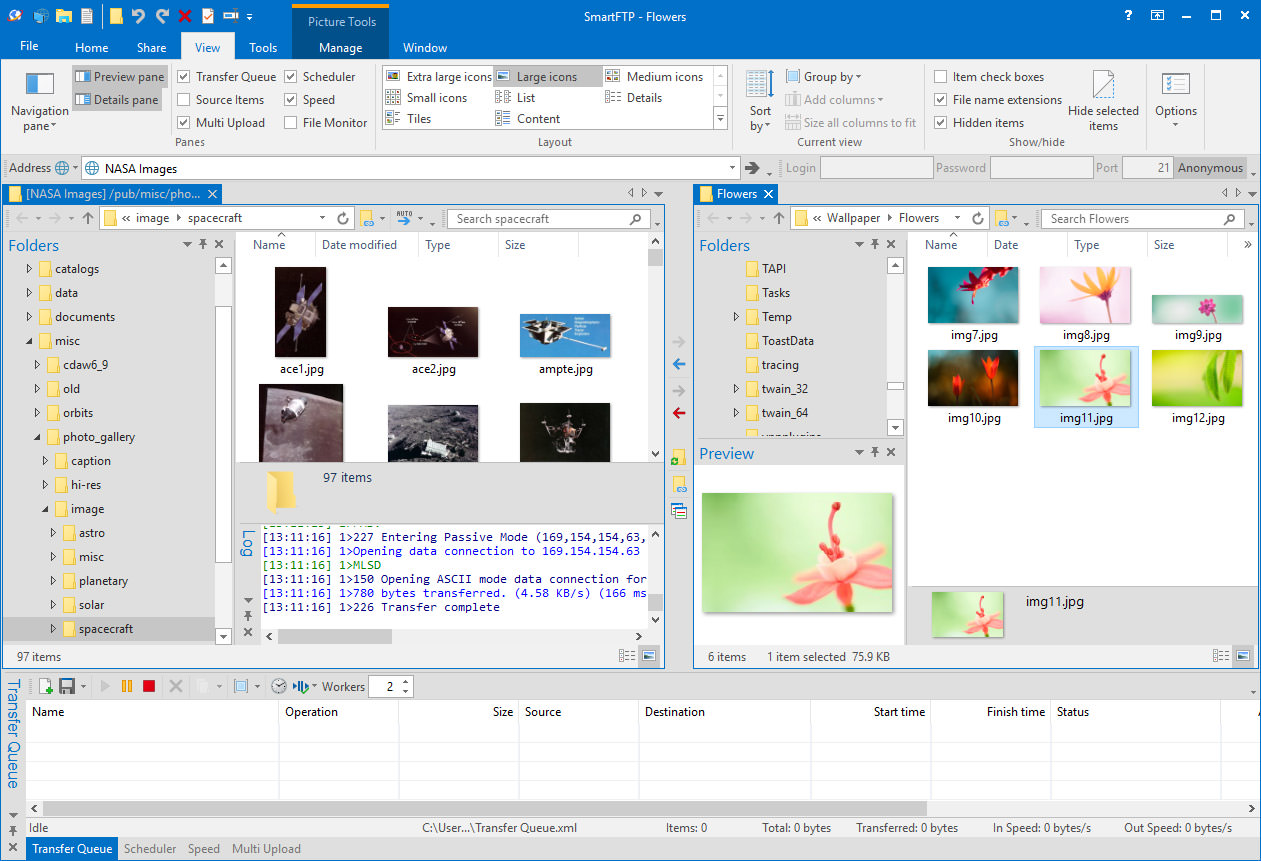
SmartFTP goes beyond standard FTP clients, supporting FTP, SFTP, FTPS, SSH, WebDAV, Google Drive, OneDrive, Amazon S3, and Terminal protocols. It’s an advanced tool that allows file transfers, backups, and synchronization of local and remote files. However, note that some features are exclusive to the paid version.
Like WinSCP, SmartFTP includes an integrated editor for local and remote files. Its modern interface, supporting over 20 languages, is particularly impressive. It shares features like IPv6 protocol and Mode Z compression with CoreFTP, and also offers SOCKS5, SOCKS4, SOCKS4A, and HTTP proxy support.
Download SmartFTP for:
10. FTP Manager Lite
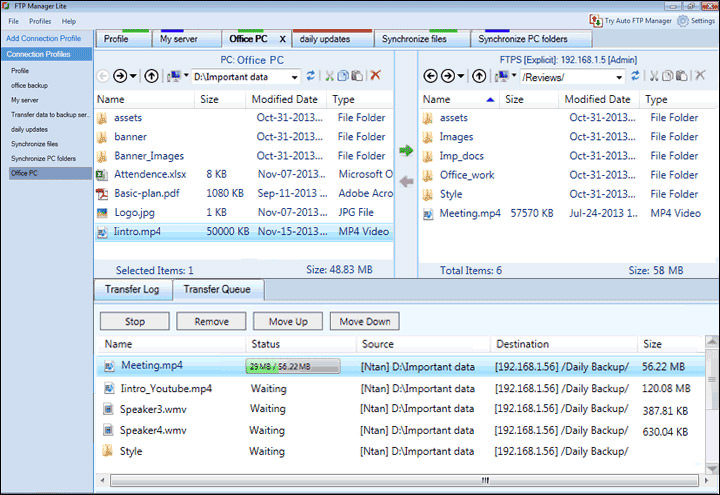
FTP Manager Lite stands out as one of the quickest FTP clients, offering secure file transfer between your PC and server. Its tab-styled interface simplifies connections, allowing you to manage them in a single window. This client is compatible with most protocols like FTP, FTPS, etc.
It features drag-and-drop functionality for swift transfers, supports automatic encoding selection, and offers both active and passive transfer modes. It auto-reconnects after transfer failures and allows you to pause and resume transfers at any time.
Download FTP Manager Lite for:
11. Commander One
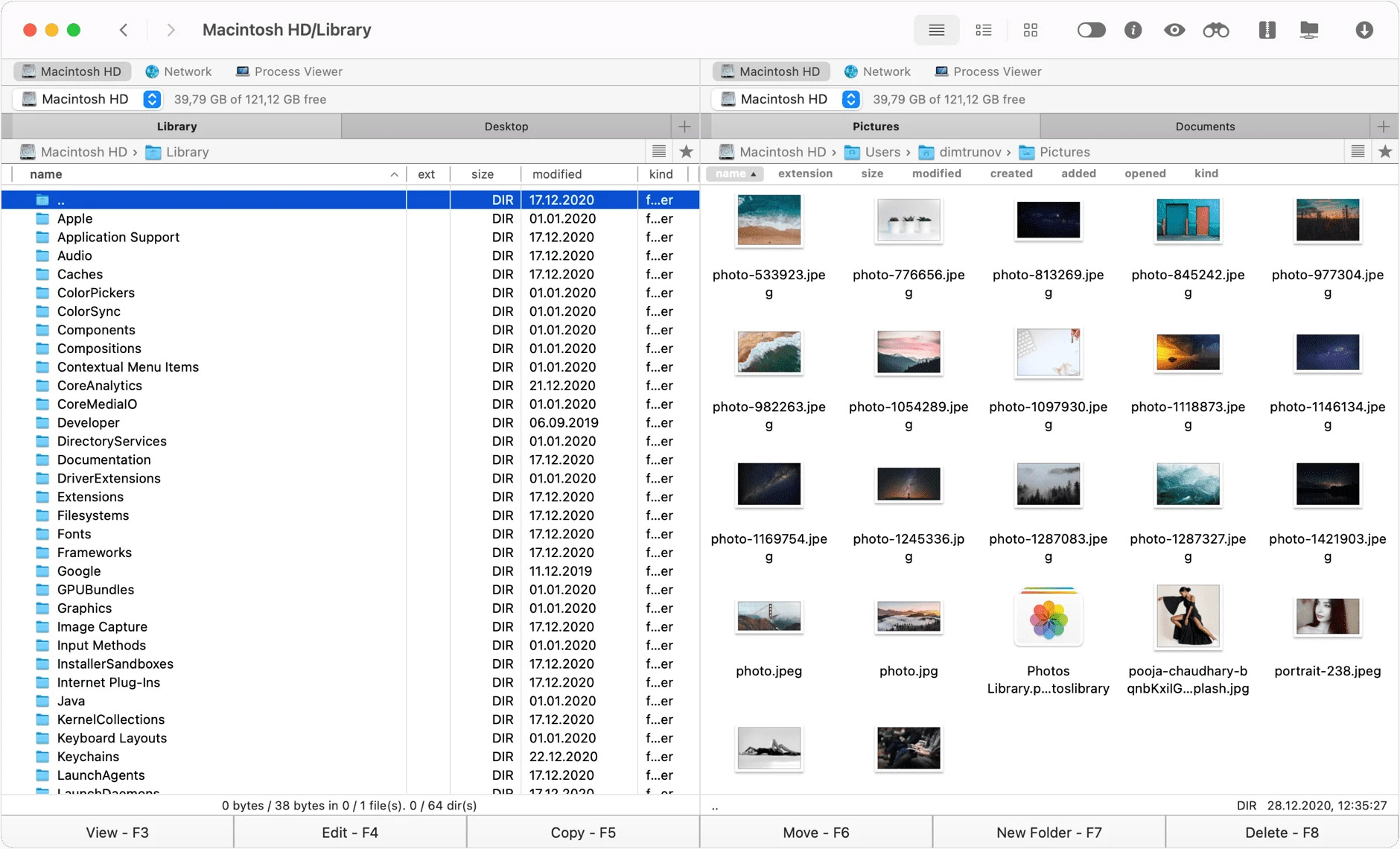
Developed in Swift, Commander One is a versatile file manager for Mac, offering a dual-pane interface for efficient file management. It features customizable themes, fonts, Dark Mode, easy navigation, drag-and-drop functionality, hidden file visibility, and file renaming during transfers.
The software enhances file browsing with multiple tabs, three viewing modes, and advanced search features like Regex and Spotlight search. Additional functionalities include hotkey customization, process viewing, Finder Tags support, and various file preview options. The PRO version offers FTP/SFTP management, 7zip and RAR support, custom themes, cloud service integration, and secure file encryption, positioning Commander One as a comprehensive solution for Mac file management.
Download Commander One for:
Bonus: Other Alternative Methods to Connect
If you’re a casual user or prefer not to install a specific FTP application, here are some methods you can use with your current operating system or apps for FTP file transfers.
Firefox FireFTP
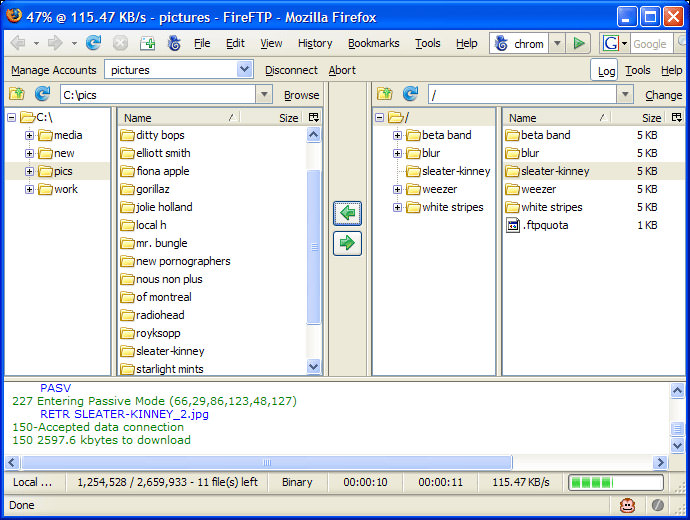
An FTP file transfer plugin for Firefox, allowing you to manage FTP tasks directly within your browser tab.
Windows Explorer
Windows Explorer can function as an FTP tool. Simply use the following format for FTP connections: ftp://username:password@ftp.server.com/
DOS Command Lines
Windows Command Prompt supports FTP, albeit without a graphical interface. Here’s how to connect to FTP using Windows DOS Command Prompt:
- Click Start on the Desktop and select Run.
- Type in
cmdand press Enter. - In the Command Prompt, type
FTP. - Connect to your site with:
open ftp.server.com - Enter your username and password.
Using the Command Prompt for FTP transfers is straightforward. If you’re new to the commands or encounter difficulties, type HELP and press enter for more information, or refer to this list of commands.