
Photos are often much more interesting when they are displayed like a Polaroid photo. Learn how you can turn your normal photo into something livelier, by adding a realistic Polaroid effect to it.
Creating the Base
- Create a new blank canvas, say about 800×600 resolution, filled it with white [#ffffff] background.
- Draw a rectangular in the middle, using Rounded Rectangular Tool with Radius: 2px. This will be the base for your Polaroid photo.
- Double click on layer name to launch Blending Options, and insert these following effects:
Drop Shadow
- Opacity: 38%
- Spread: 0%
- Size: 5px
Inner Shadow
- Opacity:25%
- Distance: 0px
- Choke: 0%
- Size: 57px
Color Overlay
- Color: White [#ffffff]
- Here’s how your output will look like.
Determining Image Size within Polaroid
Let’s determine how big our image will be within a Polaroid.
- Hold CTRL and left click on the Polaroid Base’s Layer Thumbnail to highlight the selection.
- With the selection highlighted, click Select -> Modify -> Contract.
- Insert 7px and click OK, you will noticed that the selection is shrink by 7px.
- Select Retangular Marquee Tool, Hold ALT and drag a smaller rectangular on the bottom to minus it off the selection.
- Create a new layer, call it " Photo Base" and fill the highlighted part with any color, say black, #000000 for instance. Hide the layer, we will use it as reference later.
Adding Image into Polaroid
- Just make sure you have the selection of layer Photo Base still highlighted, if not, hold CTRL and click on the layer to re-highlight it.
- Create a new layer on top of Photo Base, call it Photo.
- Look for your desired image, copy it and SHIFT + CTRL V to paste it. You will noticed the image will paste itself into the highlighted selection.
- Transform (CTRL T) or reposition until you are satisfied with the focus point.
Making Polaroid Image more Realistic
The photo looks a bit stiff to me at this stage. Lets tweak it so it looks that it looks more blending into the Polaroid.
- Double click on the "Golf" layer to call up the Blending Options and tweak the following styles:
Inner Shadow
- Opacity: 40%
- Distance: 0px
- Choke: 0%
- Size: 46px
- Hold CTRL, left click on Photo Base layer’s thumbnail to highlight the selection, create a new layer on most top, call it "Glossy"
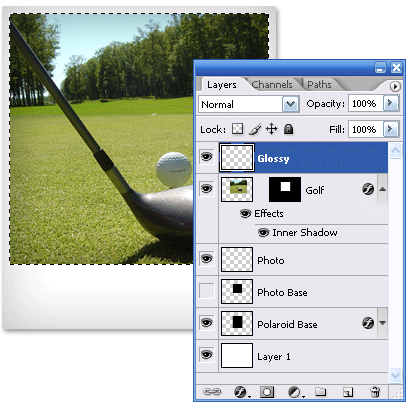
- Select Polygonal Lasso Tool, Hold ALT and draw a rectangular like the image below to cut off half of the highlighted selection.
- Fill the left over selected area with white [#ffffff] and adjust its Opacity to 18% or any figures as long it looks comfortable on the photo. Your output will look something similar to the image below.
Adding Text to Polaroid
The photo is almost done, add some writings. Fonts close to handwriting will be nice. Here’s my final output.
Related Contents |
Sponsors |
|
Posted by hongkiat in Photoshop Tutorials , at 05.04.07 |
|


Comments
Mo May 4th, 2007
cool… will try this soon…
ReplySteve Yu May 8th, 2007
wow, dude! This is great. Thank.
ReplyDave May 11th, 2007
hi yeah this is a really great tutorial the only thing is i get stuck at the step 1 of the determining the size of the polaroid i don’t know what the layer thumbnail? i hope you can help me thanks
Replymgthantzin May 14th, 2007
this is a good tutorial.
Replyhongkiat May 14th, 2007
Hi Dave, click here for a sample of layer thumbnail.
ReplyJanna May 27th, 2007
I agree with Dave, i got stuck at step 1 too. :( Help ME!
Replyhongkiat May 27th, 2007
Janna, this is the Layer Thumbnmail. Left click to get its size.
Replyjaya May 28th, 2007
just download the sample guys
ReplyNick May 31st, 2007
nice tutorial man…I’ll be visiting again for sure
ReplyLovekills182 June 6th, 2007
i’m not good with photo shop. I keep getting stuck on this one part
“Look for your desired image, copy it and SHIFT + CTRL V to paste it. You will noticed the image will paste itself into the highligted selection.”
The thing is still highlighted and everything and i’m pasting my picture in but it doesn’t go in the highlighted selection…help me please =)
ReplyNewton June 27th, 2007
“Look for your desired image, copy it and SHIFT + CTRL V to paste it. You will noticed the image will paste itself into the highligted selection.”
The thing is still highlighted and everything and i’m pasting my picture in but it doesn’t go in the highlighted selection…help me please =)
Mee too stuck at this very same point..The copied pic does not paste itself into the higlighted selection at all..
there is something missing in the tutorial i feel..as it does say hide the layer but we will use it as a reference later..where is that gone..where do we use it.i think it has something to do with the pic pasting inside the selection if im not wrong
ReplyD July 4th, 2007
I stayed up all night making these. LOL.
ReplyCraig Davo July 6th, 2007
Hi, I have done everything here. When it comes to pasting my image, Paste is not even an option. Also in the download, Photo in Polaroid is missnig from the tutorial ? Is this right ? There seems to be a few things missing…
Thanks.
ReplyCraig Davo July 6th, 2007
Ahhh… when pasting your photo, select the photo layer and click on paste into… then click transform and then scale. Works a treat.
Thanks for this tut !
Replylenny July 22nd, 2007
i need help pls on the third step of ‘creating the base’.
when i try to double click on the layer name to launch blending options i get ‘new layer’ pop-up, then when trying to establish the drop/inner shadow it doesn’t edit the edges of the rectangle i drew but the entire perimeter of the canvas itself. help!
ReplyHelmet July 24th, 2007
Great TUT, thanks Hongkiat!
One thing to keep in mind: The polaroid image itself is a square. So you wanna keep the width and height equal (step 4). Look at W & H in the “Info” tab (FN + F8 for Mac).
As a gimmick you could add sticky tape or a drawing pin and maybe some dirt or something;)
@Lenny: You can also right-click the layer and go to Blending Options.
Cheers
Replystuck July 29th, 2007
i always get stuck in the highlight part.
Replywhenever i left click it, the layer is highlighted and not the selection.
tyred July 30th, 2007
i cant paste my image…pls.help!im so interested in this polario effect its so challenging.;)
Replyhongkiat July 30th, 2007
I noticed most of you are confused with the highlight part. Let me do this is a short video, hope this helps you understand things better.
What I did before hand is copy my image, then outline it with Photoshop, hit SHIFT + CTRL + V to paste it inside where I outlined it.
Check out the video.
http://www.screencast.com/t/zsKGundog
ReplyKate August 24th, 2007
I’m very new to Photoshop, but have been able to successfully complete several of the free tutorials I get from Photoshop Roadmap News. This one, however, is way too difficult for a beginner. It was written for people who know photoshop. Create a new canvas? I tried hitting control new, but not sure if that’s correct. I have CS 2 and don’t have the rounded rectangle tool, just the regular. Can’t find help on the help screen. Don’t bother telling me, either. I’ll just get stuck on the next. It just would have helped if more direction could have been given. I was really looking forward to accomplishing this because it looks so different.
Replyanne August 24th, 2007
i still dont get it even after watching ur video… o.O?
Replyfernie August 25th, 2007
ok.. i feeel so stupid..ive been trying that image pasting,,, cant get it yet.. nd no offense but the video isnt really clear.. you can only see the blue layer and then turning into the golf pictyure,, i still cant see what you did sorry!!!
Replytyler November 1st, 2007
i found an easier way to create polaroid effects, just upload and click
Replyhttp://polaroid.cuteness.ws
Jess January 8th, 2008
stucked on #3. I mean do I create a new layer on #2? then go to #3? I don’t get it. Thank you.
Replyhongkiat January 8th, 2008
Create a new layer, then go open up another image, copy it and Shift-paste into the selection.
ReplyJess January 8th, 2008
Thank you so much. I’ve create 2 very realistic Polaroid effect photos for my project. This is a very great tutorial, and very pro finished. Thank you again, Hongkiat.
ReplyAlexander January 17th, 2008
Hi, thanks for a really nice and detailed tutorial!
ReplyI’ve made an online converter to create a polaroid-style images – http://www.instantizer.com Simply upload your picture, add a description and specify rotation angle if needed.
Feel free to try it!
peter February 2nd, 2008
i wan to paid $50.00 someone help me to made some pictures
Replyby photoshop!!
Romain March 6th, 2008
Amazing tutorial ! I’ll be back !
Thank you and greatjob !
ReplyJohnny May 17th, 2008
Nice tutorial. But… Your left, right, and top borders are not wide enough. Need to be about 1/4″. I grew up in the 60’s, and had three polaroid cameras, and an SX-70, if you know what that is. So it’s currently not realistic with your borders. Just a suggestion…
Replyumer September 19th, 2008
very helpful especially when i needed it. thanks .
ReplyTommy October 5th, 2008
Hi, what’s the font you used in your photo?
Replyaaron November 7th, 2008
Hello, I really enjoyed the tutorial, too. Same question as Tommy – what font did you use? Any styles added to the font?
Replyhongkiat November 7th, 2008
@Tommy, @Aaron
ReplyI’m using Pristina Regular as the font. No extra style added :-)
Martin February 7th, 2009
Hi,
I am importing the polaroid into Indesign and wanted to know if there is a way I can vectorise it or create in illustrator or indesign so the quality doesnt drop when I import. In Indesign I notice when I rotate the polaroid to the left slightly it looks jagged.
Any ideas?
Replymarco February 9th, 2009
Importing pixel oreitned image sinto Indesign do preview jagged, but in fact they print perfectly. So it’s only an optional issue within indesign
ReplyLeonard March 2nd, 2009
Greetings,
Great tutorial but it gives me a question though:
What is the purpose of step three? I see the effect of course but why does that step need to be done?
Thanks,
ReplyLeonard March 2nd, 2009
I left out the most important part of my question.
i was meaning the step three where you “Select Polygonal Lasso Tool, Hold ALT and draw a rectangular like the image below to cut off half of the highlighted selection.”
Why does that make the photo somehow blend better?
ReplyRahul March 6th, 2009
Do it online.. xtremely simple.
Replyhttp://ankitjain.info/ankit/2009/02/20/free-image-polaroid-template-add-title-shadow
ChaCha April 13th, 2009
waw. cool! thx a lot
Replysirviejo April 20th, 2009
Excelent! i’m creating a new theme for my blog and this is great
ReplyPolaroid May 14th, 2009
Awesome camera. Really like the visuals.
Found some more Polaroids at http://sexoroid.com
Polaroid erotic project.
ReplyTrackbacks