How to Upgrade Your Server (Ubuntu)
Ubuntu is one of the most popular operating systems on servers to run websites. Also, VPS providers like DigitalOcean, Vultr, and Linode make it even easier to install one with just a few clicks.
Ubuntu also keeps updating itself with newer versions. If you’re on desktop, you’ll be prompted when an update is available and you’ll be guided through the process as well.
On the server, however, you might not have this privilege. So updating your Ubuntu server will involve running a few command lines. And in this article, we are going to see how to do just that.
How to SSH into Server Without Password
In this post, I'll show you how to bypass the password prompt and get you connected to your... Read more
Pre-requisite
Before we begin, it would be best to have a backup of your website files and database or a snapshot of your server. This way you can always revert to the previous state of your server in case the update fails or breaks something on the website.
If you’re running a production site, where users are continuously using the site, you might want to send them a notice that the site will be going under maintenance for a moment.
Lastly, you need is to have root or pseudo access to the server as it’ll require high privilege to run the update operation.
Once, all these prerequisites are checked, you can get started.
Checking Version
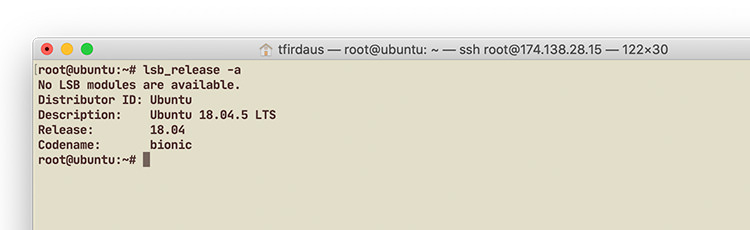
First, let’s check the current Ubuntu version that we have. As we can see in the image below, the current version we are running is Ubuntu 18.04 LTS.
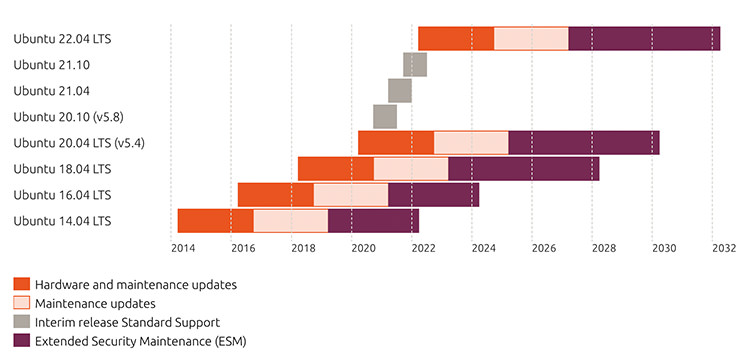
LTS (Long-term Support) means that it’ll be given updates, security patches, and support by Canonical, for at least 5 years and another few years for maintenance releases. Compared to the non-LTS version which only gets around 1 year of support.
At the time of the writing, the current LTS version, besides 18.04, is 20.04. So we are going to update it 20.04.
Clean-up and Update Packages
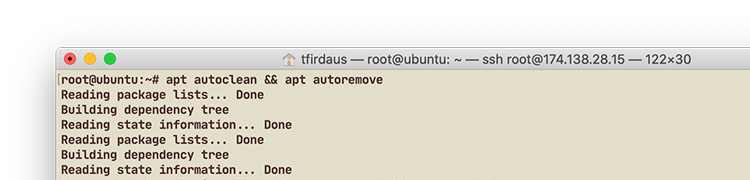
First, we clear out the local repository files that can no longer be downloaded and remove obsolete packages that were automatically installed as these files are now mostly useless. To do this:
- Type the command:
apt clean && apt autoclean && apt autoremove -y - Then type the command
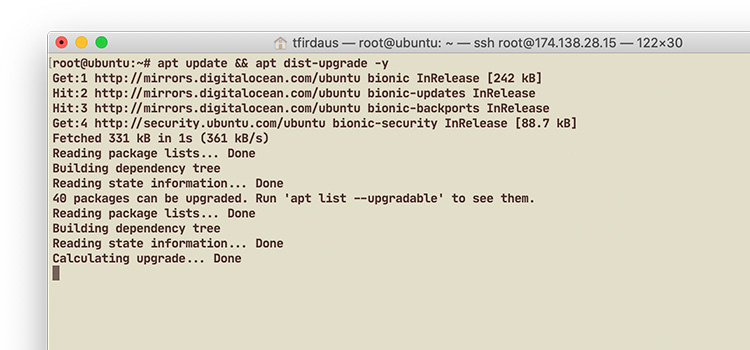
apt update && apt dist-upgrade -yto update the packages and repositories index list and upgrade some of the packages. The command,dist-upgrade, also corrects some conflicts on the packages and the package dependencies installed so it may also remove some packages that are no longer used. - At this step, you might have to reboot the server after performing these package upgrades. So when you’re prompted to reboot type:
rebootThis command will log you out automatically from the current SSH session. Wait for a while then login to the SSH again.
Upgrade Ubuntu Release
Now that we have cleared things up and updated and resolved the packages in Ubuntu, we can now do the actual Ubuntu upgrade.
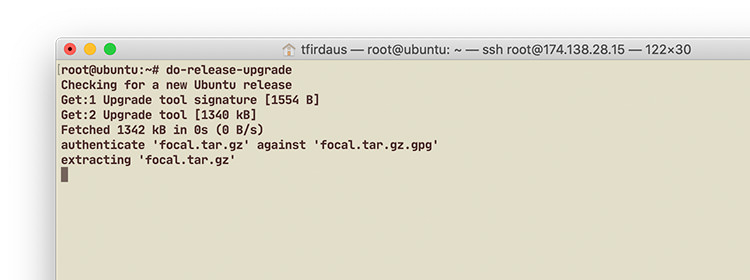
- To upprade it, type the following command:
do-release-upgrade - The process will first ask you to do the upgrade operation over a new SSH daemon. Type “y” to proceed.
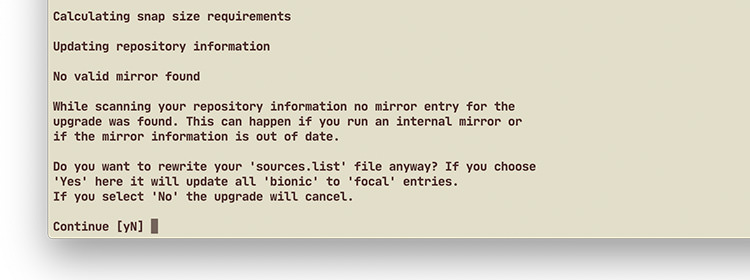
- Secondly, it will ask to update the package repository list to Ubuntu 20.04 (“Focal” Fossa). So type “y” as we want all the list updated and then proceed.
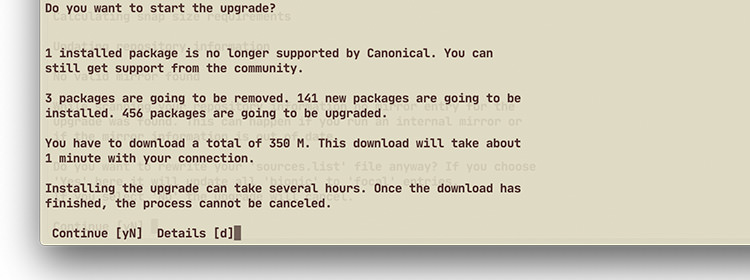
- Next, it’ll confirm the number of packages, the size to download for the upgrade, and that the upgrade will possibly take hours. This is usually true when you’re upgrading on your local computer, but upgrading on the server usually goes faster.
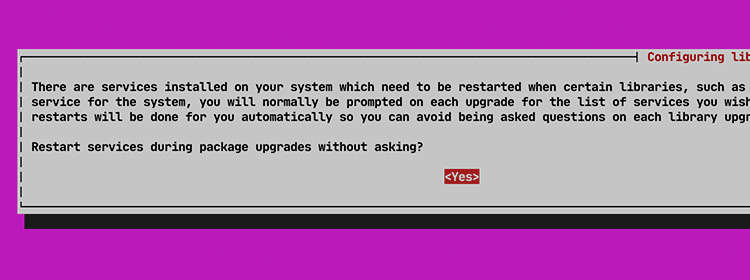
- During the upgrade, you will also get a notice like the one shown below. This tells that the upprade will update some running services and requires restarting the service. Select “Yes” so it won’t be asking permission every time it needs to do the restart.
- Now, wait for it to proceed with the upgrade procedure. At the end of the procedure, it will ask you once again to reboot.
Conclusion
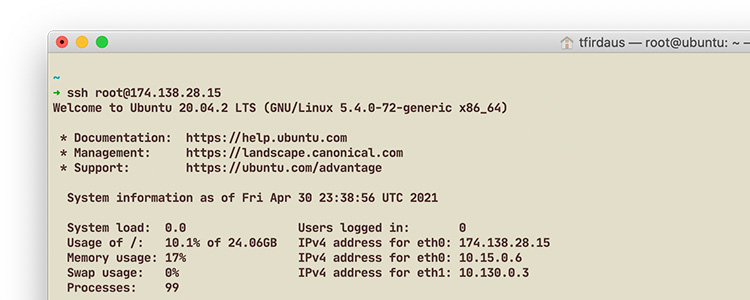
Those are all the steps to upgrade Ubuntu on your VPS. When you log in to the SSH again after the reboot, you should now be welcome with the new version: Ubuntu 20.04.