Why You Should Enable Optimized Battery Charging on Your MacBook
A lot of MacBooks now live a strange life. They are technically laptops, but in practice they sit on a desk, plugged in all day, connected to a monitor, keyboard, and charger like a small desktop.
If that sounds familiar, there is one built-in setting worth turning on.
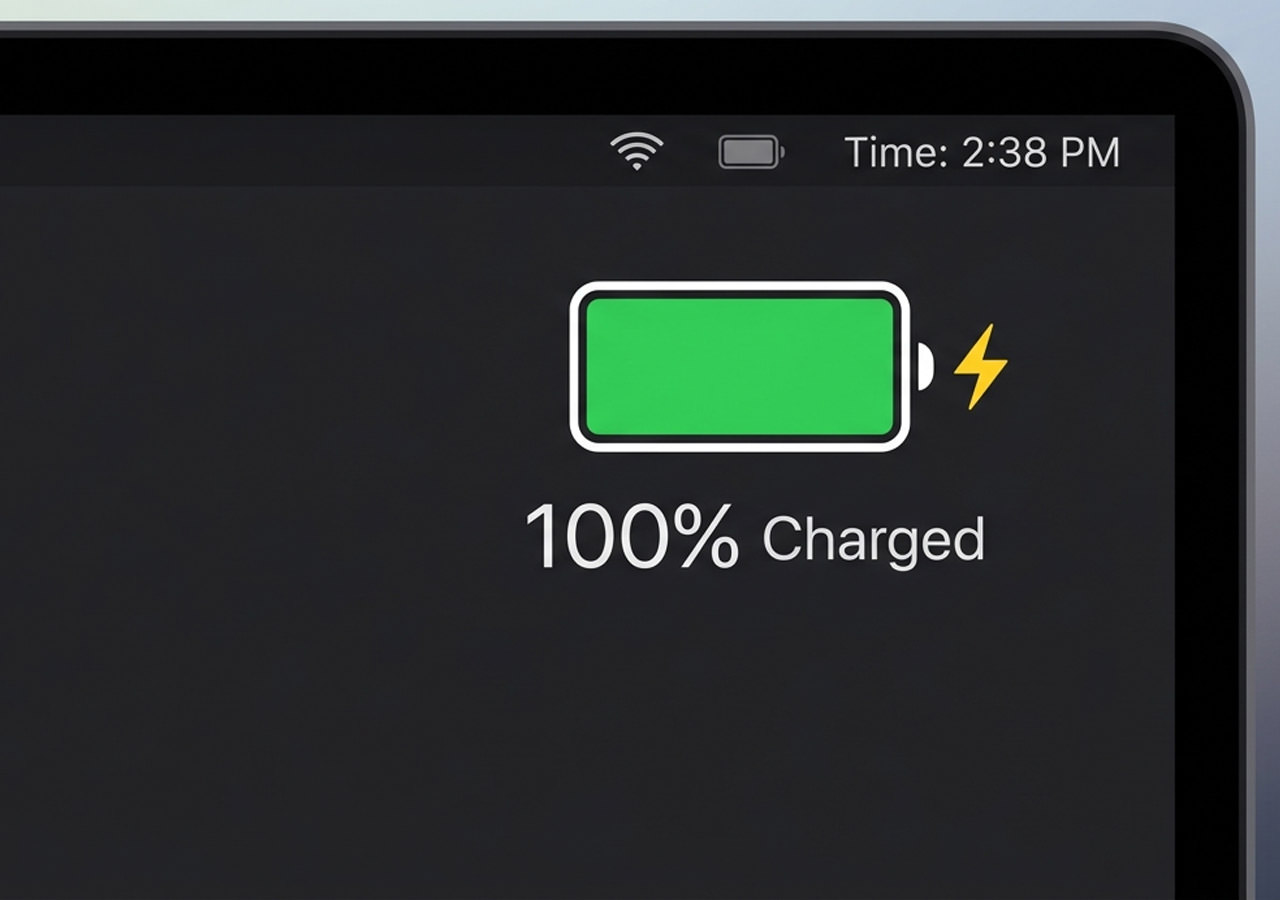
What macOS gives you is not a manual slider where you pick 80%, 85%, 90%, or 95%. Instead, Apple uses Optimized Battery Charging to learn your charging routine and reduce the time your MacBook spends sitting fully charged. If you are still setting up a new Mac or cleaning up your defaults, this is one of the easier battery-health settings to turn on early.
It looks small, but it is one of the better low-effort settings for a MacBook that stays plugged in most of the day.
Why This Setting Exists
Batteries do not enjoy sitting full for long stretches.
When a lithium-ion battery stays near 100% all the time, it tends to wear down faster. You will still have a working MacBook, but over time the battery holds less of its original capacity.
That is the trade-off this setting is trying to fix.
If your machine spends most of its time near a wall socket anyway, charging to 100% every day is not buying you much. It is just keeping the battery under more stress than necessary.
How It Actually Works
Apple does not currently give MacBook users a simple percentage selector for charging. You cannot just choose 80%, 85%, 90%, or 95% and leave it there.
What you do get is Optimized Battery Charging. It learns your charging routine and tries to reduce the time the battery sits at full charge, especially when your MacBook spends long stretches plugged in.
That means the behavior is managed by macOS, not by a fixed manual limit you control yourself.
So the real advice here is simpler than the earlier version of this post: do not go looking for a manual percentage cap on MacBook. Turn on Optimized Battery Charging and let macOS handle that part.
Who Should Turn It On
This setting is best for people whose MacBook acts like a desk machine most of the week.
If your laptop is usually docked, connected to a monitor, or left charging on the same table every day, there is little reason not to enable it.
If you move around constantly and depend on every bit of battery life, macOS may still charge more aggressively based on your usage pattern. Even then, keeping the feature enabled is still the sensible default. If you are often away from power for long stretches, something like these portable batteries for your MacBook may help more than obsessing over battery percentages.
How to Turn It On
On MacBook, the path is straightforward:
- Open System Settings
- Click Battery
- Click Battery Health
- Click the Info icon
- Enable Optimized Battery Charging
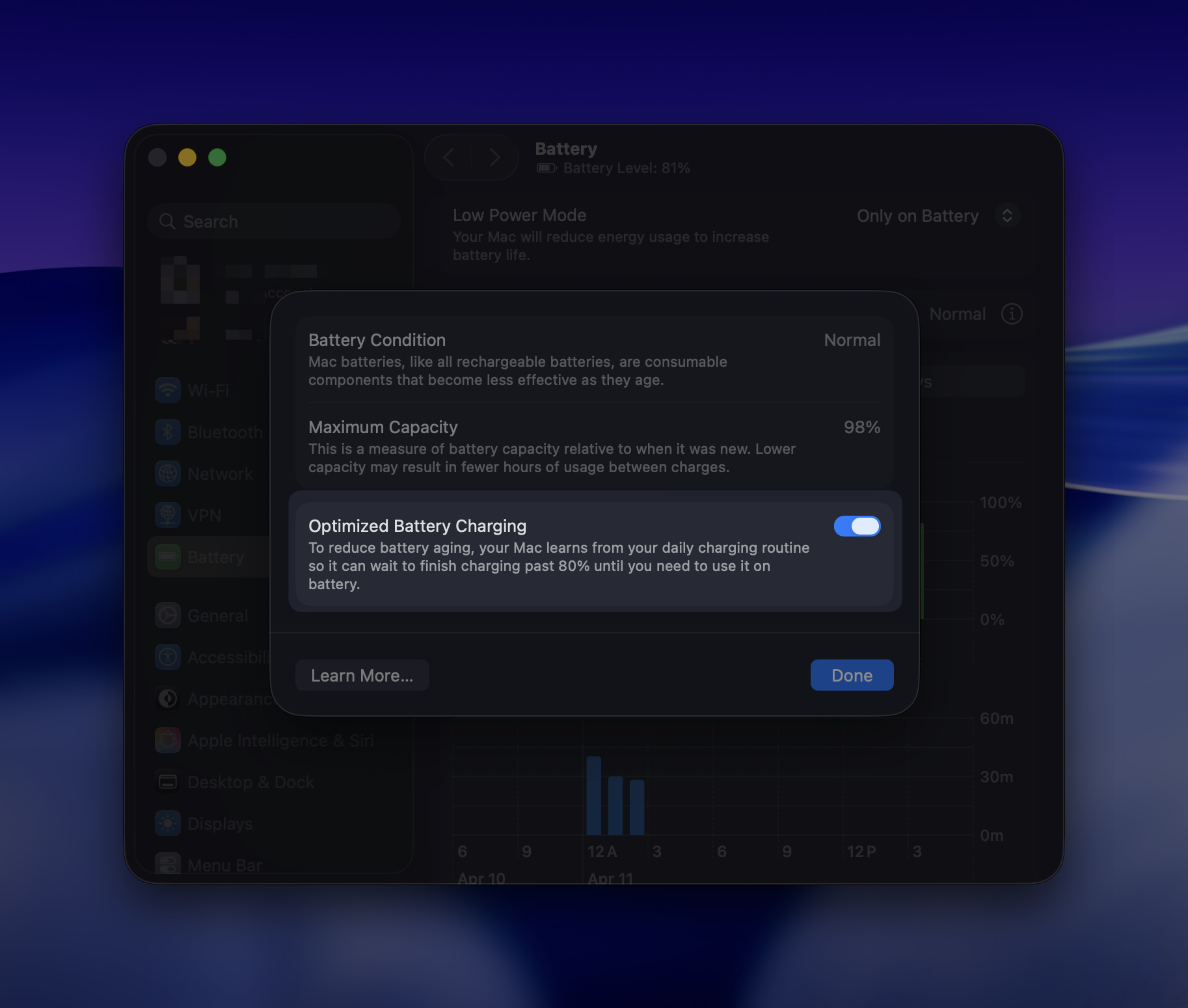
That is the setting you are looking for.
A Good Default for Desk Setups
If your MacBook rarely leaves the desk, enabling Optimized Battery Charging is the obvious default.
You do not have to micromanage charge percentages or guess at the perfect ceiling. You just let macOS reduce unnecessary time spent at full charge.
For people who use their MacBook like a half-laptop, half-desktop machine, this is one of those settings that quietly makes more sense the longer you think about it. Pair it with a few other basic Mac tips and tricks and the machine tends to feel better looked after overall.
It is a small setting, but a sensible one.