Best Free Markdown Apps for Mac
Markdown has a way of sneaking into your workflow.
You start by opening a README, jotting down a few notes, or drafting something in plain text. A while later, half your useful files are .md files and TextEdit still treats them like a pile of punctuation.
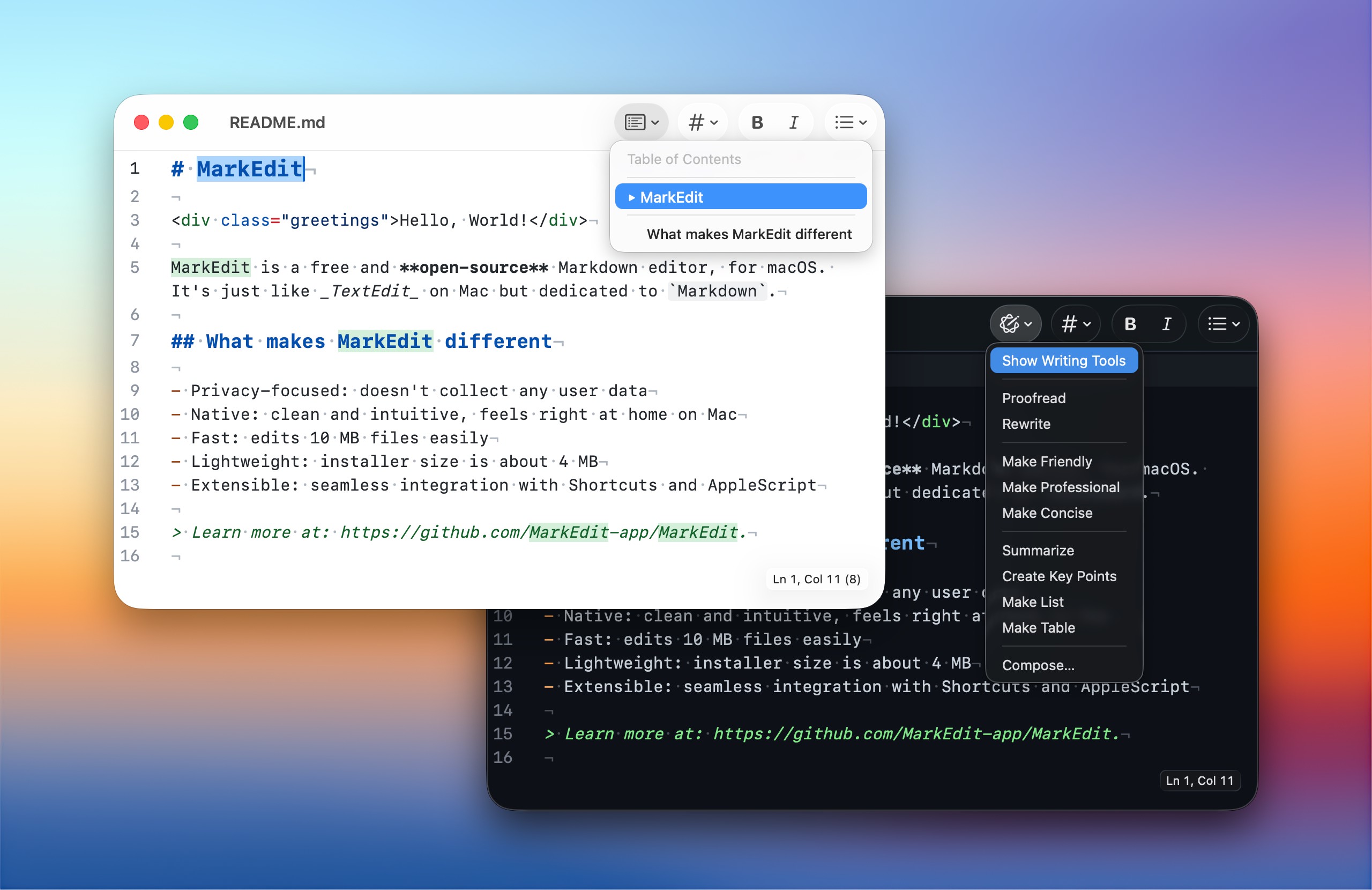
That is the awkward part on macOS. Markdown is everywhere, but the default experience still feels oddly undercooked. Open a Markdown file in the wrong app and you get raw symbols, broken rhythm, and none of the readability that made Markdown appealing in the first place.
The fix is simple: use a better app.
Some Markdown apps are built for quick writing. Some are designed for note libraries and linked knowledge bases. Others are barely “apps” in the usual sense, and mostly exist to make Finder previews less ugly. If Markdown has become part of how you work, this guide to writing web content using Markdown is a useful companion.
The right choice depends on whether you want to write, organize, preview, or just get out of TextEdit as fast as possible.
Why a Dedicated Markdown App Is Worth It
A proper Markdown app does more than make .md files look nicer.
It gives you live preview, cleaner editing, better export options, and in many cases a much better sense of flow. Instead of mentally parsing raw markup, you can just read and write.
That matters more than it sounds. A good Markdown app removes friction from simple tasks, like previewing a note, opening a project README, cleaning up a draft, or exporting something to HTML or PDF without dragging in extra tools.
If you work with Markdown more than occasionally, even a small upgrade here pays for itself fast.
1. MacDown
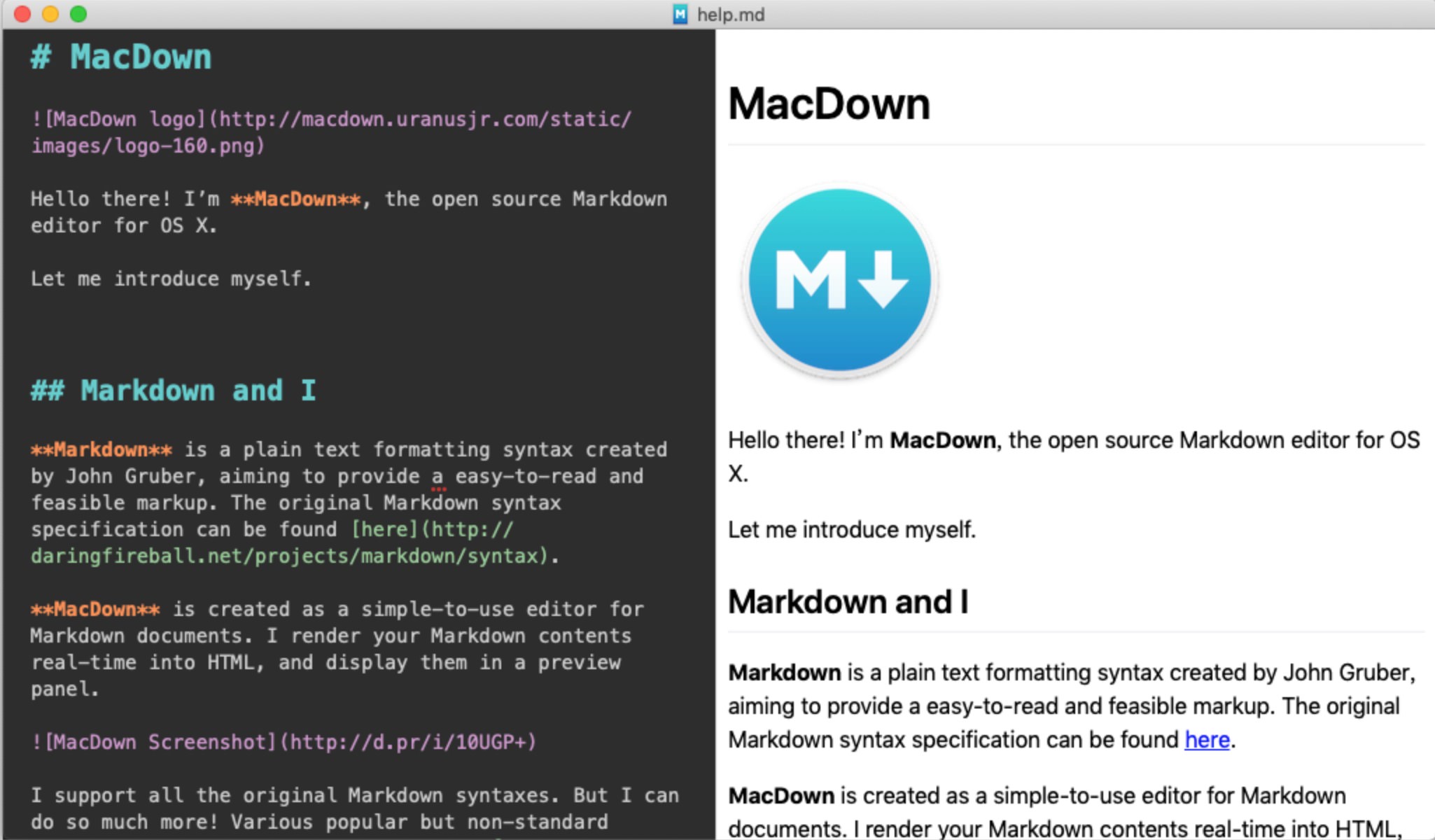
MacDown remains one of the simplest ways to edit Markdown on a Mac without dragging in a whole ecosystem. The current MacDown 3000 project continues that lightweight formula with live preview, GitHub Flavored Markdown support, export options, and builds for modern Apple Silicon and Intel Macs.
It is free, open-source, and built around a clean two-pane layout: raw Markdown on one side, rendered preview on the other. That setup is hardly revolutionary now, but it still works. You can write, glance right, and instantly see whether your headings, lists, images, or tables are behaving.
It also supports syntax highlighting, themes, and enough quality-of-life features to stay useful without feeling bloated.
If what you want is a straightforward native editor for writing posts, notes, or documentation, it is still a very easy recommendation.
Best for: simple editing and quick previewing.
2. Obsidian
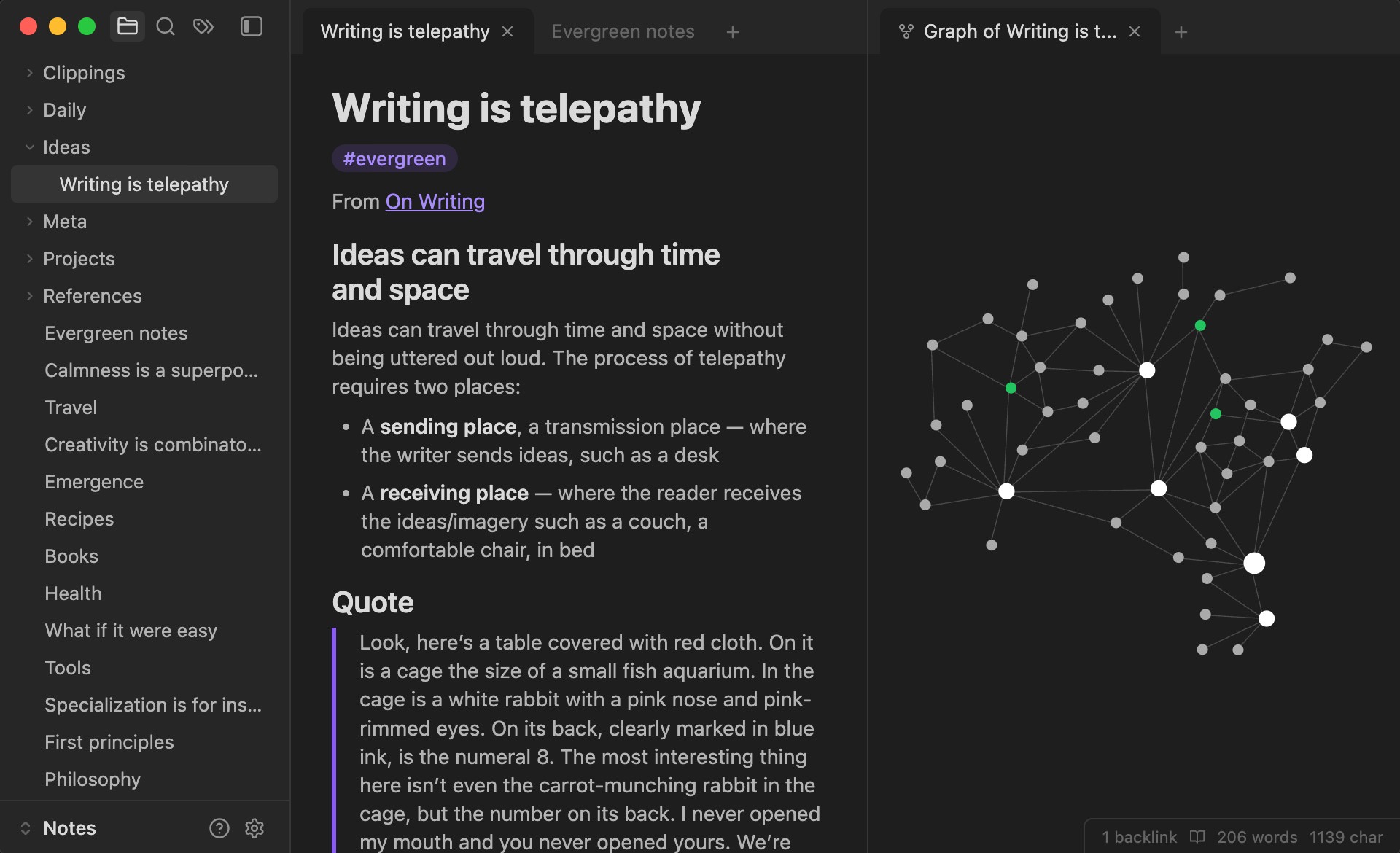
Obsidian is a different kind of tool.
It is not just a Markdown editor. It is a full note-taking environment built around local Markdown files, which is a big part of the appeal. Your notes stay in regular folders on disk, not trapped in some proprietary format.
Where Obsidian really pulls ahead is everything around the writing: backlinks, graph view, plugins, canvas tools, templates, and all the little workflow tweaks that turn a folder of notes into an actual knowledge base.
That does mean it is heavier than something like MacDown. If you just want to open one .md file and type, Obsidian may feel like bringing a backpack to carry a pen.
But if you are building a long-term notes system, linking ideas across projects, or managing a personal knowledge base, it is hard to ignore.
Best for: note-taking, linked knowledge systems, and long-term organization.
3. VS Code
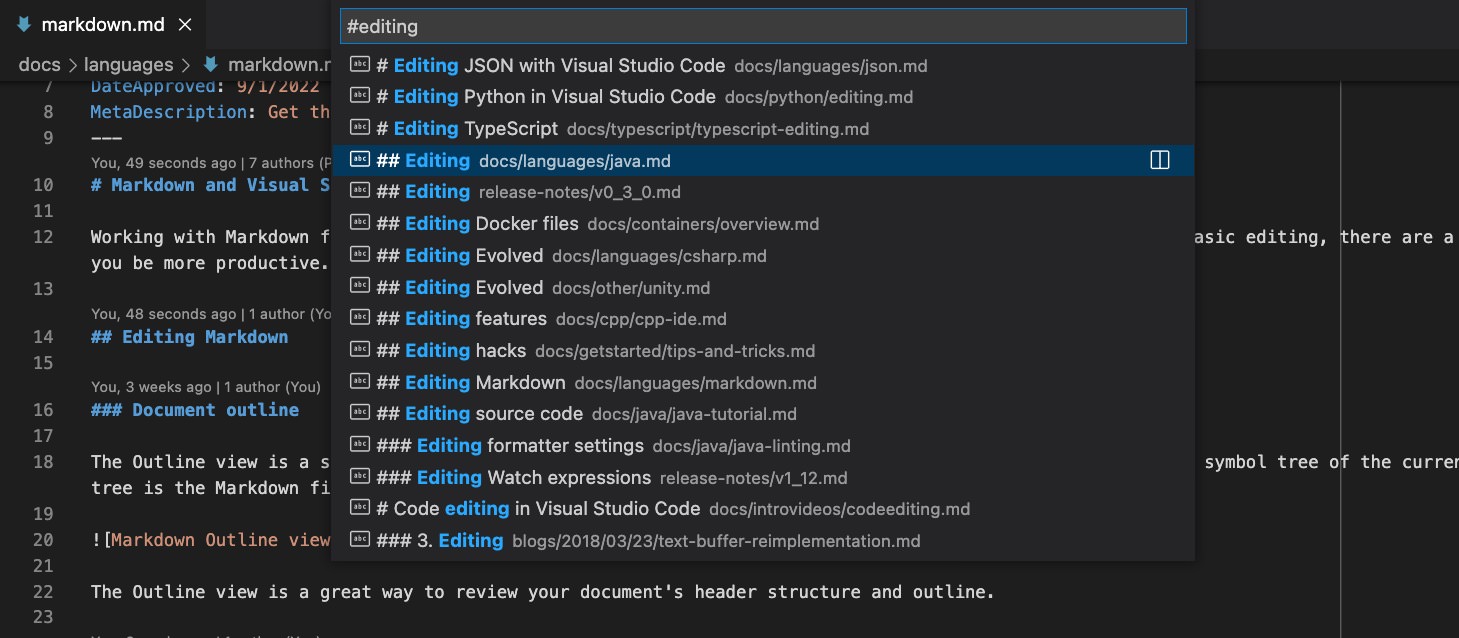
VS Code is the obvious recommendation for developers, but it is also a better Markdown app than many people expect.
Open an .md file, split the view, and you get a capable editing setup with built-in preview, document outline, snippet support, and link or image path completions. Add a few extensions and it becomes even more useful.
The bigger reason some people stick with VS Code is convenience. If you already live in it for coding, docs, terminal work, Git, or project notes, there is a real advantage in not switching apps just to edit Markdown. If that sounds familiar, this roundup of free useful Mac apps is another good rabbit hole.
That said, it is still VS Code. If you are looking for a tiny native-feeling Mac app, this is not that. It is best when you want flexibility, extensions, Git awareness, and one place to handle everything.
Best for: developers, technical writers, and people who already use VS Code all day.
4. MarkEdit
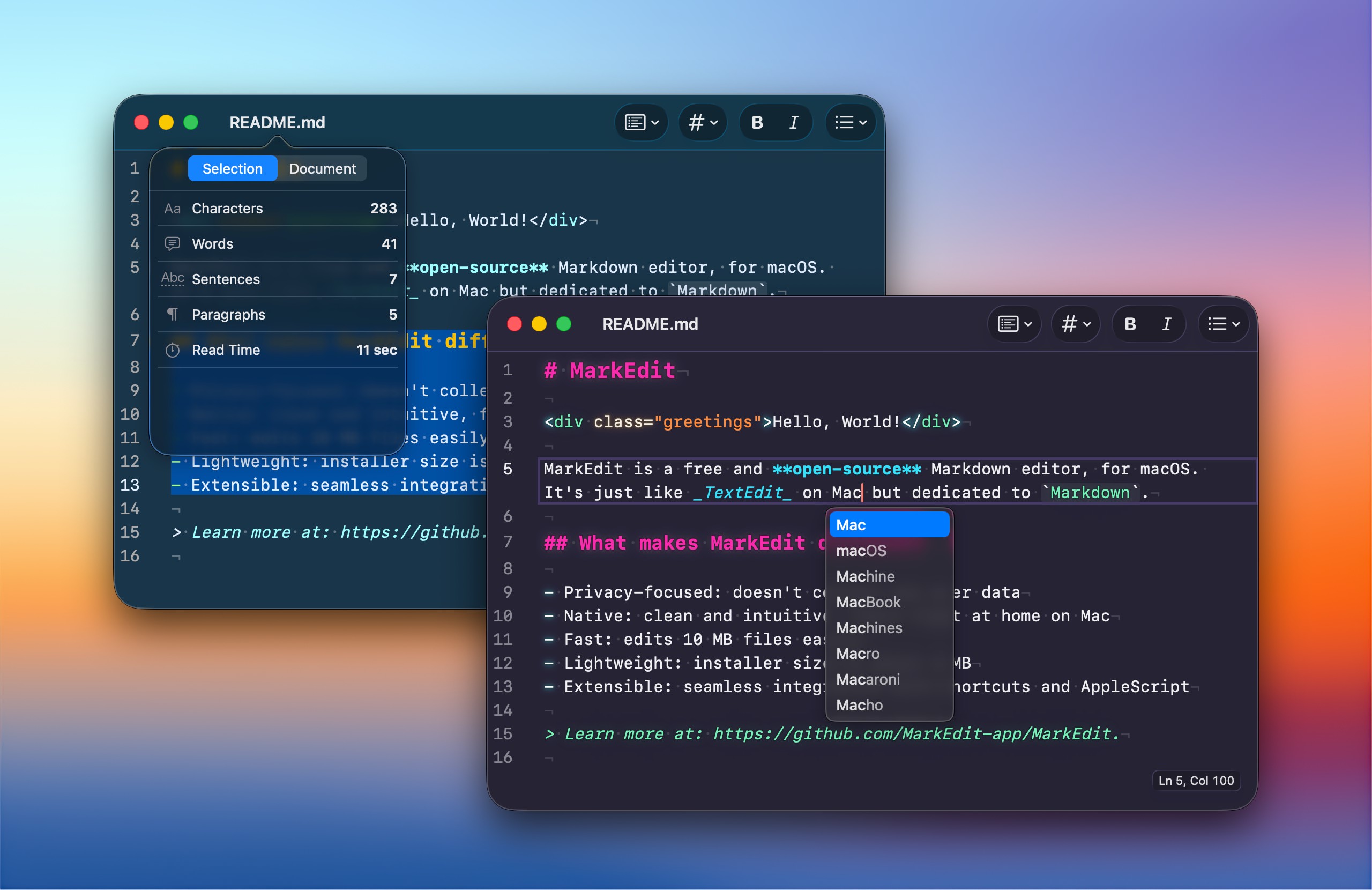
MarkEdit sits at the opposite end of the spectrum from Obsidian.
It is lightweight, native, and intentionally minimal. The appeal here is not an endless plugin catalog or a graph of your thoughts. It is that the app feels close to what many people actually want: open file, write, done.
MarkEdit is free and open-source, follows GitHub Flavored Markdown, handles large files well, and keeps the whole experience uncluttered. It also supports Shortcuts and AppleScript, which makes it more flexible than it first appears.
If TextEdit grew up and decided to care about Markdown properly, it would probably land somewhere near MarkEdit.
Best for: minimalists who want a clean native Mac experience.
5. Other Free Options Worth Knowing
Not every good Markdown app needs its own section, but a few are still worth keeping in mind.
MarkText
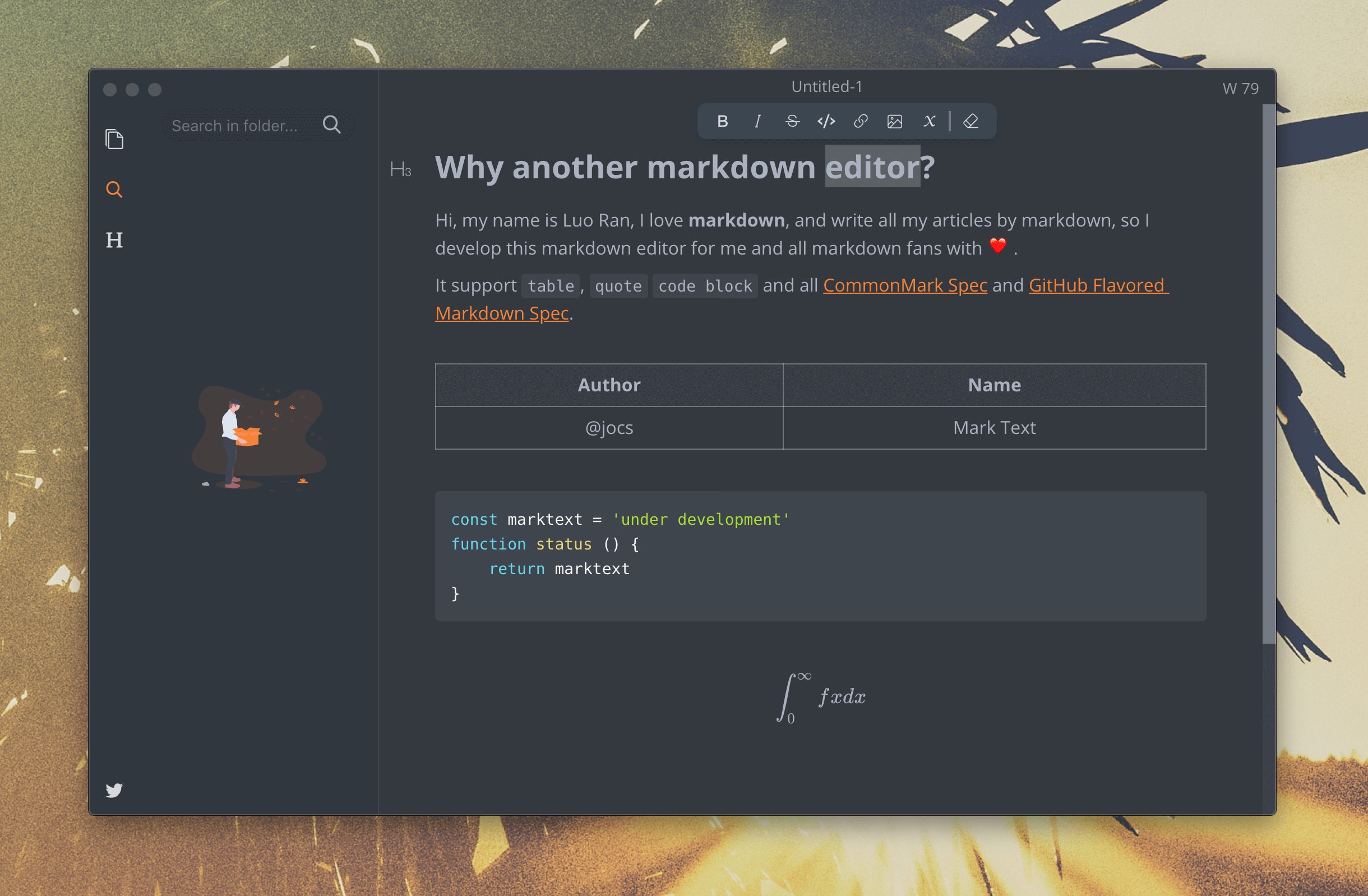
MarkText is free and open-source, with live preview, themes, and a cleaner writing-focused interface than many code editors. It is cross-platform, which is useful if you move between macOS and Windows.
The catch is momentum. It still has fans, but updates have felt less energetic than some alternatives, so it is harder to recommend as a first pick unless you already like how it works.
Zettlr
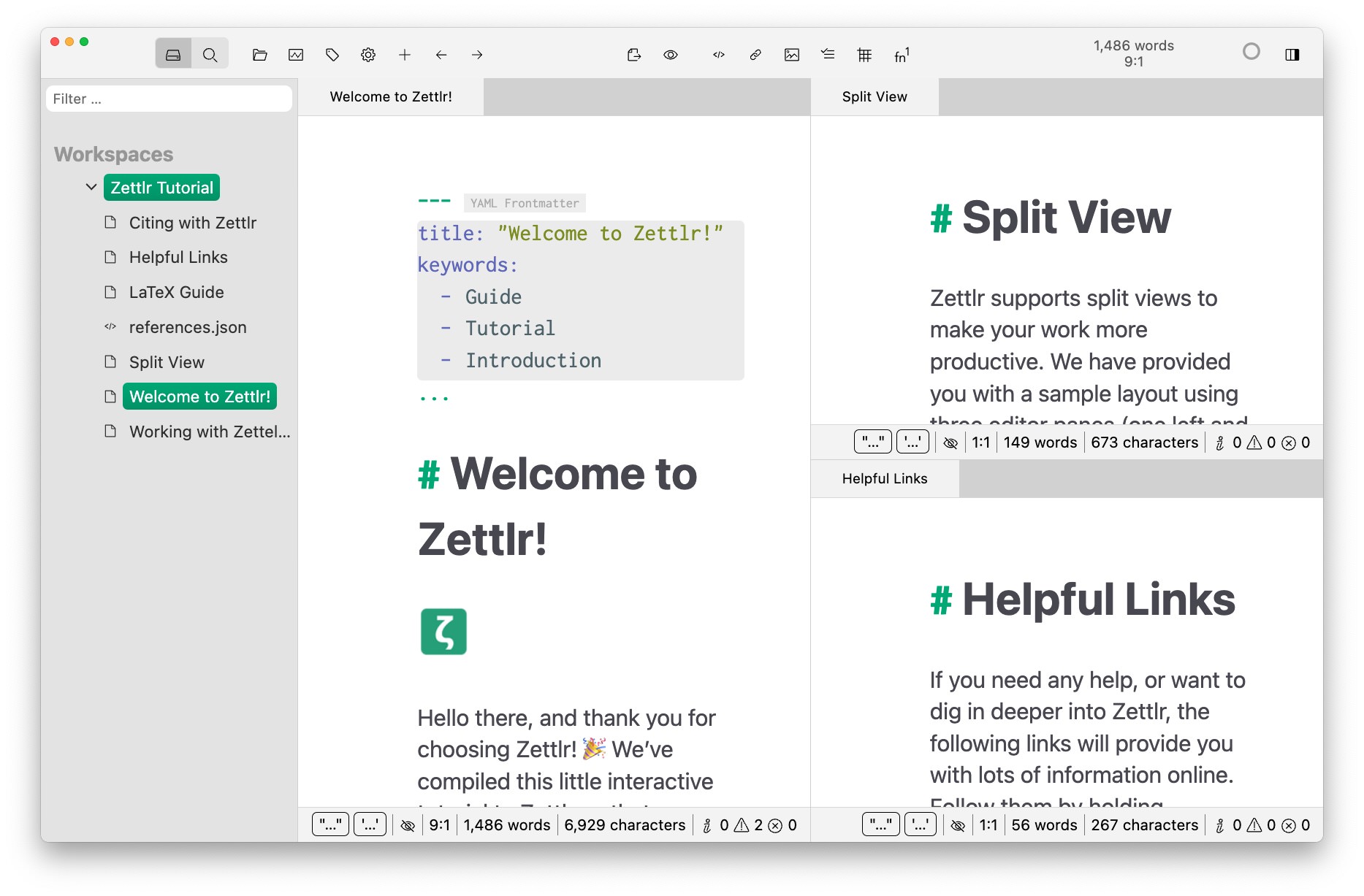
Zettlr leans more academic and research-heavy. It is built for larger writing projects, privacy-minded workflows, and citation support, so it makes more sense for papers and long-form work than quick notes.
It is probably overkill for casual use, but not for serious long-form writing. If your workflow revolves around collecting and organizing tools, this list of essential free Mac apps is a related read.
If You Just Want Better Markdown Previews in Finder
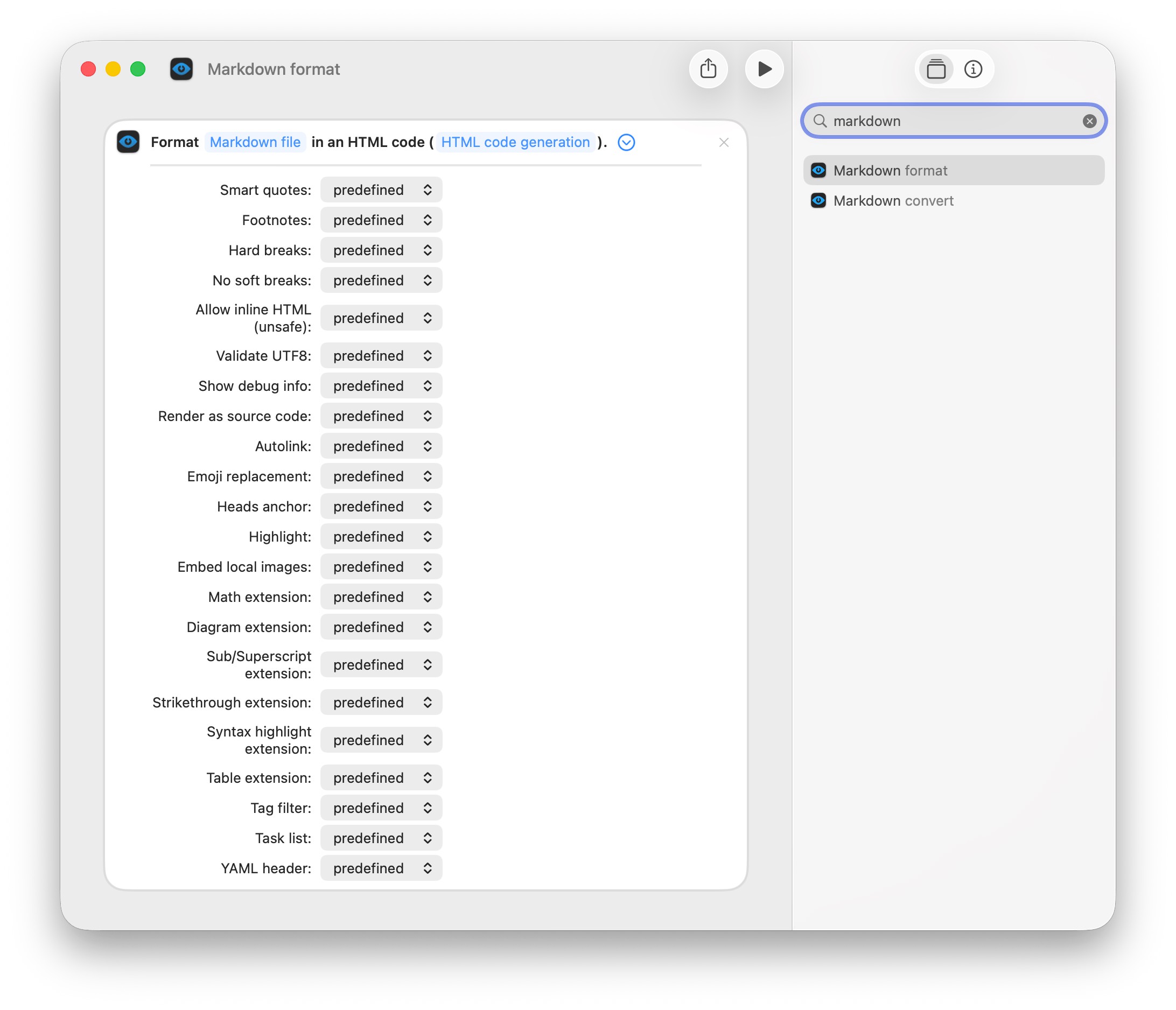
Sometimes you do not need a whole app. You just want to hit the Spacebar on an .md file and see something better than raw markup.
That is where Quick Look extensions help.
Tools like QLMarkdown can make Finder previews much more useful, especially if you regularly browse notes, docs, or exported content from different folders.
Once installed, enable the extension in:
System Settings > General > Login Items & Extensions > Quick Look
After that, selecting a Markdown file in Finder and pressing Spacebar becomes a lot more useful.
How to Set a Default App for Markdown Files
- Right-click any Markdown file in Finder.
- Choose Get Info.
- Under Open with, pick the app you want.
- Click Change All.
That is a tiny change, but it removes a surprising amount of friction if you open Markdown files often.
Which One Should You Use?
If you want the short version:
- MacDown if you want a focused editor with live preview
- Obsidian if your Markdown files are part of a larger notes system
- VS Code if you already live in a developer workflow
- MarkEdit if you want the simplest native Mac experience
- QLMarkdown if your main problem is previewing files in Finder
There is no universal winner here, which is honestly a good sign. Markdown is flexible, and the better apps respect that.
If I had to narrow it down, most people will probably be happiest with one of three routes:
Final Thought
Markdown on macOS does not need to be complicated. The default experience is just more awkward than it should be.
Pick the tool that matches how you actually work, not the one with the longest feature list. For some people that will be Obsidian. For others, it will be a tiny app like MacDown or MarkEdit that opens fast and does the job quietly.
Either way, once you stop opening .md files in plain TextEdit, going back feels a little ridiculous.