13 macOS Tahoe Settings for Better Productivity and Battery Life
macOS Tahoe 26 looks great. The Liquid Glass refresh is slick, the new system features are useful, and 26.4 quietly added a few changes that matter more than they first appear.
But the default setup still isn’t how I’d leave a Mac I use every day.
A fresh macOS install usually leans a little too pretty, a little too noisy, and a little too willing to spend battery on things I don’t care about. If you’re on a MacBook, that means shorter runtime and more battery wear over time. If you’re on a desktop Mac, it mostly means extra visual clutter and background behavior you probably didn’t ask for.
These are the settings I’d change first. Some help battery life, some make the Mac feel faster, and some simply make the whole thing less annoying to live with.
1. Change Low Power Mode So It Actually Helps
MacBook only
Low Power Mode is worth setting deliberately instead of leaving battery behavior to whatever macOS thinks is best for you.
Go to System Settings > Battery.
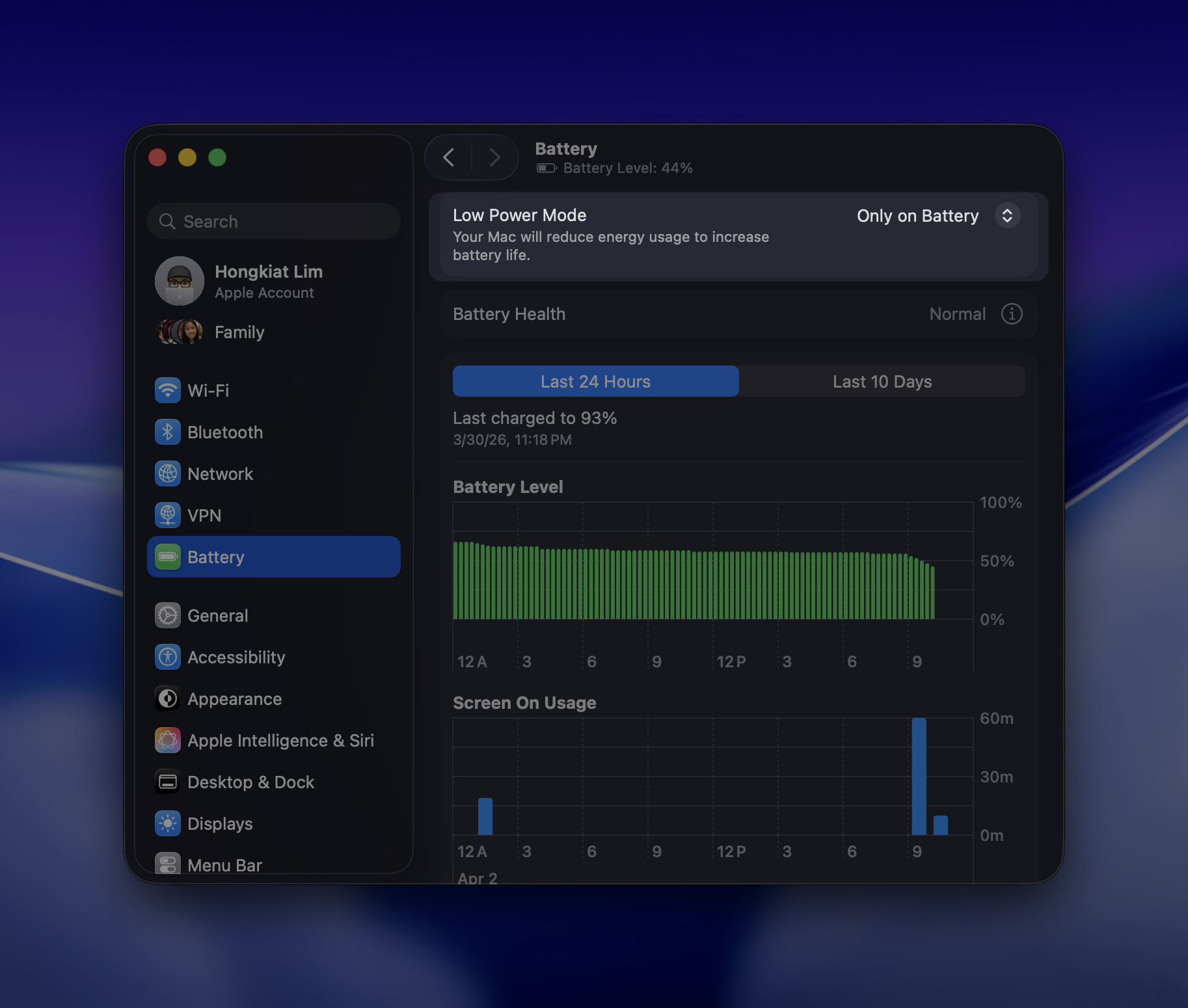
If your priority is battery life, set Low Power Mode to Only on Battery. That gives you the battery-saving behavior when unplugged without slowing things down when your MacBook is connected to power.
If you want maximum power savings all the time, you can set it to Always. Most people probably won’t want that.
The other two options are Never and Only on Power Adapter, but for most MacBook users, Only on Battery is the sensible middle ground.
2. Reduce Transparency or Use a Tinted Interface
MacBook and desktop Mac
Liquid Glass looks nice, but it also adds visual noise in places where I’d rather have clarity.
You’ve got two useful options:
- System Settings > Accessibility > Display > Reduce Transparency
- System Settings > Appearance > Liquid Glass style > Tinted
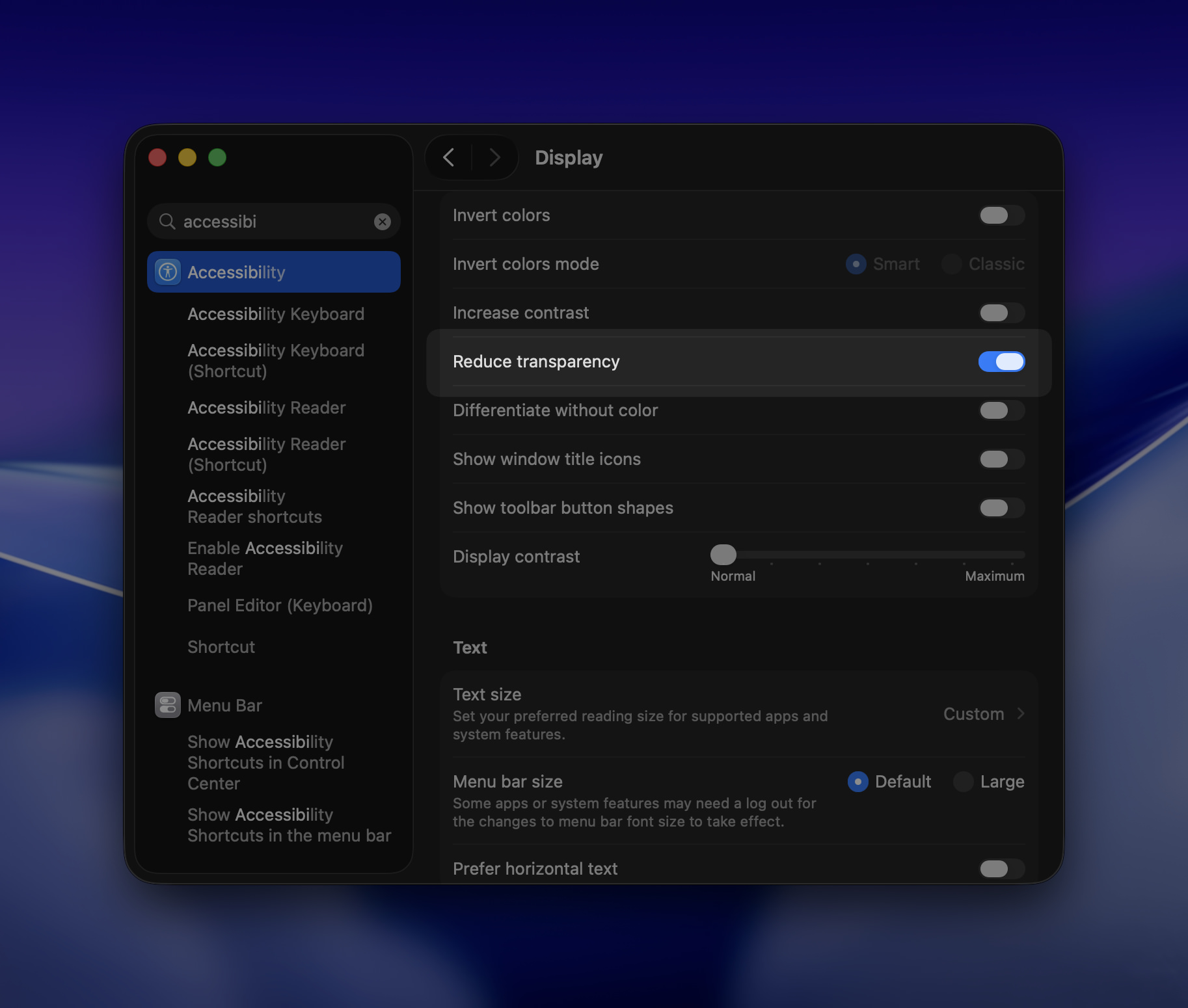
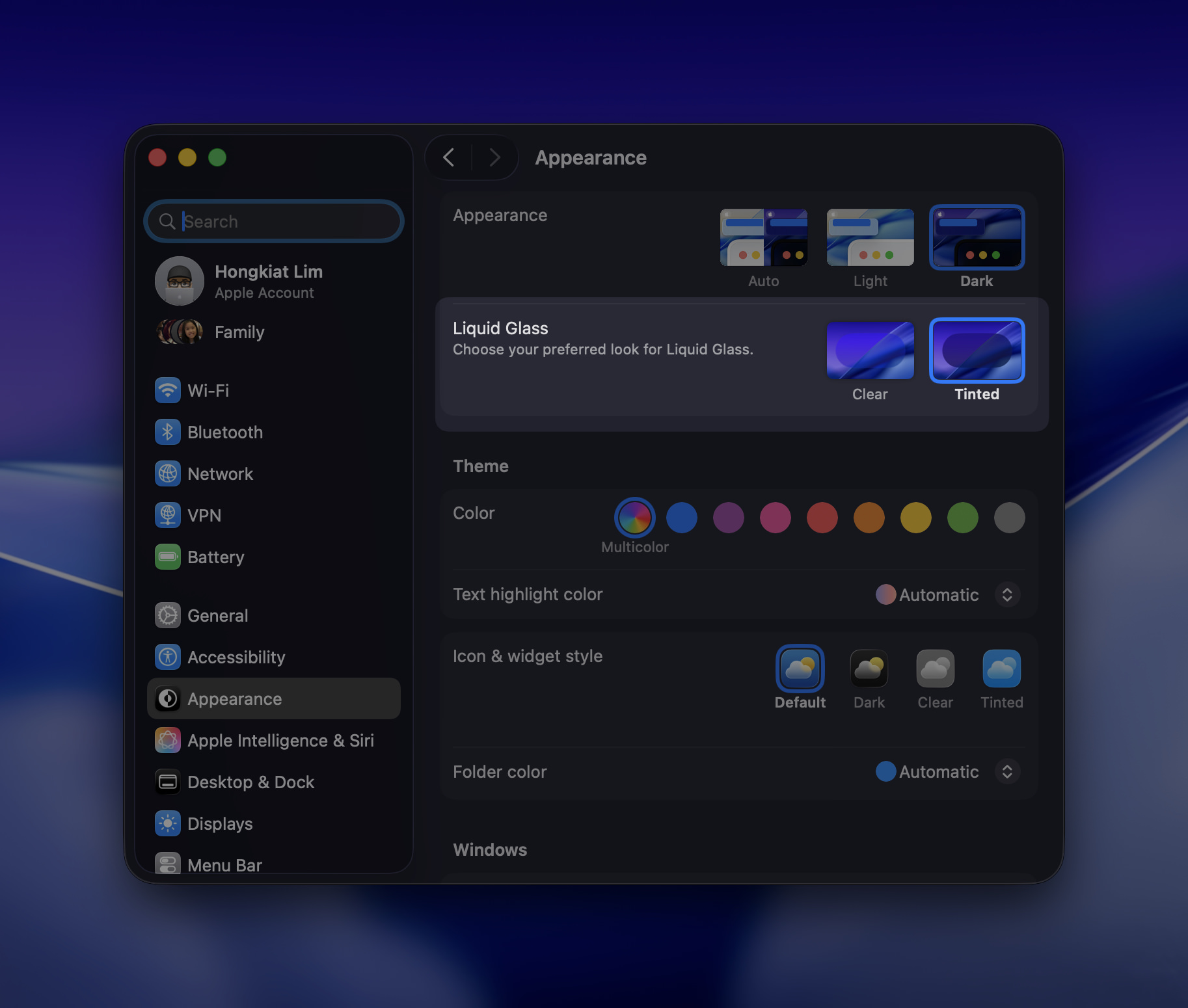
I like this setting for two reasons: text is easier to read, and the interface feels calmer.
On a MacBook, it can also shave off a bit of unnecessary GPU work. Not massive, but real.
3. Shorten Display Sleep Time
MacBook and desktop Mac
This is boring advice, but it works.
Go to System Settings > Lock Screen.
A good starting point:
- MacBook on battery: 3 to 5 minutes
- On power adapter: 10 to 15 minutes
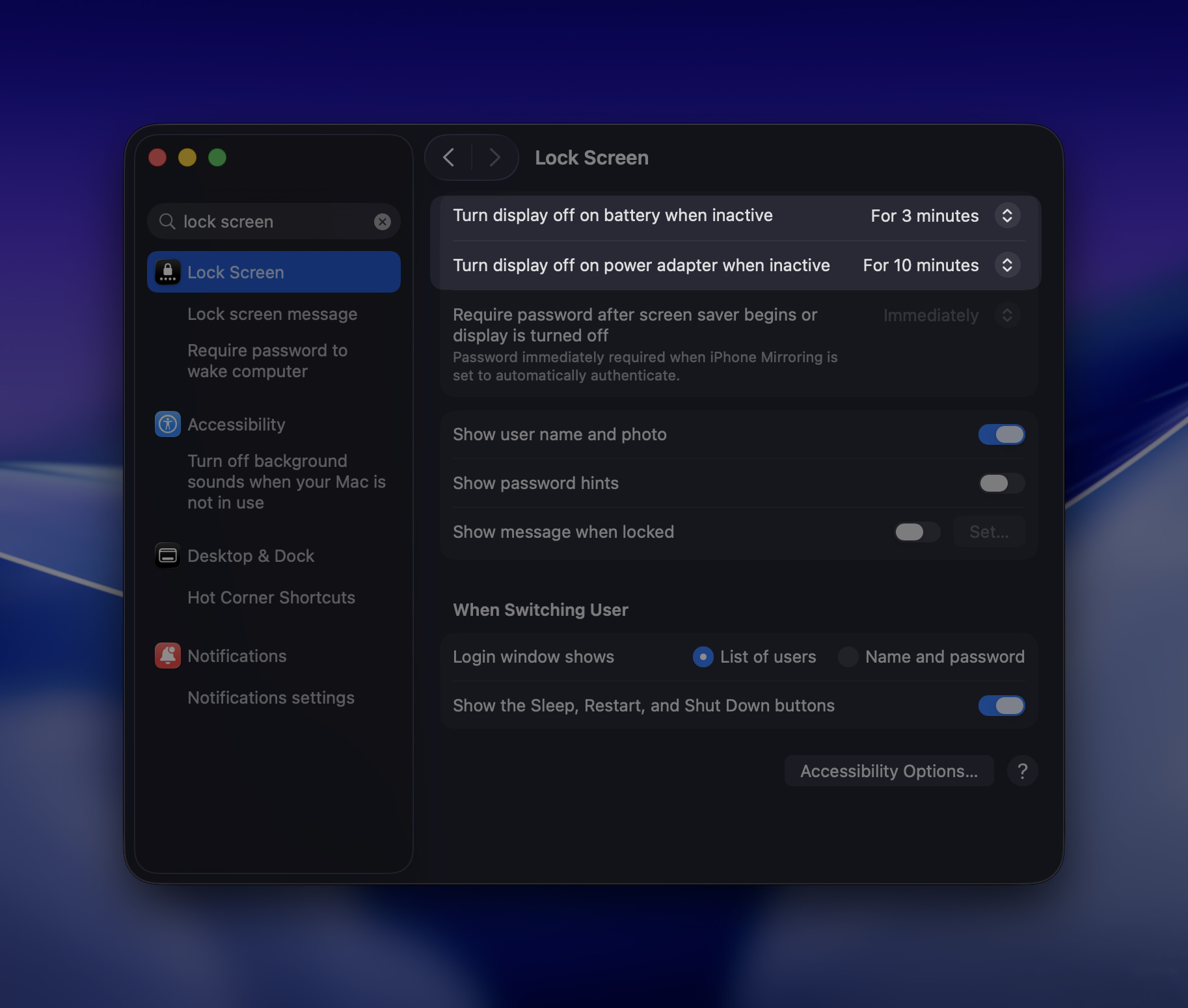
If you walk away from your machine often, this saves power and reduces the number of times your display sits there glowing for no reason.
Also turn on the password requirement after the screen saver or sleep kicks in. It’s basic hygiene.
4. Turn On Auto-Brightness and Lower Manual Brightness
MacBook only
If you want a quick battery win, start here.
Go to System Settings > Displays.
Then:
- Turn on Automatically adjust brightness
- Keep brightness around 40% to 60% indoors
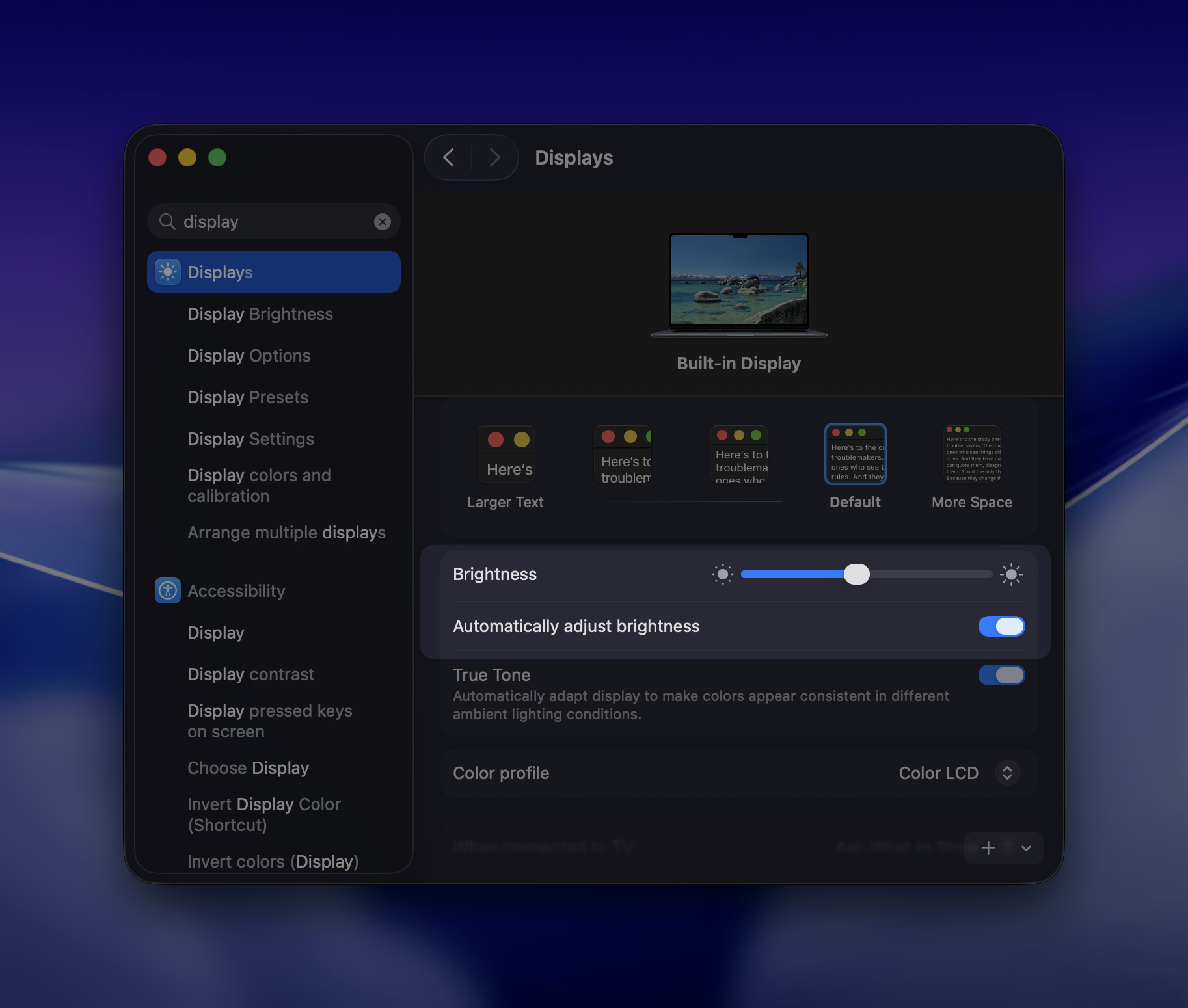
Display brightness is still one of the biggest battery drains on a MacBook. No clever tweak beats simply not blasting your screen at full brightness indoors.
5. Clean Up Login Items and Background Apps
MacBook and desktop Mac
A lot of apps assume they deserve to launch at startup and quietly stay alive forever. Most of them do not.
Go to System Settings > General > Login Items & Extensions.
Then check two things:
- apps that launch at login
- apps allowed to run in the background
Disable what you don’t actually need.
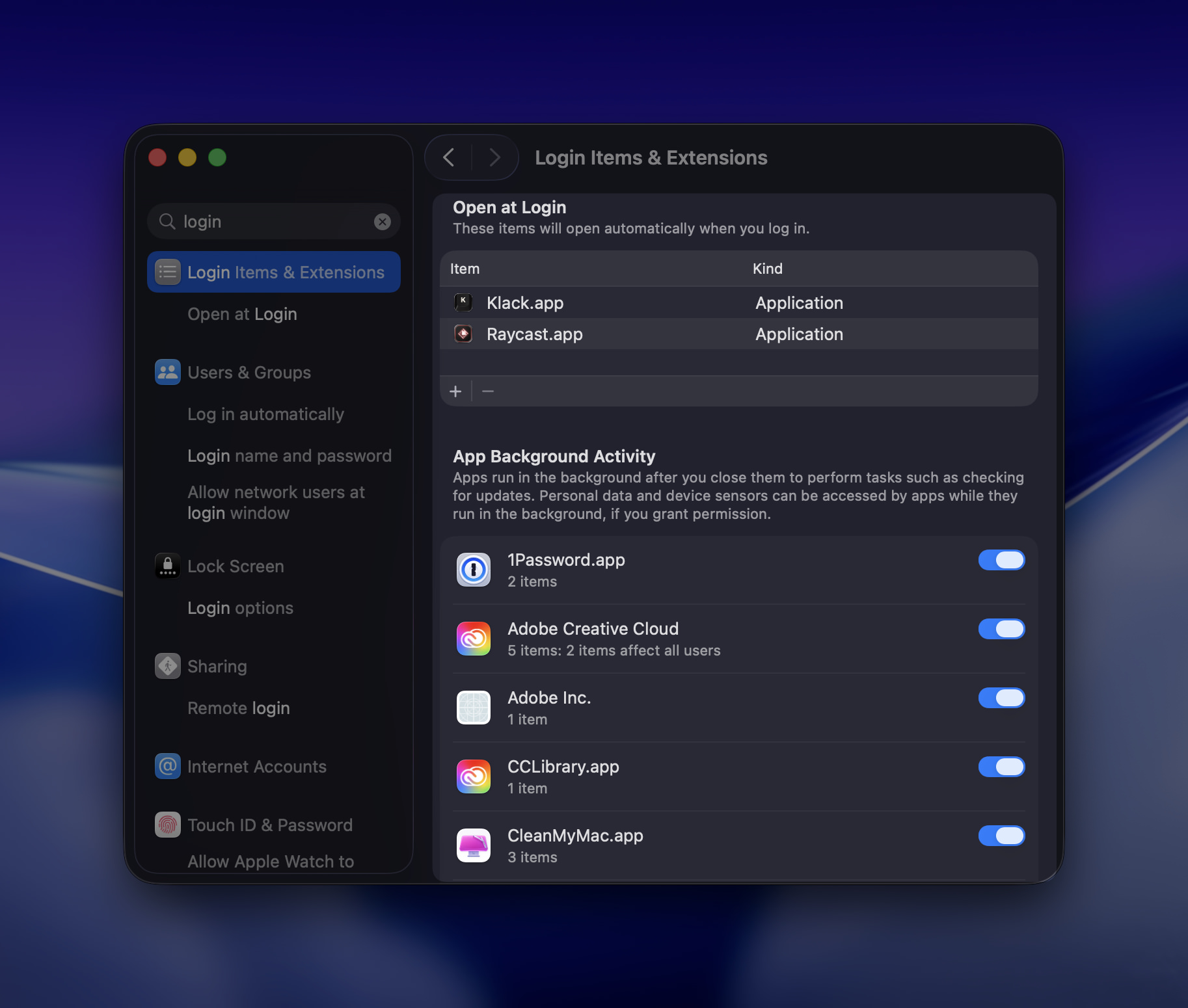
Slack, Discord, browser helpers, menu bar utilities, cloud sync tools, and random updater processes are common offenders.
If you want to see the real energy hogs, open Activity Monitor > Energy and look at what’s actually costing you battery.
6. Trim iCloud Syncing
MacBook and desktop Mac
If you already use Dropbox, Google Drive, Synology Drive, or another sync setup, you may not need iCloud syncing everything too.
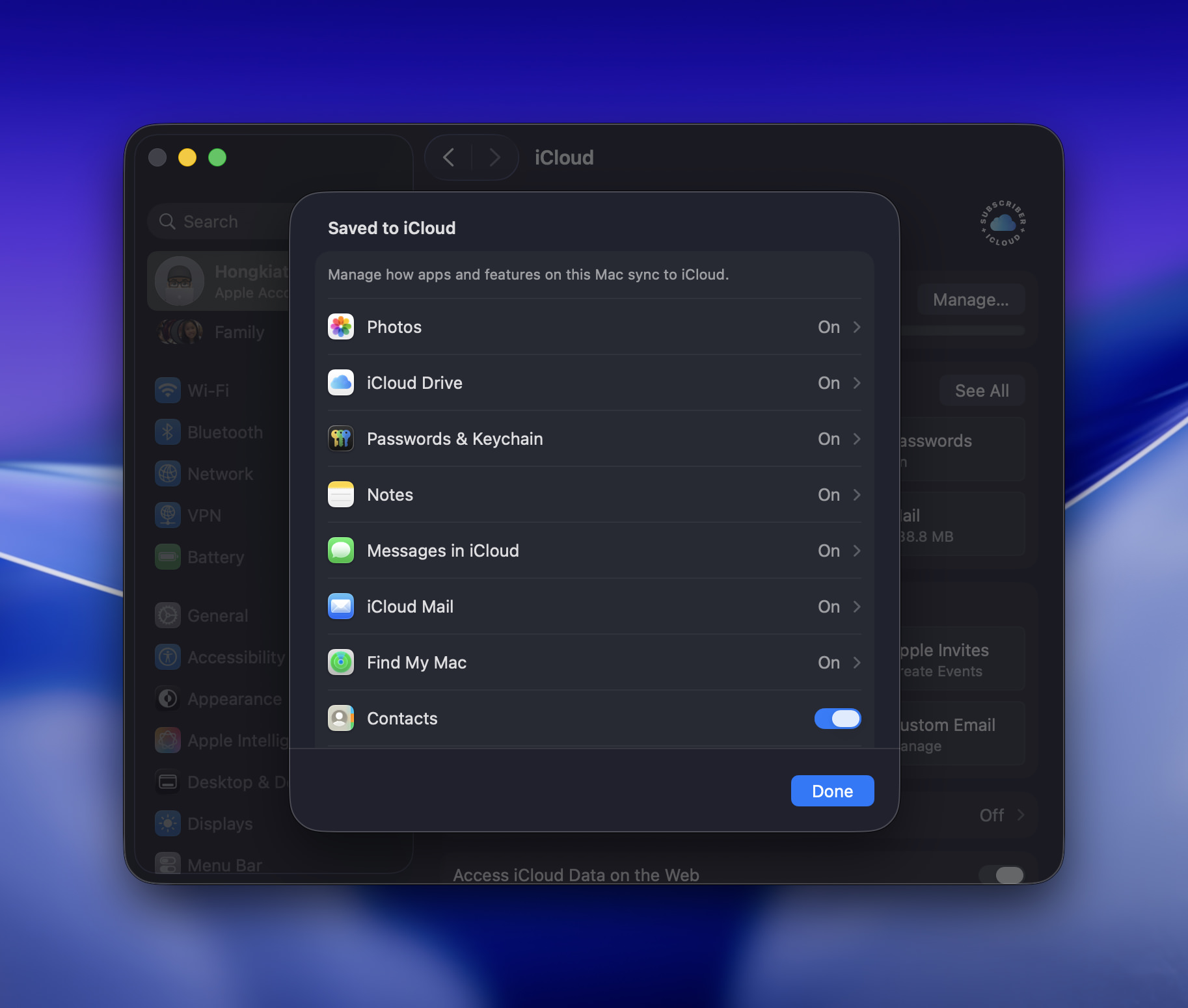
Go to System Settings > Apple ID > iCloud.
Review what’s enabled and turn off anything you don’t need syncing constantly. This is especially worth checking for large folders and apps that generate frequent background activity.
7. Tame Spotlight Search and Indexing
MacBook and desktop Mac
Spotlight is useful, but it’s also happy to index more than most people need.
Go to System Settings > Spotlight to review search result categories and hide the ones you never use.
For indexing, add folders to Search Privacy if they don’t need constant indexing.
After a major OS upgrade, Spotlight often reindexes a lot of content anyway. Let it finish first, then trim it down.
8. Set Up Hot Corners
MacBook and desktop Mac
This one is more productivity than battery, but it earns its place.
Go to System Settings > Desktop & Dock > Hot Corners.
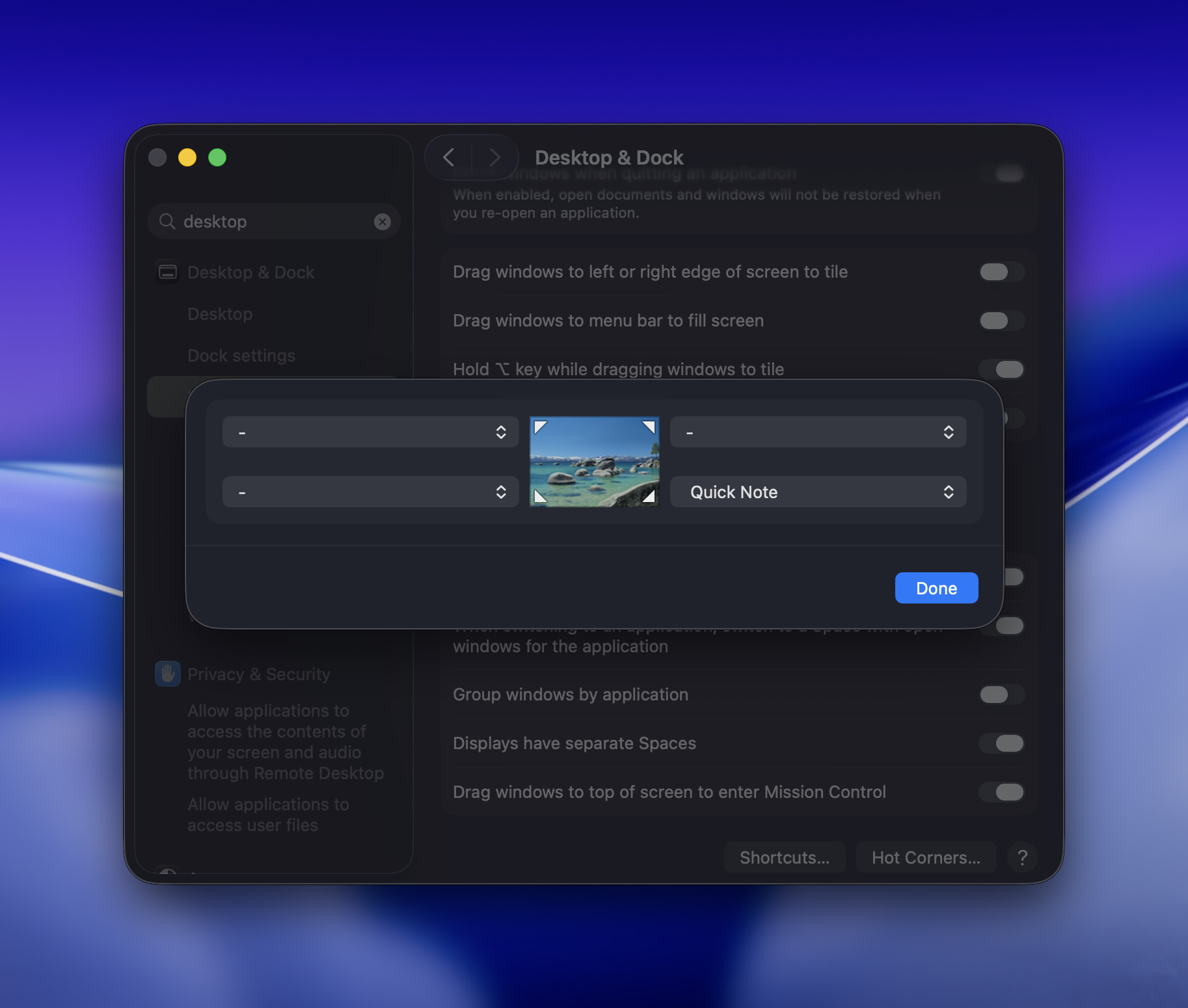
A setup I like:
- Top-left: Mission Control
- Top-right: Show Desktop
- Bottom-left: Put Display to Sleep
That last one is especially handy. Once it becomes muscle memory, it’s one of the fastest ways to save power when you step away for a minute.
9. Clean Up the Dock and Reconsider Stage Manager
MacBook and desktop Mac
Tahoe gives you more ways to manage windows, but more options does not automatically mean a better setup.
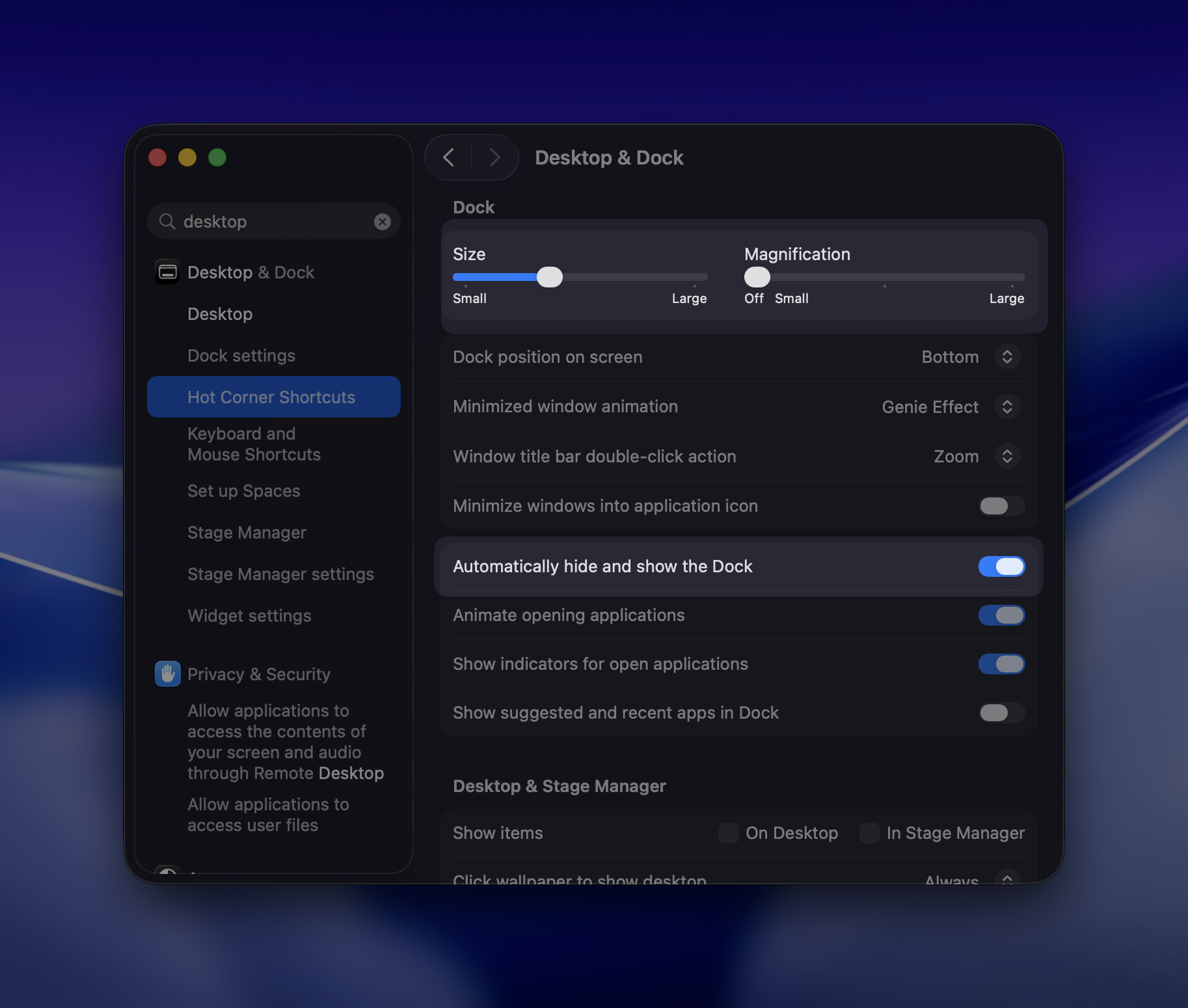
In System Settings > Desktop & Dock, I’d start with these:
- reduce Dock size
- turn off magnification
- turn on Automatically hide and show the Dock
- test whether Stage Manager genuinely helps your workflow
I’d also spend a bit of time with Tahoe’s window tiling before reaching for a third-party app. It’s better than many people think.
10. Reduce Motion
MacBook and desktop Mac
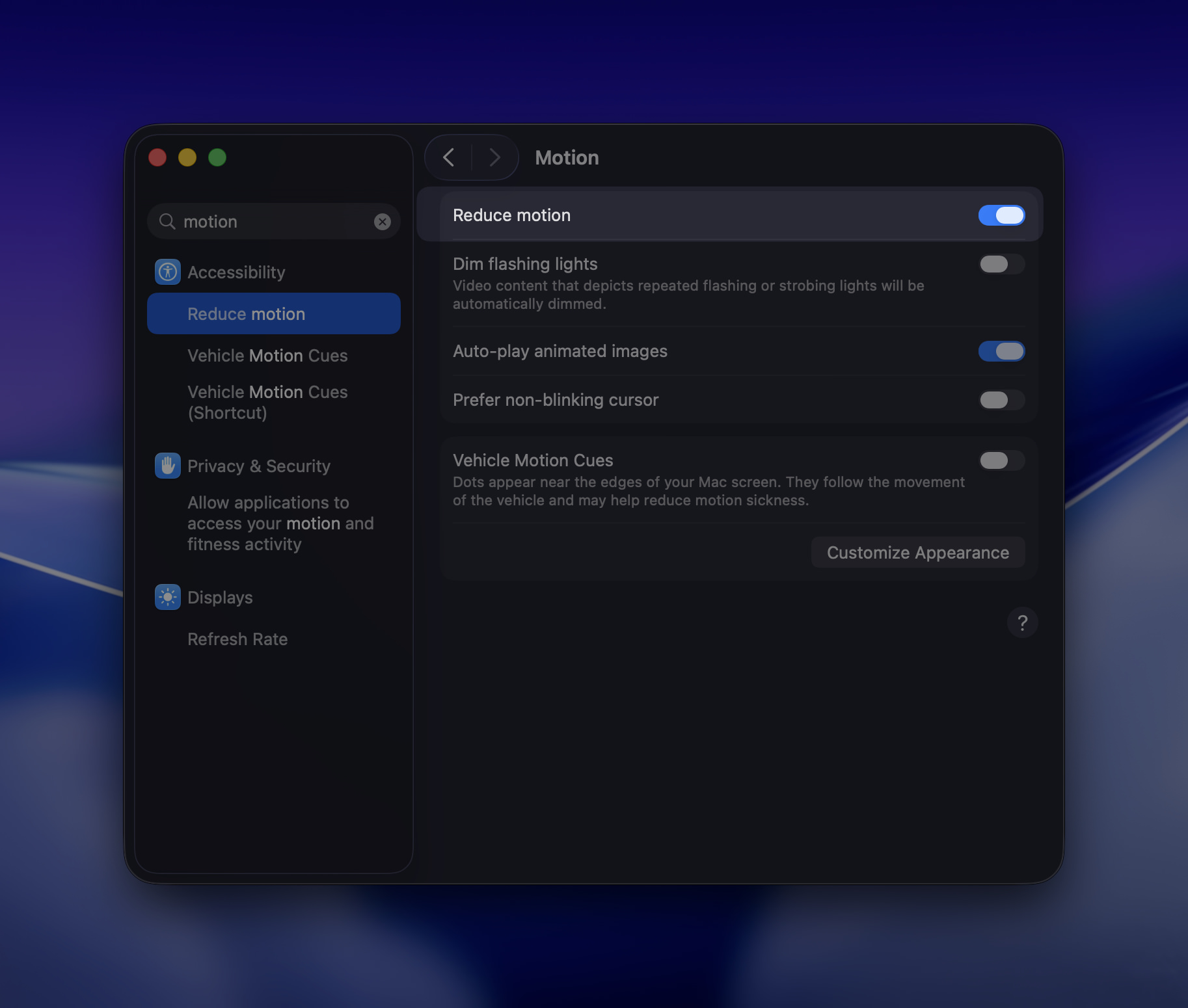
Go to System Settings > Accessibility > Motion and turn on Reduce Motion.
This is one of those settings that makes the Mac feel faster even when the speed gain is modest. Less animation, less visual drag, less unnecessary movement. I usually prefer that.
11. Use a Static Wallpaper
MacBook and desktop Mac
Dynamic wallpapers are nice in the same way animated lock screens are nice: pleasant for a moment, easy to forget, still doing work in the background.
If battery life or simplicity matters, use a static wallpaper instead in System Settings > Wallpaper.
This is a small gain, but a clean desktop with less motion is usually worth it anyway.
12. Audit Location Services and Analytics
MacBook and desktop Mac
Go to System Settings > Privacy & Security > Location Services.
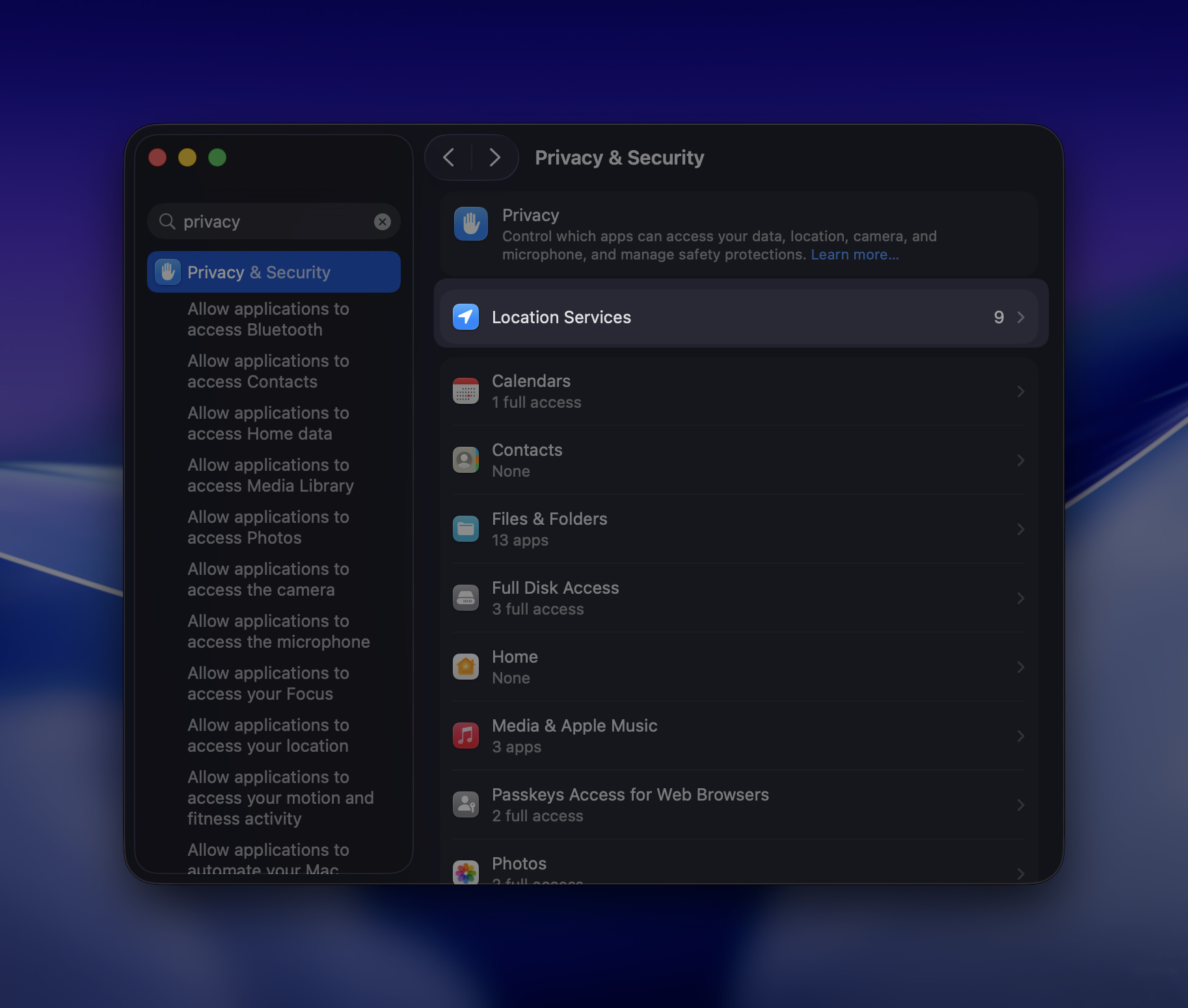
Turn off location access for apps that don’t need to know where you are.
Then review Apple’s analytics and improvement sharing options too. If you don’t want the extra background chatter, disable them.
This won’t transform your Mac overnight, but it’s part of a better default setup.
13. Use Shortcuts for Smarter Automation
MacBook and desktop Mac
Shortcuts keeps getting better, and macOS Tahoe makes it more useful for small quality-of-life automations.
A few practical ideas:
- when battery drops below 30%, enable Low Power Mode
- when you connect to home Wi-Fi, set your preferred battery charge limit
- when a Focus mode starts, adjust display behavior or other related settings
This is where the Mac starts feeling personal instead of generic.
My Top 5 Changes for Most MacBook Users
If you don’t want to do all 13, start here:
- set Low Power Mode to Only on Battery
- turn on auto-brightness
- shorten display sleep time
- reduce transparency
- clean up login items
Those five usually give you the biggest improvement with the least effort.
A Few Fast Bonus Wins
A few extra tweaks that still matter:
- use Safari over Chrome or Edge if battery life matters
- keep macOS and apps updated, especially point releases like 26.4
- disconnect unused drives and USB accessories
- check Battery Health once in a while if you’re on a MacBook
Final Thoughts
macOS Tahoe is polished, but the default setup still tries to be a little too everything-at-once.
A bit more visual flair, a bit more background activity, and a bit more battery use than necessary.
The good news is most of that is easy to fix.
You don’t need to tweak every setting on this list. Even changing five of them can make your Mac feel cleaner, quieter, and more efficient.
If you want a quick way to verify the impact, keep an eye on Activity Monitor > Energy for a few days after making changes. That’s where the vague feeling of “my Mac seems better” turns into something you can actually measure.