Compress Images, Videos, PDFs on Mac for Free with Dinky
File compression apps tend to fall into two camps: image-only tools that barely touch videos or PDFs, and bloated converters that feel like overkill for quick jobs.
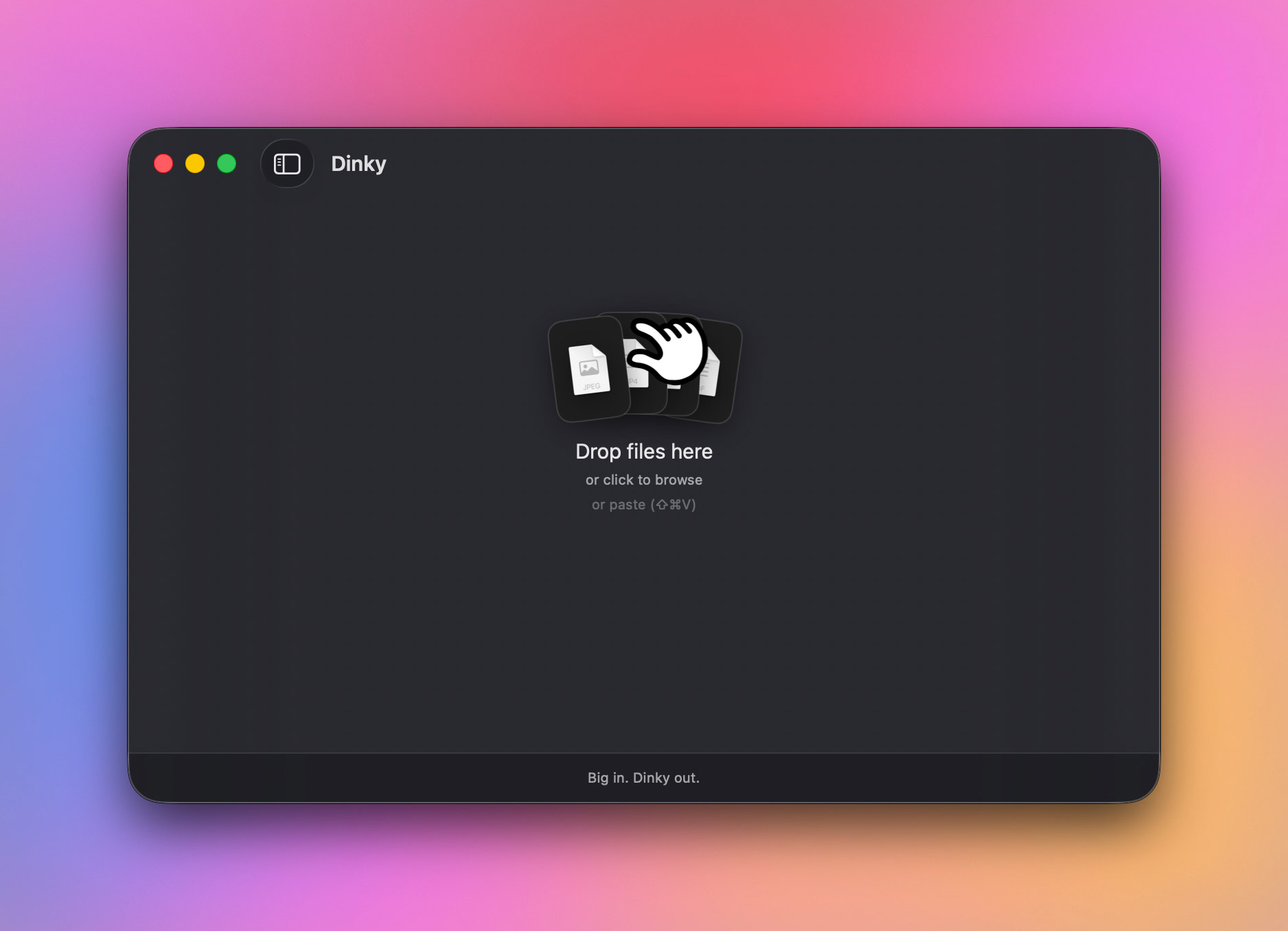
Dinky is a free Mac app that compresses images, videos, audio files, and PDFs without sending anything to the cloud.
You drag something in, pick a format or preset, and get a smaller file back.
It also does more than squeeze files blindly.
For images, it converts them into more efficient formats such as WebP, AVIF, HEIC, or lossless PNG.
For videos, it exports to MP4 with codec and quality presets.
For audio, it can convert between formats like AAC, MP3, FLAC, WAV, ALAC, and AIFF.
For PDFs, it lets you choose between flattening for smaller sizes or preserving structure when you need text and links to survive.
What Dinky Does Well
The strongest part of Dinky is that it treats different file types differently instead of pretending one compression method fits everything.
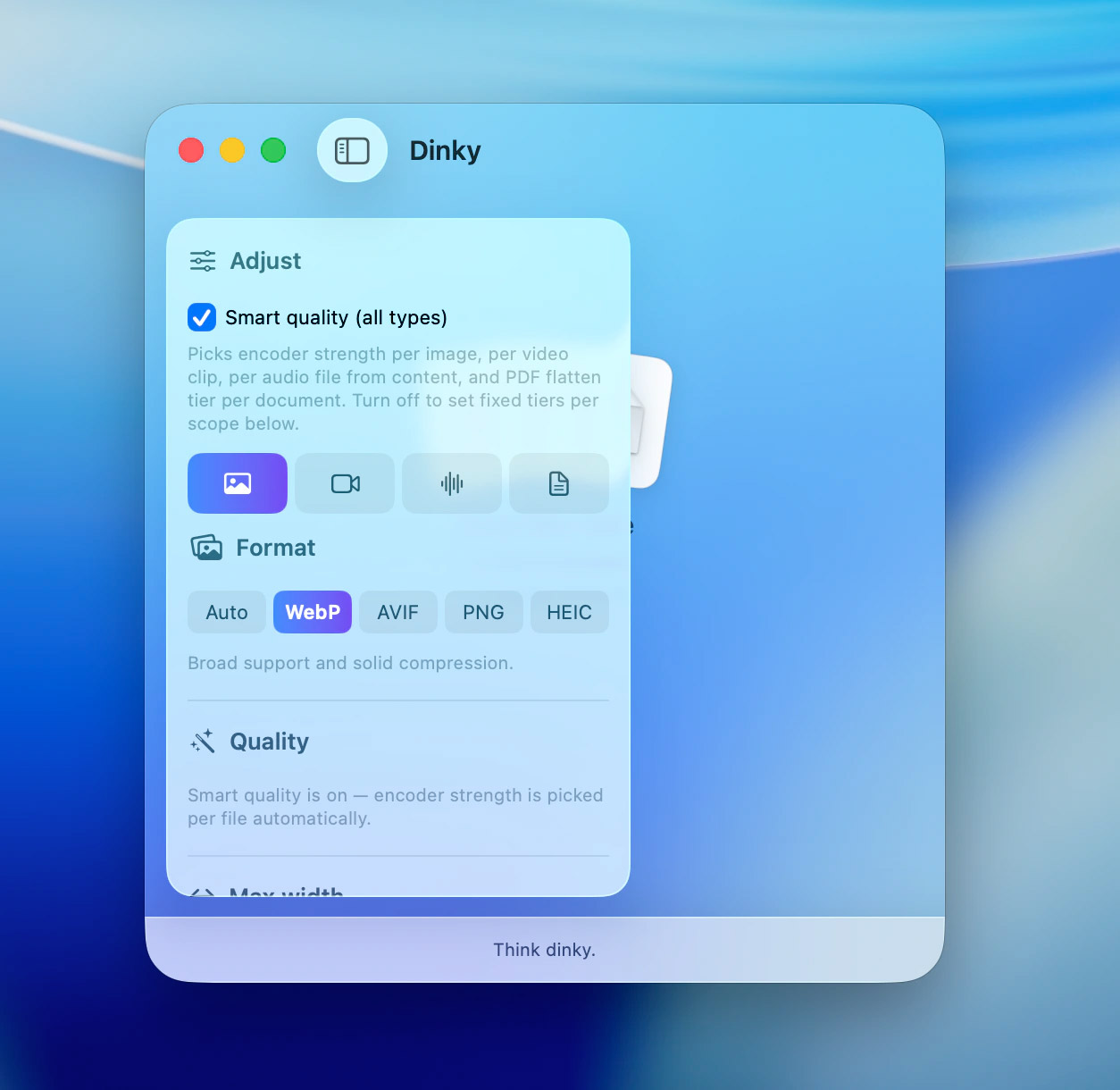
For images, you can output WebP, AVIF, HEIC, or lossless PNG.
There is also Smart Quality, which detects whether the image looks more like a photo or a graphic and adjusts compression accordingly.
If you need tighter control, you can set a max width or target a specific file size.
For video, Dinky exports to MP4 with H.264 or HEVC and a range of quality presets.
It also supports an optional FPS cap, which can help shrink screen recordings or demos that do not need full frame-rate output.
For audio, it can compress or convert common formats including AAC, MP3, FLAC, WAV, ALAC, and AIFF.
That gives it a broader reach than the earlier versions of the app, which started out focused on images alone.
For PDFs, the app offers two paths.
You can flatten the file for smaller output, which works well for scanned or image-heavy documents, or preserve text and links for a lighter-touch rewrite.
There is also optional on-device OCR for scan-like PDFs, so documents can stay searchable before compression.
If your workflow includes extracting pages first, this guide on how to convert PDF to image formats on Mac is a useful companion.
Built for Quick Repetitive Jobs
The interface is straightforward: drag files onto the Dinky window, the Dock icon, or use the file picker. There is also a system-wide clipboard shortcut for images. Copy an image, press Command + Shift + V, and Dinky compresses it even if the app is not frontmost.
You can also drop or paste a direct file URL. Dinky downloads the file first, then compresses it locally, with support for links up to 500 MB.
This is the kind of detail that makes the app more than a one-off utility. It is built for people who compress files often enough to care about friction.
Presets, Watch Folders, and Batch Speed
Dinky gets more useful once you stop treating it as a manual drag-and-drop tool.
You can save presets that bundle format, quality, size limits, destination folder, watch folder, and filename behavior together.
So instead of redoing the same settings every time, you can keep one preset for blog images, one for client PDFs, and another for lightweight video exports.
If you mainly want to optimize images on your MacBook, that broader workflow still applies here too.
The watch folder feature pushes that further. Drop files into a watched folder and Dinky compresses them automatically using your chosen preset.
It also supports batch processing with speed settings that control how many jobs run in parallel. If you process lots of files in one go, that is more useful than a pretty interface.
What Happens to the Originals
Dinky gives you sensible control over the original files after compression. You can keep them where they are, move them to the Trash, or send them to a backup folder.
That is a small feature, but a good one. Compression tools are easy to trust right up until they replace something you wanted to keep.
Should You Use It?
If you regularly resize screenshots, convert images for the web, shrink exported videos, clean up PDFs, or re-encode audio files, Dinky is easy to like.
It is not trying to be a full editor.
It is a focused compression utility with better format support than most free Mac apps in this category.
The presets, watch folders, and clipboard shortcut make it easy to keep using.
You can download it from the official Dinky site or browse the code on GitHub.