visitor stats

Drawing Spiderman Logo in Photoshop

Photoshop Spiderman Logo

Let’s take a look at how you can create your own Spiderman 3 logo, a movie much anticipated and expected to be screening this coming summer.

First and foremost, download the 1979 font and have it installed in your font folder.

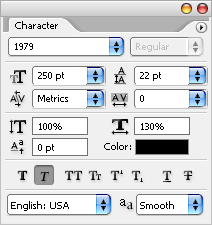
Create a new canvas with White Background, say about 400×300 pixels. Choose Font Type 1979, type in "3", set font size to 250pt, set horizontally scale of 130% and enable Faux Italic.
Photoshop Spiderman Logo

Adjust the "3" to the middle of the screen, call up Blending Options and let’s make a realistic Spiderman 3 font.

Photoshop Spiderman Logo

Tweak this following styles in Blending Options.

  1. Drop Shadow: Opacity [38%] , Distance [0px], Spread [0%], Size [10px]
  2. Inner Shadow: Distance [0px], Choke [0%], Size [10px]
  3. Bevel and Emboss: Style [Inner Bevel], Technique [Chisel Hard], Depth [100%], Direction [Up], Size [3px], Soften [0px], Gloss Contour [Ring]
  4. Gradient Overlay :
    • Color stop: Color [#535b5e], Location [0%]
    • Color stop: Color [#ffffff], Location [25%]
    • Color stop: Color [#ffffff], Location [75%]
    • Color stop: Color [#535b5e], Location [100%]

Upon completion of the Blending Option tweak, you should get something like this.

Photoshop Spiderman Logo

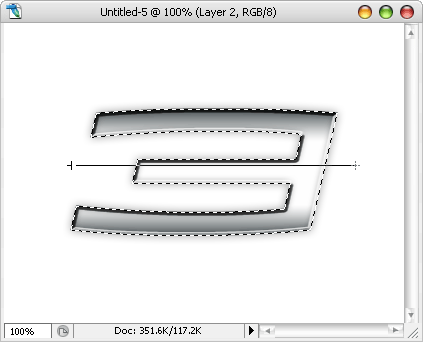
Hold CTRL + left click on the text’s Layer Thumbnail to highlight its text. With the selection highlighted, Create a new layer, Choose Gradient Tool.

Photoshop Spiderman Logo

Go all the way to the top, Click on Arrow next to the Gradient Editor, then click on the Rounded Arrow and choose Metal from the drop down. Click OK to replace.

Photoshop Spiderman Logo

Choose Silver from the Gradient Editor. Make sure you are still selecting the Gradient Tool and the selection is still highlighted, drag a line across the "3" like the image below.
Photoshop Spiderman Logo

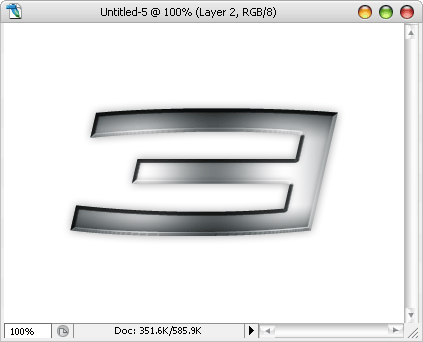
It should filled the selection with metal gradient. Select Multiply from Layer drop down and give it an opacity of 75%.

Photoshop Spiderman Logo

And you are done! Your very own Spiderman 3 logo.
Photoshop Spiderman Logo

Related Contents

Sponsors

Posted by hongkiat in Photoshop Tutorial , at 04.25.07

Comments

  1. dmob April 29th, 2007

    Nice Work
    Actually it’s only Gradient Working But Nice Job
    —————————-
    http://pspwall.freehostia.com/

    Reply
  2. anand May 1st, 2007

    tutorials are exclent

    Reply
  3. irem May 2nd, 2007

    ah bide türkçe olsa neleri wermem ha aheaheahe(lol)

    Reply
  4. someone May 12th, 2007

    r u sure spider man makers wont sue u?

    Reply
  5. happy May 12th, 2007

    it looks gay like me but its cool!!loving it!!;)

    Reply
  6. Nick May 15th, 2007

    SOOOOOOOOOOOOOO COOOOOOOOOOOOOOOOOOOL !!!!!!!!!!!!!

    Reply
  7. Venkatesh May 22nd, 2007

    good to get the right tutorial i just wanted.

    Reply
  8. Dubraska June 4th, 2007

    Hola!! Hello!!

    Excelent Turorial!!
    This tutorials helped me at lot!! Thanks!!!

    Reply
  9. RG July 10th, 2007

    This is not the spiderman logo? Its just “3″ from the movie title Spiderman 3!

    Reply
  10. Nadir July 17th, 2007

    Why not just give the style that is being tought here… once the style is done. Save it and place a link here!

    Reply
  11. jaldi August 8th, 2007

    very good work , keep it up and post new techinques

    Reply
  12. Otel Rehberi March 26th, 2008

    Great Work!

    Reply
  13. leslie venegas May 9th, 2008

    hola , una consulta ustedes saben como se llama la tipografia que usa entel psc en su logo?

    Reply
  14. joshua June 26th, 2008

    A classic one. i used it to create my banner http://wallpapers.zxq.net

    Reply
  15. Machinery and Travel July 12th, 2008

    very beautiful and this can create in Photoshop CS , it will show you how

    Reply

Leave a reply