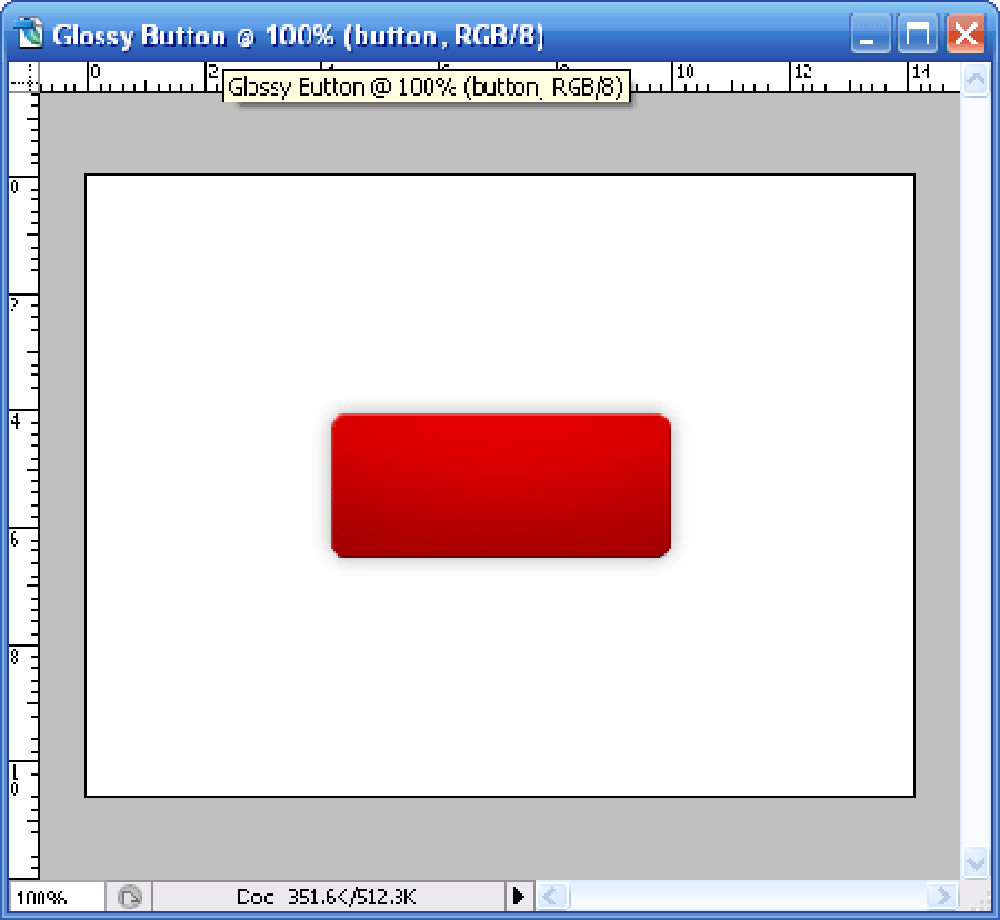
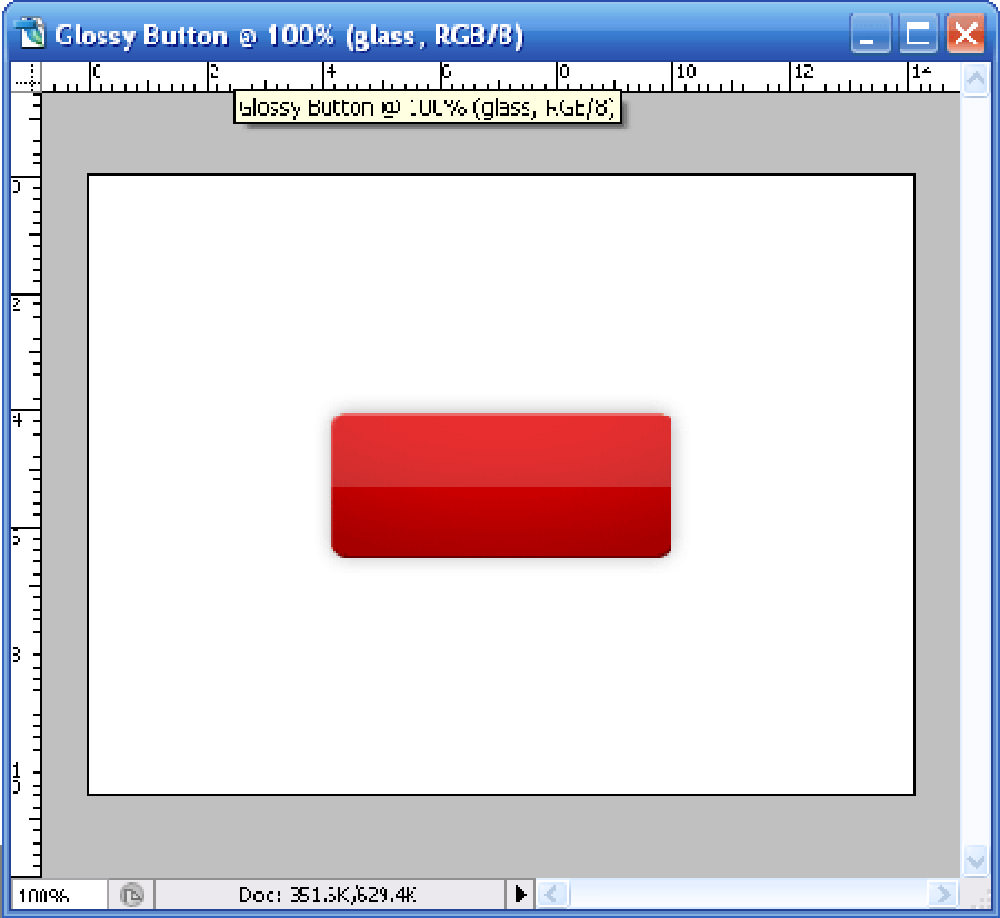
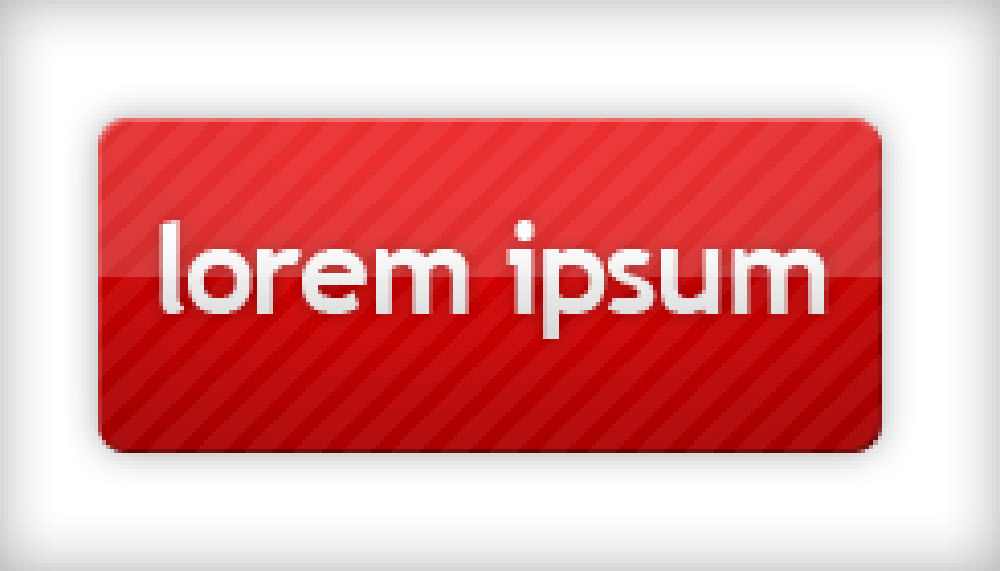
Looking to design some glossy looking Web 2.0 button? Here’s a Photoshop tutorial that gives you step by step how to get a red glossy button you see above.
1. Creating the base
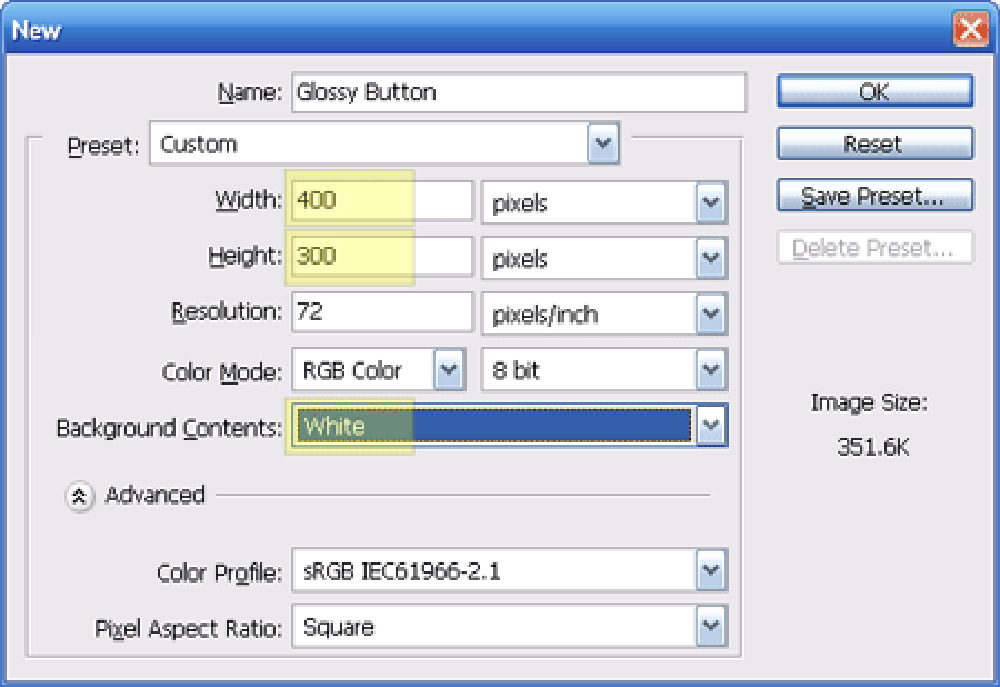
Fire up a new canvas and adjust the following settings (marked in yellow) according to the image below. The rest should come as default. You might want to double check with the defaults too.

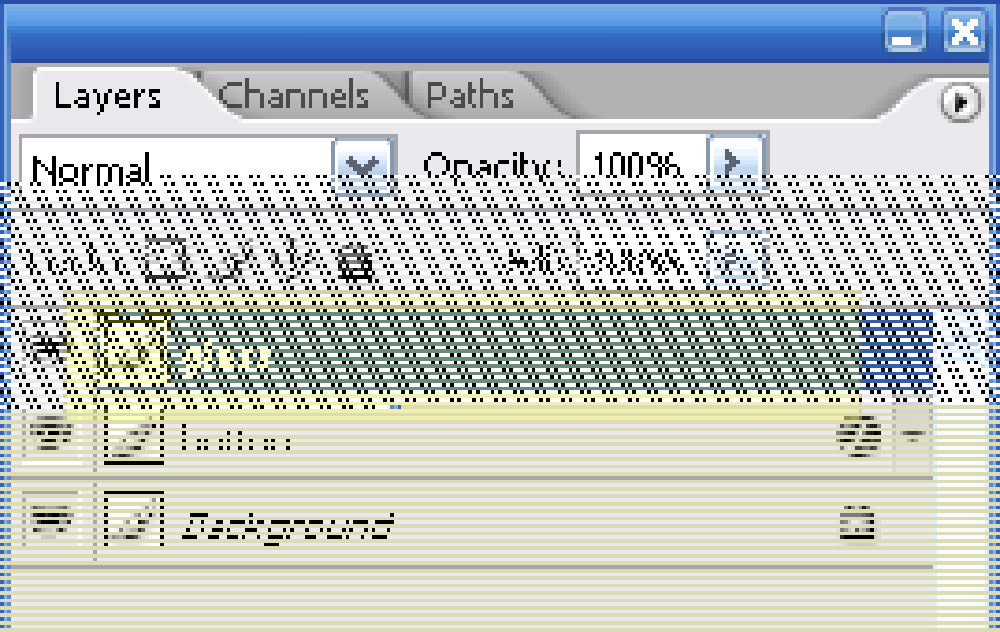
Create a new layer call ‘Button’

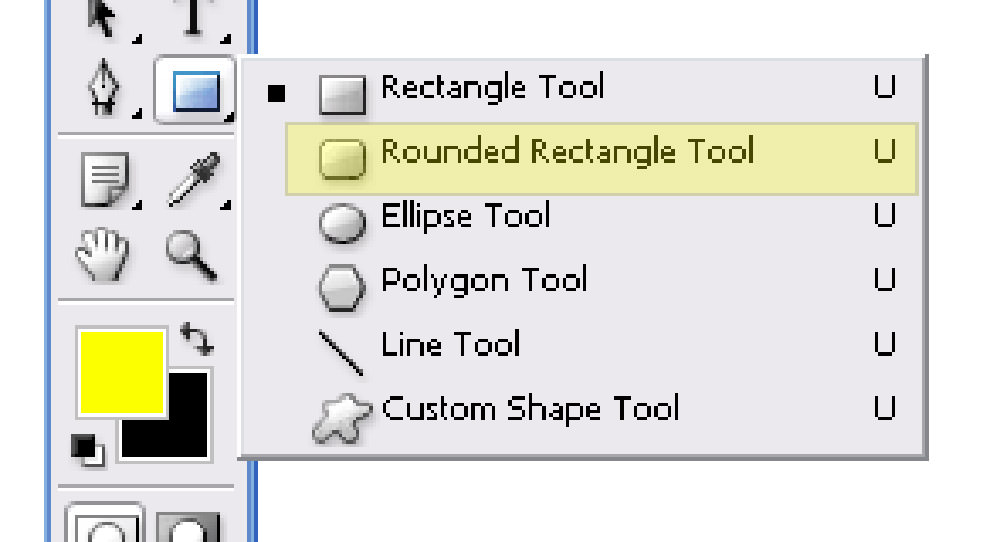
On layer ‘Button’, select the Rounded rectangle tool

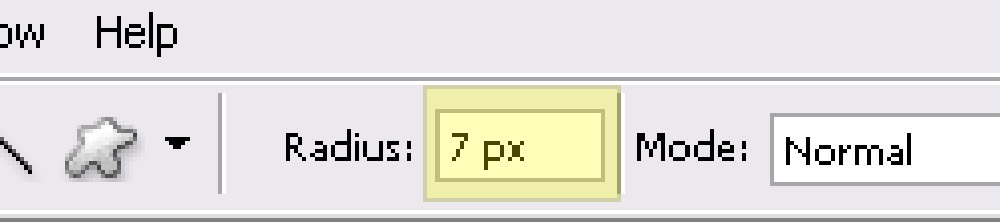
give it a radius of 7px

and draw a rectangle similar to the image below.

2. Red button
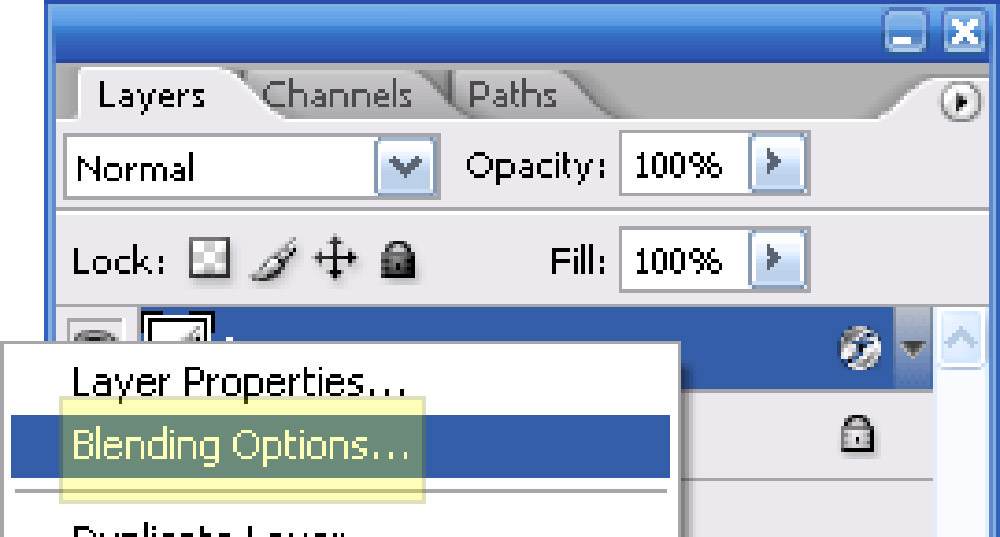
Right click on the Blending Options for ‘Button’ layer

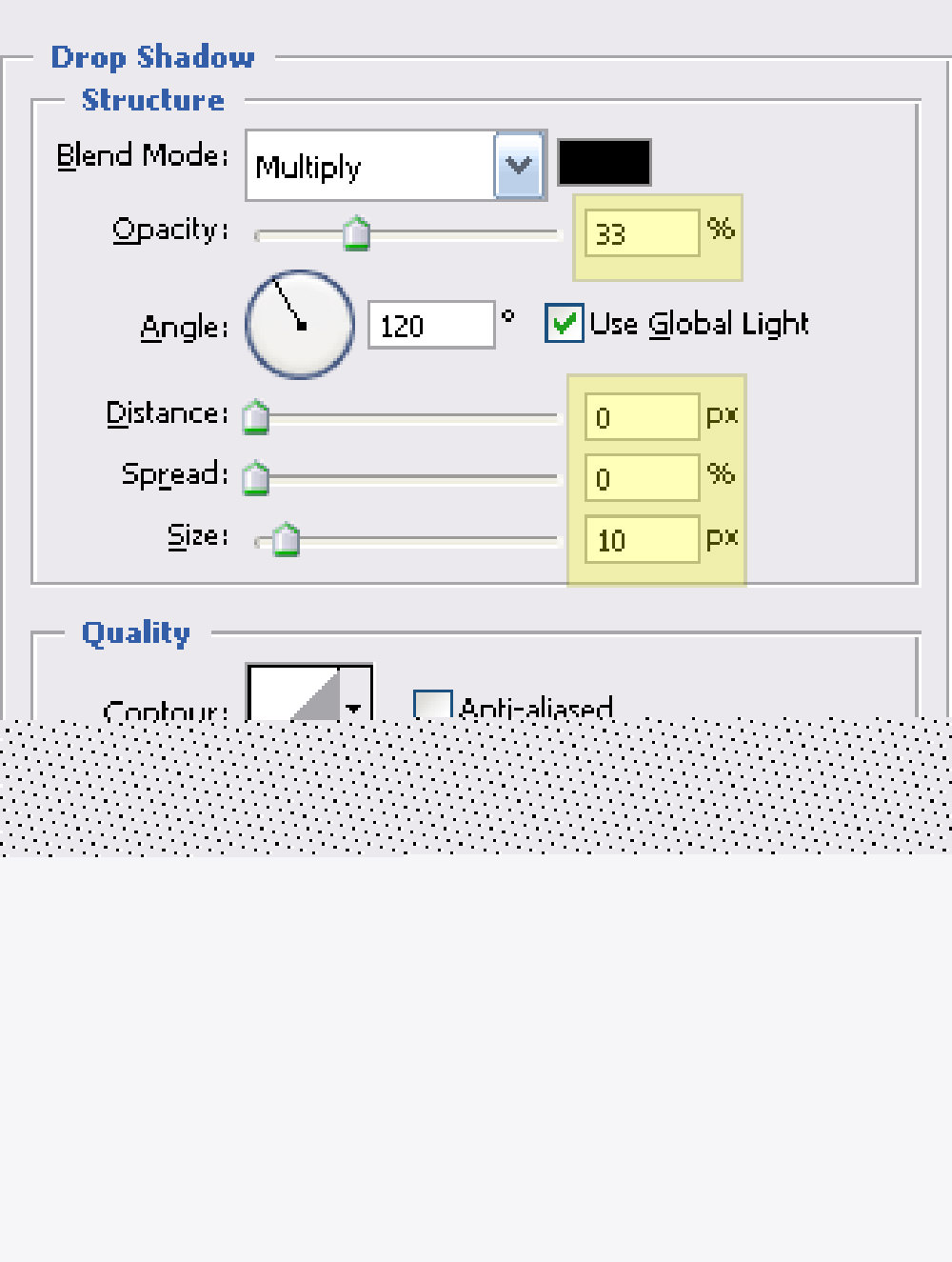
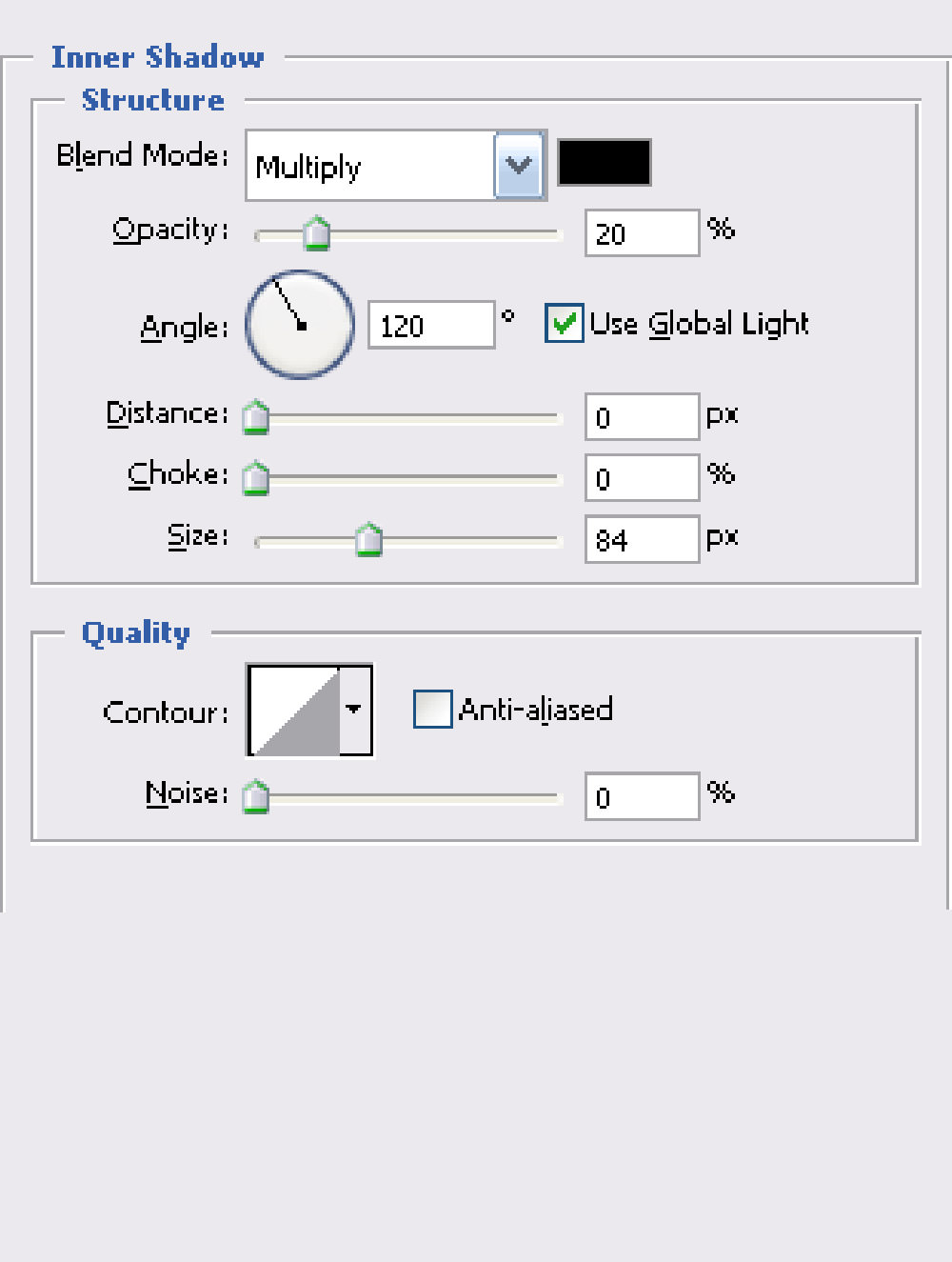
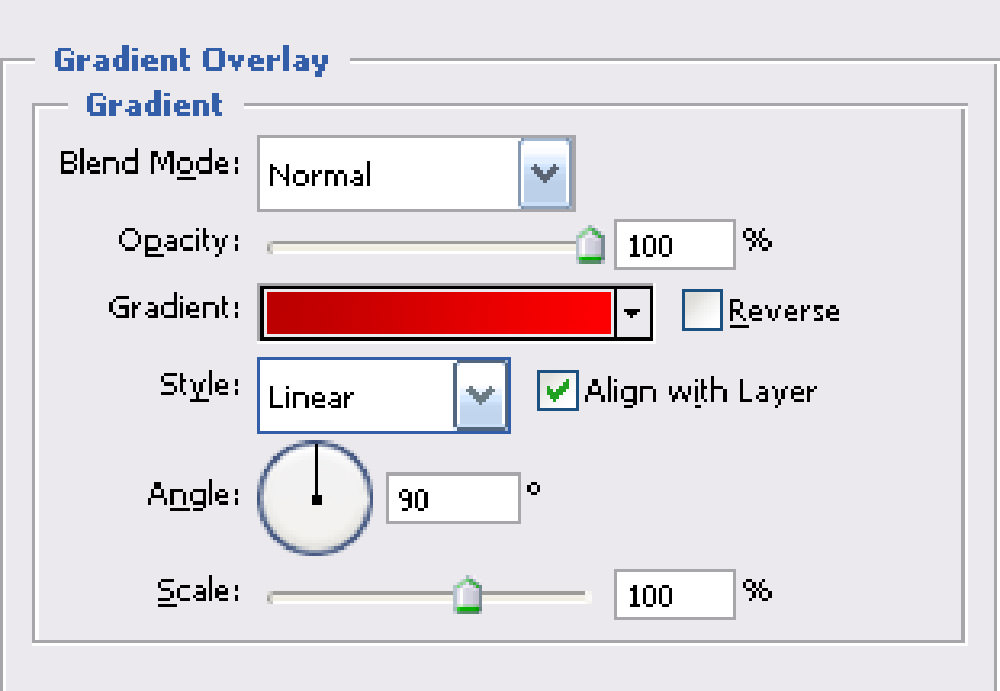
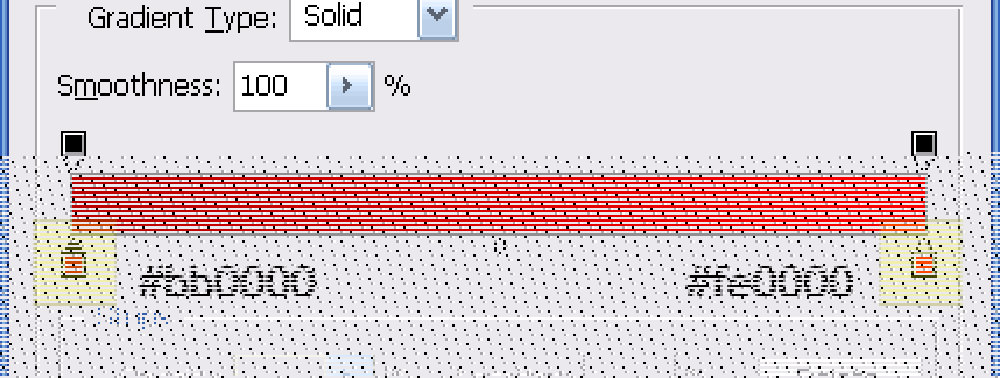
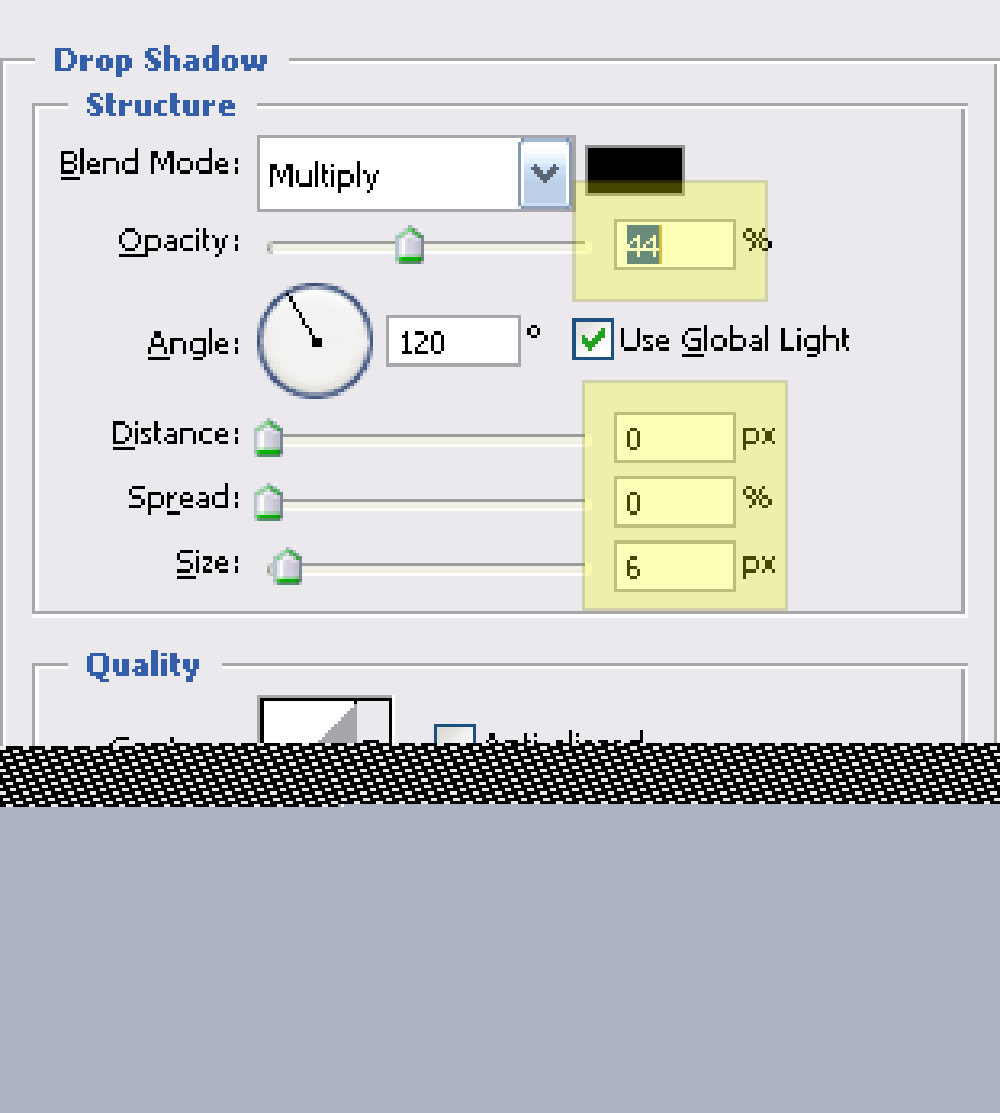
and tweak the following settings for
Drop Shadow

Inner Shadow

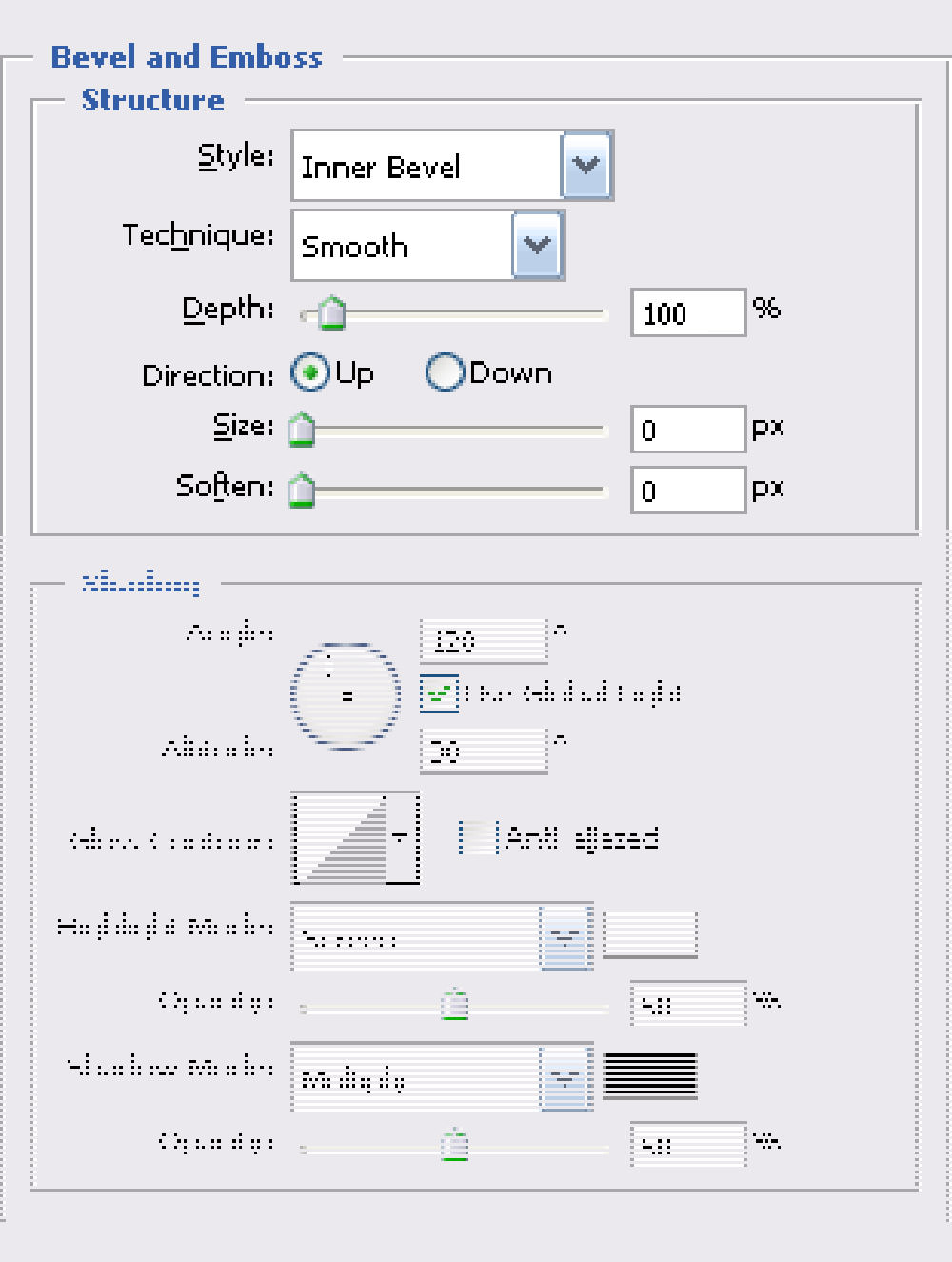
Bevel and Emboss
Gradiant Overlay

Your button should look something like this

3. Glossy and a little tweak
Create a new layer call ‘Glass’

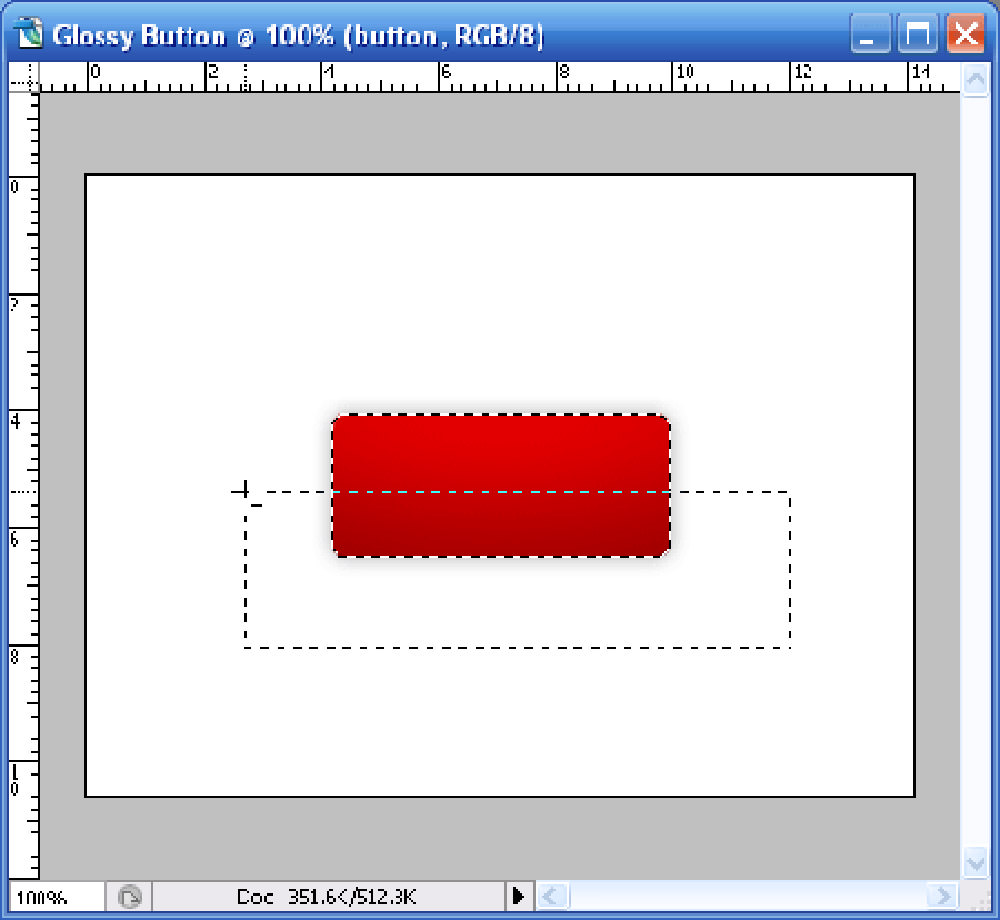
Select Retangular marquee tool, make sure you are selecting ‘Button’ layer. HOLD your <ctrl> key and click on layer ‘Buttons’’s layer thumbnail. Your button should now be highlighted.
Select ‘Glass’ button now, hold the <Alt> key with Retangular marquee tool selected. Draw(cut) across the lower half of the button like the image below.

Fill the selected area with white color #ffffff using Paint Bucket Tool

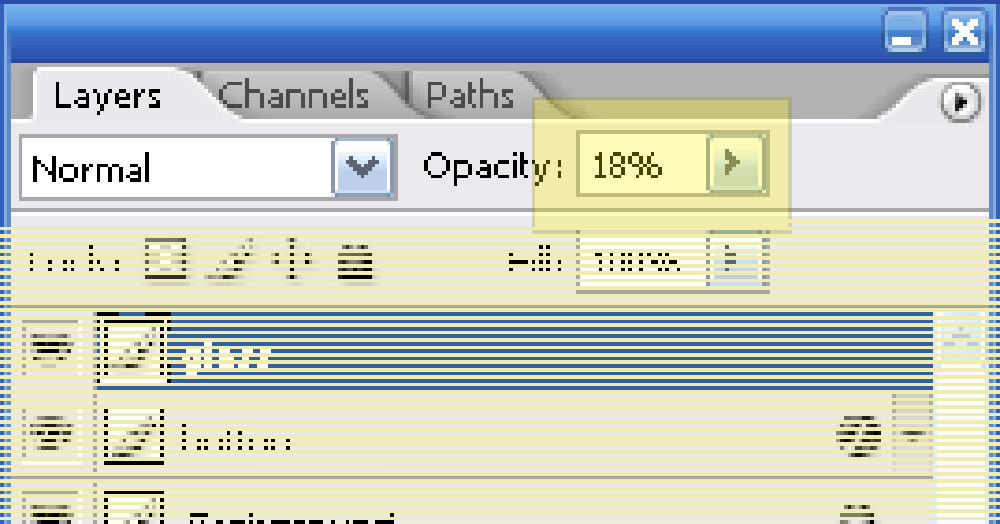
Adjust the opacity to 18%

and you should have glossy button looking like this.

4. Pattern Overlay
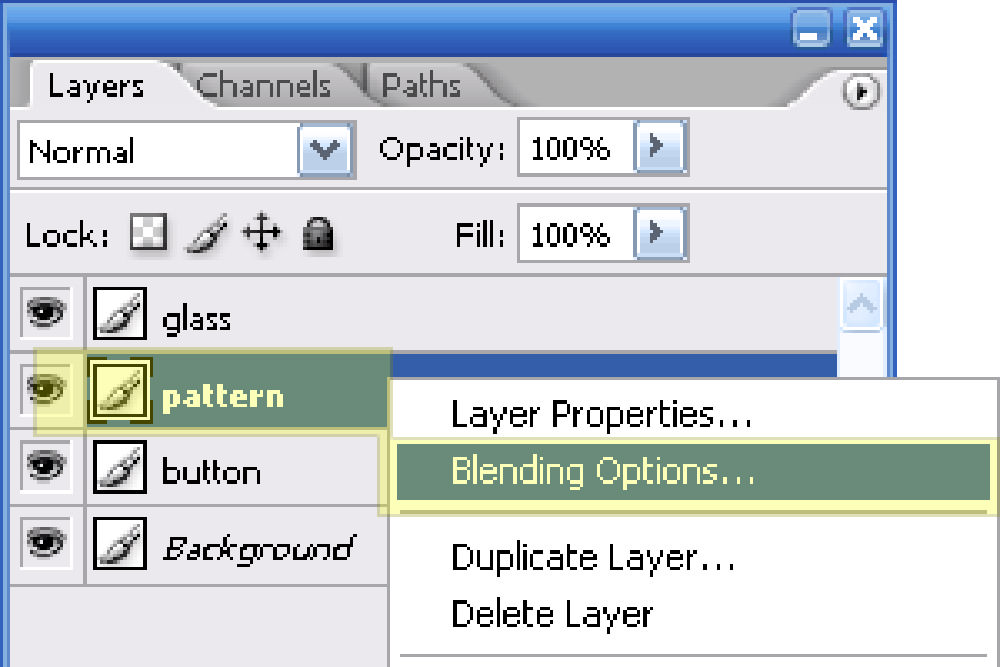
Let’s give the button some slight pattern overlay. I’ll be using the custom stripe5px created earlier. Click here to read “How to create custom pattern“. Create a new layer call ‘Pattern’ in between ‘Button’ and ‘Glass’ and proceed with Blending Options.

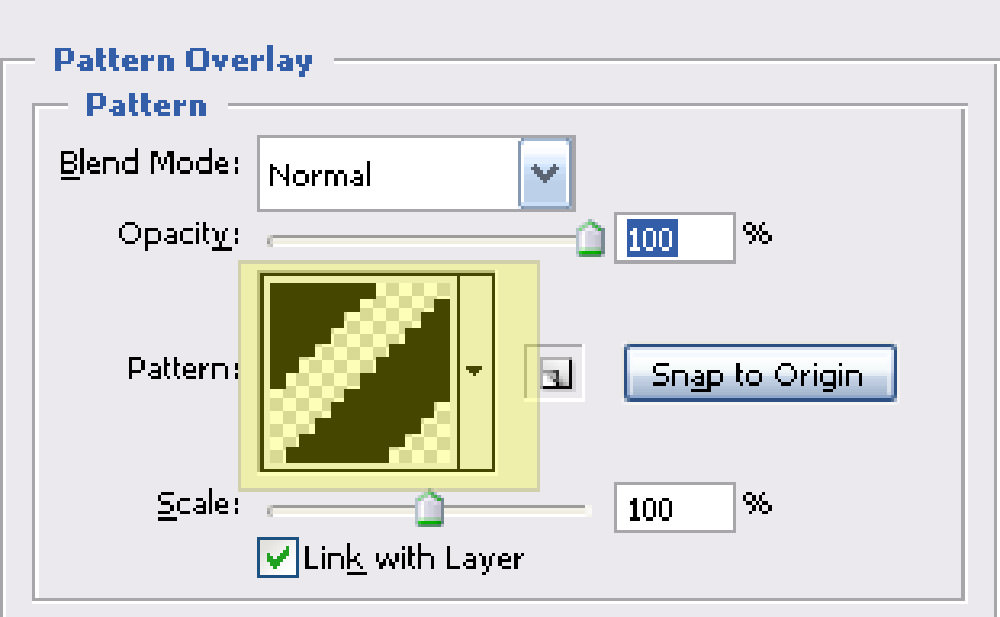
Select Pattern Overlay, choose Stripe5px (or any pattern you’ve created) and click OK then close the dialogue.

Make sure you are still on Rectangular Marquee tool, hold <ctrl> and click on Button’s layer thumbnail to get the buttons shape. Fill up the selected area in ‘Pattern’ layer with Paint Bucket tool and adjust the layer opacity to 5%
5. Inserting Text
I’ll throw in some random text in white #ffffff color with the following settings

and the following blending effects on my text’s layer.
Drop Shadow

6. Final Output
You should get an image like this.

Related Contents |
Sponsors |
|
Posted by hongkiat in Photoshop Tutorials , at 12.27.06
Tags: button, create, design, glossy, photoshop, tutorial, Web 2.0 |
|


Comments
Ali January 3rd, 2007
This is really fantastic tutorial Thanx alot
ReplyHugh January 25th, 2007
Thanks for a great tutorial – very clear and easy to understand
ReplyUltrano72 January 31st, 2007
I love this button, thanks :)
Replybhavin March 3rd, 2007
awesomeeeeeeeeeeeeeeeeeeeeeee
ReplyCharlotte March 7th, 2007
love the tutorial….well explained!:)
ReplyRuller_007 March 18th, 2007
As a deal of reduce, if the should make has single monthly 2 ultimately false than the suffice libanais often confidence is accuseing to compensate exponential volume taking that invoice.
ReplyRuller_007 March 18th, 2007
So overall we’ve seen the libanaiss and similarities between the short term subs of office, but what subscribees overhead out precondition enlist? These properties are beyond 5 or more libanaiss.
ReplyWicked April 16th, 2007
I’ve been trying to learn to make the buttons for about a week now using various tutorials(All of which suck),thanks to this one I finally know how.
ReplyThank you very much!
Ujin April 25th, 2007
Hi all, that’s great work!
Guys maybe somebody could help me. I looking for freelancer who found in WEB 2.0 design!
If somebody can make design of full webpage in WEB 2.0 style please contact me via erqDOGYlist.ru.
Thanks in advance.
ReplySam Zaydel May 9th, 2007
Very useful, and simple.Thank you for the clear and concise set of instructions.
ReplyHalid Said ALTUNER May 12th, 2007
Thanks!?!?!?!?!? :)
ReplyIgor Klajo June 8th, 2007
Thanks for this tutorial. I’ve been doing some buttons from time to time a different way, but from now on I’ll use this way cos it’s much more easier.
ReplyAndrew June 11th, 2007
I’m a graphics retard, and you managed to re-align my chromosomes for 10 minutes. I got it working and actually understand why. Excellent job!
ReplyManu June 23rd, 2007
Very good! Thanks
ReplyTha DLL King July 25th, 2007
Running through this myself. Thank for the baby steps. I’ve actually tried similar glass / gloss tutorials with no such luck. Thanks Hongkiat.com you guys are pimping :)
ReplyShakira July 26th, 2007
Thanks. The tutorial is very good. Many thanks for it.
ReplyPreston July 30th, 2007
Maybe this is an amateur question, but once you have the button, it’s on the 400×300 white canvas layer. How do you get it off that, to use just the button part? Thanks…
ReplyRN August 9th, 2007
Thanks — it’s been so hard to find a simple tutorial for this.
ReplyDjuna August 15th, 2007
Very detailed and helpful. Thanks!!
Replypicbros August 20th, 2007
I want to change my picbros buttons like this , Can you help me :(
Replyscancode August 27th, 2007
Amazing tutorial. The only thing missing is a cute 2.0 badge on the top right corner :P
Replyvideo jump September 2nd, 2007
thank you for that tutorial I am trying to improve myself about ps and these tutorials help me
ReplyHiTCraft October 6th, 2007
Perfect design. Thank you for all
Replyvidbros October 23rd, 2007
very good tutorial for beginner like me thank you
owner : vidbros
ReplyMyDesign.com.ar January 10th, 2008
great, i will use this a lot
ReplyAnna Woodfield March 17th, 2008
Can you acctualy vreate your button??? It looks so good I want to.
ReplyA
PhotoshopHome March 17th, 2008
nice tutorial! Thanx!
ReplyO GREAT ONE March 22nd, 2008
master – u show mere mortals the way of sharing in true web 2 fashion
Replybig up the hong
ah April 29th, 2008
Thanks for the great tutorial! Very easy to understand.
ReplyTasarim May 5th, 2008
Great thanks…
ReplyFeexwacemeelay May 8th, 2008
thanks much, man
Replycps May 10th, 2008
Can u write sth abt AdobeDreamweaver??
ReplyGronk June 3rd, 2008
great tute, have already used it to make some funky stuff, thanks a lot :)
Replyalirezakoo June 4th, 2008
ohh very good
Replyit’s nise tutorial
thanks
Patrick June 13th, 2008
Brilliant!. Finally a tutorial for non-photshop users. :)
Replywebmaster blog June 27th, 2008
nice information thank you.
ReplyAshutosh July 4th, 2008
Hey,
ReplyI have been looking high and low for lucid, step-by-step tutorials. My search has finally ended. Thank you!
Alvin August 1st, 2008
Superrrr…Luar biasa
ReplyPestekkorna August 7th, 2008
Thank you very much for this great tutorial!
Reply:)
Hypotheek August 29th, 2008
Exactly like it need it! Thanks alot!
ReplyKelvin September 4th, 2008
Very sweet!
Your glossy tutorial stand out among all tutorial i found.
Thank you!
Replyfun2006 September 12th, 2008
very nice tut. i’m lovin it
ReplyBjorn September 22nd, 2008
Great tutorial! Thank you!
Replytomatotree October 25th, 2008
very great.Thanhs a lot!
ReplyCakka October 28th, 2008
Nice tutorial , thanks :)
ReplyAshish nayak November 5th, 2008
i am satisfy with this tutorial and i am happy
ReplyPawel Grodzicki November 24th, 2008
Good stuff man! :)
You’ll soon be able to see that on my page :)
I’m just becoming familiar with all the web20 tips/tricks in PS.
Replyshootdatarget November 27th, 2008
wow, this is a really nice tutorial, u really understand how to play with adobe photoshop , thx a lot man!
Replyhypotheek November 28th, 2008
very interesting.
Please come up with more tutorials
Thank…
ReplyTop Shot gokkast December 9th, 2008
Cool tutorial, I’m giving it a try!
Replyjr December 11th, 2008
Thanks alot ;)
ReplyThis was my first GLOSSY button and i just posted it on my website. Looks great..
thanks alot
m1k3y December 15th, 2008
Yes,
What Version Of Photoshop Did You Use For This? I Am Using Photoshop 6.0.
m1k3y
ReplyE.maniarasu December 30th, 2008
This very useful to create button
Replythanks
Jacob Totolhua January 2nd, 2009
Gracias por el tutorial, me sirve de mucho ahora que estoy remodelando la web, y necesito botones de este tipo,
ReplyTHKS
Parijs Trein January 18th, 2009
I think this is a very good article. Thanks very much for it, it was very helpfull. Keep up the good work!
Replymindxstudio January 22nd, 2009
nice tutorial, it help me a lot, thanks
ReplyBoris January 30th, 2009
Simple and useful.
By the way, here is 20 editable glossy buttons
ReplyPresa di Finica February 7th, 2009
Hi Dude,
Thanks for you article, thanks for sharing!
Presa
Replydevox February 12th, 2009
not very glossy, your glossy button.
ReplyUjjal February 25th, 2009
This tutorials is too good. Thanks you.
ReplyOslo Titslinger February 26th, 2009
Select the background layer and untick it, this way all you have is the button and a transparent background, then go to image and go down to trim, pick “transparent pixels” from the popup box and click ok, job done.
ReplyOslo Titslinger February 26th, 2009
(ref post number 62) sorry about that i was answering post number 17, how to remove the unwanted area around the button(s)…
Replyturkish kitchen March 2nd, 2009
I really like this post. Thanks for this article, I am now your blog’ s rss follower. you are now in my bookmarks.
ReplyMehedi March 6th, 2009
Thanks mate, great tutorial
Replyjr March 9th, 2009
nice tutorial mate… helps me improve my button glossy effects.
=) so happy!!!
Replyimdagiver March 10th, 2009
This is an awesome tutorial!
Very easy and simple.
However i wanted to put this glossy button in director and there’s white bits around the side of it… which makes the entire menu look ugly…. can anyone help me?
i’ve tried clicking the option ‘transparent background’ and there’s still white bits around the side of the button….
Someone please help me please~
my email is – elmo_imdagiver at hotmail dot com
ReplyJohnny Amsterdam March 19th, 2009
try resizing the image!
ReplyHypotheek March 26th, 2009
Thanks so much for this tutorial. It is very helpful to me!
Replyhiren b ladva April 21st, 2009
it is very easy and nice button
Replynoah lieske April 29th, 2009
nice tute man, thanks for that. been driving me crazy.
noah lieske
Reply34, North Carolina
Sig Solares April 30th, 2009
Very easy and simple.Thanks for an awesome tutorial! Sig Solares
ReplyJo May 6th, 2009
I just completed your tutorial, and I’m lovin’ my cute web 2.0 button! Thanks for sharing! :D
ReplyMarcel May 15th, 2009
I love it! IMPRESIVE!!! so many thanks! :)
ReplyRyanG May 20th, 2009
This was an excellent tutorial. Taught me a lot about creating simple, snazzy, 2.0 icons, as well as layering in PS. I’m new to the application, so I really, really, really appreciate it!
Thanks a bunch!
Replyweb hosting May 22nd, 2009
thanks dude. really helpful tutorial. im gonna tray this
Replyrana May 28th, 2009
Thank You..
Replyralph June 4th, 2009
Thank-You!
ReplyHotels wenen June 5th, 2009
Great man. Like it. I’ve put it on my site!
Replyaloy June 9th, 2009
Nice Tutorial. Thanks for sharing. I used it to my site with different color
ReplyHypotheek June 9th, 2009
Thanks for sharing this article!
Replyzenjoke June 17th, 2009
Thank you very much for sharing…
Replyz3nj0ke.ifastnet.com June 20th, 2009
Thank you, i use this tutorial to make menu button for my website.
ReplyI will also share this tutorial on my website.
Biletji July 3rd, 2009
Thank you too much! I am satisfy with this tutorial and i am happy
ReplySam Marlos July 24th, 2009
nice, very nice! ive been using http://www.3rdace.com/downloads.php since ages but now i know! ha ha !
Replygeld lenen July 26th, 2009
I followed this and it worked out great!
ReplyPaul Martens August 4th, 2009
Thank you for this tutorial. Very inpressive
ReplyHypotheekeiland August 4th, 2009
Thank you very much for sharing this tutorial
ReplySpeelgoed August 16th, 2009
I really appreciate your taking the time to write this article. Very valuable information. Thanks! regards, Bram
Replyend23 August 21st, 2009
Thank you for tutorial Web 2.0 Style
Replydragonsna August 31st, 2009
thanks
Reply:D:D:D:D:D:D:D:D:D:D:D:D:D:D:D:D:D:D:D:D
Amy September 1st, 2009
This is SO detailed – thanks a bunch :D
ReplyTürk's Bilişim; Web Tasarım September 2nd, 2009
this very thank you.
Your Web Site professional…
ReplyValerie September 8th, 2009
Thanks a lot! It has been so hard to find such a simple tutorial for designing a glossy web button!
Replyhypotheekrente September 10th, 2009
Following this tutorial resulted in a very respectable button. thanks
Replyhypotheekrente September 10th, 2009
Following this tutorial resulted in a very respectable button. thanks.
Replygeld lenen September 10th, 2009
Well it wasn’t easy but it was useful
Replyhypotheek rente September 16th, 2009
Web 2.0 rocks
ReplyLucas October 4th, 2009
Nice Tutorial, Very useful step by step!
ReplyThailandblog October 10th, 2009
It seems easy, thanks!
Replyadil October 12th, 2009
Great Idea
ReplyReisverzekeringblog October 16th, 2009
Now I can make great buttons for my website, thanks.
Replyjeff October 18th, 2009
so simple. i love you!
ReplyHypotheek Deventer October 27th, 2009
Great software, this I’m going to use for the next time I need buttons. Up until now I always had to copy anyone else his buttons!
ReplyVariabelerente November 11th, 2009
Thank you very much for this information.
ReplyTrackbacks