200 Keyboard Shortcuts (Windows) to Boost Your Productivity
Keyboard shortcuts can boost your productivity if your daily job relies heavily on using Windows. They just don’t get the work done quickly, but also improves the efficiency. Give them a try and you just might find yourself getting addicted to keyboard shortcuts.
We’ve compiled a list of keyboard shortcuts for Windows 200+ shortcuts grouped into categories for easy access. If we missed some shortcut in this list, kindly let us know through the comments section.
Windows 11 Keyboard Shortcuts
Windows 11 is a great operating system, but it can be a little daunting for newcomers to try... Read more
Table of content:
- General Shortcuts
- Windows Keys Shortcuts
- Dialog Box Shortcuts
- File Explorer Shortcuts
- Taskbar Shortcuts
- Ease of Access Shortcuts
- Magnifier Shortcuts
- Narrator Shortcuts
- Remote Desktop Connection Shortcuts
- Help Viewer Shortcuts
- App Rearrangement Shortcuts (Metro)
Note: Some of the shortcuts given below may not work for versions below Windows 8.
General Shortcuts
Let’s kickstart the list with the most common shortcuts that you’ll often use.
| F1 | Display Help |
| F2 | Rename the selected item |
| F3 | Search for a file or folder |
| F4 | Display the address bar list in File Explorer |
| F5 | Refresh the active window |
| F6 | Cycle through screen elements in a window or on the desktop |
| F10 | Activate the Menu bar in the active app |
| ALT + F4 | Close the active item, or exit the active app |
| ALT + ESC | Cycle through items in the order in which they were opened |
| ALT + underlined letter in menus and dialog box options | Perform the command for that letter |
| ALT + ENTER | Display properties for the selected item |
| ALT + SPACEBAR | Open the shortcut menu for the active window |
| ALT + LEFT ARROW | Back |
| ALT + RIGHT ARROW | Forward |
| ALT + PAGE UP | Move up one screen |
| ALT + PAGE DOWN | Move down one screen |
| ALT + TAB | Switch between open apps (except desktop apps) |
| CTRL + F4 | Close the active document (in apps that allow you to have multiple documents open simultaneously) |
| CTRL + A | Select all items in a document or window |
| CTRL + C or CTRL + INSERT | Copy the selected item |
| CTRL + D / DELETE | DELETE the selected item and move it to the Recycle Bin |
| CTRL + R or F5 | Refresh the active window |
| CTRL + V or SHIFT + INSERT | Paste the selected item |
| CTRL + X | Cut the selected item |
| CTRL + Y | Redo an action |
| CTRL + Z | Undo an action |
| CTRL + + or CTRL + – | Zoom in or out of a large NUMBER of items, like apps pinned to the Start screen |
| CTRL + mouse scroll wheel | Change the size of desktop icons or zoom in or out of a large NUMBER of items, like apps pinned to the Start screen |
| CTRL + RIGHT ARROW | Move the cursor to the beginning of the next word |
| CTRL + LEFT ARROW | Move the cursor to the beginning of the previous word |
| CTRL + DOWN ARROW | Move the cursor to the beginning of the next paragraph |
| CTRL + UP ARROW | Move the cursor to the beginning of the previous paragraph |
| CTRL + ALT + TAB | Use the arrow keys to switch between all open apps |
| CTRL + ARROW + SPACEBAR | Select multiple individual items in a window or on the desktop |
| CTRL + SHIFT + ARROW | Select a block of text |
| CTRL + ESC | Open the Start screen |
| CTRL + SHIFT + ESC | Open Task Manager |
| CTRL + SHIFT | Switch the keyboard layout when multiple keyboard layouts are available |
| CTRL + SPACEBAR | Turn the Chinese input method editor (IME) on or off |
| SHIFT + F10 | Display the shortcut menu for the selected item |
| SHIFT + ARROW | Select more than one item in a window or on the desktop, or select text within a document |
| SHIFT + DELETE | Delete the selected item without moving it to the Recycle Bin first |
| RIGHT ARROW | Open the next menu to the right, or open a submenu |
| LEFT ARROW | Open the next menu to the left, or close a submenu |
| ESC | Stop or leave the current task |
How to Access Control Panel in Windows 10 (7 Ways)
I was really furious when Microsoft removed the Control Panel shortcut from the Windows 10 power user menu... Read more
Windows key Shortcuts
Let’s check the keyboard shortcuts involving the Windows logo key. Most of them are introduced in Windows 8’s Metro UI, and can be used in Windows 8 and above.
| Win + F1 | Open Windows Help and support |
| Win | Display or hide the Start screen |
| Win + B | Set focus in the notification area |
| Win + C | Open Charms |
| Win + D | Display and hide the desktop |
| Win + E | Open File Explorer |
| Win + F | Open the Search charm and search for files |
| Win + H | Open the Share charm |
| Win + I | Open the Settings charm |
| Win + K | Open the Devices charm |
| Win + L | Lock your PC or switch people |
| Win + M | Minimize all windows |
| Win + O | Lock device orientation |
| Win + P | Choose a presentation display mode |
| Win + Q | Open the Search charm to search everywhere or within the open app (if the app supports app search) |
| Win + R | Open the Run dialog box |
| Win + S | Open the Search charm to search Windows and the web |
| Win + T | Cycle through apps on the taskbar |
| Win + U | Open Ease of Access Center |
| Win + V | Cycle through notifications |
| Win + SHIFT + V | Cycle through notifications in reverse order |
| Win + W | Open the Search charm and search for settings |
| Win + X | Open the Quick Link menu |
| Win + Z | Show the commands available in the app |
| Win + , | Temporarily peek at the desktop |
| Win + PAUSE | Display the System Properties dialog box |
| Win + CTRL + F | Search for PCs (if you’re on a network) |
| Win + SHIFT + M | Restore minimized windows on the desktop |
| Win + (NUMBER 1-9) | Open the desktop and start the app pinned to the taskbar in the position indicated by the number. If the app is already running, it switches to that app. |
| Win + SHIFT + (NUMBER 1-9) | Open the desktop and start a new instance of the app pinned to the taskbar in the position indicated by the number |
| Win + CTRL + (NUMBER 1-9) | Open the desktop and switch to the last active window of the app pinned to the taskbar in the position indicated by the number |
| Win + ALT + (NUMBER 1-9) | Open the desktop and open the Jump List for the app pinned to the taskbar in the position indicated by the number |
| Win + CTRL + SHIFT + (NUMBER 1-9) | Open the desktop and open a new instance of the app located at the given position on the taskbar as an administrator |
| Win + TAB | Cycle through recently used apps (except desktop apps) |
| Win + CTRL + TAB | Cycle through recently used apps (except desktop apps) |
| Win + SHIFT + TAB | Cycle through recently used apps (except desktop apps) in reverse order |
| Win + CTRL + B | Switch to the app that displayed a message in the notification area |
| Win + UP ARROW | Maximize the window |
| Win + DOWN ARROW | Remove current app from screen or minimize the desktop window |
| Win + LEFT ARROW | Maximize the app or desktop window to the LEFT side of the screen |
| Win + RIGHT ARROW | Maximize the app or desktop window to the RIGHT side of the screen |
| Win + HOME | Minimize all but the active desktop window (restores all windows on second stroke) |
| Win + SHIFT + UP ARROW | Stretch the desktop window to the top and bottom of the screen |
| Win + SHIFT + DOWN ARROW | Restore/minimize active desktop windows vertically, maintaining width |
| Win + SHIFT + LEFT ARROW or RIGHT ARROW | Move an app or window in the desktop from one monitor to another |
| Win + SPACEBAR | Switch input language and keyboard layout |
| Win + CTRL + SPACEBAR | Change to a previously selected input |
| Win + ENTER | Open Narrator |
| Win + SHIFT + . | Cycle through open apps |
| Win + . | Cycle through open apps |
| Win + / | Initiate IME reconversion |
| Win + ALT + ENTER | Open WindowsMedia Center |
| Win + +/- | Zoom in or out using Magnifier |
| Win + ESC | Exit Magnifier |
Dialog Box shortcuts
These are the keyboard shortcuts that can be used in dialog boxes.
| F1 | Display Help |
| F4 | Display the items in the active list |
| CTRL + TAB | Move forward through tabs |
| CTRL + SHIFT + TAB | Move back through tabs |
| CTRL + (NUMBER 1-9) | Move to nth tab |
| TAB | Move forward through options |
| SHIFT + TAB | Move back through options |
| ALT + underlined letter in menus and dialog box options | Perform the command (or select the option) that goes with that letter |
| SPACEBAR | Select or clear the check box if the active option is a check box |
| BACKSPACE | Open a folder one level up if a folder is selected in the Save As or Open dialog box |
| ARROW keys | Select a button if the active option is a group of option buttons |
File Explorer shortcuts
These are the shortcuts that can be used to work with File Explorer’s windows or folders.
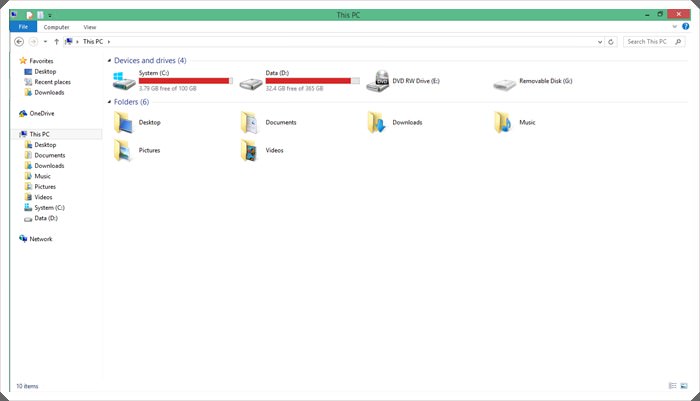
| ALT + D | Select the address bar |
| CTRL + E | Select the search box |
| CTRL + F | Select the search box |
| CTRL + N | Open a new window |
| CTRL + W | Close the current window |
| CTRL + mouse scroll wheel | Change the size and appearance of file and folder icons |
| CTRL + SHIFT + E | Display all folders above the selected folder |
| CTRL + SHIFT + N | Create a new folder |
| NUM LOCK + * | Display all subfolders under the selected folder |
| NUM LOCK + + | Display the contents of the selected folder |
| NUM LOCK + – | Collapse the selected folder |
| ALT + P | Display the preview pane |
| ALT + ENTER | Open the Properties dialog box for the selected item |
| ALT + RIGHT ARROW | View the next folder |
| ALT + UP ARROW | View the folder that the folder was in |
| ALT + LEFT ARROW | View the previous folder |
| BACKSPACE | View the previous folder |
| RIGHT ARROW | Display the current selection (if it’s collapsed), or select the first subfolder |
| LEFT ARROW | Collapse the current selection (if it’s expanded), or select the folder that the folder was in |
| END | Display the bottom of the active window |
| HOME | Display the top of the active window |
| F11 | Maximize or minimize the active window |
Taskbar shortcuts
Here are the keyboard shortcuts to work with items on the Desktop’s taskbar.
| SHIFT + Click a taskbar button | Open an app or quickly open another instance of an app |
| CTRL + SHIFT + Click a taskbar button | Open an app as an administrator |
| SHIFT + Right-click a taskbar button | Show the window menu for the app |
| SHIFT + Right-click a grouped taskbar button | Show the window menu for the groUP |
| CTRL + Click a grouped taskbar button | Cycle through the windows of the groUP |
Ease-of-access shortcuts
These are the keyboard shortcuts to help you use your computer easily.
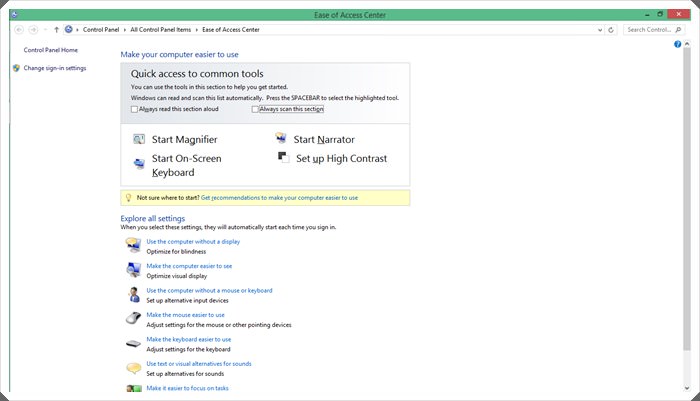
| Hold RIGHT SHIFT for eight seconds | Turn Filter Keys on and off |
| LEFT ALT + LEFT SHIFT + PRINT SCREEN | Turn High Contrast on or off |
| LEFT ALT + LEFT SHIFT + NUM LOCK | Turn Mouse Keys on or off |
| Press SHIFT five times | Turn Sticky Keys on or off |
| Press NUM LOCK for five seconds | Turn Toggle Keys on or off |
| Win + U | Open the Ease of Access Center |
Magnifier shortcuts
Here are the keyboard shortcuts to help you use Magnifier.

| Win + + | Zoom in |
| Win + – | Zoom out |
| CTRL + ALT + SPACEBAR | Preview the desktop in full-screen mode |
| CTRL + ALT + D | Switch to docked mode |
| CTRL + ALT + F | Switch to full-screen mode |
| CTRL + ALT + I | Invert colors |
| CTRL + ALT + L | Switch to lens mode |
| CTRL + ALT + R | Resize the lens |
| CTRL + ALT + ARROW keys | Pan in the direction of the ARROW keys |
| Win + ESC | Exit Magnifier |
Narrator shortcuts
These are the keyboard shortcuts to help you use Narrator.
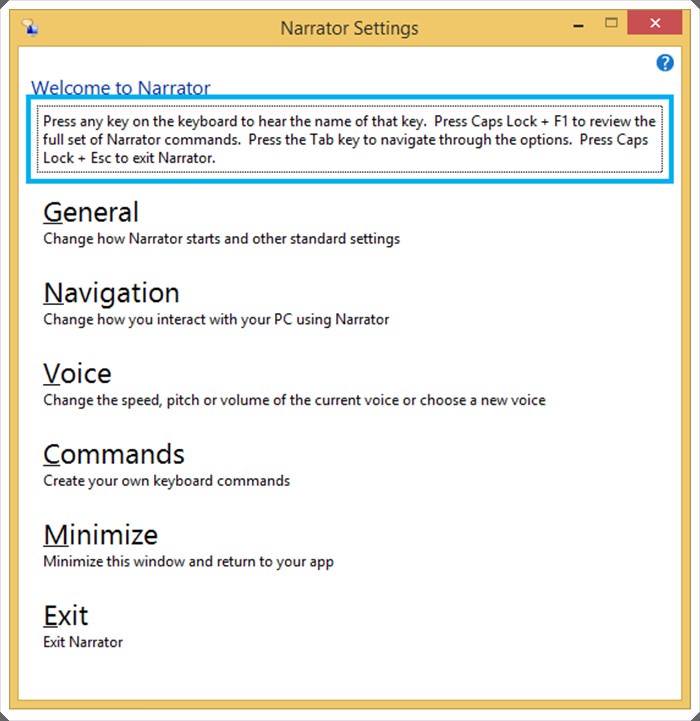
| SPACEBAR or ENTER | Activate current item |
| TAB + ARROW keys | Move around on the screen |
| CTRL | Stop reading |
| CAPS LOCK + D | Read item |
| CAPS LOCK + M | Start reading |
| CAPS LOCK + H | Read document |
| CAPS LOCK + V | Repeat phrase |
| CAPS LOCK + W | Read window |
| CAPS LOCK + PAGE UP or PAGE DOWN | Increase or decrease the volume of the voice |
| CAPS LOCK + +/- | Increase or decrease the speed of the voice |
| CAPS LOCK + SPACEBAR | Do default action |
| CAPS LOCK + LEFT or RIGHT ARROW | Move to previous/next item |
| CAPS LOCK + F2 | Show commands for current item |
| Caps + ESC | Exit Narrator |
Remote Desktop Connection shortcuts
These are the keyboard shortcuts to ease the use of remote desktop connection.
| ALT + PAGE UP | Move between apps, left to right |
| ALT + PAGE DOWN | Move between apps, right to left |
| ALT + INSERT | Cycle through apps in the order that they were started |
| ALT + HOME | Display the Start screen |
| CTRL + ALT + BREAK | Switch between a window and full screen |
| CTRL + ALT + END | Display the Windows Security dialog box |
| CTRL + ALT + HOME | In full-screen mode, activate the connection bar |
| ALT + DELETE | Display the system menu |
| CTRL + ALT + – | Place a copy of the active window, within the client, on the Terminal server clipboard (similar to ALT + PRINT SCREEN on a local PC) |
| CTRL + ALT + + | Place a copy of the entire client window area on the Terminal server clipboard (similar to Print Screen on a local PC) |
| CTRL + ALT + RIGHT ARROW | TAB out of the Remote Desktop controls to a control in the host app (for example, a button or a text box). Useful when the Remote Desktop controls are embedded in another (host) app. |
| CTRL + ALT + LEFT ARROW | TABout of the Remote Desktop controls to a control in the host app (for example, a button or a text box). Useful when the Remote Desktop controls are embedded in another (host) app. |
Help Viewer shortcuts
These are the keyboard shortcuts that can be used with the help viewer.
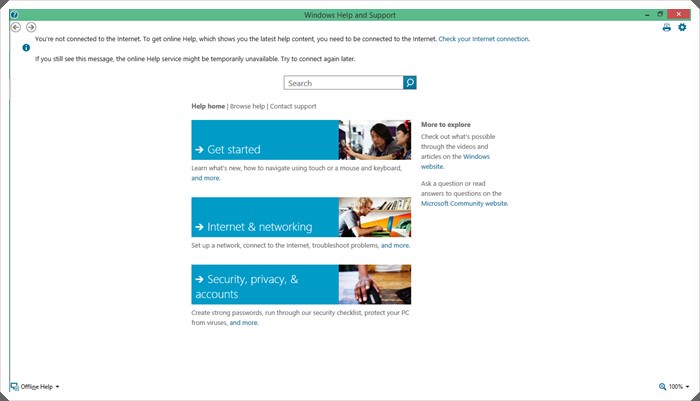
| F3 | Move the cursor to the search box |
| F10 | Display the Options menu |
| HOME | Move to the beginning of a topic |
| END | Move to the end of a topic |
| ALT + LEFT ARROW | Move back to the previously viewed topic |
| ALT + RIGHT ARROW | Move to the next (previously viewed) topic |
| ALT + HOME | Display the Help and support home page |
| ALT + A | Display the customer support page |
| ALT + C | Display the TABle of Contents |
| ALT + N | Display the Connection Settings menu |
| CTRL + F | Search the current topic |
| CTRL + P | Print a topic |
Apps-rearranging shortcuts (Metro)
Here are the keyboard shortcuts that can be used to rearrange apps on Metro screen. You should keep the Windows key pressed down continuously once you enter in the rearrange mode, then use the various commands. When you’re done rearranging apps, then release the Windows key.
| Win + . | Enter Rearrange mode and select apps or dividers across monitors |
| Win + LEFT ARROW | Move app divider left |
| Win + RIGHT ARROW | Move app divider right |
| Win + UP ARROW | Maximize app |
| Win + DOWN ARROW | Close app |
| Win + ESC | Exit Rearrange mode |