Chrome Finally Gets Native Vertical Tabs, Plus a Better Reading Mode
Google is rolling out two useful desktop features in Chrome: native vertical tabs and a redesigned Reading Mode.
Neither feels revolutionary on paper. In practice, both fix real problems.
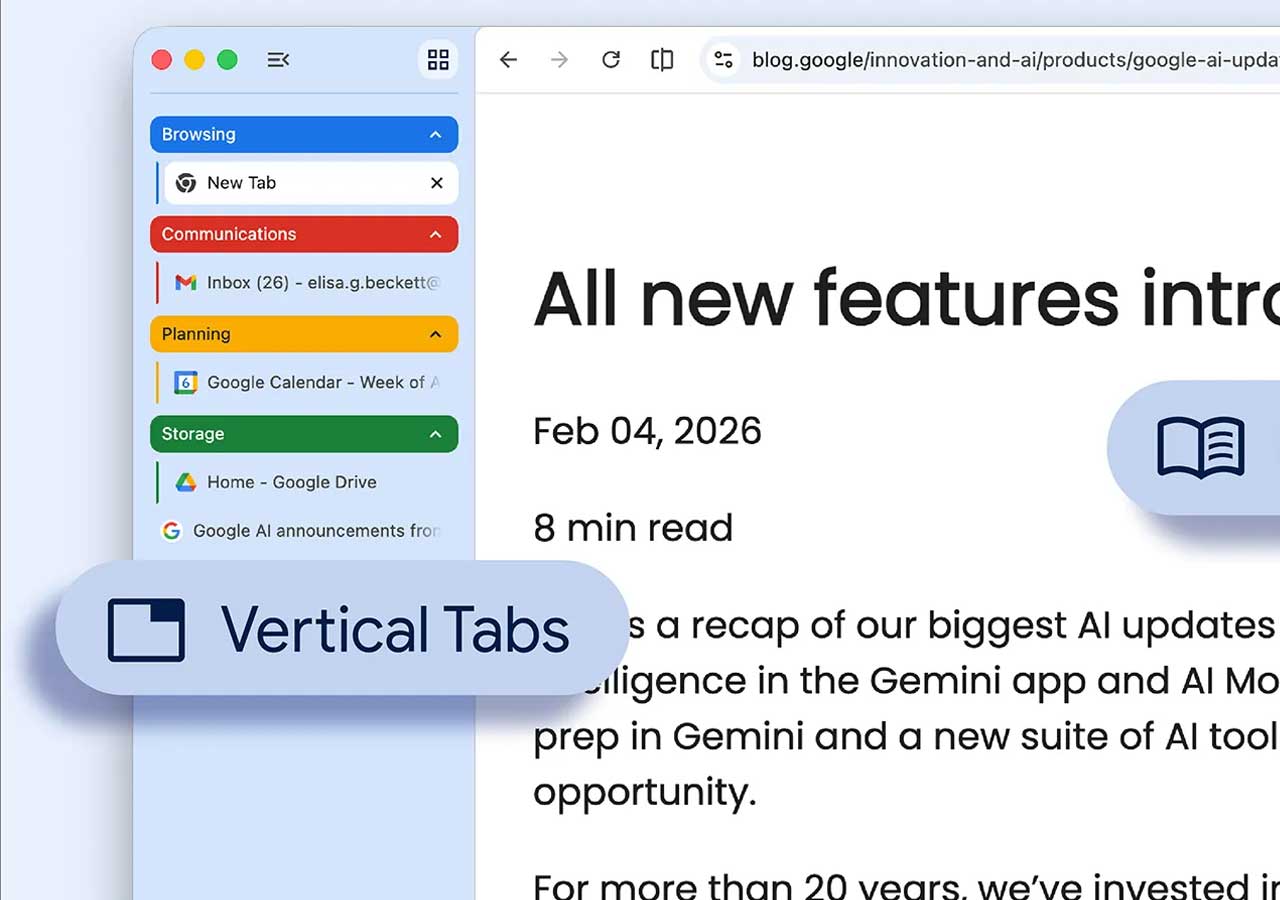
If you keep a ridiculous number of tabs open, vertical tabs make Chrome feel less cramped. If you read long articles, docs, or research-heavy pages in the browser, the new Reading Mode makes them far easier to focus on.
The rollout started on April 7, 2026, and Google says in its official announcement that the features are coming to users gradually. No extensions. No experimental flags. Just Chrome finally catching up in a few places that matter.
Chrome’s New Vertical Tabs
To enable it, right-click the tab strip and choose Show Tabs Vertically.
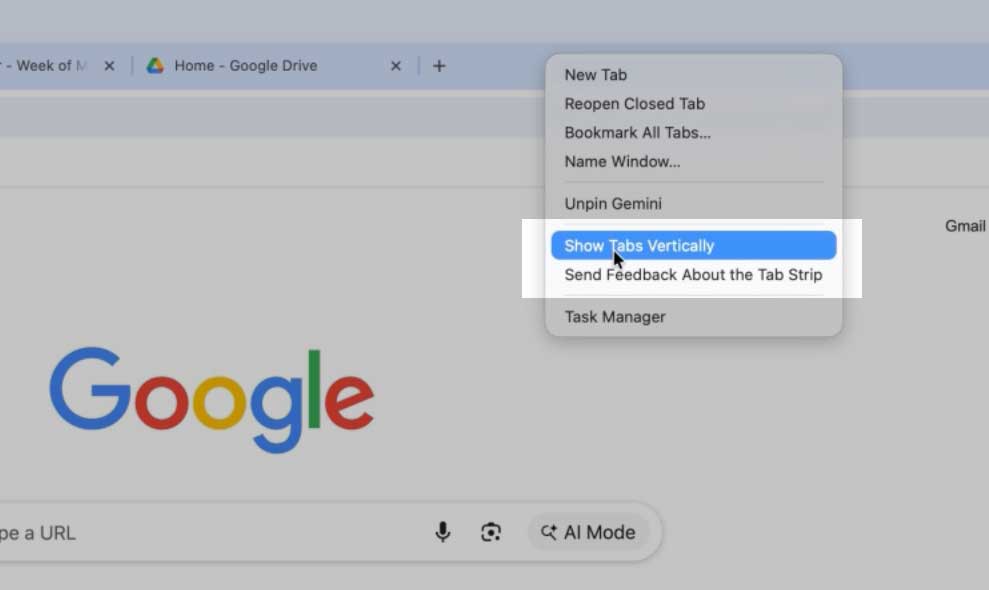
That moves your tabs from the usual top bar into a sidebar on the left.
Simple change. Big difference.
Instead of squinting at half-visible tab titles or hovering over tiny favicons to figure out what’s open, you get readable tab names in a proper vertical list. For anyone juggling research tabs, docs, issue trackers, dashboards, and random pages you swear you still need, this is immediately better. And if you already use tools to manage Chrome tabs and memory, Chrome’s native option feels long overdue.
- tab titles are easier to scan at a glance
- tab groups still work, and feel more natural in a vertical stack
- the sidebar can collapse down to favicons when you want more room
- you can switch back to the standard horizontal layout the same way
This is Chrome’s first native vertical tab implementation in the stable channel.
And honestly, it was overdue.
Why Vertical Tabs Work Better for Heavy Tab Users
Horizontal tabs work fine until you have too many of them. Then titles get truncated, everything starts looking the same, and finding the right tab becomes slower than it should be.
Vertical tabs fix that by using sidebar space more intelligently, especially on widescreen displays. You can scan more titles at once, and tab groups feel easier to manage because they behave more like folders than a cramped strip at the top.
There is a short adjustment period, but the payoff is immediate: less guessing, less hovering, and less friction when your tab count gets out of hand.
Chrome’s Upgraded Reading Mode
Google is also giving Chrome’s Reading Mode a more useful layout.
To use it, right-click a page and choose Open in Reading Mode.

The older version felt more like a side feature tucked into a panel. This new version is more immersive and closer to what you’d want when reading.
According to Google, Reading Mode now opens in a cleaner, distraction-free view designed to remove visual clutter and create a more immersive, text-focused reading experience.
- text-to-speech or read aloud
- font size adjustments
- theme changes such as light and dark mode
- other reading preferences
If you spend time reading long-form articles, documentation, or anything dense enough to deserve actual focus, this is the sort of feature you end up using more than expected. And if your browser is already full of Chrome extensions for better productivity, having one less extension to install is a nice bonus.
Who Gets It?
Google says both features are rolling out on desktop versions of Chrome across:
- Windows
- macOS
- Linux
- ChromeOS
If you do not see the options yet, that does not necessarily mean anything is wrong. The rollout is gradual, so some users will get it later than others.
How to Get It
First, update Chrome to the latest stable version.
Then right-click the tab strip and see if Show Tabs Vertically appears. After that, right-click any webpage and check whether Open in Reading Mode is available.
If the options are still missing, wait a bit. Google is enabling them in phases.