Spring Clean Your Dev Machine and Reclaim Disk Space
As we kick off the new year, I think it’s a great time to take a fresh look at your development machine.
Over months of developing projects, testing, and experimenting, your system slowly fills up with unused dependencies, old caches, and leftovers that eat up your machine’s disk space.
In this article, we’ll walk through some simple yet practical ways to clean up your dev machine and regain some of that disk space.
Let’s start with Docker.
1. Clean-up Docker
Docker is great for spinning up consistent development environments, but it rarely cleans up after itself. Over time, unused images, stopped containers, and leftover volumes can pile up and quietly take up more disk space than you expect.
To clean things up, you can run docker system prune, which removes unused containers, networks, dangling images, and build cache in one go. For a deeper cleanup, add the -a or --all flag to remove all unused images, not just dangling ones—especially useful if you often switch between different base images or runtime versions.
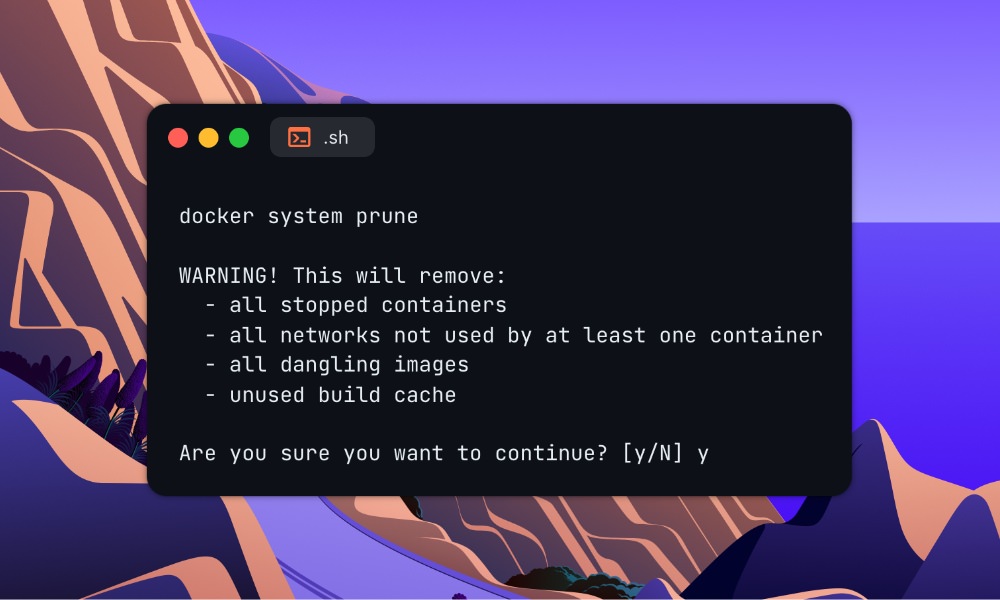
Regularly pruning Docker can free up a surprising amount of disk space. The only downside is that you’ll need to re-pull images when you need them again. So if you want a lighter option, you can simply run docker builder prune, which focuses only on clearing the build cache and is ideal if you build images frequently.
2. Clean-up Homebrew
If you’re using Homebrew to manage packages and apps installed on macOS, it’s likely that over time, old versions of packages and cached downloads have accumulated on your system.
While Homebrew does some automatic cleanup, it only runs occasionally and can still keep caches for months. If you’ve been using your machine for a while, those leftovers can easily grow into gigabytes.
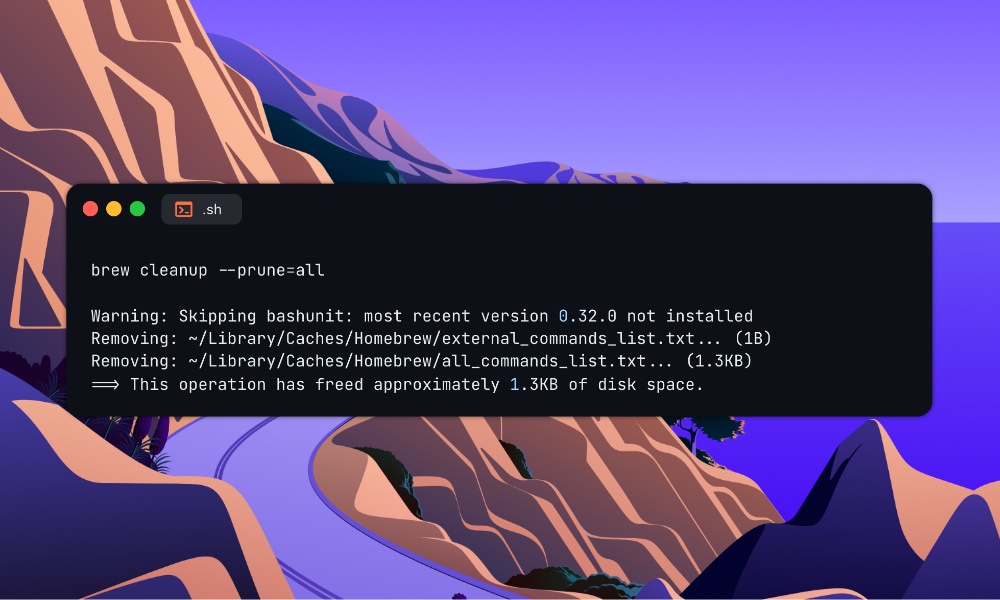
To clean things up, you can run brew cleanup, and use the --prune=all flag that removes all unused cached files. You can also pair this command with brew autoremove to delete orphaned dependencies that are no longer needed.
3. Clean-up NPM
Next, we’re going to clean up NPM, which keeps a local cache in the ~/.npm directory to speed up installs.
In theory, this cache is “self-healing” and checks its own data for corruption, so you shouldn’t need to touch it. In reality, though, the cache can still grow very large over time or get out of sync after failed installs or network issues.
You can wipe this cache completely using npm cache clean --force. This removes everything and forces NPM to re-download all packages in the future, which can slow down future installs and use more bandwidth.
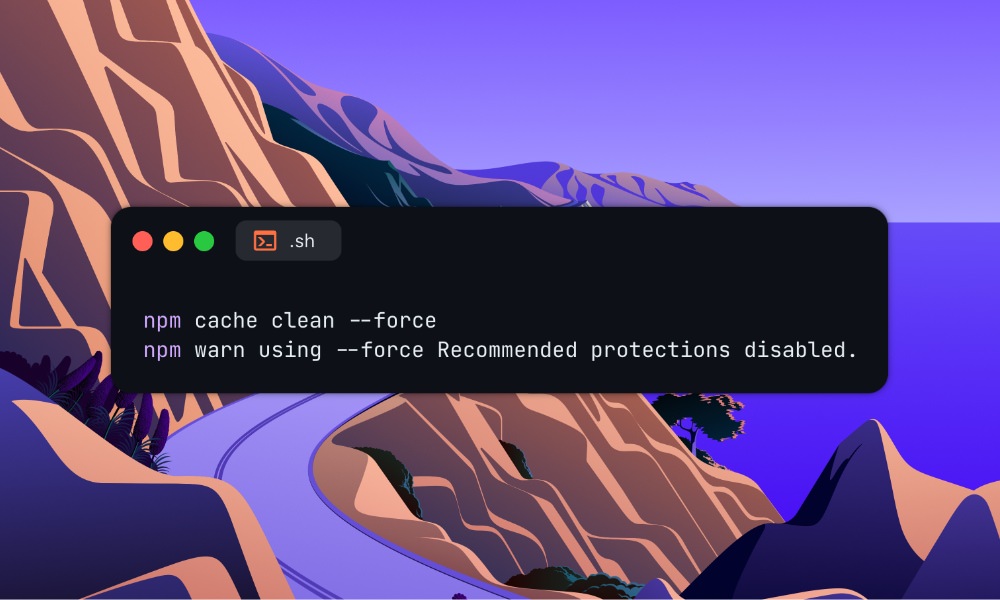
If you want to avoid that, a safer option is npm cache verify, which checks the cache for problems and removes unused data without clearing everything. For most cases, this is the better way to keep your NPM cache healthy.
In my case, I was able to reclaim more than 100GB of my disk space after cleaning NPM caches alone, which is pretty insane!
Clean-up “node_modules”
Another of the biggest space hogs in web development is the endless spread of node_modules directories. Each project can easily take up hundreds of megabytes, and even more than a gigabyte just for these dependency packages. If you have lots of old or inactive projects lying around, that’s a huge chunk of valuable SSD space going to waste.
This is where npkill really comes in handy. You can run:
npx npkillIt will scan your project folders, list every node_modules directory it finds, show you exactly how much space each one uses, and allow you to delete them with a single keystroke.
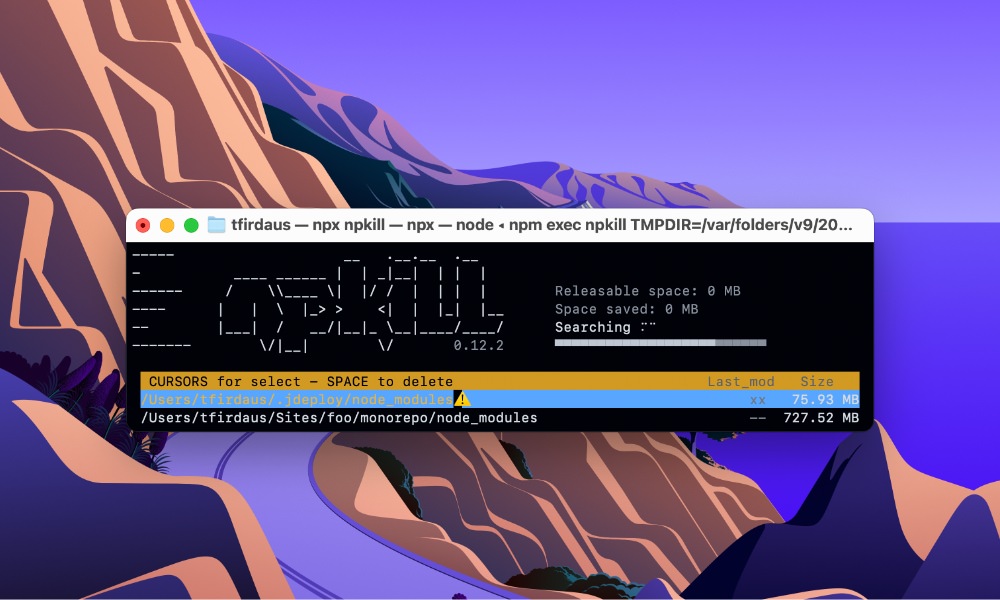
It’s perfect for “parking” projects you’re not actively working on, since you can always regenerate node_modules later with a simple npm install.
4. Clean-up NVM
NVM makes it easy to use multiple versions of Node.js. But over time, it can also turn into a collection of outdated or unused Node versions that take up space and may even introduce security risks.
First, you can run nvm ls to see all the versions you have installed.
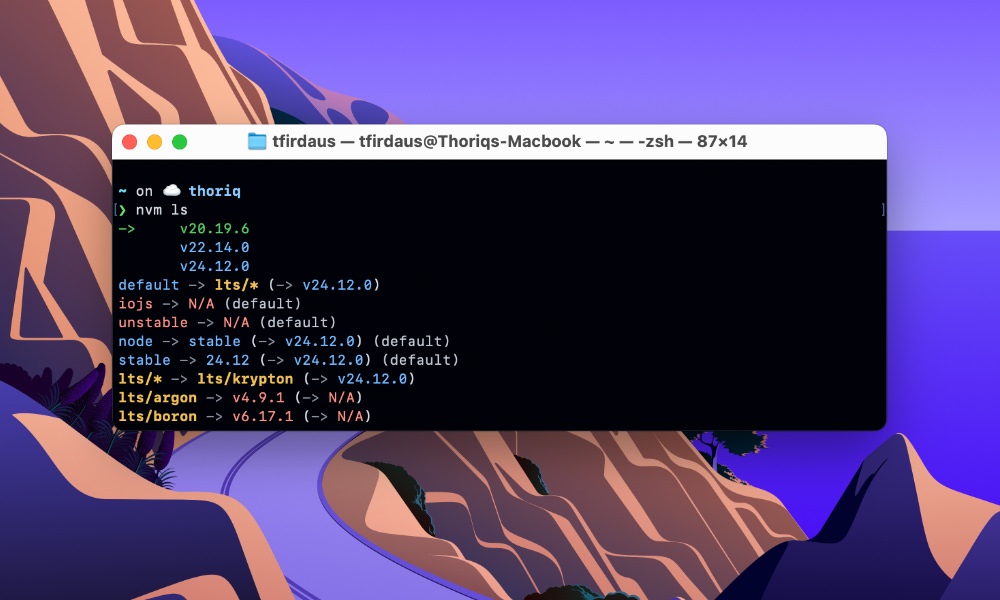
Each version comes with its own set of global packages, so the list can grow quickly. Look for versions you no longer use, especially those that are end-of-life. You can remove them safely with nvm uninstall <version>.
Here for example, I’m going to remove Node.js 20, since all my projects are running Node.js 22 or 24.
nvm uninstall 20
5. Clean-up Local Repositories
Finally, it’s a good idea to review your local Git repositories.
Over the year, you may have cloned or created many repositories that are no longer active or needed.
While Git does some cleanup automatically, running git gc manually can help you compress old data, remove unreachable objects, and speed up everyday Git operations.
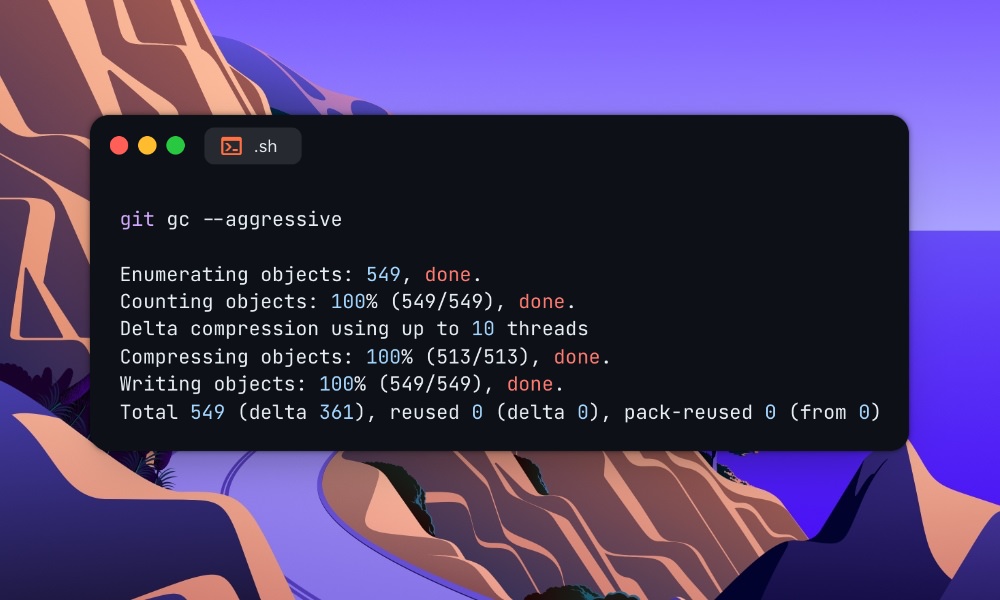
For a deeper cleanup, you can also run git gc --aggressive, which does extra optimization.
On top of that, you can also run git branch -d $(git branch --merged), which will delete all local branches that have already been merged into your current branch, helping to keep your repository tidy.
6. (Bonus) Clean-up Ollama
Last but not least, if you’re using Ollama to run local AI models, it’s worth checking for any unused models that may be taking up space.
Recommended read: Getting started with Ollama
Ollama is a handy tool that makes running LLMs locally easy. But it can quickly eat up disk space since each model can be anywhere from a few gigabytes to tens of gigabytes, and testing different variants often leads to lots of unused models piling up.
Start by running ollama list to see what you have installed.
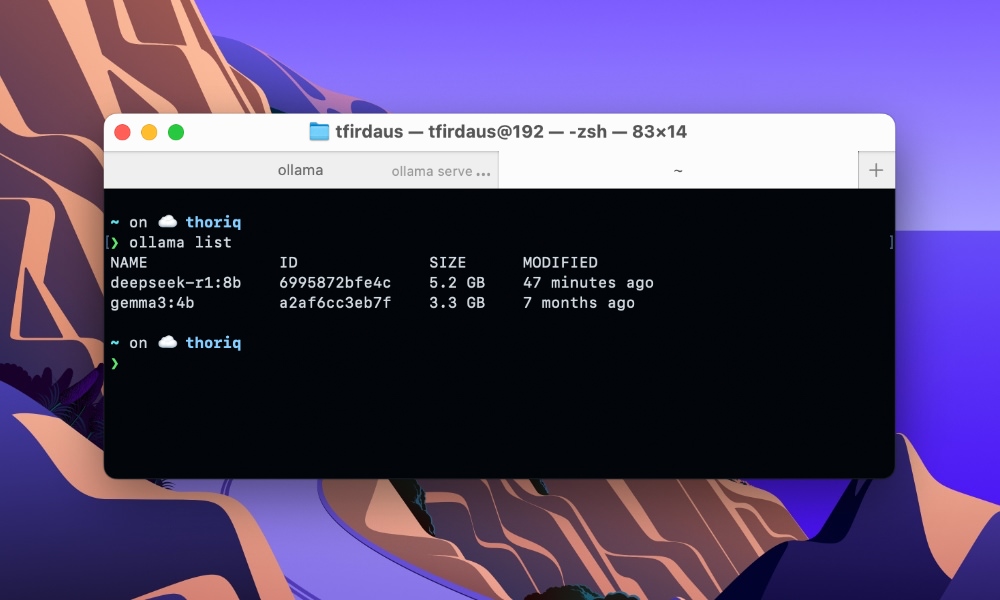
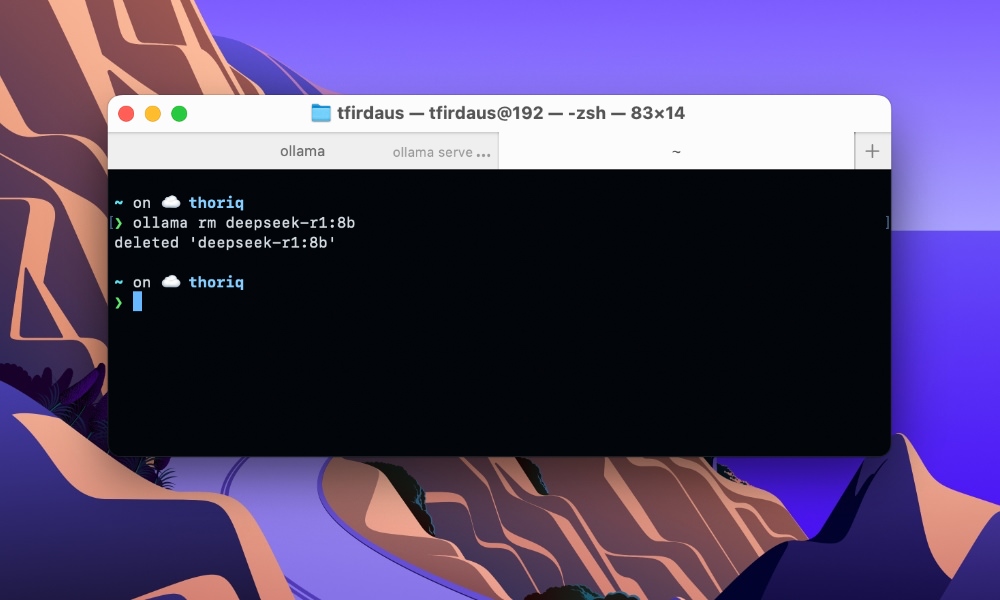
Then remove anything you no longer use with ollama rm <model-name>. In my case, I have two models, one which I no longer actively use, which is deepseek-r1:8b. It takes up around 5GB of space, so I’ll go ahead and remove it.
Wrapping up
Taking a little time to remove tools and files you no longer use helps your computer run better. It can also save you from slowdowns or surprise issues later.
Now, hopefully you’ve reclaimed some of that precious disk space and have a cleaner dev machine.