How to Use Grok on Mac – Complete Guide
Grok is an AI assistant from xAI (Elon Musk’s company). It’s similar to chatbots like ChatGPT, Claude, and others. You can ask questions and have conversations with it. Much of what Grok knows comes from X (formerly Twitter), so it stays pretty current.
People usually use Grok in a few places: on the X site at x.com/grok, on grok.com, or in the X app on their phone.
Does Grok have an app for Mac?
Right now there’s no standalone Grok app for Mac, and no X app for Mac either. X and Grok exist as apps on iPhone and iPad, but not on macOS.
You can still use Grok on your Mac with a few workarounds. Here’s how.
Why use Grok on your Mac?
Having Grok on your Mac means you don’t have to open x.com, log in, and hunt for Grok every time. You can jump straight into a chat instead of going through the X site each time.
How to install Grok on Mac
1. Use Raycast
Raycast is a popular Mac launcher and productivity tool. You bring it up with a shortcut (usually Option + Space), then type to search apps, run commands, and more.
Raycast AI is built in. You can pick from a bunch of AI models in one place, including Grok. You can switch between providers and models inside Raycast AI.
Free users get a 50-message trial and can try any of the Pro models, including Grok. You can test it before paying.
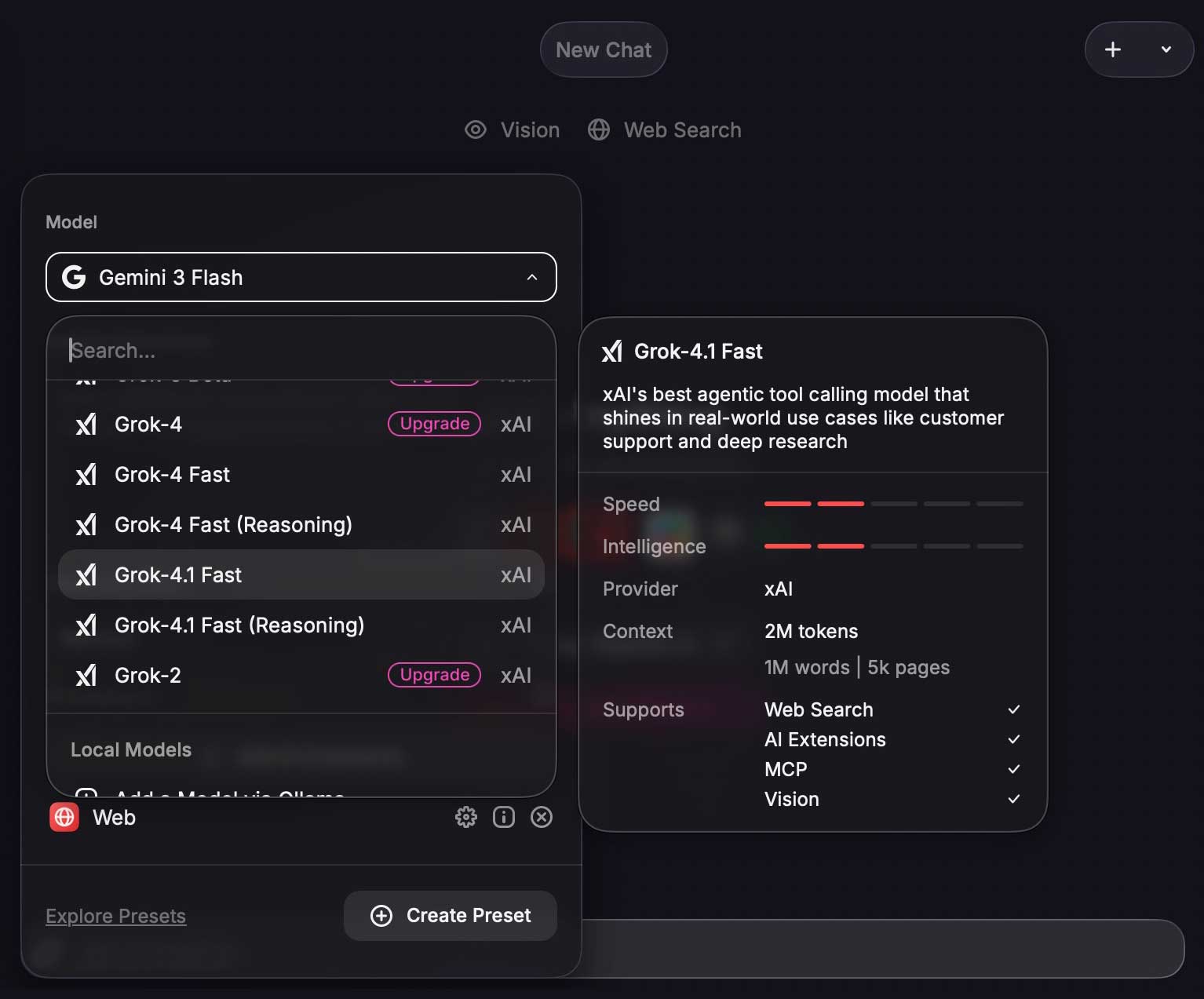
The Grok models currently available in Raycast include:
- Grok-4 (and variants such as Grok-4 Fast and Grok-4 Reasoning)
- Grok-3 Beta and Grok-3 Mini Beta
- Grok-4.1 Fast
2. Use Fello AI
Fello.ai is another option in the same vein as Raycast. It’s a desktop app for Mac (and iOS/iPadOS) where you can talk to several AI models in one place: ChatGPT, Claude, Gemini, DeepSeek, and Grok.
You switch models from a menu. You can pin chats, search history, and upload files. One app instead of juggling a bunch of AI sites.
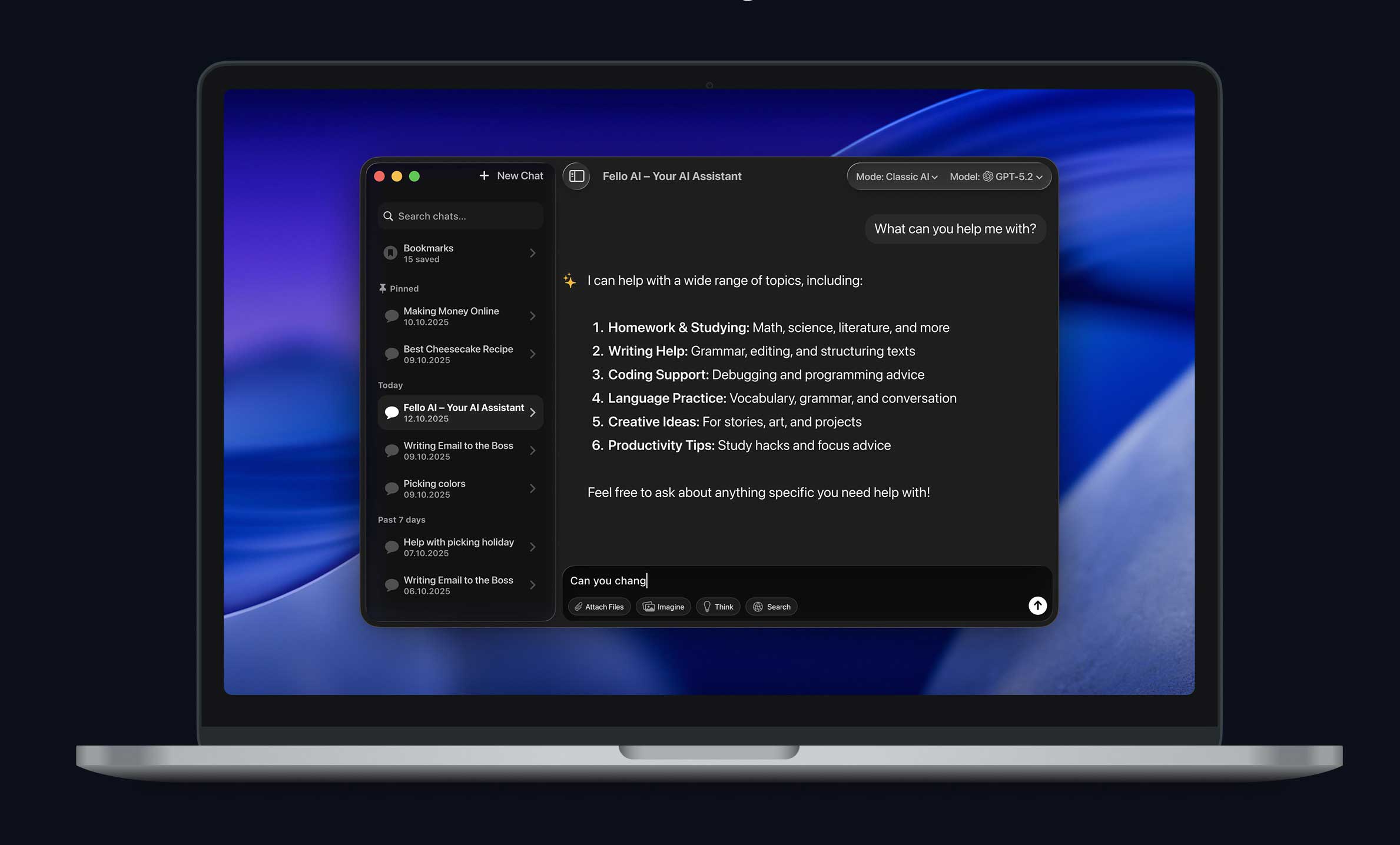
Fello AI has a free tier. You get a limited number of questions per hour (the limit varies) that include Grok. The count resets every hour. On the free tier you don’t get PDF or image analysis; that’s on paid plans.
If you need more questions or file support, you’ll need a subscription. Paid plans are weekly ($3.99), monthly ($9.99), or yearly ($79.99). Check the Mac App Store or felloai.com for current pricing.
- Search for Fello AI in the App Store, install it, and open the app. Click outside the subscription screen if you want to try the free tier first.
- In the main window, open the Model menu (top right) and choose Grok.
- Type your question in the text field. To attach a file (e.g. for summarization), use Attach Files and press Return.
3. Use macos-grok-overlay
macos-grok-overlay is a small open-source app that puts grok.com in its own window. You open or hide it with a keyboard shortcut. It’s a dedicated Grok window that floats on top of your other apps. You don’t need a browser tab open.
The app runs in the background and uses Option + Space to show or hide the Grok window. Log in to grok.com once in that window. After that, Grok is one key combo away.
You can install it two ways. Easiest: download the DMG from the GitHub repo and drag the app into Applications (works on both Intel and Apple Silicon).
Or, if you have Python and pip, use the steps below. The first time you launch it, macOS will ask for Accessibility permission so the app can listen for Option + Space. You have to allow that or the shortcut won’t work.
- In Terminal, run:
python3 -m pip install macos-grok-overlaythen press Return. - To start it at login, run:
macos-grok-overlay --install-startupand press Return. - Launch the app, grant Accessibility when prompted, then log in to grok.com in the window that opens. After that, press Option + Space anytime to show or hide the Grok overlay.
4. Use Ollama and run Grok locally
Ollama lets you run large language models (LLMs) on your own Mac or PC. Install it, pull the models you want, then chat from the terminal or a web UI. No xAI or X account is needed. For a full walkthrough (including Open WebUI), see How to Run Chat Assistant that Works Offline.
Here you download a Grok model and run it locally. Community-quantized Grok 2 models are on Ollama, e.g. MichelRosselli/grok-2. After installing Ollama, pull and run a variant with:
ollama run MichelRosselli/grok-2
Heads up: these Grok 2 models are huge. Even smaller quantized builds are around 82 to 100GB. Full-quality can be 160GB or more.
You’ll want a strong machine: at least 32GB RAM (64GB or more for the bigger quants), 100GB+ free storage, and ideally a high-end GPU with plenty of VRAM (e.g. 24GB+) for faster inference. On Apple Silicon, unified memory helps; 64GB or 96GB is more realistic for the big models.
If your Mac only has 8 to 16GB RAM and limited storage, this route is probably not worth it. The options above are much lighter.
Alternative ways to run Grok on your Mac
As of this writing there’s no word on a native Grok or X app for Mac. The four methods above all need a third-party app or a big model download.
If you want to use Grok on your Mac with zero installs, the browser is a solid option. It’s the fastest.
Log in to X in your browser and open x.com/grok. Then make it easy to get back: bookmark the page (Cmd + D in Safari or Chrome). In Safari you can also add the page to your Dock so it opens like an app. With x.com/grok open, go to File → Add to Dock. A Grok icon shows up in the Dock; click it whenever you want Grok without digging through bookmarks.
- In your browser, go to x.com and log in.
- Open x.com/grok.
- Bookmark the page (Cmd + D), or in Safari use File → Add to Dock so you can open Grok with one click from the Dock.
Conclusion
There’s no official Grok or X app for Mac yet, but you’ve got options: launchers like Raycast, a dedicated Grok window (macos-grok-overlay), all-in-one apps like Fello AI, or running Grok locally with Ollama if your machine is up to it. Or just use x.com/grok in the browser and add it to your Dock.
Pick whatever fits how you work and how much you’re okay installing.
Frequently Asked Questions
Is there an official Grok app for Mac?
Not yet. xAI hasn’t released a standalone Grok app or an X desktop app for Mac. You can still use Grok via the methods above: Raycast, Fello AI, macos-grok-overlay, Ollama, or the browser.
Do I need an X (Twitter) account or subscription to use Grok?
It depends how you’re using it. x.com/grok and macos-grok-overlay need you to log in with an X account. Access may depend on your X subscription.
Standalone grok.com and some third-party apps (e.g. Fello AI, Raycast AI) can use different sign-in or trials. Check each service.
Which method should I choose?
Zero installs: use the browser and add x.com/grok to your Dock or bookmarks. Already use Raycast or want one shortcut for lots of AIs: try Raycast AI.
Want a dedicated Grok window with Option + Space? Use macos-grok-overlay. Want several AIs including Grok in one app with a free tier? Try Fello AI. Have a powerful Mac and want Grok fully offline? Look at Ollama and a local Grok model.
Can I use Grok for free?
Partly. Raycast AI and Fello AI have free tiers or trials that include Grok. x.com/grok and grok.com depend on your X or xAI account and whatever subscription rules apply at the time.
Running Grok via Ollama is free, but you need enough RAM and storage (and ideally a decent GPU) for the model files.