How to Install and Use MiniMax CLI
If you are new to command-line AI tools, MiniMax CLI is a pretty friendly place to start.
Instead of opening a web dashboard every time you want to test a prompt, generate an image, or synthesize speech, you can do it all from the terminal with one command: mmx. If you are still getting comfortable with command-line basics, that alone is a nice shift.
MiniMax CLI is the official command-line tool for the MiniMax AI platform. Once it is installed, you can use it to generate text, images, video, speech, music, run image analysis, perform web search, and manage your MiniMax account settings from the terminal.
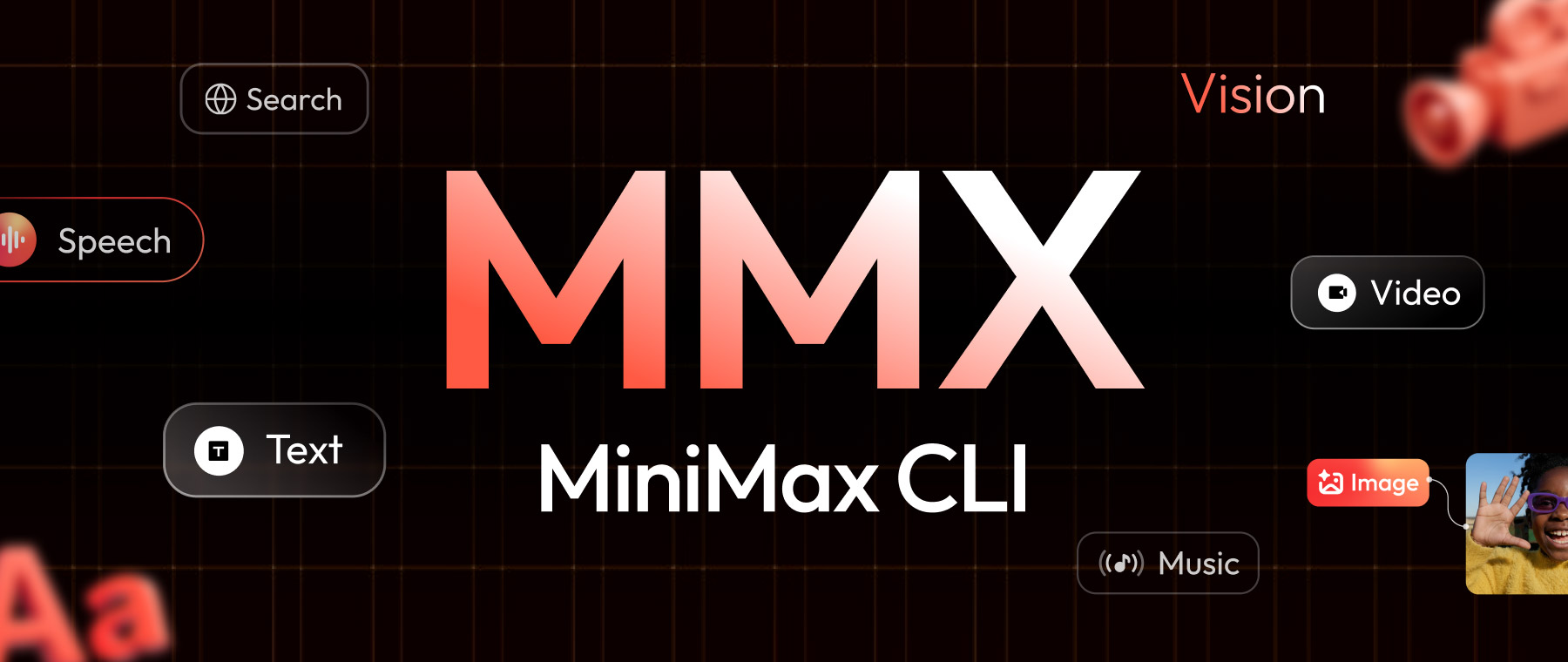
This guide walks through the basics: how to install it, how to log in, how to use it, and what each major feature can do.
What MiniMax CLI Is
MiniMax CLI is a Node.js-based tool published by MiniMax-AI. It gives you terminal access to MiniMax models and services through a single command-line interface.
If you have used tools like git, npm, or ffmpeg, the idea is similar. You install it once, then run different subcommands depending on what you want to do.
With MiniMax CLI, those subcommands include text, image, video, speech, music, vision, search, auth, config, and quota.
What You Need Before You Start
Before installing MiniMax CLI, make sure you have two things ready:
- Node.js 18 or newer
- A MiniMax API key with an active token plan
If those are in place, setup is straightforward. If you are new to shell work in general, brushing up on a few basic terminal commands first will make the process feel less awkward.
How to Install MiniMax CLI
For most people, this is the command to use:
npm install -g mmx-cliThat installs the mmx command globally so you can run it from anywhere in your terminal.
The project also documents an agent-oriented install path:
npx skills add MiniMax-AI/cli -y -gThat one is more useful if you are wiring it into an AI agent environment. If you are just learning the tool or using it manually, start with the global npm install.
How to Log In
Once the CLI is installed, the next step is authentication.
If you already have your API key, run:
mmx auth login --api-key sk-xxxxxIf you prefer a browser-based login flow, use:
mmx auth loginAfter logging in, these commands are worth knowing:
mmx auth status
mmx auth refresh
mmx auth logout
You can also check account usage and config with:
mmx quota
mmx config show
How to Use MiniMax CLI
MiniMax CLI works through command groups.
You start with mmx, then add a feature area such as text, image, video, speech, music, vision, or search. If you already use a few basic shell commands, the pattern will feel familiar quickly.
The easiest way to learn it is to try one command from each group.
Start With Text Generation
The simplest text example looks like this:
mmx text chat --message "What is MiniMax?"That sends a prompt and returns a response in the terminal.
If you want the response to stream live as it is generated, use:
mmx text chat --model MiniMax-M2.7-highspeed --message "Write a short intro about CLI tools" --streamIf you want to guide the model with a role or instruction, add a system prompt:
mmx text chat \
  --system "You are a coding assistant" \
  --message "Write a Go function that prints Fibonacci numbers"
And if you are feeding in multi-turn messages from a file or another command, you can pipe them in:
cat messages.json | mmx text chat --messages-file - --output jsonThat last pattern is useful when you want to plug MiniMax CLI into scripts or automated workflows.
What MiniMax CLI Can Do
Once you are comfortable with the basic command pattern, the rest of the tool starts to make sense.
Generate Text
MiniMax CLI can handle normal text prompts, system prompts, multi-turn chat input, streamed responses, and structured JSON output. This is the part most people will reach for first.
Example:
mmx text chat --message "Explain what an API does in simple terms"Generate Images
You can create images from text prompts and control things like aspect ratio and batch size.
Example:
mmx image generate --prompt "A cozy desk setup with a glowing mechanical keyboard" --n 2 --aspect-ratio 16:9Generate Video
MiniMax CLI can submit video-generation jobs, which is useful for longer-running tasks that may complete asynchronously.
Example:
mmx video generate --prompt "A paper airplane flying across a city skyline" --asyncYou can then check progress later:
mmx video task get --task-id 123456And download the result:
mmx video download --file-id 176844028768320 --out paper-airplane.mp4Generate Speech
You can turn text into speech, choose different voices, and even stream playback.
Example:
mmx speech synthesize --text "Welcome to your first MiniMax CLI test" --out welcome.mp3To see available voices:
mmx speech voicesGenerate Music
MiniMax CLI can also generate music from prompts, with support for lyrics and instrumental output.
Example:
mmx music generate --prompt "Lo-fi study beat with soft piano" --instrumental --out lofi.mp3If you want lyrics too:
mmx music generate \
  --prompt "Indie pop with a light summer feel" \
  --lyrics "[verse] Side streets glowing after rain" \
  --out indie-pop.mp3
Analyze Images With Vision
The vision commands let you pass in an image and ask MiniMax to describe or inspect it.
Example:
mmx vision screenshot.jpgThat makes it useful for quick image understanding tasks without leaving the terminal.
Run Web Search
MiniMax CLI also includes search commands, which can be handy if you want one command-line tool to handle both generation and quick lookup tasks.
Example:
mmx search "best ways to use AI from the terminal"Manage Account and Config
There are also practical commands for checking quota, viewing config, switching region settings, and keeping the CLI updated.
Example:
mmx quota
mmx config show
mmx update
A Good First Test
If you just installed MiniMax CLI and want a simple way to confirm everything works, start with these:
mmx auth login --api-key sk-xxxxx
mmx text chat --message "Summarize what MiniMax CLI can do"
mmx image "A mechanical keyboard floating in space"
That gives you a quick test of authentication, text generation, and image generation in a few seconds.
After that, you can branch into speech, music, video, or scripting.
Final Thoughts
MiniMax CLI is easiest to understand once you stop thinking of it as a single AI command and start seeing it as a toolbox.
You install it once, learn the mmx command pattern, and then branch into whatever you need: text, image, video, speech, music, vision, or search.
For beginners, that is a nice setup. You do not have to learn five different tools at once. You just learn one CLI, then grow into the rest of it.