How to Set Up and Chat With Your OpenClaw Bot on Telegram
You already know what OpenClaw is. You probably have it running, or you are about to set it up. This guide gets it connected to Telegram so you can talk to it from your phone.
Install, nodes, and plugins are in the OpenClaw docs if you need them.
Before You Start
You need:
- OpenClaw installed and the gateway running (
openclaw gateway statusshould show it is live) - A Telegram account
- About 5 minutes
If OpenClaw is not installed yet, go through the official install guide first. Come back here when openclaw gateway status returns clean.
Step 1: Create a Telegram Bot
OpenClaw does not use your own Telegram account. It uses a bot. You create one through Telegram BotFather.
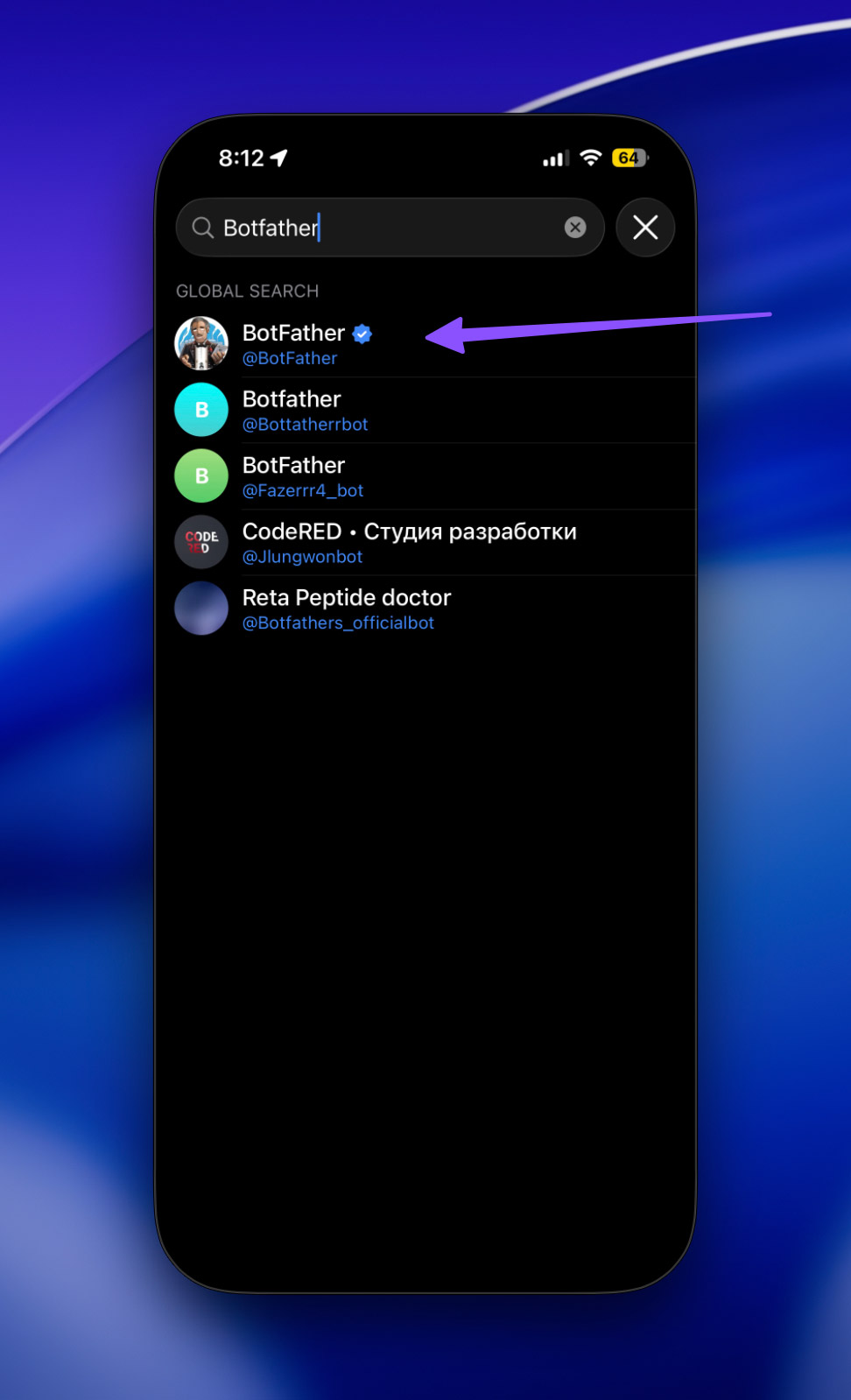
- Open Telegram and search for @BotFather. Make sure the blue checkmark is there.
- Send
/newbot - BotFather asks for a name. Pick something short and readable, like
My OpenClaw. - BotFather asks for a username. It must end in
bot, for examplemyopenclawbot. - BotFather gives you a token that looks like
123456789:ABCdefGHIjklMNOpqrSTUvwxYZ. Copy this now. You cannot retrieve it later without regenerating it.
Keep that token handy. You will paste it into your OpenClaw config next.
Step 2: Configure OpenClaw for Telegram
Open your OpenClaw config file. It lives at ~/.openclaw/config.yaml (or wherever your setup points it). Add the Telegram channel block:
channels:
  telegram:
    enabled: true
    botToken: "PASTE_YOUR_TOKEN_HERE"
    dmPolicy: "pairing"
    groups:
      "*":
        requireMention: true
What each setting does:
enabled: trueturns the Telegram channel onbotTokenis the token BotFather gave youdmPolicy: "pairing"by default only people you approve can DM the bot. This is the safe defaultgroups.*.requireMention: truein group chats the bot only responds when someone @mentions it. Set tofalseif you want it to respond to everything in a group
Save the config. Restart the gateway:
openclaw gateway restartStep 3: Pair Your Telegram Account
By default, OpenClaw blocks unknown users from DMing your bot. You need to approve yourself first.
- Open Telegram and send any message to your bot (e.g. “hello”)
- The bot replies with a pairing code, a short alphanumeric string
- On your machine, run:
openclaw pairing list telegram
openclaw pairing approve telegram <CODE>
The pairing code expires after 1 hour. If it expires, send another message to the bot to get a fresh code.
Once paired, you can chat with your OpenClaw bot directly in Telegram. Ask it something to confirm it works.
Group Chats: Adding the Bot
Want the bot in a group chat? Here is how that works.
Add the Bot to Your Group
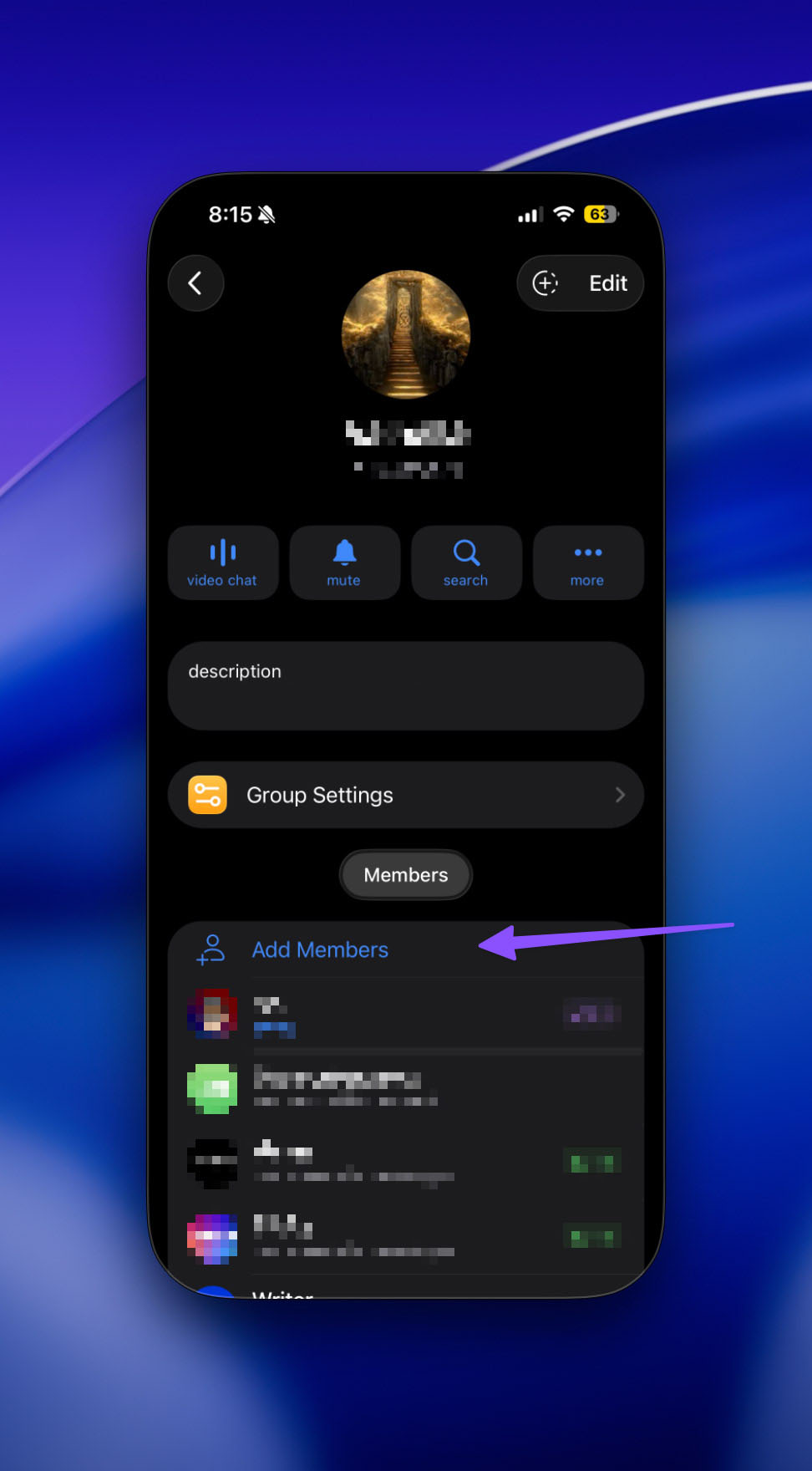
In Telegram, go to your group, tap the group name, tap “Add members”, and search for your bot username (the one ending in bot that you set in BotFather).
Permissions the Bot Needs
Privacy mode is what trips most people up. Telegram bots default to privacy mode, which means they can only see messages that @mention the bot or are commands. If you want the bot to read all messages in a group, for example to respond without being @mentioned, disable privacy mode.
To change privacy mode:
- Go to BotFather in Telegram
- Send
/setprivacy - Select your bot
- Choose Disable. This lets the bot see all messages in groups
After disabling privacy mode, remove and re-add the bot to each group for the change to take effect.
Making the Bot an Admin
Alternatively, make the bot a group admin. Admin bots bypass privacy mode automatically and can see all messages. This also gives the bot ability to pin messages, manage members, and handle other admin tasks.
For most setups, either disable privacy mode OR make the bot an admin, not both.
Allow the Group in OpenClaw Config
By default, OpenClaw blocks all group messages unless you explicitly allow the group. Add the group to your config:
channels:
  telegram:
    groups:
      "-1001234567890":          # your group chat ID
        requireMention: false    # true = @mention required, false = respond to all
        groupPolicy: "open"      # "open" = anyone in group can use it
To get your group chat ID:
- Add @userinfobot or @getidsbot to the group
- Forward any message from the group to that bot
- It replies with the group chat ID (a long negative number like
-1001234567890)
Or, read the ID from the logs:
openclaw logs --followSend a message in the group while tailing the logs. The chat.id will show the group ID.
Finding Your Telegram User ID
Some configs require your numeric Telegram user ID rather than your username. To find it:
- DM your bot while running gateway logs:
openclaw logs --follow - Look for
from.idin the log output. That number is your Telegram user ID
Alternatively, use the Telegram Bot API directly:
curl "https://api.telegram.org/bot<YOUR_BOT_TOKEN>/getUpdates"Your user ID shows up in the from object of the response.
Permissions Explained
Here is a quick breakdown of the permissions and policies you are setting:
| Setting | What it does | Recommended |
|---|---|---|
dmPolicy: "pairing" |
Only approved users can DM the bot | Default, keep it |
dmPolicy: "allowlist" |
Only specific Telegram user IDs can DM | More locked down |
dmPolicy: "open" |
Anyone can DM the bot | Not recommended |
groupPolicy: "allowlist" |
Only configured groups can use the bot | Default, keep it |
groupPolicy: "open" |
Bot responds in any group it is in | Use with caution |
requireMention: true |
Bot only replies when @mentioned | Default, recommended |
requireMention: false |
Bot replies to all messages in the group | Useful for ambient bot setups |
Keeping the Bot Safe
Do not set dmPolicy: "open" unless you understand the risk. An open DM policy means anyone can send commands to your OpenClaw instance. Depending on what your agent can do, this could let strangers trigger tools, read files, or run exec commands.
Use dmPolicy: "pairing" or dmPolicy: "allowlist" for DMs. Pairing means you explicitly approve each user. Allowlist means only predefined Telegram user IDs can get through. For a personal bot, pairing is the simplest safe choice.
Be careful with group groupPolicy: "open" and requireMention: false. This combination means anyone who adds the bot to a group can talk to it. If your agent has exec or file access, this is a potential attack surface. Use explicit group allowlisting for anything beyond trusted groups.
Do not share your bot token. Treat it like a password. If it leaks, go to BotFather immediately and regenerate it with /revoke, then update your config.
Group admin bot status gives the bot significant powers beyond just reading messages. Only make the bot an admin in groups you fully control.
Keep your OpenClaw gateway updated. Run openclaw update when new versions land. Security and feature releases are on the changelog.
Running the Bot Without a Public IP
OpenClaw uses long polling by default. Your gateway repeatedly asks Telegram for new messages. This works behind a home NAT with no public IP or open ports needed. Telegram never reaches your server; your server reaches out to it.
If you prefer webhooks instead, you can configure that, but it requires a publicly reachable URL. Long polling is simpler for most personal setups.
Common Issues
Bot does not respond in group chats:
- Check if privacy mode is still on in BotFather, disable it, and re-add the bot
- Make sure the group is listed in
channels.telegram.groupsor you have"*"wildcard - Check
openclaw logs --followto see why messages are being dropped
Pairing code expired:
- Send another message to the bot to get a fresh code
- Codes expire after 1 hour
Bot not seeing any messages:
- If
groupsis configured in your config, the group ID must be in the list (or use"*"to allow all) - Verify the bot is actually in the group and not blocked
What is Next
Once your bot is running, you can:
- Chat with your OpenClaw agent from anywhere on Telegram
- Add it to group chats for shared access
- Use
/activation alwaysin a group to have it respond without @mentions - Configure skills and tools exposed to specific groups or users
Check the OpenClaw docs for channel configuration, multi-agent routing, and advanced Telegram features like forum topics and inline buttons.