How to Connect Hermes to Telegram
One of the nicest things about running a local AI agent is that it does not have to stay trapped on the machine where it started.
Once I connected Hermes to Telegram, it became much more useful. I could message it from anywhere, test workflows quickly, and treat it less like a terminal-bound tool and more like an assistant I could actually reach when I needed it.
The setup is not hard, but a few details matter. The main one is this: Hermes splits credentials and behavior into different places. Your secrets go in .env. Your Telegram behavior lives in config.yaml. Put those in the wrong place and you will waste time for no good reason.
Here’s the clean way to set it up.
What You Need Before You Start
Before touching any config files, make sure you already have:
- Hermes installed on your machine
- a Telegram account
- a Telegram bot token, which you will create in a moment
Create a Telegram Bot
Open Telegram and search for @BotFather.
Start a chat and run:
/newbot
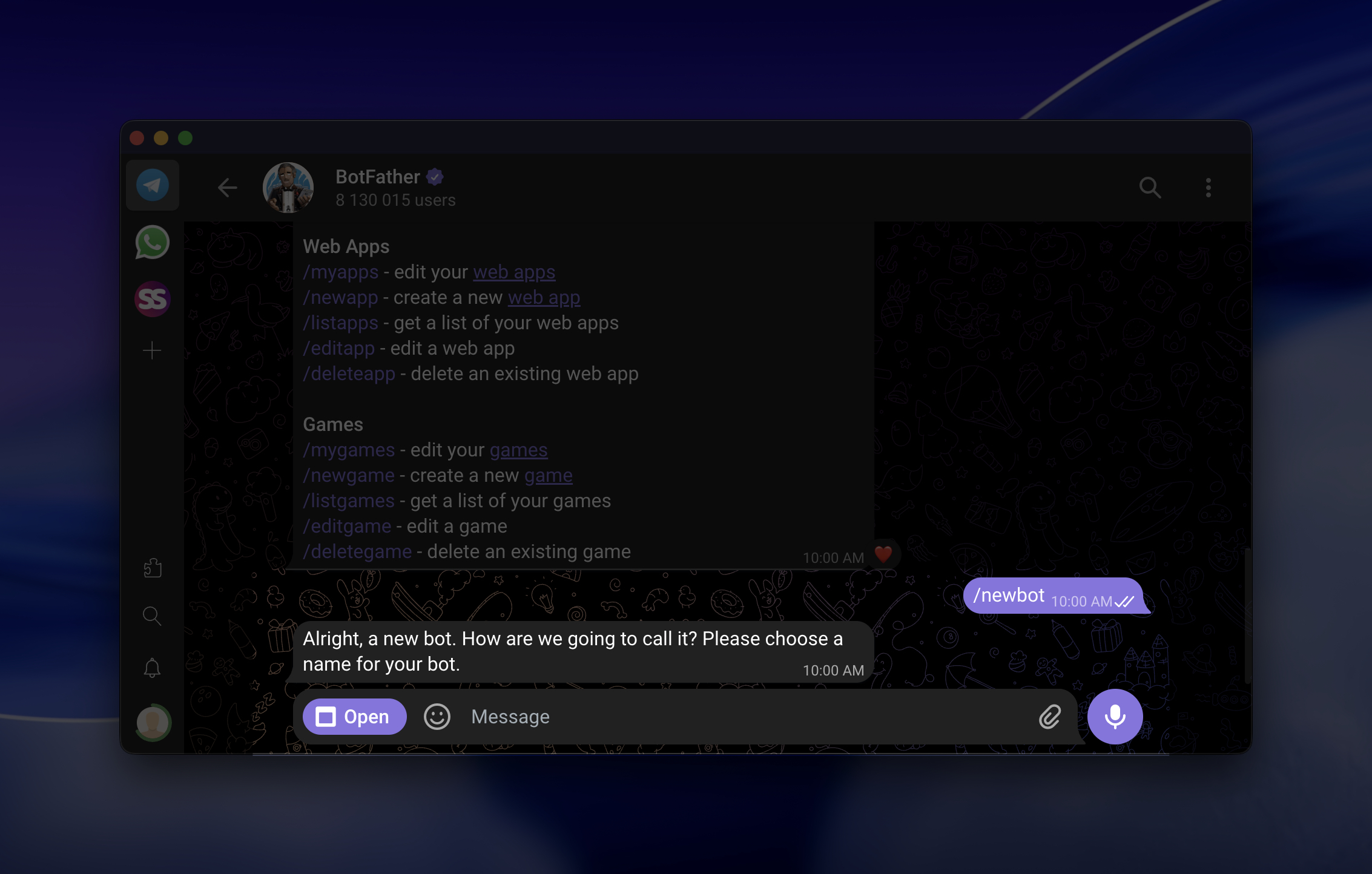
BotFather will walk you through the rest. You give the bot a name, then a username, and in return Telegram gives you a bot token that looks something like this:
123456789:ABCdefGhIJKlmNoPQRsTUVwxyZ
Save that token somewhere safe. You will need it shortly, and you should not paste it around carelessly.
Find Your Telegram Chat ID
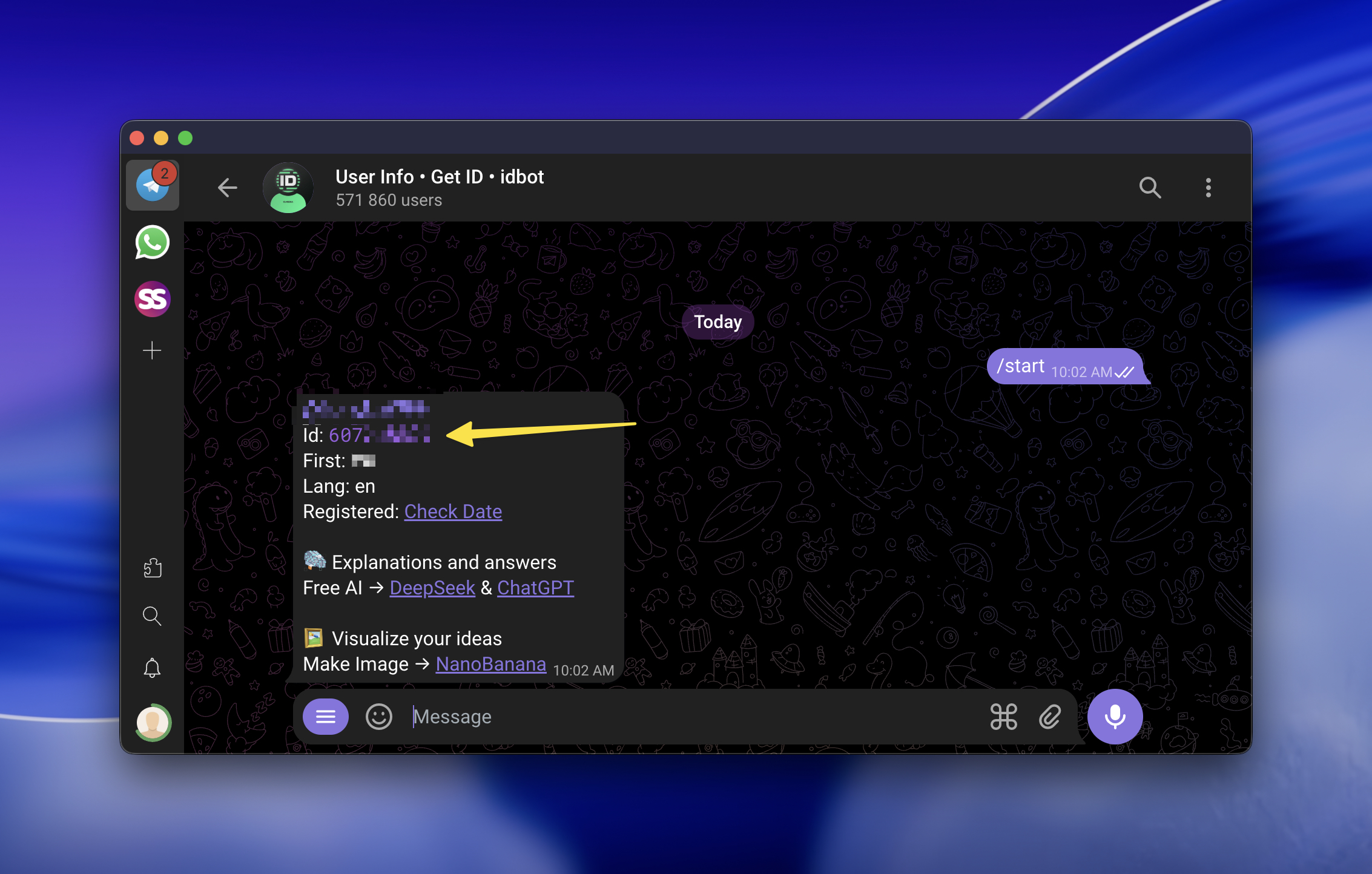
Next, search for @userinfobot in Telegram and start a conversation with it.
It replies with your numeric Telegram user ID. It will look something like this:
123456789
Save that too.
This is the ID Hermes uses to decide who is allowed to talk to your bot.
Put Credentials in .env
This is the part that is easy to get wrong.
Your Telegram bot token and allowed user list belong in:
~/.hermes/.env
They do not belong in config.yaml.
Open ~/.hermes/.env and add or update these values:
# Telegram bot token from @BotFather
BOT_TOKEN=your_bot_token_here
TELEGRAM_BOT_TOKEN=your_bot_token_here

# Your numeric Telegram user ID from @userinfobot
# For multiple users, separate with commas
TELEGRAM_ALLOWED_USERS=123456789
If you are the only one who should be able to talk to the bot, keep just your own ID there. If multiple people should have access, separate their IDs with commas.
Set Telegram Behavior in config.yaml
Once credentials are in place, configure how Hermes should behave on Telegram.
Open:
~/.hermes/config.yaml
Then add a telegram: section if it does not already exist:
telegram:
  require_mention: true
This setting controls whether Hermes only responds when explicitly mentioned.
With require_mention: true, you need to call the bot directly in the chat, usually by mentioning its username.
With false, Hermes responds to all messages in allowed chats, which is fine in some setups but not always what you want.
For most people, true is the safer default.
Optionally Add a Prefix
If you have multiple bots in the same chat, or just want cleaner control over what triggers Hermes, you can also define a prefix.
Example:
telegram:
  require_mention: true
  prefix: "/hermes"
That means users must type something like:
/hermes summarize this
It is optional, but useful if the bot shares a noisy group chat with other tools. If you want to go broader than Telegram later, this roundup of tools to build your own chatbots is a decent next stop.
Restart the Gateway
After editing .env and config.yaml, restart the Hermes gateway so it reloads the new settings:
hermes gateway restart
If you want to confirm it actually came back up, run:
hermes gateway status
That is usually enough. No drama required.
Test the Bot
Now open Telegram, find your bot by its username, and send it a message.
Something simple is fine:
Hello, are you there?
If everything is configured correctly, Hermes should reply.
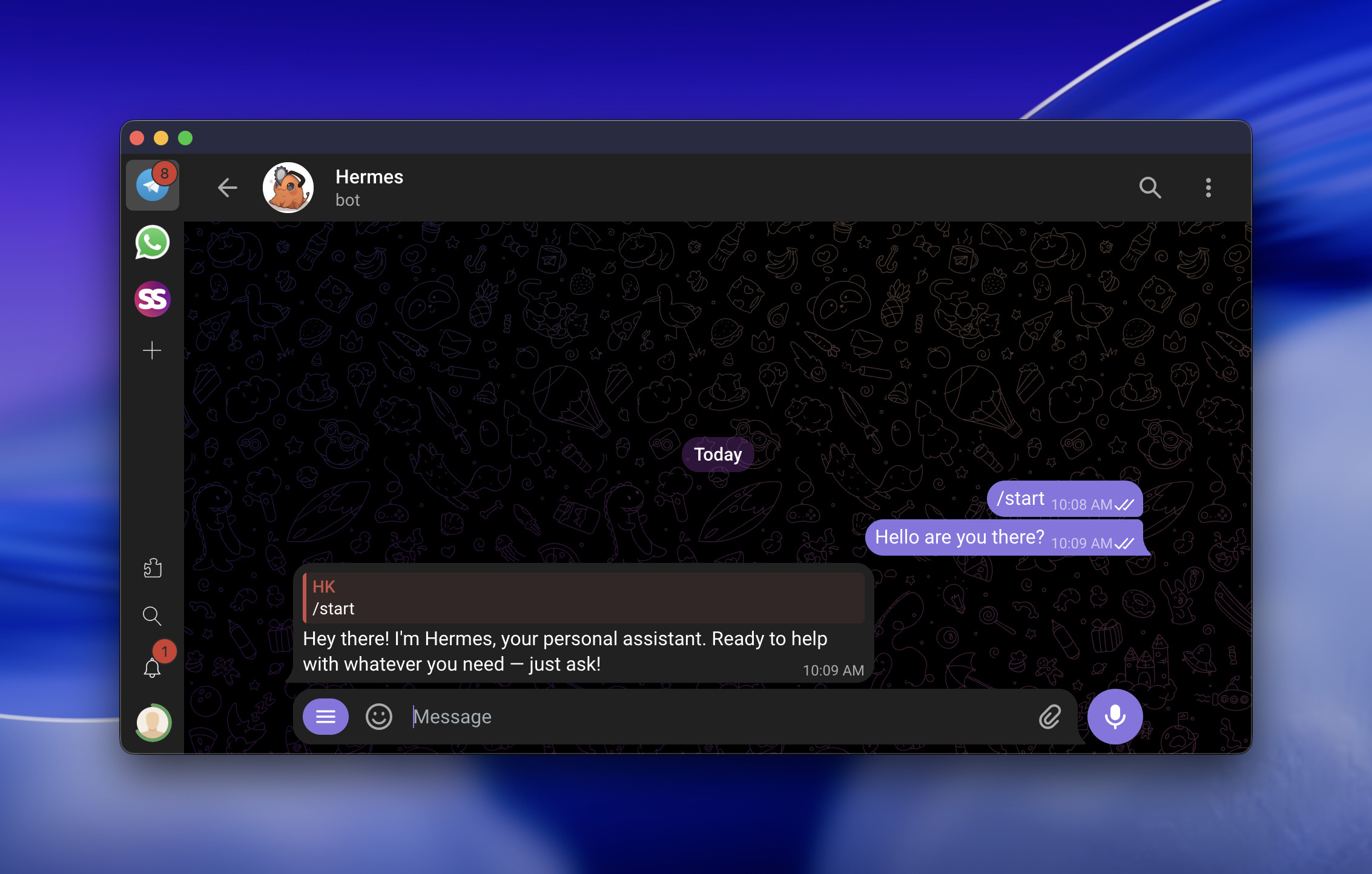
And that is the moment it stops feeling like a local experiment and starts feeling properly useful.
What Usually Goes Wrong
If Hermes does not respond, these are the first things I would check.
The Token Is Wrong
Double-check that the bot token in .env is correct.
One bad character is enough to make the whole thing quietly fail.
The Allowed User ID Is Wrong
Make sure TELEGRAM_ALLOWED_USERS contains the correct numeric Telegram user ID.
If the ID is wrong, Hermes may be working perfectly and still ignore you.
The Gateway Was Not Restarted
If you edited the config but did not restart the gateway, Hermes may still be running with the old settings.
The Wrong Bot Token Is Being Loaded
If you manage multiple Telegram bots, make sure Hermes is reading the token you think it is reading.
That one gets people more often than they admit.
Network or Firewall Issues
If outbound connections to Telegram are blocked, the bot will not behave no matter how correct your config is.
A Quick Security Note
Do not share your bot token publicly.
Treat it like a credential, because it is one.
Also, keep the TELEGRAM_ALLOWED_USERS list tight. That list is effectively your access control layer for Telegram chat access.
Final Thought
Once Hermes is connected to Telegram, the whole setup feels different.
It is still your local agent. It is still running on your machine. But now it is reachable from anywhere, which makes it much easier to use in real life instead of only when you happen to be sitting at your desk.
If you set it up cleanly, the whole thing is surprisingly painless.